How to Enlarge an Image Without Losing Quality (Free)
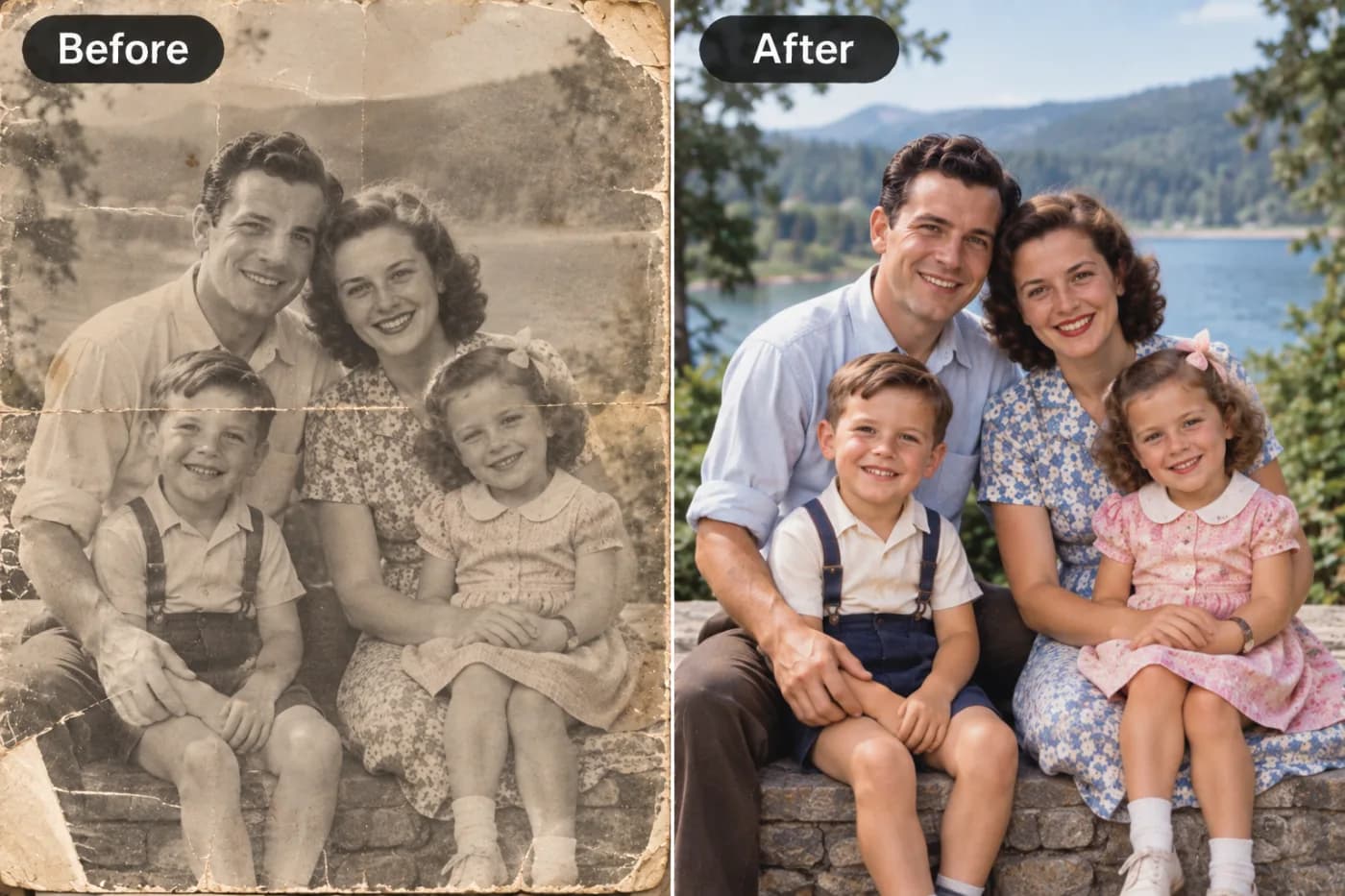
Everyone's hit this wall: you make an image bigger and it turns into a blurry, blocky mess. Here's how to actually enlarge without wrecking the quality — free.
You've got a small photo. You need it bigger — for a print, a banner, a full-screen post. So you stretch it… and it falls apart. Blurry edges, blocky artefacts, that unmistakable "enlarged too much" look. It's one of the most common image problems there is, and for a long time there was no clean fix without paid software.
Here's the thing most people don't realise: you can't add real detail by stretching — you have to *reconstruct* it. That's exactly what AI upscaling does, and you can do it free online without losing quality.
Why stretching an image destroys quality
An image is a grid of pixels. When you enlarge it normally, the software has to fill in new pixels between the old ones, and it does that by guessing — usually by blending neighbours together. Blend enough and you get softness; blend across sharp edges and you get that stair-stepped, jagged look. The original photo simply doesn't contain the extra detail a bigger size needs, so ordinary enlargement fakes it badly.
That's the key insight: the detail isn't there to begin with, so quality "loss" is really "detail that was never captured." Solving it means intelligently creating plausible new detail — not smearing old pixels wider.
How AI enlarges without the blur
An AI upscaler has been trained on millions of images, so it has a learned sense of what sharp edges, skin, hair, fabric, and text should look like. When it enlarges your photo, it uses that knowledge to reconstruct convincing detail instead of blindly averaging pixels. The result is a bigger image that actually looks sharp — the enlargement you always wanted.
Do it free in three clicks
Open the upscaler, upload your image, choose 2× or 4×, and download. No watermark, no sign-up needed to try it, no software. Works on JPG, PNG, and WebP.
Quick tip: always start from the highest-quality original you have. The more real detail the AI has to work with, the better the enlargement. A decent 800px photo upscales far better than a tiny, already-compressed 200px thumbnail.
Enlarge yours now — free and sharp
Stop stretching photos into blurry messes. Upload your image to the free upscaler and get a larger version that keeps its quality — no watermark, no cost.