How to Change Any Photo Background with AI (Step-by-Step)
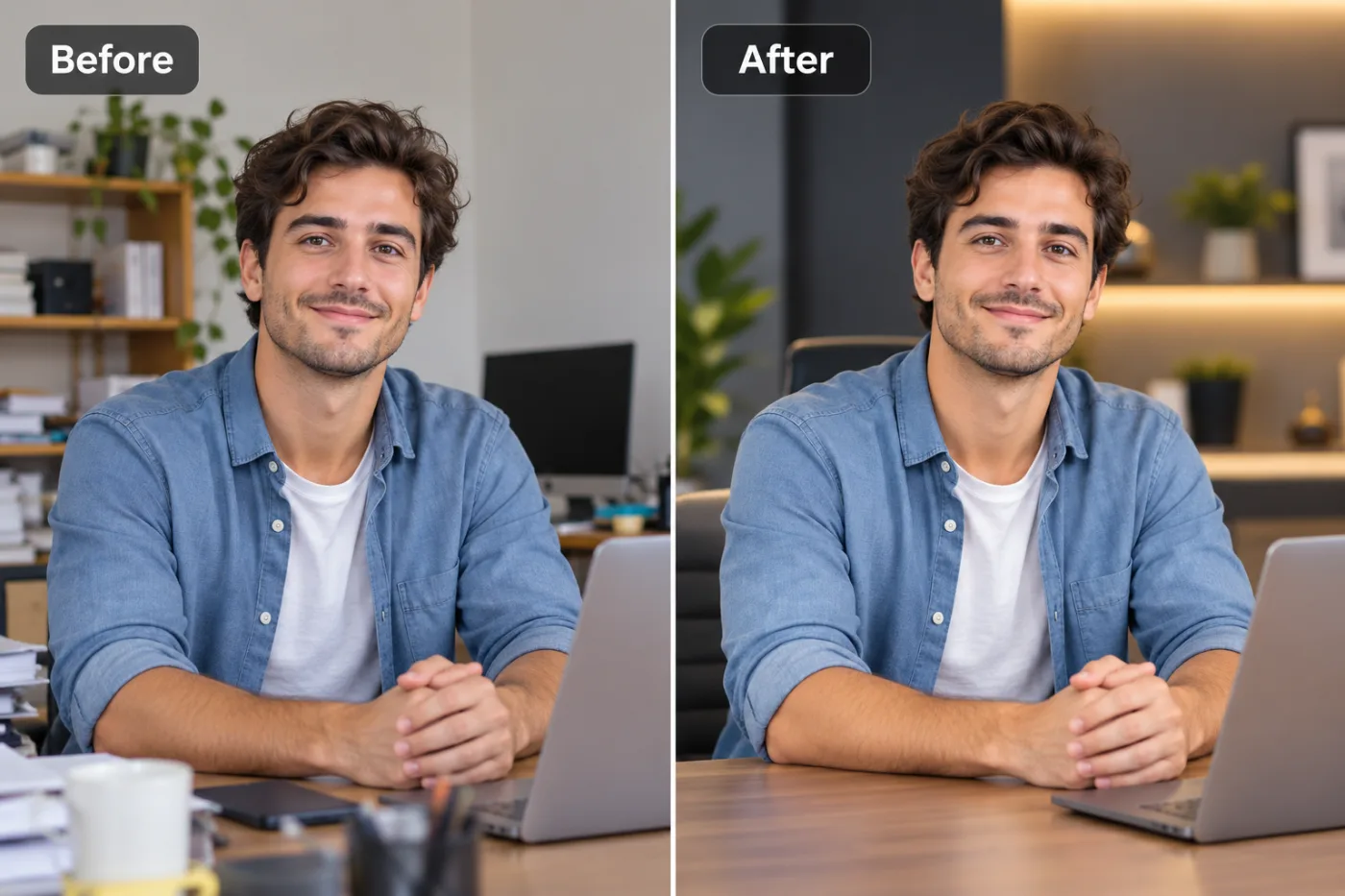
Changing a photo background with AI is now a 30-second task. Here is exactly how to do it with Pixel Shine's AI editor.
Learning how to change background AI-style used to require Photoshop skills, a steady hand, and about 20 minutes per image. Today, an AI background changer can swap the setting behind any photo in under 10 seconds — no manual selecting, no jagged edges, no design degree required. Whether you want to replace a cluttered home office with a clean studio backdrop, drop a product onto a pure white background, or transport your vacation selfie to a beach in Bali, the technology has finally caught up to what most people actually need.
In this step-by-step guide, we'll walk through exactly how to replace a photo background online for free using Pixel Shine, plus the pro tricks that separate a believable edit from an obviously fake one. You'll learn how to swap background photo free of charge, when to use a solid color versus a scene, and how to avoid the telltale signs of a rushed AI edit. By the end, you'll be able to change any background in less time than it takes to read this intro — and the basic tools won't cost you a cent.
Why AI Background Changing Beats the Old Manual Method
The traditional way to change a background meant zooming in to 400%, tracing around every strand of hair with the pen tool, and praying you didn't miss a spot. A skilled retoucher could spend 15 to 30 minutes on a single portrait. AI collapses that entire workflow into one click.
How the AI actually works: Modern background changers use a technique called semantic segmentation. The neural network was trained on millions of labeled images, so it instantly recognizes what's a person, a product, or a pet versus what's background. It builds a pixel-perfect mask — including those impossibly fine details like flyaway hair, glass edges, and fur — that used to take professionals ages to isolate.
Where it shines: The biggest wins are speed and consistency. If you're an e-commerce seller with 200 product shots, AI gives every image the same clean white background in minutes, not days. Studies of online retail show that listings with clean, consistent backgrounds convert up to 30% better than cluttered ones, simply because the product becomes the undisputed focus.
The free advantage: Historically, batch background editing meant a Photoshop subscription at around $23/month. Pixel Shine removes that barrier — you can change backgrounds without paying, without watermarks, and without even creating an account for basic edits.
Solid Color vs. Scene Replacement: Choosing the Right Background
Not every photo needs a tropical beach behind it. Picking the right type of replacement background is half the battle, and it depends entirely on your goal.
Solid color backgrounds (white, gray, black, or a brand color) are the workhorses of professional imagery. Use them for:
- Product photos destined for Amazon, Etsy, or Shopify (Amazon actually requires pure white, hex #FFFFFF, for main images)
- LinkedIn headshots and corporate profiles
- ID photos and passport pictures
- Any image where the subject must be the sole focus
Scene or environment replacement works when context adds value:
- Real estate agents placing a staged room behind a subject
- Travel and lifestyle content where a location tells a story
- Social media posts that need visual drama
- Marketing creatives where mood matters
A quick rule of thumb: the more a photo needs to look believable in its new setting, the more attention you should pay to lighting and shadow direction. A person lit from the left won't look right against a background lit from the right — your brain catches the mismatch instantly, even if you can't name why. For solid colors, this rarely matters. For realistic scene swaps, matching the light source is everything. When in doubt, start with a clean solid color; it's forgiving and always looks intentional.
Step-by-Step: How to Change a Photo Background with AI
Here's the exact process to replace a photo background online using Pixel Shine's AI editor. The whole thing takes under a minute.
Step 1 — Open the editor. Head to Pixel Shine and click into the AI Photo Editor. You don't need to sign in for basic edits, so there's zero friction to get started.
Step 2 — Upload your image. Drag and drop your photo, or click to browse your files. Pixel Shine accepts JPG, PNG, and WebP. For best results, use the highest-resolution version you have — more pixels give the AI more detail to work with around edges.
Step 3 — Let the AI isolate your subject. The moment your image loads, the background remover automatically detects and separates the main subject from the background. This happens in about 3 to 5 seconds. You'll see your subject on a transparent (checkerboard) canvas.
Step 4 — Choose your new background. Now decide: a solid color, an uploaded image, or a text-prompt-generated scene. For a solid color, pick from the swatches or enter a hex code. To place your subject in a new environment, upload a background image or describe the scene you want.
Step 5 — Fine-tune the edges. Zoom in and check the boundary between subject and background — especially around hair and semi-transparent areas. Use the refine or brush tool to add back or erase any pixels the AI got slightly wrong.
Step 6 — Match the lighting (for realism). If you're doing a scene swap, nudge the brightness and warmth of your subject to match the new background's light.
Step 7 — Download. Export as a PNG to preserve transparency, or JPG for a flattened image with your new background baked in. No watermark, no catch.
Pro Tips for Flawless AI Background Swaps
Tip 1 — Shoot with contrast in mind. If you're taking the photo yourself, place your subject against a background that contrasts with them. A person in a dark shirt in front of a light wall gives the AI a crisp, easy edge to detect. Contrast is your friend.
Tip 2 — Export as PNG, not JPG, when you need transparency. JPG doesn't support transparency and will fill your background with white. If you plan to place the cutout on another design later, always choose PNG.
Tip 3 — Watch the shadow direction. The fastest way to make a composite look fake is a shadow that falls the wrong way. Add a subtle shadow beneath your subject that matches the new background's light source. Even a soft, semi-transparent shadow anchors the subject and kills that 'floating' look.
Tip 4 — Zoom to 100% before downloading. Edges that look perfect at thumbnail size can reveal a faint halo or fringe up close. A 10-second zoom check saves you from re-uploading later.
Tip 5 — Desaturate slightly for realistic composites. When merging a subject into a new scene, reduce the subject's saturation by 5 to 10% so the color grading feels unified rather than pasted on.
Tip 6 — Batch similar photos. If you have multiple shots from the same session, process them back-to-back while your settings and eye are calibrated to that lighting.
Common Mistakes to Avoid
Mistake 1 — Ignoring color fringing. After a cutout, a thin rim of the old background color sometimes clings to the edges (a green fringe if you shot against grass, for example). Always inspect and defringe. This is the number one giveaway of an amateur edit.
Mistake 2 — Mismatched lighting. Dropping a subject lit by warm indoor light onto a cool, overcast outdoor scene creates an instant 'uncanny valley' effect. Match brightness and color temperature between subject and background.
Mistake 3 — Forgetting the shadow. A subject with no shadow floats unnaturally. Even product shots on white benefit from a soft contact shadow to ground them.
Mistake 4 — Using low-resolution source images. If you feed the AI a tiny, blurry photo, no background swap will save it. The edges will be mushy. Start with the sharpest, largest image you have — and if it's too small, upscale it first.
Mistake 5 — Over-relying on the auto-cut for tricky hair. Wispy hair and fur are where even great AI stumbles. Budget an extra 30 seconds with the refine brush for portraits with loose or curly hair.
Use Cases: Who Needs to Change Backgrounds and Why
E-commerce sellers are the heaviest users. Marketplace rules demand clean white backgrounds, and consistency across a catalog builds trust. A seller listing 50 products can standardize all of them in an afternoon instead of paying a studio hundreds of dollars.
Job seekers and professionals swap distracting home backgrounds for clean, neutral ones on their LinkedIn and resume headshots. A tidy background reads as more polished and put-together — recruiters form impressions in seconds.
Real estate agents place agents or staged elements into listing photos, or clean up the frame around a property shot.
Content creators and social media managers use background swaps for thumbnails, promotional graphics, and eye-catching posts. A dramatic backdrop can measurably lift click-through rates on YouTube thumbnails.
Small business owners create professional marketing materials without hiring a designer — flyers, ads, and web banners that look agency-made.
Everyday users simply want a nicer photo: removing a photobomber's background, cleaning up a family portrait, or making a fun composite. The common thread? All of them save time and money, and with Pixel Shine's pay-as-you-go credits, none of them need a subscription to do it.
Real-World Results: What Users Actually Achieve
Consider a small handmade jewelry seller who was photographing rings on her kitchen table. Her listings blended into the wood grain and looked amateurish. After swapping every background to clean white, her click-through rate on marketplace search results roughly doubled — because her products finally popped against the neutral field, exactly like the big brands she was competing with.
Or take a freelance consultant refreshing his personal brand. His only decent photo had a cluttered bookshelf behind him. Ten seconds in the AI editor gave him a soft gray studio background, and his new LinkedIn headshot looked like it came from a professional shoot that would've cost $150.
Then there's the parent who captured a perfect photo of their kid's soccer goal — ruined by a trash can in the corner. A quick background swap put the child against a clean stadium blur, turning a snapshot into a frame-worthy print.
The pattern is consistent: a task that once required money, software, and skill now takes seconds and a couple of credits. That accessibility is the real revolution.
Frequently Asked Questions
Can I change a photo background for free?Pixel Shine lets you change backgrounds for 2 credits per edit, with no subscription and no watermarks on your downloads.
What's the best file format to save my edited image?Use PNG if you need a transparent background (for placing your subject in other designs). Use JPG if you've added a solid or scene background and want a smaller file size.
Will the AI handle hair and fur correctly?Modern AI handles most hair well, but very wispy or curly hair can need a few seconds of manual refinement with the edge brush. High-resolution source images dramatically improve hair accuracy.
Can I replace the background with a specific scene I imagine?Yes. Pixel Shine's editor supports text-prompt background generation, so you can describe a scene — like 'sunset beach' or 'modern office' — and have the AI create it behind your subject.
Do I need Photoshop skills to do this?No. The entire point of an AI background changer is that it removes the technical barrier. If you can upload a file and click a color, you can do this.
How do I make a composite look realistic instead of pasted on?Match the lighting direction and color temperature between your subject and the new background, add a subtle shadow, and slightly reduce your subject's saturation to unify the color grade.
Is there a limit to how many images I can edit?Basic tools like Normal Upscale are unlimited and free. The AI background swap uses credits (2 per edit), with no subscription.
Can I use these edited images commercially?Yes, images you edit and download are yours to use for your business, listings, and marketing.
Key Takeaways
Changing a photo background with AI has gone from a specialist skill to a 10-second task anyone can do. The keys to great results are simple: start with a high-resolution image, choose the right background type for your goal, match your lighting for realistic composites, and always zoom in to check your edges before downloading.
Whether you're an e-commerce seller chasing higher conversions, a professional polishing a headshot, or just someone who wants a cleaner photo, an AI background changer puts studio-quality editing in your hands — for free.
Ready to try it yourself? Open Pixel Shine's editor at Pixel Shine, upload any photo, and swap the background in seconds. No subscription, no watermark, no software to learn. Change your first background and see the difference for yourself.