How to Upscale an Image Without Losing Quality (2025 Guide)
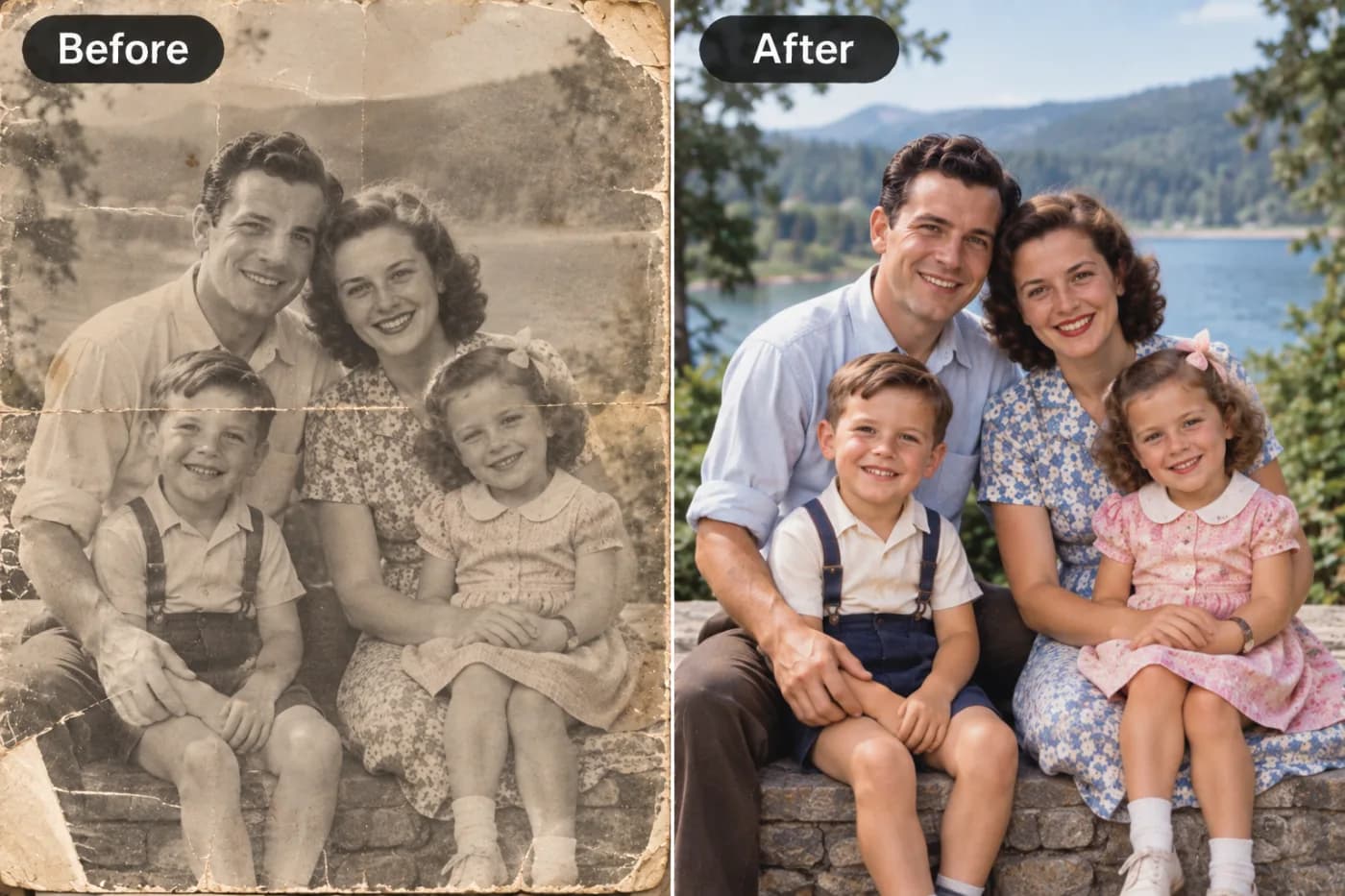
Every pixel you stretch the traditional way makes your image blurrier. AI upscaling predicts real detail — here's how to do it right.
Figuring out how to upscale an image without losing quality used to be genuinely impossible — enlarging a photo always meant trading sharpness for size, ending up with a blurry, blocky mess. In 2025, AI changed that completely. A modern image upscaler online doesn't just stretch pixels; it intelligently reconstructs detail, so you can increase image resolution while the photo actually looks sharper, not softer. This guide explains exactly how to upscale a photo online free without the quality loss that plagued the old methods.
The reason old upscaling failed comes down to math: basic resizing averages existing pixels to fill in new ones, which inevitably blurs the image. AI upscaling flips the approach — instead of averaging, it predicts what the missing high-resolution detail should be, based on training across millions of images. The result is a larger photo with crisp edges, recovered texture, and reduced noise. And you don't need to pay for it: Pixel Shine offers a free, unlimited Normal upscale with no sign-in required, so you can enlarge as many images as you want without quality loss or cost. Here's the complete 2025 playbook.
Why Traditional Resizing Destroys Quality
To upscale without losing quality, you first need to understand why the old way loses it in the first place.
Interpolation is educated guessing. When you enlarge an image in a basic editor, the software uses interpolation — it looks at neighboring pixels and mathematically averages them to create the new pixels in between. Methods like bilinear and bicubic interpolation are decades old and built into virtually every image tool.
Averaging can't create detail. The problem is fundamental: averaging existing pixels smooths them together. It can make an image bigger, but it physically cannot invent detail that wasn't there. So edges soften, fine textures smear, and the whole image takes on a blurry, out-of-focus quality.
Small originals suffer most. The more you enlarge with interpolation, the worse it gets. Doubling might look tolerable; quadrupling a small image produces mush. That's why blowing up a thumbnail has always looked terrible.
Compression artifacts get amplified. Interpolation doesn't clean up JPEG noise and blocky artifacts — it enlarges them right along with everything else, making flaws more visible.
This is the ceiling that basic resizing hits every time. No amount of sharpening filters truly fixes it, because you can't sharpen detail that was never generated. Understanding this limitation is exactly why AI upscaling feels like such a breakthrough — it attacks the problem from a completely different angle.
How AI Upscales Without Quality Loss
AI upscaling succeeds precisely where interpolation fails, and the difference in approach is the whole story.
It's trained to recognize real detail. AI upscaling models learn from millions of image pairs — the same photo in low and high resolution. Through that training, the model builds an internal understanding of what sharp detail actually looks like: how skin texture, hair strands, brick, fabric weaves, foliage, and text edges appear at high resolution.
It predicts, it doesn't average. When you feed it a low-resolution image, the AI doesn't blend neighboring pixels. It predicts what the missing high-resolution detail should be and reconstructs it. This is why edges stay crisp and textures stay believable even at 4x enlargement.
It cleans as it enlarges. Because the model understands what a clean image looks like, it reduces JPEG noise and smooths away compression artifacts during the upscale — the opposite of interpolation, which amplifies them. Your result looks not just bigger but genuinely cleaner.
It handles faces and text especially well. These high-detail areas, where interpolation struggles most, are where AI shines, reconstructing sharp features and readable text.
The practical upshot: with AI, "upscaling without losing quality" isn't just possible — the image frequently comes out looking better than the original. That's the leap that makes 2025 upscaling worth doing.
Step-by-Step: Upscale Without Losing Quality
Here's the exact process to enlarge a photo with zero quality loss using Pixel Shine's free upscaler.
Step 1 — Open the upscaler. Go to Pixel Shine and open the AI Upscaler tool. Normal upscale is free, unlimited, and needs no sign-in, so you can start immediately.
Step 2 — Upload the best version you have. Drag and drop or browse to your image. Always start from the highest-quality source available — the more real detail the AI has to work with, the better the reconstruction.
Step 3 — Pick your target multiplier. Choose 2x or 4x based on how large you need the final image. If your source is already fairly big, 2x may be enough; for small originals, go 4x to reach a usable resolution.
Step 4 — Run the upscale. Start the process. The AI analyzes your image, reconstructs high-resolution detail, cleans up noise, and rebuilds it at the larger size — usually in just a few seconds.
Step 5 — Inspect at 100% zoom. Review the result at full size, not the fit-to-screen preview. Zoom into edges, faces, and any text to confirm the detail is crisp and the enlargement looks clean.
Step 6 — Download. Save your enlarged, watermark-free image. It's ready to post, print, or upload.
Step 7 — Use Pro for critical work. If the source was very low quality or you need maximum detail for a large print, run it through Pro AI upscale using credits for the best possible reconstruction.
Pro Tips for Zero Quality Loss
These techniques ensure you get the sharpest possible enlargement every time.
1. Always start from the highest-resolution source. AI reconstructs detail, but it can't recover what was never captured. A cleaner, larger original always yields a better result than a heavily-compressed thumbnail.
2. Match the multiplier to your real target. Don't reflexively pick 4x. Choose the level that gets you to the exact size you need. Over-enlarging can introduce an artificial, over-processed look.
3. Edit first, upscale last. Do all your cropping, color work, and retouching before upscaling. Upscaling the finished image preserves the most detail and avoids re-processing.
4. Upscale once, not repeatedly. Running an image through multiple upscale passes stacks artifacts and degrades quality. Go straight to your target size in a single pass.
5. Use Pro mode for faces, text, and prints. These high-stakes, high-detail cases benefit most from the advanced Pro AI model's finer reconstruction.
6. Verify at full resolution. The fit-to-screen preview hides flaws. Always check at 100% zoom to confirm genuine sharpness before you commit.
Common Mistakes to Avoid
These missteps quietly reintroduce the quality loss you're trying to avoid.
Starting from a tiny, degraded source. Expecting a 150px image to upscale to a flawless poster ignores the limits of even the best AI. Begin with the largest, cleanest source you can find.
Upscaling before you finish editing. Enlarging first, then heavily cropping or adjusting, wastes reconstructed detail and often forces a second upscale that compounds artifacts. Edit first, always.
Stacking multiple upscale passes. Feeding an already-upscaled image back through the upscaler repeatedly degrades it. Reach your target size in one pass.
Over-multiplying for no reason. Jumping to 4x when 2x hits your target can make images look plasticky and over-processed. Use only the multiplier you actually need.
Judging by the preview alone. The fit-to-screen view flatters everything. Skipping the 100% zoom check means you might download an image that looks soft at full size. And remember — with Pixel Shine's free unlimited Normal upscale, there's no cost to re-run with different settings until it's right.
AI Upscaling vs. Other Methods Compared
How does AI stack up against the alternatives people reach for? Here's the honest breakdown.
vs. basic editor resizing. Photoshop, GIMP, and phone editors use interpolation, which blurs as it enlarges. AI upscaling reconstructs real detail instead of averaging, so it wins decisively on quality for any meaningful enlargement.
vs. sharpening filters. Some people try to "fix" a blurry enlargement by cranking sharpening. This only exaggerates existing edges and noise — it can't add detail that isn't there, and often makes images look harsh and crunchy. AI genuinely rebuilds detail rather than faking it.
vs. expensive desktop upscaling software. Dedicated paid upscaling apps exist and work well, but they cost money and require installation. Pixel Shine delivers comparable everyday results online with a free, unlimited Normal tier and no sign-in — plus a Pro tier for demanding work.
vs. re-shooting or sourcing a bigger original. When possible, getting a higher-resolution original is always ideal. But when the small image is all you have — an old photo, a screenshot, a downloaded thumbnail — AI upscaling is the only practical way to reach a usable size without quality loss. For most real situations, free AI upscaling is the fastest, cheapest, highest-quality answer available in 2025.
Real-World Results: When It Matters Most
Quality-preserving upscaling proves its worth in specific, common situations.
Rescuing a photo that came out too small. A great shot saved at low resolution, or exported too small, becomes usable again — sharp enough to print, post, or feature.
Preparing images for print. Print demands far more resolution than screens. A photo that looks fine online can print soft; upscaling brings it to print-ready sharpness without the blur of basic resizing.
Cleaning up screenshots and downloads. Screenshots and web-downloaded images are often low-resolution. Upscaling makes them crisp enough for presentations, documents, and reuse.
Enhancing product and listing photos. Sellers upscale photos so shoppers can zoom in on sharp detail, which builds buying confidence.
Restoring old digital photos. Early digital cameras and phones produced small, noisy images. AI upscaling sharpens and cleans them for reprinting or sharing.
In each scenario, the shared benefit is clear: the image reaches the size you need while staying sharp — and with Pixel Shine's free unlimited tier, it costs nothing to do.
Understanding Resolution and DPI
A quick grasp of resolution concepts helps you upscale to exactly what you need, especially for print.
Pixels are the raw material. Image resolution is measured in pixels — width by height. A 4000x3000 image has 12 million pixels total. Upscaling increases these pixel dimensions, giving you more raw detail to work with.
DPI matters for print. DPI (dots per inch) determines how those pixels map to physical size on paper. Print typically wants around 300 DPI for sharp results. A 1000px-wide image at 300 DPI prints only about 3.3 inches wide before it looks soft — but upscale it to 4000px and it prints cleanly at over 13 inches wide.
Screens are more forgiving. Web and social displays generally need far fewer pixels than print, which is why an image can look fine online yet print poorly.
The takeaway: if you're printing, calculate the pixels you need (target inches multiplied by 300) and upscale to hit it. For web use, moderate upscaling is usually plenty. Pixel Shine's multipliers make reaching either target simple.
Frequently Asked Questions
Can you really upscale an image without losing quality?Yes, with AI. Unlike basic resizing that blurs images, AI upscaling reconstructs real detail, so the enlarged image stays sharp — and often looks cleaner than the original. Pixel Shine's Normal upscale does this free and unlimited.
Is upscaling a photo online free?Yes. Pixel Shine's Normal upscale is completely free, unlimited, and requires no sign-in. Only the advanced Pro AI upscale uses credits.
How much can I enlarge an image?Commonly 2x or 4x, which doubles or quadruples width and height. A 4x upscale turns a 1000px image into 4000px. Results are best when the source isn't extremely tiny to begin with.
Why does my image look blurry after resizing in a normal editor?Because basic editors use interpolation, which averages pixels and can't create new detail. AI upscaling predicts and rebuilds detail instead, avoiding that blur.
Will AI upscaling fix a blurry photo?It significantly helps with soft or mildly blurry photos by reconstructing edges and detail. Severe motion blur can't be fully fixed, but many "almost sharp" photos come out looking crisp.
Do I need to download software?No. Pixel Shine runs online on desktop and mobile — nothing to install.
Is there a watermark?No. Upscaled images download watermark-free.
What's the best resolution for printing?Around 300 DPI. Multiply your target print size in inches by 300 to find the pixels you need, then upscale to reach it.
Key Takeaways
Upscaling an image without losing quality is finally realistic in 2025, thanks to AI. Where basic resizing averages pixels and blurs the result, AI upscaling predicts and reconstructs genuine detail — keeping edges crisp, recovering texture, and cleaning up noise so your enlarged image looks as good or better than the original.
The winning workflow: start from the highest-quality source you have, edit first and upscale last, match the multiplier to your real target size, upscale in a single pass, and verify at 100% zoom. Reserve Pro AI upscale for faces, text, and large prints where every detail counts.
And it doesn't have to cost a thing. Pixel Shine's Normal upscale is free, unlimited, and needs no sign-in. Head to Pixel Shine, upload your photo, and enlarge it to crisp high resolution without the quality loss. Upscale Your Image Free →