How to Edit Photos with AI Text Prompts (No Photoshop Needed)
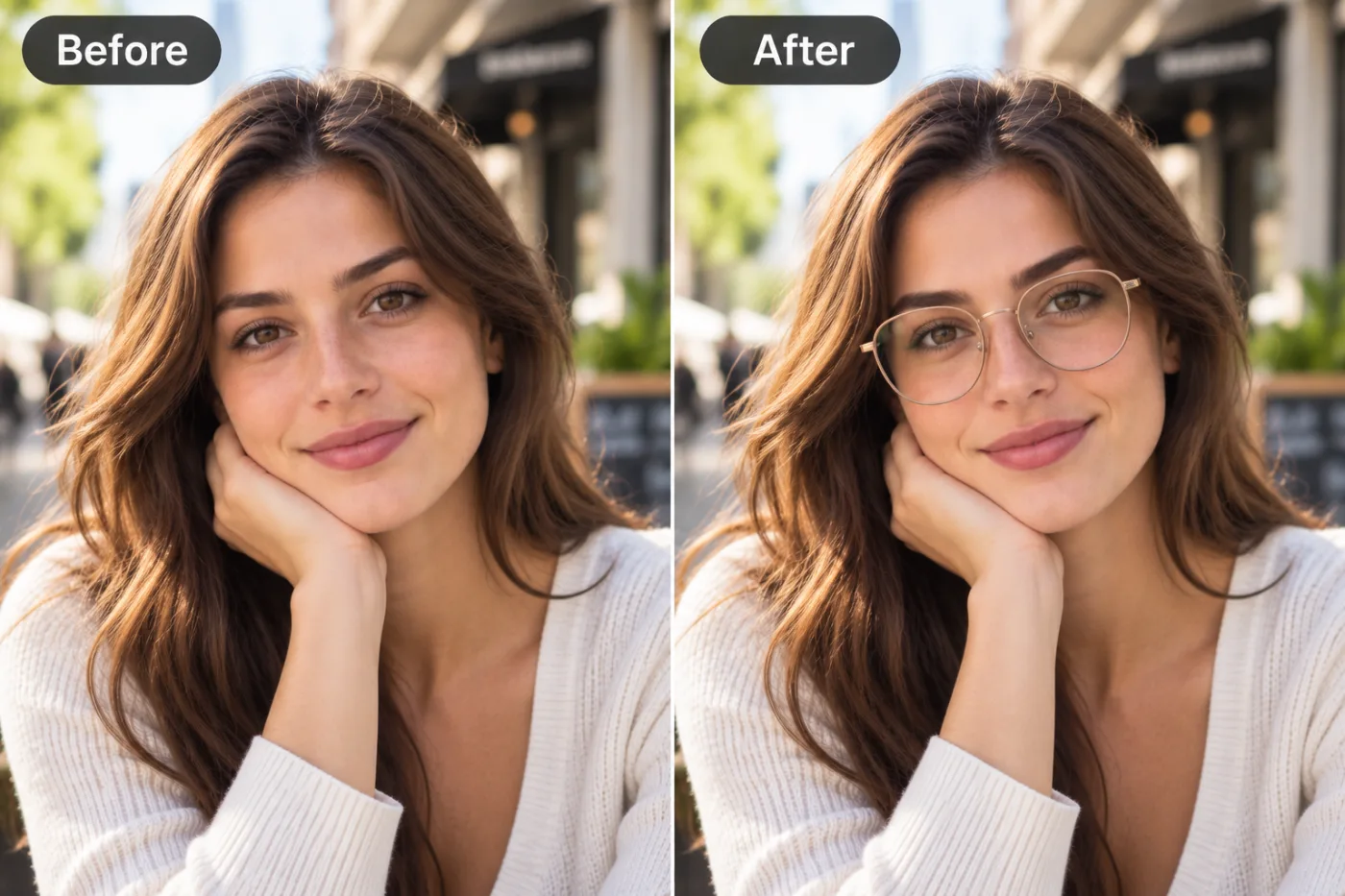
Describing what you want to change is faster than doing it manually. AI photo editing lets you type instructions like a director and get professional results instantly.
Learning how to edit photos with AI text prompts is like gaining a personal photo editor who understands plain English. Instead of hunting through menus, masking layers, and watching Photoshop tutorials, you simply type what you want — "remove the person in the background," "change the sky to sunset," "make it look like a professional studio shot" — and the AI photo editor does it. This is text-to-image editing, and it has made sophisticated photo editing online accessible to absolutely everyone, no design experience required.
The shift here is enormous. Traditional editing tools put a wall of technical skill between you and your idea. You had to know which tool did what, how layers and masks worked, and how to blend edits seamlessly. AI image editing online removes that wall entirely — you describe the outcome, and the model handles the how. Pixel Shine puts this power online with an AI photo editor: there's no watermark on the basics, and you don't need to install a thing. This guide shows you exactly how prompt-based editing works, how to write prompts that get great results, and what to try first.
How Text-Prompt Photo Editing Works
Prompt-based editing feels like magic, but the concept underneath is straightforward — and knowing it helps you write better instructions.
The AI understands both images and language. These models are trained on huge datasets that pair images with text descriptions. Over that training, the AI learns to connect words like "sunset," "blurred background," or "vintage film look" with the visual changes they represent. So when you type an instruction, it knows what that should look like in pixels.
It edits intelligently, not blindly. Ask it to "remove the trash can on the left," and the AI identifies the object, removes it, and fills the gap with matching background — a task that used to require careful manual cloning. Ask to "change the shirt to blue," and it recognizes the shirt and recolors just that region, leaving the rest untouched.
It generates new detail when needed. For edits like extending a background or adding an element, the AI generates plausible new pixels that blend with the original, rather than just copying and pasting.
You stay in control through iteration. If the first result isn't quite right, you refine your prompt and try again. This back-and-forth is how you steer the AI toward exactly what you pictured. The better and more specific your description, the closer the first result lands — which is why prompt-writing is the real skill here.
What You Can Do With AI Photo Editing
The range of edits you can make with plain-language prompts is genuinely wide. Here are the categories people use most.
Object removal. Delete photobombers, power lines, litter, blemishes, or unwanted objects — the AI fills the space naturally. This alone replaces hours of manual retouching.
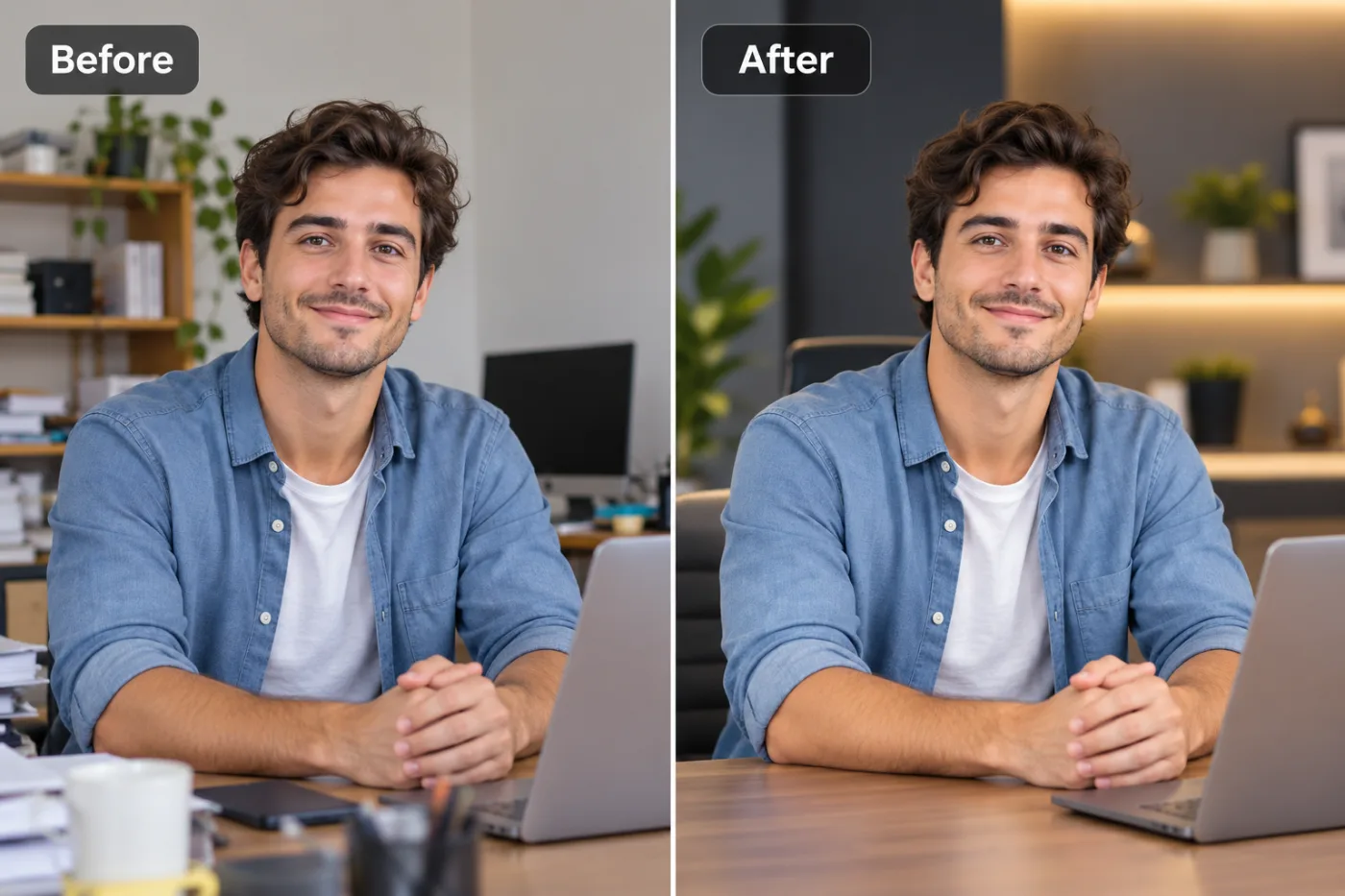
Background changes. Swap a cluttered background for a clean studio backdrop, a scenic location, or a solid color. Great for portraits, product shots, and professional profiles.
Color and lighting adjustments. Ask to brighten a dim photo, warm up the tones, change a shirt's color, or turn a daytime sky into a dramatic sunset — all with a sentence.
Style transformations. Give a photo a cinematic look, a vintage film feel, or a specific mood without knowing a single slider or filter setting.
Adding elements. Introduce objects, effects, or scenery that weren't in the original shot, blended in convincingly.
Retouching and enhancement. Smooth skin, remove distractions, and polish portraits with simple requests instead of manual brushwork.
Because Pixel Shine bundles this text-prompt editor alongside a background remover, upscaler, headshot generator, and creative effects, you can chain edits together — remove a background, restyle the scene, then upscale the result — all in one place without switching tools.
Step-by-Step: Edit a Photo With AI Prompts
Here's how to make your first prompt-based edit with Pixel Shine. It's genuinely as easy as describing what you want.
Step 1 — Open the AI Photo Editor. Go to Pixel Shine and open the AI Editor tool.
Step 2 — Upload your photo. Drag and drop or browse to add the image you want to edit. Use a good-quality source for the cleanest results.
Step 3 — Type your prompt. Describe the change you want in plain, specific language. Instead of "make it better," try "remove the person standing behind the subject and blur the background slightly." Specific prompts get specific results.
Step 4 — Generate the edit. Submit your prompt and let the AI work. In seconds, it applies the change and shows you the result.
Step 5 — Review and refine. Look closely at the edit. If it's not quite right, adjust your wording — add detail, clarify the location of an object, or specify the exact color or style — and generate again. Iteration is normal and expected.
Step 6 — Stack edits if needed. Want multiple changes? Apply them one at a time — remove an object, then change the background, then adjust the lighting — refining as you go.
Step 7 — Upscale and download. For a crisp final image, run it through Pixel Shine's upscaler, then download your edited photo watermark-free, ready to share or publish.
Pro Tips: Writing Prompts That Work
The quality of your edit depends heavily on the quality of your prompt. These tips get you great results faster.
1. Be specific about what and where. "Remove the red car on the right side of the street" beats "remove the car." Pinpointing the object and its location helps the AI target the right thing.
2. Describe the desired outcome, not the technique. You don't need to say "use a layer mask." Just say "replace the background with a plain white studio backdrop." Focus on the result.
3. Edit one change at a time. Complex multi-part requests can confuse the model. Apply changes sequentially — remove, then recolor, then relight — for cleaner, more controllable results.
4. Use descriptive style words. Terms like "cinematic," "soft natural light," "vintage film," or "clean professional look" steer the mood effectively because the AI has learned what they mean.
5. Iterate without frustration. If the first result misses, tweak your wording rather than starting over. Small prompt adjustments often fix the issue.
6. Start from a good source image. AI editing works best on clear, reasonably high-resolution photos. A sharp input gives the AI more to work with and produces a more believable edit.
Common Mistakes to Avoid
Avoid these pitfalls to get clean, professional-looking edits every time.
Writing vague prompts. "Fix this photo" gives the AI nothing to work with. Describe the specific change you want and where. Precision is the single biggest factor in edit quality.
Cramming too much into one prompt. Requesting five changes at once often produces a muddled result. Break complex edits into a sequence of single, clear instructions.
Starting from a low-quality image. A tiny, blurry source limits how good any edit can look. Begin with the best-resolution photo you have, and upscale afterward if needed.
Giving up after one try. The first result is a starting point, not the final word. Refining your prompt is part of the process, not a sign something's broken.
Expecting impossible edits. AI is powerful but not omniscient. Wildly unrealistic requests may not land perfectly. Realistic, well-described edits produce the most convincing results — and there's no watermark on your Pixel Shine exports, so you can iterate freely.
AI Prompt Editing vs. Photoshop
How does typing a prompt compare to traditional editing software? Each has its place, but the gap is closing fast.
Learning curve. Photoshop is famously deep — mastering layers, masks, blend modes, and the toolset takes months or years. AI prompt editing has essentially zero learning curve: if you can describe what you want, you can do it. This alone opens editing to millions of people who'd never touch pro software.
Speed. A background swap or object removal that might take 10 to 20 minutes of careful manual work in Photoshop happens in seconds with a prompt. For common edits, AI is dramatically faster.
Cost. Professional editing suites carry ongoing subscription fees. Pixel Shine's editor has no watermark on basics and no monthly commitment for everyday edits.
Precision control. This is where traditional tools still lead. For pixel-perfect, highly technical retouching where a professional needs exact manual control, Photoshop remains the reference tool. But for the 90% of edits most people actually need — removing objects, changing backgrounds, adjusting color and style — AI prompt editing is faster, easier, and cheaper. For most users, the AI approach isn't just a substitute; it's the better everyday choice.
Who Uses AI Photo Editing (Real Scenarios)
Prompt-based editing has found a home across a surprising range of everyday uses.
Social media creators clean up photos, swap backgrounds, and apply styles to keep their feeds polished — without hiring an editor or learning complex software.
Small business owners produce professional-looking product and promotional images on their own, removing clutter and setting products against clean backdrops for their websites and ads.
Real estate agents tidy up listing photos — removing stray objects, brightening rooms, and enhancing curb appeal — to make properties more appealing.
Job seekers refine profile and portfolio photos, cleaning up backgrounds and lighting for a more professional presentation.
Marketers and freelancers create ad creatives and social graphics quickly, iterating on visuals with prompts instead of waiting on a design team.
Everyday users fix vacation photos, remove photobombers, and touch up portraits for personal sharing. In every case, the appeal is the same: professional-grade edits without professional-grade skills, time, or cost.
Getting Creative With AI Effects
Beyond practical edits, prompt-based AI opens the door to genuinely fun and creative transformations — and Pixel Shine leans into this with dedicated creative effects.
Turn yourself into a collectible. Popular effects like Funko Pop-style figures transform your photo into a stylized character, perfect for playful profile pictures and gifts.
Try artistic styles. Anime, claymation, and other artistic transformations reimagine your photo in a completely new visual language with a single click or prompt.
Cultural and themed looks. Effects like saree transformations and other themed styles let you reimagine portraits in creative, shareable ways.
These creative effects live alongside the practical text-prompt editor on the same platform, so you can move fluidly between serious edits and playful ones. Want a professional headshot and a fun anime version of the same photo? Both are a few clicks apart on Pixel Shine. This blend of practical and creative — all watermark-free, at 2 credits an edit — is what makes prompt-based AI editing genuinely enjoyable rather than just useful.
Frequently Asked Questions
Do I need Photoshop or any software to edit photos with AI?No. Pixel Shine's editor runs entirely online. You just upload a photo and type what you want changed — nothing to install and no design experience needed.
Is the AI photo editor free?It runs on credits: each prompt edit costs 2, with no subscription and no watermark.
What kind of edits can I make with text prompts?Object removal, background changes, color and lighting adjustments, style transformations, adding elements, and retouching — all described in plain language.
How do I write a good prompt?Be specific about what you want and where. "Remove the person on the left and blur the background" works far better than "fix this." Describe the outcome, not the technique.
Can I make multiple edits to one photo?Yes. Apply changes one at a time — remove an object, then change the background, then adjust lighting — refining as you go for the cleanest result.
Will the edits look realistic?Generally yes, especially with clear prompts and a good-quality source image. If a result isn't quite right, refine your prompt and regenerate.
Is there a watermark on my edited photos?No. Your edits download watermark-free.
Can I make my edited photo higher resolution?Yes. Run it through Pixel Shine's built-in upscaler to increase sharpness and resolution before downloading.
Key Takeaways
Editing photos with AI text prompts removes the biggest barrier in photo editing: technical skill. Instead of mastering layers and masks, you describe what you want in plain English, and the AI photo editor makes it happen — removing objects, swapping backgrounds, adjusting color and lighting, and applying styles in seconds.
To get the best results, write specific prompts that name what and where, describe outcomes rather than techniques, make one change at a time, and iterate freely until it's right. Start from a good-quality source image and upscale the final result for maximum sharpness.
No Photoshop, no subscription, no learning curve. Pixel Shine's editor is free to try, watermark-free on the basics, and sits alongside upscaling, background removal, headshots, and fun creative effects all in one place. Head to Pixel Shine and describe your first edit — you'll be amazed how easy it is. Try the AI Editor Free →