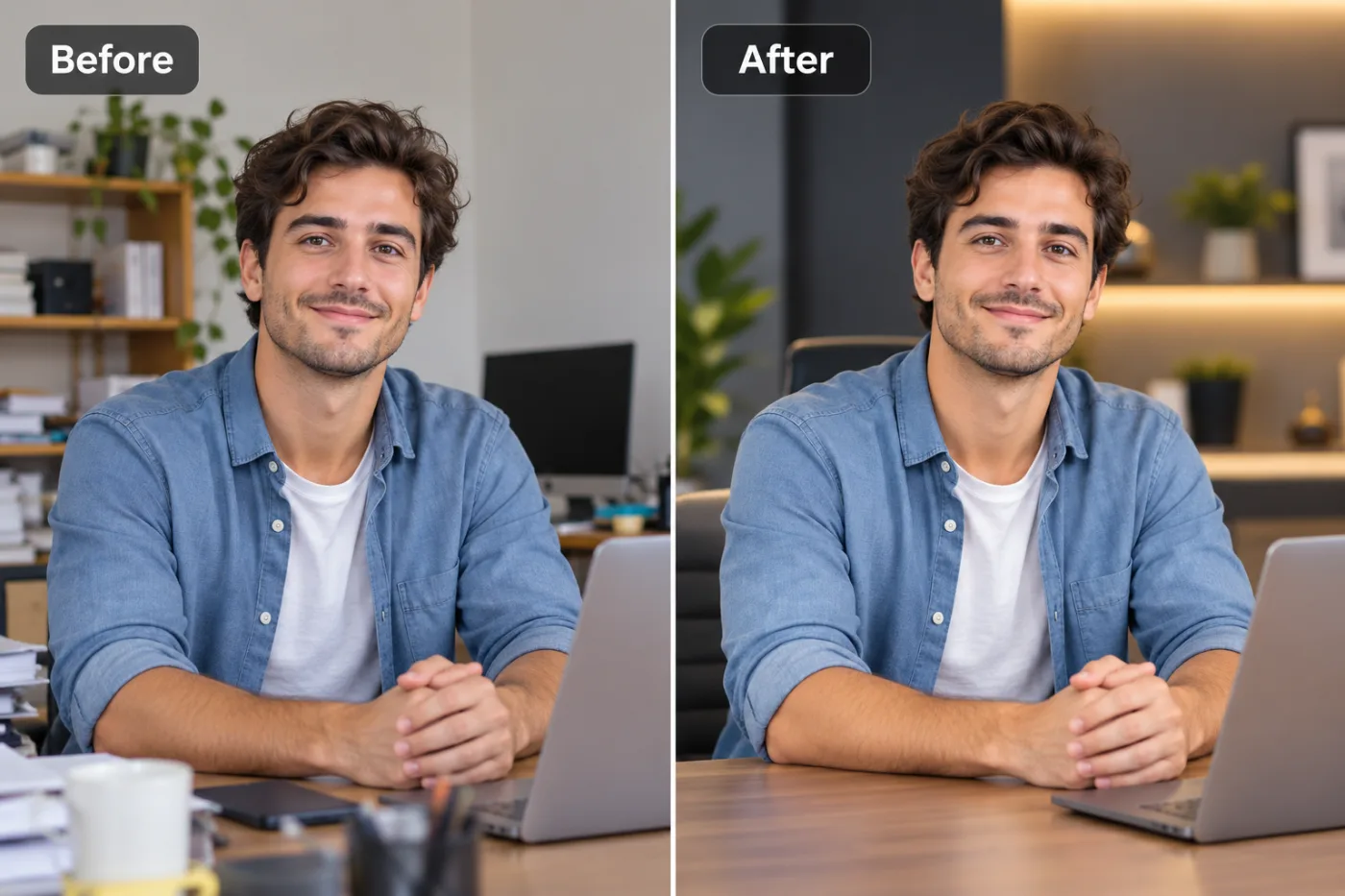
Upscale Images for Large-Format Printing: Posters, Banners & Canvas
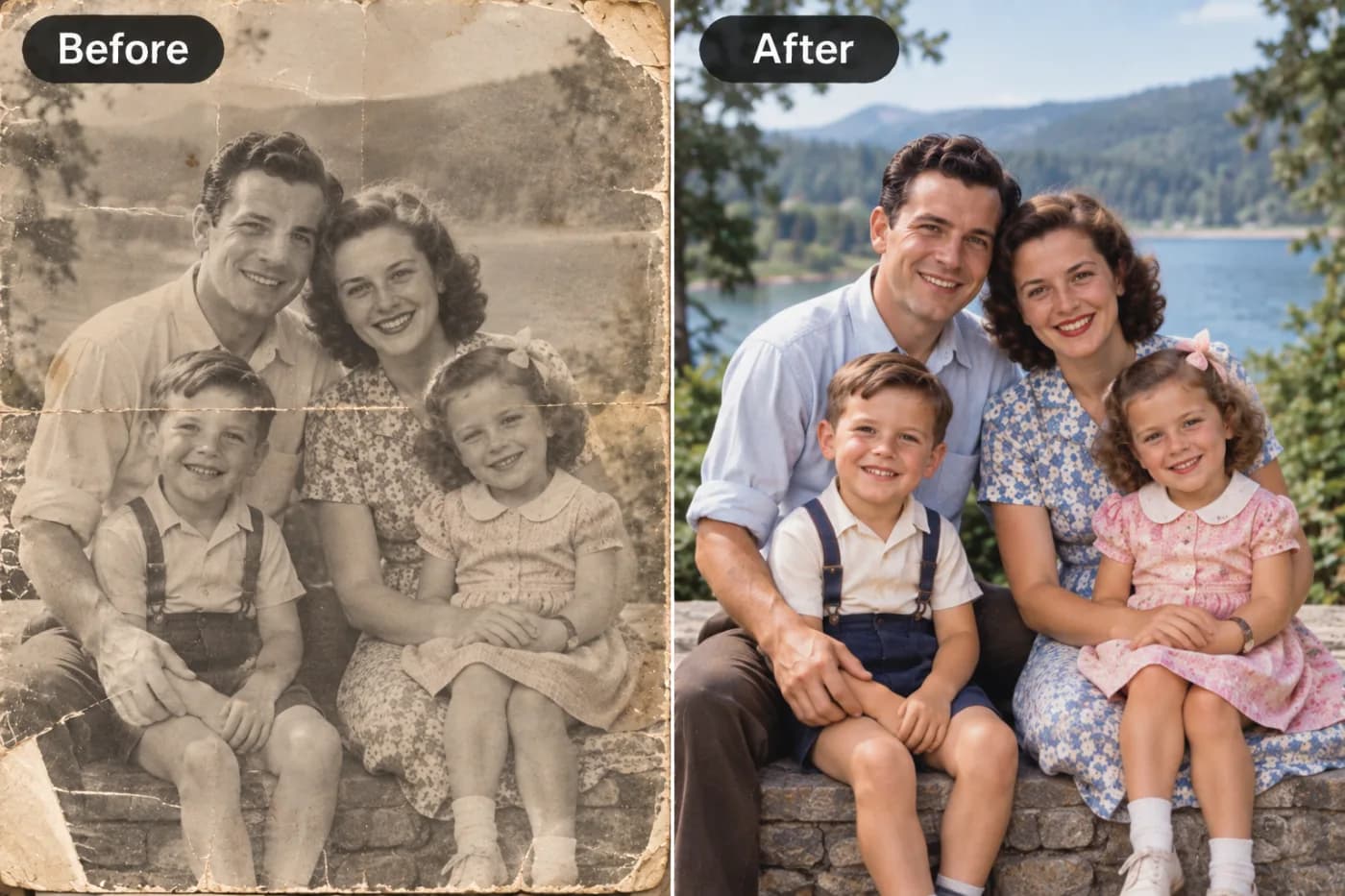
Sending a low-resolution image to a print shop is the fastest way to waste money on a blurry poster. Here's how to get print-ready resolution with AI.
Knowing how to upscale an image for printing is the difference between a crisp, professional poster and a blurry, pixelated embarrassment. Large-format printing — posters, banners, canvas prints, and signage — demands far more resolution than screens do, and if your image doesn't have enough pixels, it'll look soft or blocky at size. An AI upscaler lets you increase image resolution for print without the quality loss of basic resizing, so you can take a photo that looks fine on screen and make it genuinely print-ready at large dimensions. This guide covers exactly how to hit the resolution large-format printing requires.
The core issue is that print and screen live by different rules. A monitor might display an image at 72 to 96 pixels per inch and look perfectly sharp, but a quality print typically wants around 300 DPI up close — and large-format pieces viewed from a distance follow their own math. Get the pixel count wrong and your poster prints soft. Pixel Shine solves this with a free, unlimited Normal upscale (no sign-in) plus a Pro AI upscale for maximum detail on demanding prints. Here's how to calculate what you need and get every image ready for the printer.
Understanding Print Resolution and DPI
Before you upscale anything, you need to understand the relationship between pixels, DPI, and physical print size — it's the foundation of every print-ready decision.
Pixels are your raw material. An image's resolution is its pixel dimensions — width by height. This fixed number of pixels gets spread across whatever physical size you print. More pixels means you can print larger while staying sharp.
DPI defines sharpness at a given size. DPI (dots per inch) is how many pixels pack into each inch of print. The standard for sharp, close-viewed prints is 300 DPI. At 300 DPI, a 3000-pixel-wide image prints 10 inches wide (3000 ÷ 300). Print that same image at 20 inches wide and you drop to 150 DPI, which starts to look soft up close.
The core formula. To find the pixels you need: multiply your target print size in inches by your target DPI. A 24x36 inch poster at 300 DPI needs 7200x10800 pixels — a huge number most source photos don't have natively. That's exactly where upscaling comes in.
Viewing distance changes the rules. Here's the nuance for large format: pieces viewed from far away — billboards, large banners — don't need 300 DPI, because your eye can't resolve that detail at distance. A large banner might look great at 100 to 150 DPI. Posters and canvas viewed up close want closer to 300 DPI. Matching DPI to viewing distance is the key to upscaling efficiently without over-processing.
How Much Resolution Each Print Type Needs
Different large-format products have different resolution requirements based on how close people view them. Here's a practical guide.
Posters (viewed up close, ~2-3 feet). Aim for 300 DPI for crisp results. A standard 18x24 poster at 300 DPI needs 5400x7200 pixels; a 24x36 needs 7200x10800. These are large targets, so upscaling is usually essential.
Canvas prints (viewed close, textured surface). Canvas texture is forgiving, so 150 to 300 DPI works well. Many quality canvas prints look great at around 200 DPI. A 20x30 canvas at 200 DPI needs 4000x6000 pixels.
Banners (viewed from several feet away). Because banners are seen at a distance, 100 to 150 DPI is typically sufficient. A 3x6 foot banner (36x72 inches) at 100 DPI needs 3600x7200 pixels — very achievable with upscaling.
Large signage and billboards (viewed from far). These can go as low as 30 to 100 DPI depending on distance, since the eye can't resolve fine detail that far away.
Small-format prints (photos, cards). Standard photo prints and greeting cards want the full 300 DPI since they're held in hand.
The practical rule: the closer the viewer, the more DPI you need. Calculate your target pixels (print inches x DPI), check your source dimensions, and upscale to close the gap. Upscaling makes hitting even the largest targets realistic.
Step-by-Step: Get Your Image Print-Ready
Here's the complete workflow to upscale an image for large-format printing with Pixel Shine.
Step 1 — Determine your print size and DPI. Decide the physical dimensions (e.g., 24x36 inch poster) and the right DPI for the viewing distance (300 for close, 100-150 for banners).
Step 2 — Calculate the pixels you need. Multiply inches by DPI. A 24x36 poster at 300 DPI needs 7200x10800 pixels. Note this target.
Step 3 — Check your source dimensions. Look at your image's current pixel size to see how far it falls short and what multiplier you'll need.
Step 4 — Open the upscaler. Go to Pixel Shine and open the AI Upscaler tool. Normal upscale is free, unlimited, and needs no sign-in.
Step 5 — Upload your best-quality source. Start from the highest-resolution, sharpest original you have — the more real detail, the better the reconstruction.
Step 6 — Choose your multiplier. Select 2x or 4x to get as close as possible to your calculated pixel target. Pick the level that reaches your needed dimensions.
Step 7 — Run the upscale and verify. The AI reconstructs detail and rebuilds at higher resolution in seconds. Check the result at 100% zoom to confirm sharpness.
Step 8 — Use Pro for critical prints, then download. For posters and canvas viewed up close, run Pro AI upscale for maximum detail. Download the watermark-free, print-ready image and send it to your printer.
Pro Tips for Perfect Large-Format Prints
These insider tricks ensure your prints come out crisp and professional.
1. Match DPI to viewing distance, not habit. Don't force 300 DPI on a banner seen from 10 feet away — you'll create an unnecessarily huge file. Use the right DPI for how the piece is viewed, and upscale efficiently.
2. Always start from the sharpest source. AI reconstructs detail, but a cleaner, larger original yields a better print. Track down your best version before upscaling.
3. Use Pro AI upscale for close-viewed prints. Posters and canvas viewed up close reveal every flaw. The Pro tier's deeper reconstruction is worth it when sharpness matters most.
4. Upscale as the final step. Do all cropping, color correction, and edits first, then upscale to your target print resolution last to preserve maximum detail.
5. Confirm the aspect ratio matches your print size. Crop to the correct ratio (e.g., 2:3 for 24x36) before upscaling so the printer doesn't stretch or crop unexpectedly.
6. Ask your printer for their specs. Print shops often have preferred DPI, color profiles, and bleed requirements. Confirm these and upscale to match their exact pixel target for a flawless result.
Common Mistakes to Avoid
These errors are the usual culprits behind disappointing large-format prints.
Printing at screen resolution. An image that looks sharp on your monitor at 72-96 DPI can print soft, because print needs far more pixels per inch. Always calculate and upscale to your print's DPI target.
Ignoring viewing distance. Forcing 300 DPI on a distant banner wastes effort and creates unwieldy files, while under-resolving a close-viewed poster leaves it blurry. Match DPI to how the piece is seen.
Upscaling a tiny source to a huge print. Blowing up a small web image to a 36-inch poster stretches AI beyond realism. Start with the best source and set expectations to what it can support.
Getting the aspect ratio wrong. Uploading an image whose proportions don't match the print size forces the printer to stretch or crop, ruining composition. Crop to the correct ratio first.
Skipping the print-shop specs. Ignoring your printer's DPI, bleed, and color-profile requirements leads to surprises. Confirm specs up front. With Pixel Shine's free Normal upscale, you can re-run to hit exact targets at no cost.
Large-Format Use Cases and Who Prints Them
Print upscaling serves a wide range of creative and commercial projects.
Home and office decor. People turn favorite photos — travel shots, family portraits, art — into posters and canvas prints for their walls. Upscaling a phone photo to canvas-worthy resolution is one of the most common uses.
Event and trade-show materials. Businesses print banners, backdrops, and signage for conferences, booths, and promotions, where large, sharp graphics make a strong impression from a distance.
Retail and window displays. Stores print large product and promotional graphics; upscaling ensures logos and product shots stay crisp at big sizes.
Photographers and artists. Creatives sell large prints of their work, upscaling to gallery and canvas sizes while preserving detail.
Real estate and local businesses. Yard signs, window graphics, and posters need to read clearly from the street, and upscaling gets images to the right resolution.
Personal projects and gifts. From wedding photo canvases to custom posters as gifts, upscaling makes meaningful images print-ready at impressive sizes — all achievable with Pixel Shine's free upscaler as a starting point.
Choosing Between Free and Pro Upscale for Print
For print work, knowing when to use each Pixel Shine tier saves money without sacrificing quality.
Use free Normal upscale for distant-viewed and forgiving prints. Banners, large signage, and canvas (with its texture) are viewed from a distance or hide minor imperfections. The free, unlimited Normal upscale is often more than enough to hit their DPI targets — at zero cost and no sign-in.
Use Pro AI upscale for close-viewed, detail-critical prints. Posters, fine-art prints, and anything examined up close reveal every pixel. Here the Pro tier's deeper reconstruction of fine detail is worth the credits, especially for faces, text, and intricate textures that must stay razor-sharp.
A smart hybrid approach: run your image through the free Normal upscale first and check it at 100% zoom against your target size. If it's crisp enough for your print type and viewing distance, you're done for free. If a close-viewed poster still needs more detail, upgrade that specific image to Pro AI upscale using credits.
Because Pixel Shine keeps upscaling, background removal, and editing on one online platform, you can prep a complete print project — crop, clean up, and upscale — without switching tools or paying for a suite of software. That flexibility, plus a genuinely free core tier, makes it practical for both one-off gifts and professional print runs.
Frequently Asked Questions
What resolution do I need to print a poster?For a poster viewed up close, aim for 300 DPI. Multiply your print size in inches by 300 to find the pixels needed — a 24x36 poster needs 7200x10800 pixels. Upscaling gets your image to that target.
What DPI is needed for a banner?Banners are viewed from several feet away, so 100 to 150 DPI is usually enough. A 3x6 foot banner at 100 DPI needs about 3600x7200 pixels — easily reached with upscaling.
Can I upscale a phone photo for a large canvas print?Yes. Start with the highest-quality version, calculate your target pixels for the canvas size and DPI (canvas is forgiving at 150-200 DPI), and upscale to reach it. Canvas texture helps hide minor imperfections.
Is upscaling for print free?Yes. Pixel Shine's Normal upscale is free, unlimited, and needs no sign-in — enough for many print jobs. Pro AI upscale, for close-viewed detail-critical prints, uses inexpensive credits.
Why does my image look sharp on screen but blurry when printed?Screens display at low DPI (72-96) and look fine, but print needs far more pixels per inch. Without enough resolution, the print looks soft. Upscale to your print's DPI target to fix it.
How do I know how many pixels I need?Multiply your print dimensions in inches by your target DPI. Print inches x DPI = pixels needed for each dimension.
Does upscaling distort my image?No. AI upscaling reconstructs real detail and keeps proportions accurate, as long as you crop to the correct aspect ratio first.
Is there a watermark on print files?No. Your upscaled images download watermark-free, ready for the printer.
Key Takeaways
Upscaling images for large-format printing comes down to one principle: print needs far more resolution than screens, and AI upscaling is how you get there without quality loss. Calculate your target pixels by multiplying print size in inches by the right DPI for your viewing distance — 300 DPI for close-viewed posters, 100-150 for distant banners — then upscale to hit it.
For the best prints, start from your sharpest source, crop to the correct aspect ratio, upscale as the final step, verify at 100% zoom, and confirm your print shop's specs. Use the free Normal upscale for forgiving, distant-viewed pieces, and Pro AI upscale for close-viewed, detail-critical prints like posters and fine art.
You don't need expensive software to get print-ready resolution. Pixel Shine's Normal upscale is free, unlimited, and needs no sign-in. Head to Pixel Shine, upscale your image to the resolution your printer needs, and turn any photo into a crisp large-format print. Get Print-Ready Resolution →