AI Image Upscaler: Enhance Any Photo to 4K Quality
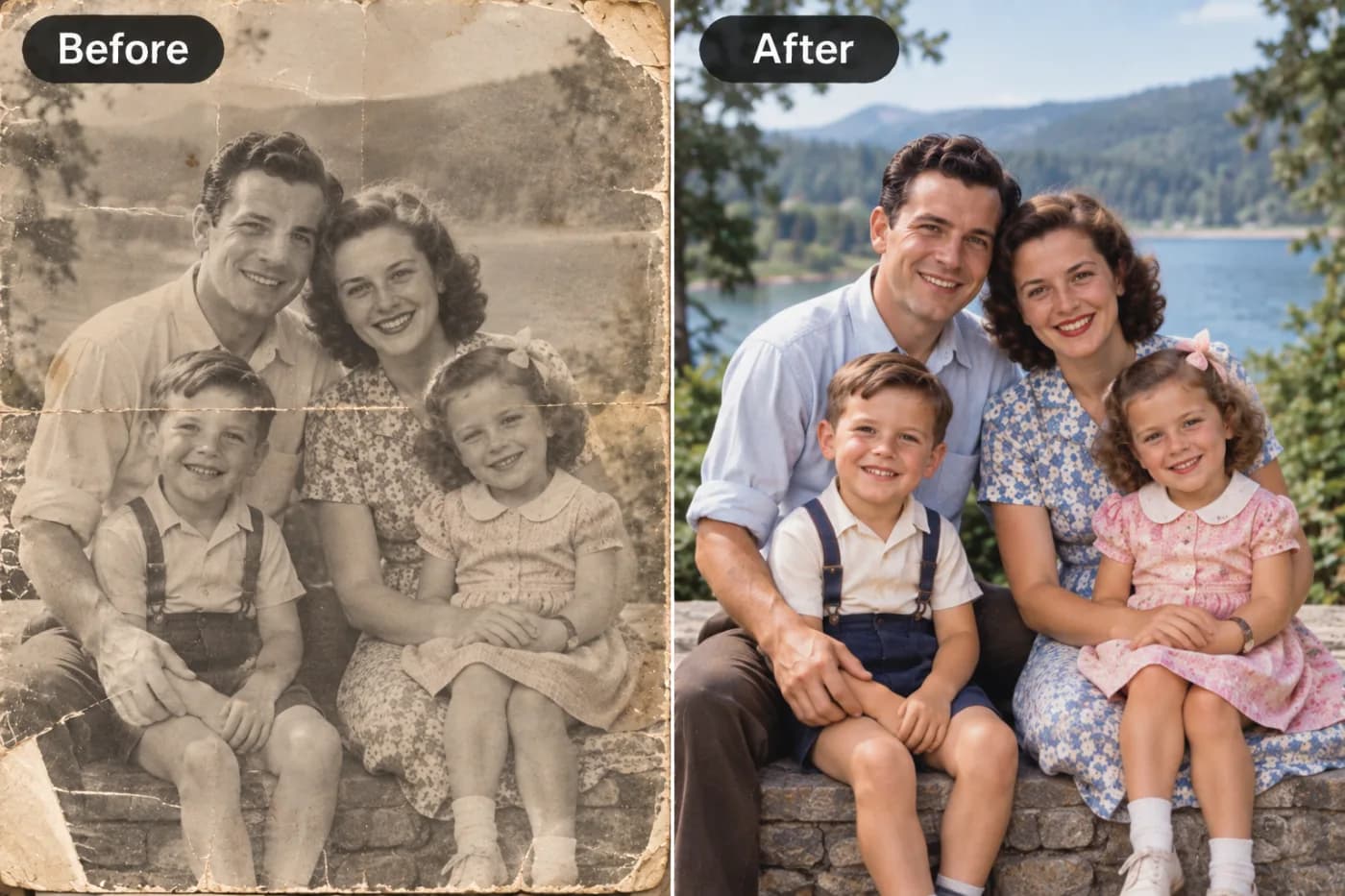
Traditional upscaling just stretches pixels — AI upscaling predicts and reconstructs real detail. Here's everything you need to know about getting sharper, larger images.
An AI image upscaler is the closest thing photography has to a magic reset button. Feed it a small, soft, or pixelated photo, and it enhances photo quality by intelligently rebuilding detail — sharpening edges, recovering texture, and pushing the resolution up toward crisp 4K clarity. Unlike the old "stretch and blur" resizing you get in basic editors, an AI upscaler actually adds believable detail that wasn't visible before, which is why it has become the go-to tool for anyone who needs to upscale an image online without wrecking it.
Maybe you're trying to rescue a great shot that came out too small. Maybe you need to increase image resolution for a print, a product listing, or a website banner. Maybe an old profile picture looks embarrassingly fuzzy on today's high-density screens. Whatever the reason, AI upscaling solves it in seconds. And with Pixel Shine, the Normal upscale is completely free and unlimited — no sign-in required — so you can enhance as many photos as you want. This guide covers how it works, how to use it, and how to get the sharpest possible results.
How AI Upscaling Actually Works
To understand why AI upscaling looks so much better than old-school resizing, it helps to know what each method does under the hood.
Traditional resizing guesses blindly. When you enlarge a photo in a basic editor, it uses interpolation — it looks at existing pixels and averages them to invent the new ones in between. The result is a bigger image, but a blurrier one, because averaging can't create real detail. Stretch a 500px photo to 2000px this way and you get a soft, mushy mess.
AI upscaling predicts real detail. An AI model is trained on millions of image pairs — the same photo in both low and high resolution. Over that training, it learns what sharp eyelashes, brick textures, fabric weaves, and text edges actually look like. So when you feed it a small photo, it doesn't just average pixels — it predicts what the missing high-resolution detail should be and paints it in.
The difference is dramatic. Edges become crisp instead of jagged. Textures like skin, hair, and fabric regain believable structure. Compression artifacts and JPEG noise get cleaned up in the process.
Most AI upscalers offer preset multipliers like 2x or 4x, meaning they double or quadruple your image's width and height. A 4x upscale turns a 1000x1000 image into a 4000x4000 one — a 16-fold increase in total pixels, with the AI convincingly filling in every new one.
Free Normal Upscale vs. Pro AI Upscale
Pixel Shine offers two tiers of upscaling, and knowing when to use each saves you time and credits.
Normal Upscale — free, unlimited, no sign-in. This is the workhorse for everyday needs. It's completely free with no usage cap and doesn't even require you to create an account. Normal upscale is perfect for enlarging social media photos, cleaning up screenshots, sharpening profile pictures, and enhancing images for web use. For the vast majority of everyday tasks, Normal upscale is all you'll ever need — and the fact that it's free and unlimited makes Pixel Shine stand out from tools that meter every single export.
Pro AI Upscale — credit-based, maximum detail. When you need the absolute best result — think large-format prints, professional product photography, restoring precious old family photos, or squeezing detail out of a very low-quality source — Pro AI upscale uses a more advanced model that reconstructs finer detail and handles difficult images better. It costs credits, but credits are inexpensive when you do need them.
How to choose: Start with the free Normal upscale. If the result looks great — and it usually will for web and social use — you're done at zero cost. Reserve Pro AI upscale for high-stakes images where every pixel of detail matters, like something you're going to print large or a photo that started out badly degraded.
Step-by-Step: How to Upscale an Image
Here's exactly how to enhance and upscale a photo with Pixel Shine. The free Normal upscale takes seconds and needs no account.
Step 1 — Open the upscaler. Go to Pixel Shine and open the AI Upscaler tool. For Normal upscale, you can jump straight in without signing in.
Step 2 — Upload your photo. Drag and drop your image onto the upload area or click to browse. Use the best-quality source file you have — even AI works better with more to start from.
Step 3 — Choose your upscale level. Select your multiplier, such as 2x or 4x. If your image is already fairly large, 2x may be plenty; if it's small, go 4x to reach a usable size. For everyday needs, keep it on the free Normal mode.
Step 4 — Process the image. Start the upscale. The AI analyzes your photo, reconstructs detail, and rebuilds it at the higher resolution. This usually takes just a few seconds depending on image size.
Step 5 — Compare before and after. Review the result and zoom in to see the recovered detail — sharper edges, cleaner text, and reduced noise. Check faces and any text areas closely.
Step 6 — Download. Save your enhanced, higher-resolution image. It's watermark-free and ready to post, print, or upload.
Step 7 (optional) — Go Pro for critical images. If you're preparing a large print or the source was very low quality, run it again with Pro AI upscale for maximum detail with a small credit purchase.
Pro Tips for Sharper Upscaling Results
Get the most out of any AI upscaler with these practical tricks.
1. Start with the best source you have. AI enhances detail, but it can't invent what was never captured. A slightly-soft 1500px original will always beat a heavily-compressed 400px one. Track down the highest-quality version before upscaling.
2. Don't over-multiply. Jumping straight to 4x on an already-large image can look artificial. Match the multiplier to your actual target size — enough to hit the resolution you need, not more.
3. Remove the background first for products. If you're upscaling a product shot, remove the background first, then upscale the clean subject. Pixel Shine has a background remover built in, so it's a one-platform workflow.
4. Upscale last in your editing chain. Do your cropping, color correction, and edits first, then upscale as the final step. Upscaling a finished image preserves the most detail.
5. Use Pro mode for faces and text. Faces and fine text are where quality differences show most. If a portrait or a document image matters, the Pro AI upscale reconstructs these areas more faithfully.
6. Check at 100% zoom. Always inspect the result at full size, not the fit-to-screen preview. That's where you'll spot whether detail truly improved or if you need to try a different setting.
Common Mistakes to Avoid
A few missteps can undercut even the best upscaler. Avoid these.
Expecting miracles from a tiny source. Upscaling a 100px thumbnail to a billboard won't produce a flawless result — there simply isn't enough starting information. AI helps enormously, but realistic expectations matter. Start as large as you can.
Upscaling before editing. If you upscale first, then heavily crop or adjust, you throw away detail and may need to upscale again, compounding artifacts. Edit first, upscale last.
Choosing the wrong multiplier. Blindly maxing out at 4x when you only need a modest bump can introduce an over-processed, plasticky look. Pick the level that matches your target dimensions.
Re-uploading an already-upscaled image repeatedly. Running the same photo through multiple upscale passes stacks artifacts and degrades quality. Upscale once to your target size.
Paying for basic upscaling. Many people don't realize free, unlimited upscaling exists. Pixel Shine's Normal upscale is free with no sign-in, so don't pay a subscription for everyday enlargements you can do at no cost.
Common Use Cases for AI Upscaling
AI upscaling quietly solves problems across dozens of scenarios. Here are the ones people reach for most.
Rescuing small or old photos. That great shot that came out too small, or a low-res image saved years ago, gets a new life at usable resolution.
E-commerce product images. Marketplaces like Amazon and Shopify recommend high-resolution images so shoppers can zoom in. Upscaling lets sellers meet those specs and show off product detail, which lifts buyer confidence.
Printing. Screens are forgiving; print is not. A photo that looks fine online can appear soft or pixelated when printed. Upscaling raises the resolution to print-ready levels for photos, posters, and cards.
Professional headshots and profile pictures. High-density screens make old, soft profile photos look dated. A quick upscale sharpens them right up.
Social media and thumbnails. Sharper images stand out in feeds and get more clicks, especially for YouTube thumbnails and ad creatives.
Design and marketing assets. Designers upscale stock elements, logos, and background images so they hold up at larger sizes without going blurry.
Real-World Results: Who Benefits Most
The impact of AI upscaling shows up clearest in a few real situations.
Online sellers report that crisp, zoomable product photos build trust and reduce hesitation — shoppers who can inspect detail are more likely to buy. Upscaling turns a decent phone snapshot into a listing-grade image.
Families digitizing memories use upscaling to breathe life back into scanned prints and old digital photos, making them sharp enough to reprint, frame, or share.
Freelancers and small teams without a designer on staff lean on upscaling to make every asset — from website headers to social posts — look polished at any size.
Real estate agents sharpen listing photos so properties look their best across portals and print flyers.
Students and job seekers clean up profile pictures and portfolio images so they present professionally. In each case, the pattern is the same: a fast, free upscale turns a limiting photo into one that's ready for the job — no expensive software or design skills required.
Enhancing Beyond Resolution
Upscaling does more than just make an image bigger — a good AI upscaler improves overall quality in ways you'll notice immediately.
It reduces noise and artifacts. JPEG compression leaves behind blocky artifacts and grainy noise, especially in dark areas and smooth gradients like skies. AI upscaling cleans these up as it rebuilds the image, so your photo looks not just larger but genuinely cleaner.
It sharpens soft focus. Mildly out-of-focus or motion-softened shots regain apparent sharpness as the AI reconstructs edges. It can't fix severe blur, but it rescues many "almost good" photos.
It recovers texture. Skin, hair, fabric, foliage, and other detailed surfaces regain believable texture instead of the smeared look you get from basic resizing.
Because Pixel Shine bundles upscaling with a background remover, headshot generator, and AI photo editor, you can chain these enhancements together. Remove a distracting background, upscale the clean result, and touch it up — all on one platform, without juggling multiple apps or subscriptions.
Frequently Asked Questions
Is the AI upscaler really free?Yes. Pixel Shine's Normal upscale is completely free and unlimited, with no sign-in required. Only the advanced Pro AI upscale uses credits.
Can I upscale an image to 4K?Yes. Using multipliers like 2x or 4x, you can push most images up toward 4K resolution. The final size depends on your source dimensions — a 1000px image at 4x becomes 4000px wide.
Does upscaling reduce quality?No — done right, it improves quality. AI upscaling adds detail, sharpens edges, and reduces noise, unlike basic resizing which just blurs. Just avoid running the same image through multiple passes.
How is AI upscaling different from just resizing?Basic resizing averages existing pixels, producing a bigger but blurrier image. AI upscaling predicts and rebuilds real detail based on training data, so the result stays sharp.
Will it work on old or blurry photos?Often, yes. AI can recover a lot of detail from soft or aged photos. For heavily degraded images, the Pro AI upscale gives the best results. Very severe blur can't be fully fixed, though.
Do I need to install software?No. Pixel Shine runs online on desktop and mobile — nothing to download.
Is there a watermark on the result?No. Your upscaled images download watermark-free.
What's the best format to upload?Use the highest-quality version you have. A less-compressed PNG or a high-quality JPG gives the AI more to work with than a heavily-compressed file.
Key Takeaways
An AI image upscaler is the fastest way to enhance photo quality and increase image resolution without the blur that plagues basic resizing. By predicting and rebuilding real detail, it turns small, soft, or noisy photos into sharp, print-and-post-ready images in seconds.
The smart workflow: start with the best source you have, edit first and upscale last, pick a multiplier that matches your target size, and check the result at 100% zoom. Use the free Normal upscale for everyday needs, and save Pro AI upscale for high-stakes prints and difficult images.
Best of all, you don't have to pay to get started. Pixel Shine's Normal upscale is free and unlimited with no sign-in required. Head to Pixel Shine, upload your photo, and see your image transformed to crisp, high-resolution quality in seconds. Upscale Your Image →