How do you compress an image?
1. Drop your photo here
Drop in a JPG, PNG or WebP. The editor opens straight to the compressor.
2. Choose how small
By quality gives you a slider from smaller file to higher quality. Target size lets you type the limit you've been given, anywhere from 5 KB to 5,000 KB, or tap 20, 50, 100, 200 or 500 KB.
3. Compress and download
Press Compress. The editor shows the new size, so you know it fits before you download the smaller JPG.
What happens when a photo is compressed?
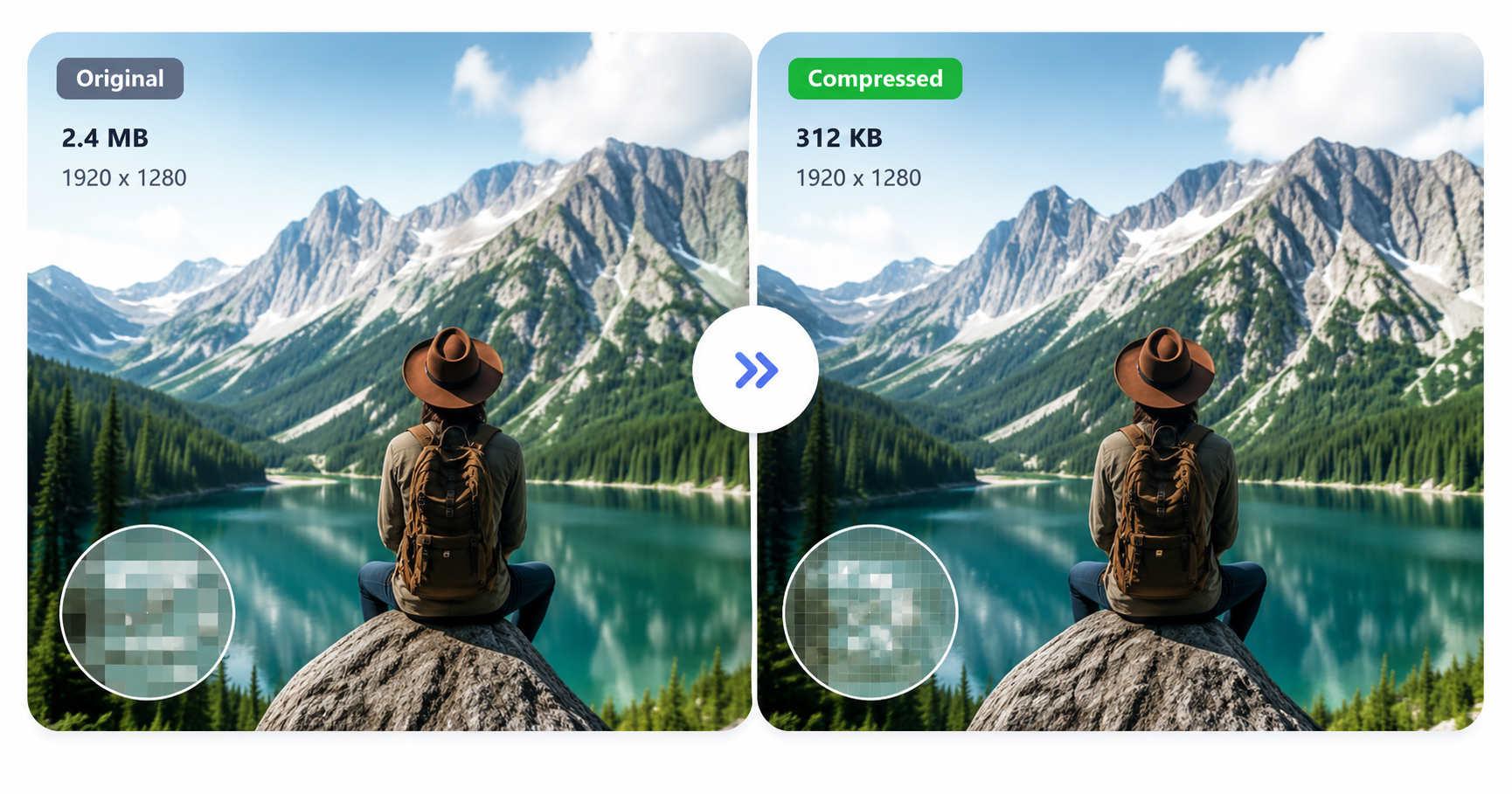
A photo straight from a phone is usually 2 to 6 MB, because the camera saves it with very little compression to keep every option open. Most of that data is detail your eye can't see on a screen. Compression throws away the least visible part: tiny colour variations and fine texture in areas like skies and walls.
The compressor saves your image as a JPG at the quality you choose. In Target size mode it does the trial and error for you: it tries a quality, checks the size, and narrows in on the highest quality that still fits under your limit. If even low quality is too big (a 12-megapixel photo squeezed into 20 KB, say), it also reduces the image's width and height in steps until it fits. That's why a very small target gives you a smaller picture, not a ruined one.
| Target | Typical use | What to expect |
|---|---|---|
| 20–50 KB | Exam and job application photos, signatures, ID uploads | Fine for a face or a signature; the image is also made smaller in pixels |
| 100 KB | Government portals, forms, profile pictures | Looks good on screen at normal size |
| 200–500 KB | Email, websites, blog images, marketplaces | Hard to tell apart from the original |
| 1 MB and up | Prints and high-quality sharing | Effectively full quality |
For a size-by-size guide, see compress to 20 KB, 50 KB, 100 KB, 200 KB and 500 KB.
Who needs to compress photos?
Students and job applicants
Online application forms often reject anything over a set size, such as 50 KB for a photo or 20 KB for a signature, with an unhelpful error. Type the limit into Target size and the file will fit first time.
Online sellers
Store pages with heavy images load slowly, and shoppers on mobile data leave. Compressing product photos to a few hundred KB keeps them sharp on screen and makes the page noticeably faster.
Website and blog owners
Images are usually the heaviest part of a web page, and page speed affects both visitors and search rankings. Compress before you upload, or convert to WebP with the image converter for an even smaller file.
Anyone sending email or chat
Ten phone photos can blow past an email attachment limit. Compressed to around 300 KB each, they send instantly and still look right.
Is the image compressor free?
Yes. All the squeezing happens on your own device, so there's nothing to pay for and no cap on how many photos you shrink. Two compressions work without signing up; a free account removes even that limit. No watermark is added, and the file you started with stays untouched.
Compress, resize or convert: which one do you need?
They all make files smaller, in different ways, and knowing which one you need saves time.
- Compress keeps the same width and height and lowers the file size. Use it when you've been given a KB or MB limit.
- [Resize](/resize-image) changes the width and height in pixels. Use it when you've been given dimensions, such as 600×600, or the photo is far bigger than it will ever be shown.
- [Convert](/convert-image) changes the format. PNG to JPG is a big saving for photos; JPG to WebP saves a bit more for websites.
Often the best result comes from doing two: resize a 4,000-pixel photo down to the 1,200 pixels your website actually shows, then compress it. The file ends up a fraction of the size with no visible loss.
How do you keep quality when compressing?
- Start from the original, not a copy that has already been compressed by WhatsApp or email. Compressing twice adds blockiness.
- Don't go lower than you need. If the limit is 200 KB, target 190 KB, not 50.
- Crop away what you don't need first. Fewer pixels means more quality per KB for the part that matters.
- Check faces and text at 100%. Fine lettering and skin show compression first.
- Keep the original somewhere safe in case you need a bigger version later.
What should you know before compressing?
- The result is always a JPG. Transparent areas in a PNG become white, so don't compress a logo you need transparent; convert it to WebP instead, which keeps transparency.
- Very small targets also make the image smaller in pixels. A 20 KB passport photo won't be a 4,000-pixel image, and it doesn't need to be.
- Compression can't fix a photo that's blurry or dark. If it needs to be clearer, use the image upscaler or the Adjust tool first.
- One photo at a time here. To compress a folder of images, the batch editor processes many in one go.
Is it private?
Your photo is compressed by your own browser, not on our servers. Signed-in users also get a copy of the result in My Creations, handy if you need it again on another device; delete it there whenever you like.