How to Enhance Blurry Video Call Screenshots (Free)
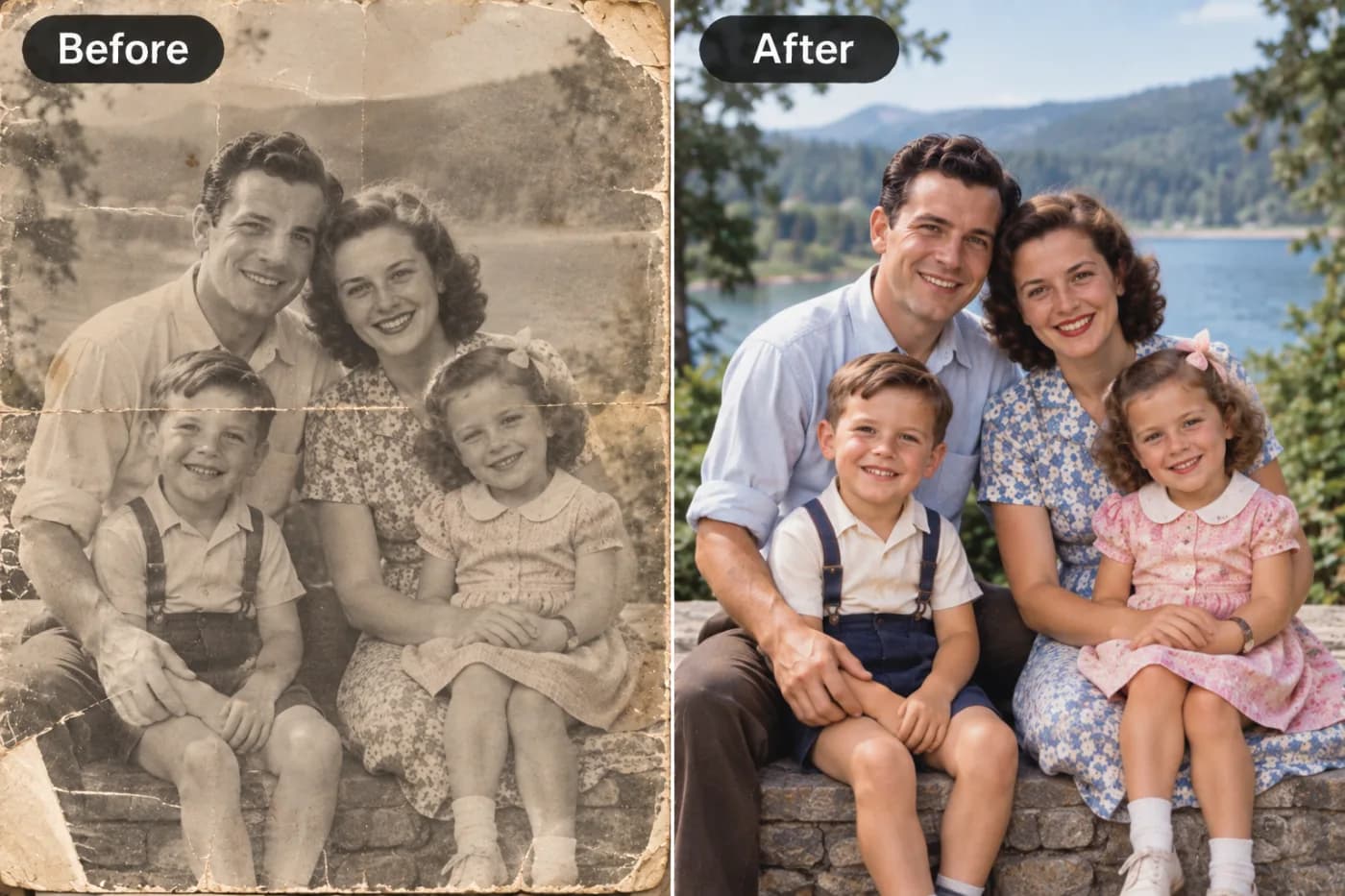
Screenshots from video calls are soft and grainy. Here's how to enhance a blurry call capture into something clear enough to use.
Screenshots from Zoom, Google Meet, and other video calls are notoriously low quality — video streams are compressed, webcams are modest, and bandwidth dips add blur and blockiness. Whether you're saving a group photo from a virtual event or a memorable moment from a call, upscaling can sharpen the capture and lift its resolution so it's actually presentable.
Why call screenshots look bad
Video calls prioritise smooth streaming over image quality, so the feed is heavily compressed in real time. Webcams often shoot at 720p, and poor lighting adds noise. A screenshot freezes all of that at its worst moment. Because the image is small and full of compression artefacts, plain enlargement makes it blockier. AI upscaling reconstructs faces and edges, cleaning up the artefacts for a clearer result.
Enhance a call screenshot
Step 1 — Capture at full size. Screenshot with the video as large as possible on screen for maximum starting detail.
Step 2 — Upscale 2× or 4×. Upload to Pixel Shine and enhance. The AI sharpens faces and reduces the blockiness typical of compressed video.
Step 3 — Crop and save. Crop to your subject and download the clearer, higher-resolution version.
Realistic expectations
Upscaling meaningfully improves a soft, compressed screenshot, but it can't recover detail that the low-bandwidth stream never captured. For the best outcome, grab the screenshot when the video is sharp and well-lit, and enhance once. For typical virtual-event group photos, the improvement is usually enough to make the image shareable and even printable at small sizes.
Free and instant
Pixel Shine's upscaler is free, unlimited, and watermark-free, running entirely online. There are no limits and nothing to install.
Rescue that call screenshot at Pixel Shine — upload it and download a sharper version in seconds.