How to Restore & Upscale Old Photos with AI (Grandma Would Approve)
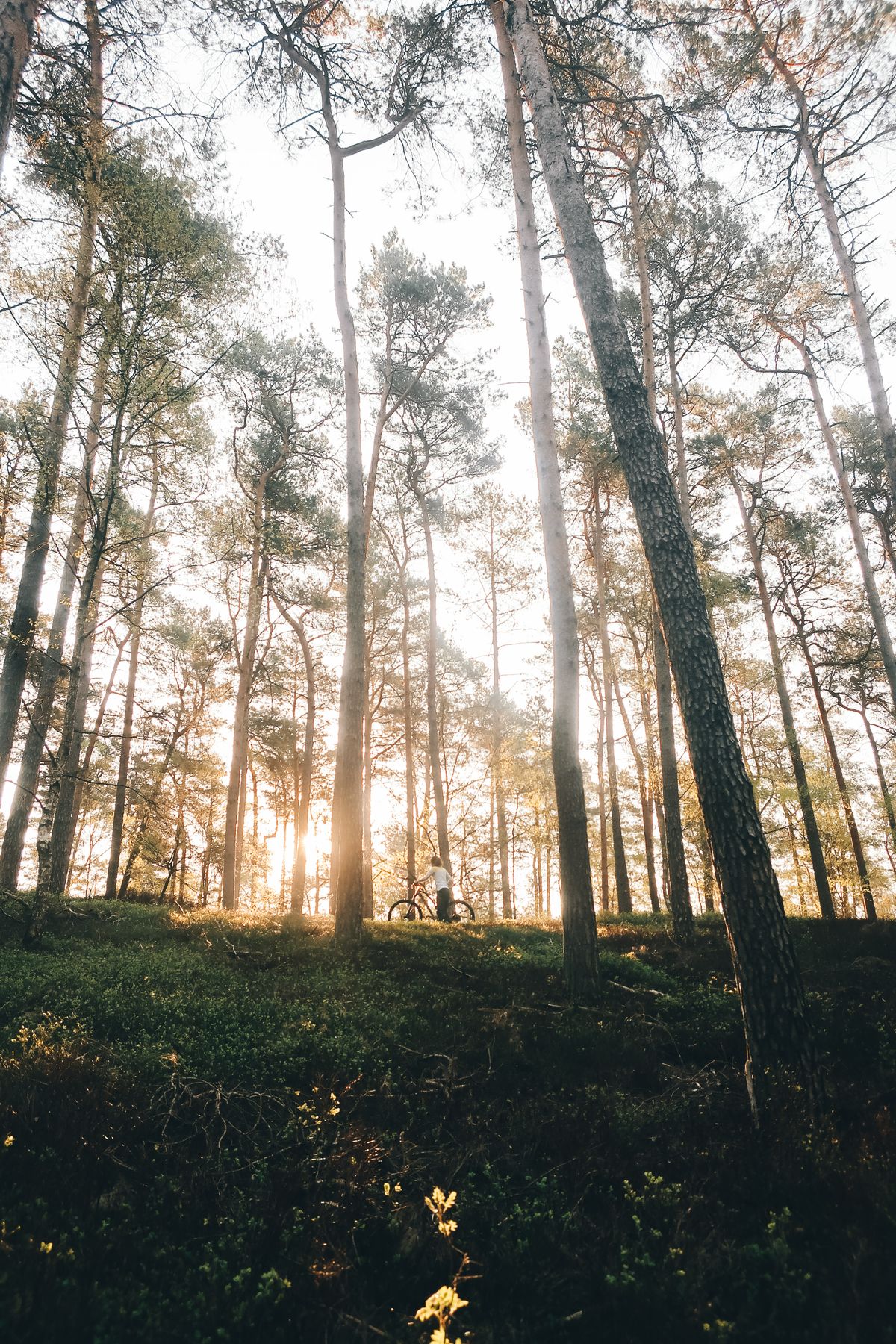
That blurry photo of your grandparents in the 1960s? AI can upscale and restore it to something you'd frame and hang on the wall.
Learning how to restore and upscale old photos with AI is like giving your family memories a second life. Faded, scratched, low-resolution photos from decades past — or early digital snapshots that came out small and grainy — can be sharpened, cleaned, and enlarged in seconds using AI. If you've wanted to restore old photos with AI but assumed it required a professional service or hours in Photoshop, the truth is far simpler: modern tools do the heavy lifting automatically, and photo restoration online free is now genuinely within reach.
This matters because old photos are irreplaceable. That scanned wedding portrait, the childhood snapshot, the faded picture of grandparents — these are memories you can't re-shoot. When they're small, soft, noisy, or damaged, AI upscaling and enhancement can recover detail, reduce grain, sharpen faces, and bring them up to a resolution you can reprint and frame. JPT AI (sjpt.io) makes this accessible to everyone: its Normal upscale is free and unlimited with no sign-in, and its Pro AI upscale delivers deeper reconstruction for the most degraded images, with free trials to start. Here's how to bring your old photos back to life.
What AI Can (and Can't) Restore in Old Photos
Setting realistic expectations helps you get the best results and know when to reach for the Pro tier.
What AI does exceptionally well. AI upscaling shines at increasing resolution while reconstructing detail — turning a small, soft scan into a larger, sharper image. It reduces the grain and noise common in old film scans and early digital photos, and it sharpens faces and edges that time and low resolution had blurred. For the vast majority of old photos, this alone produces a dramatic before-and-after improvement.
What AI handles well with the Pro tier. Heavily degraded images — very low resolution, significant softness, or serious noise — benefit from the more advanced Pro AI upscale, which reconstructs finer detail and copes better with difficult sources. This is where a barely-usable photo can become genuinely presentable.
What has limits. AI reconstructs based on what it learned from millions of images, so it recovers plausible detail — but it can't invent information that's entirely gone. A face that's a featureless blur can be sharpened and enlarged, but tiny details that were never captured can't be perfectly resurrected. Extreme physical damage like large tears may need dedicated repair.
The realistic takeaway: for the overwhelming majority of faded, small, grainy, or soft old photos, AI upscaling produces a transformation that feels like magic — sharper, cleaner, larger, and ready to reprint. Just approach it as enhancement and reconstruction, not literal time travel.
Preparing Your Old Photos for Restoration
The quality of your input dramatically affects your results, so a little prep goes a long way — especially with physical prints.
Scan physical photos at high resolution. If you're working from a printed photo, scan it at a high DPI (600 DPI or more for small prints) rather than snapping it with your phone. A clean, high-resolution scan gives the AI far more real detail to work with than a phone photo taken at an angle with glare.
Scan flat and evenly lit. Place the photo flat on the scanner glass to avoid distortion, and make sure it's clean and dust-free. For photos you must photograph instead, use even, indirect lighting to avoid glare and shadows.
Capture the full detail you have. Don't crop tightly or compress heavily before restoring — start from the most complete, highest-quality digital version of the photo you can produce. You can always crop later.
Work from the original, not a copy of a copy. Each time an image is re-saved as a compressed JPG, it loses a little quality. Start from the closest thing to the original you have.
Organize before you start. If you're restoring a batch of family photos, gather and scan them all first, then process them together. This is a great weekend project for digitizing a whole box of memories.
Good preparation ensures the AI has the richest possible source to reconstruct from — and it's the single biggest factor you control in the final quality.
Step-by-Step: Restore and Upscale an Old Photo
Here's the full process to bring an old photo back to life with JPT AI.
Step 1 — Digitize your photo. Scan the physical print at high resolution (600 DPI+), or locate the best existing digital version. Aim for the cleanest, largest source you can.
Step 2 — Open the upscaler. Go to sjpt.io and open the AI Upscaler tool. Normal upscale is free, unlimited, and needs no sign-in, so you can start restoring immediately.
Step 3 — Upload the photo. Drag and drop or browse to add your scanned or digital image.
Step 4 — Choose your upscale level. Select 2x or 4x depending on how small your source is and how large you want the restored image. Older photos are often small, so 4x is common for reaching a reprint-worthy size.
Step 5 — Run the enhancement. The AI reconstructs detail, sharpens faces and edges, reduces grain and noise, and rebuilds the photo at higher resolution — usually in seconds.
Step 6 — Compare and assess. Review the before-and-after at full zoom. Check faces and important details. For most photos, Normal upscale delivers a striking improvement at zero cost.
Step 7 — Go Pro for tough cases. If the photo was very degraded or you want maximum detail for framing, run it through Pro AI upscale using your free trial credits for deeper reconstruction.
Step 8 — Download and reprint. Save your restored, watermark-free image, ready to reprint, frame, or share with family.
Pro Tips for the Best Restoration Results
These techniques help you get the most out of AI photo restoration.
1. Scan, don't photograph, physical prints. A flatbed scan at high DPI beats a phone snapshot every time — no glare, no angle distortion, and far more usable detail for the AI.
2. Start from the highest resolution possible. The more real detail in your source, the better the reconstruction. Never restore from a tiny, compressed copy if a larger version exists.
3. Use Pro AI upscale for faces and framing. When the result will be printed large or a beloved face needs maximum clarity, the Pro tier's deeper reconstruction is worth the credits.
4. Match the multiplier to your reprint size. If you plan to reprint at 8x10 or larger, upscale enough to reach print-ready resolution (around 300 DPI at your target size).
5. Restore first, then edit if needed. Enhance and upscale the photo first. If you want to adjust color or remove a distraction afterward, use JPT AI's photo editor on the improved image.
6. Batch your family archive. Digitize and restore a whole box of photos in one session — it's an efficient, rewarding way to preserve an entire family history at once.
Common Mistakes to Avoid
Steer clear of these to protect your precious memories and get the best results.
Photographing prints instead of scanning them. A phone photo of a print introduces glare, angle distortion, and lost detail. Scan physical photos properly whenever you can.
Restoring from a low-quality copy. Working from a tiny, heavily-compressed version limits how much AI can recover. Always start from the best, largest source available.
Expecting perfect reconstruction of lost detail. AI recovers plausible detail but can't invent information that was never captured. Approach it as enhancement, and be pleased with the dramatic-but-realistic improvement.
Skipping the Pro tier for badly-degraded photos. For your most damaged or lowest-resolution images, the free Normal upscale helps but the Pro AI upscale reconstructs far more — don't leave that quality on the table for irreplaceable memories.
Over-upscaling tiny sources. Blowing up a postage-stamp image to poster size stretches the AI beyond what's realistic. Match your target size to what the source can reasonably support, and remember JPT AI's free Normal tier lets you experiment at no cost.
AI Restoration vs. Professional Services
How does DIY AI restoration compare to hiring a professional photo restorer? Here's an honest look.
Cost. Professional photo restoration services typically charge per photo, and prices climb quickly for a large batch — restoring a whole family archive can run into hundreds of dollars. AI restoration through JPT AI's free Normal upscale costs nothing for most photos, with inexpensive Pro credits for tough cases.
Speed. A professional service can take days or weeks, especially for detailed manual work. AI restores each photo in seconds, so you can process an entire box in an afternoon.
Convenience. No mailing precious originals to a stranger, no back-and-forth. You scan at home and restore online, keeping your originals safe.
Where professionals still lead. For photos with severe physical damage — large tears, missing sections, extensive water damage — a skilled human restorer doing manual reconstruction can achieve results AI can't, because they're artistically rebuilding lost areas. For heirloom photos with major damage, a pro may be worth it.
The verdict. For the common cases — faded, small, grainy, soft, or noisy photos that just need enhancing and enlarging — AI restoration wins decisively on cost, speed, and convenience. Reserve professional services for the rare photos with serious physical damage. For everything else, free AI upscaling is the smart first move.
Real-World Results: Preserving Family Memories
AI photo restoration proves its value most in deeply personal ways.
Families digitizing shoeboxes of prints turn decades of faded snapshots into sharp, high-resolution digital files — preserving memories before the physical prints degrade further and making them easy to share with relatives.
Reprinting for frames and gifts becomes possible again: a small, soft old portrait, once upscaled, is sharp enough to reprint at 8x10 and frame, or to include in a photo book as a heartfelt gift.
Reviving early digital photos from the era of low-megapixel cameras and phones — those small, noisy images from the early 2000s — gets them up to modern resolution and clarity.
Memorial and tribute projects rely on restoration to present cherished photos of loved ones clearly at services and in keepsakes.
Genealogy and family history enthusiasts restore ancestral photos to share in family trees and archives, keeping heritage vivid for the next generation.
In every case, the emotional payoff is the same: memories that were fading into blur become clear and lasting again — and with JPT AI's free tier, preserving them costs nothing to start.
Frequently Asked Questions
Can AI really restore old photos?Yes. AI upscaling sharpens faces and edges, reduces grain and noise, and increases resolution — dramatically improving faded, small, or soft old photos. JPT AI's Normal upscale does this free, with Pro AI upscale for heavily degraded images.
Is photo restoration online free?JPT AI's Normal upscale is completely free, unlimited, and needs no sign-in — enough for most old photos. The Pro AI upscale, for the toughest cases, uses inexpensive credits with free trials for new users.
How do I restore a physical printed photo?Scan it at high resolution (600 DPI or more), then upload the scan to JPT AI's upscaler. A clean, high-resolution scan gives the best results — much better than a phone photo of the print.
Will AI fix scratches and tears?AI upscaling excels at sharpening, denoising, and enlarging. Minor imperfections often improve, but severe physical damage like large tears may need a professional restorer's manual work.
Can I reprint a restored photo?Yes. Upscale to reach print-ready resolution (around 300 DPI at your target size), and you can reprint and frame the restored image.
Does it work on old digital photos too?Absolutely. Small, noisy photos from early digital cameras and phones respond very well to AI upscaling, coming out sharper and cleaner.
Is there a watermark?No. Restored images download watermark-free.
How long does it take?Seconds per photo. You can restore an entire box of family photos in a single sitting.
Key Takeaways
Restoring and upscaling old photos with AI gives your irreplaceable memories a second life — sharpening faded faces, reducing grain, and boosting resolution so you can reprint, frame, and share them. What once required a costly professional service or hours in Photoshop now takes seconds online.
For the best results, scan physical prints at high resolution rather than photographing them, start from the largest source you have, match the upscale level to your reprint size, and reach for the Pro AI upscale on your most degraded or most cherished images. Set realistic expectations — AI enhances and reconstructs beautifully but can't invent detail that was never there.
And it costs nothing to begin. JPT AI's Normal upscale is free, unlimited, and needs no sign-in. Head to sjpt.io, upload that old photo, and watch a fading memory come back to life. Restore & Upscale Photos →