How to Upscale Images for T-Shirt Printing (Free)
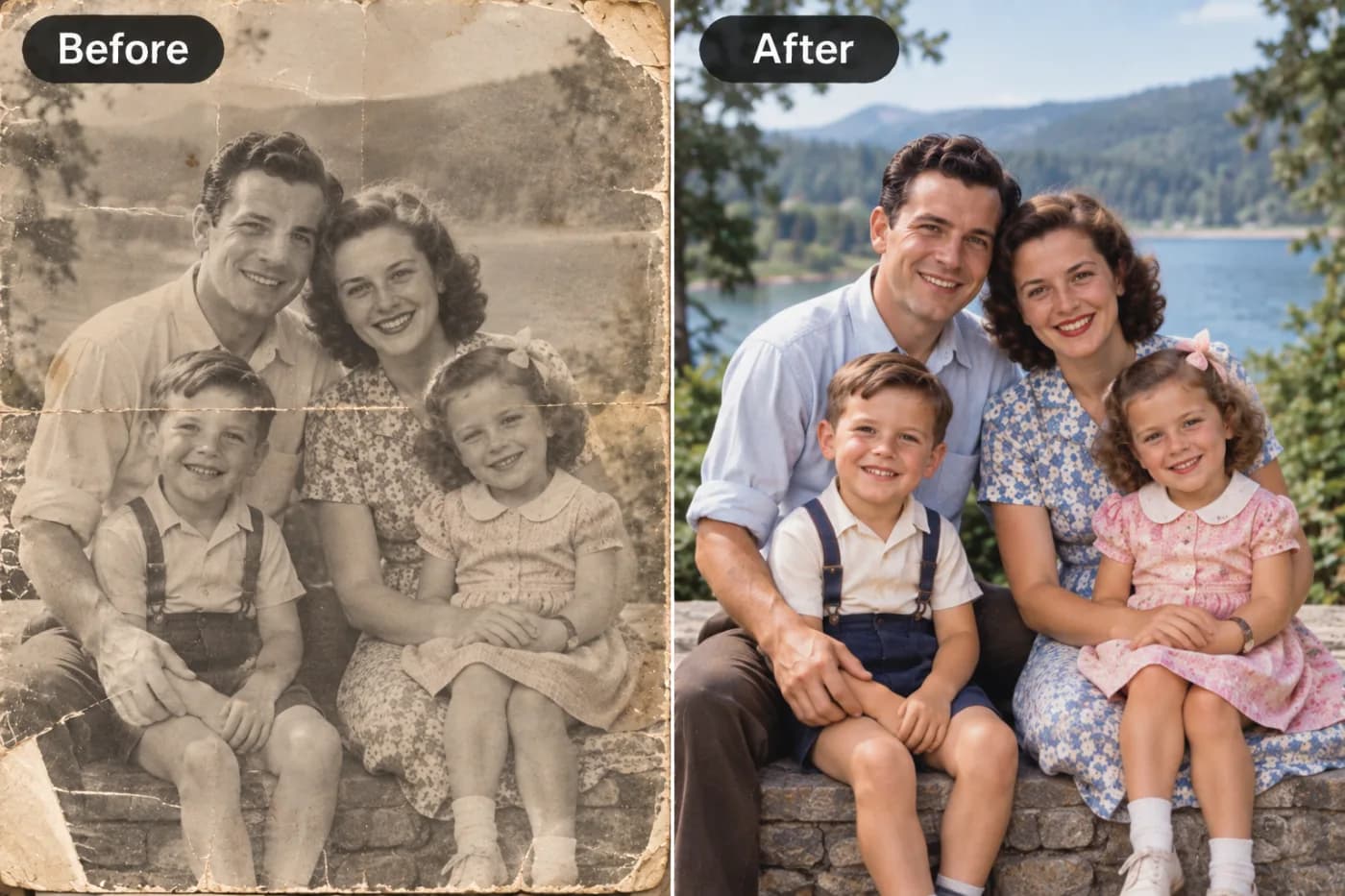
T-shirt printing needs high resolution or the design comes out fuzzy. Here's how to upscale your artwork for print — free.
Print-on-demand and custom T-shirts are a great little business or hobby — until your design comes back from the printer looking soft and fuzzy. The culprit is almost always resolution: garment printing needs high-resolution artwork, and a lot of designs (especially ones pulled off the web or generated by AI) are too small. Upscaling gets your artwork print-ready, for free.
Why T-shirt prints need high resolution
A design printed across a chest is physically large — often 10–12 inches wide. At the ~300 DPI printers like, that's roughly 3000+ pixels across. Most images aren't anywhere near that, so the print stretches them and every soft edge shows on the fabric. Bold graphics and text are especially unforgiving. Upscaling to enough resolution is what keeps the print crisp.
How to upscale your design free
Open the upscaler, upload your artwork (PNG keeps transparency for a clean print), and choose 4× for maximum size. Download the enlarged, sharper version and send that to your print service. Free, no watermark. Aim for enough resolution to hit ~300 DPI at your print width — a 4× boost from a decent source usually gets you there.
Tips for a clean shirt print
Keep transparency by exporting as PNG so there's no white box around your design. Bold, high-contrast artwork prints best on fabric. Always start from the highest-resolution original you have — and if you're using an AI-generated design, upscale it before sending to print, since generators export small. Because the tool's free, you can prep a whole product line without cost.
Get print-ready artwork — free
Upload your T-shirt design to the free upscaler, go 4×, and download a crisp, print-ready file — no watermark, no cost.