How to Upscale Images for YouTube Thumbnails (Sharp at Any Size)
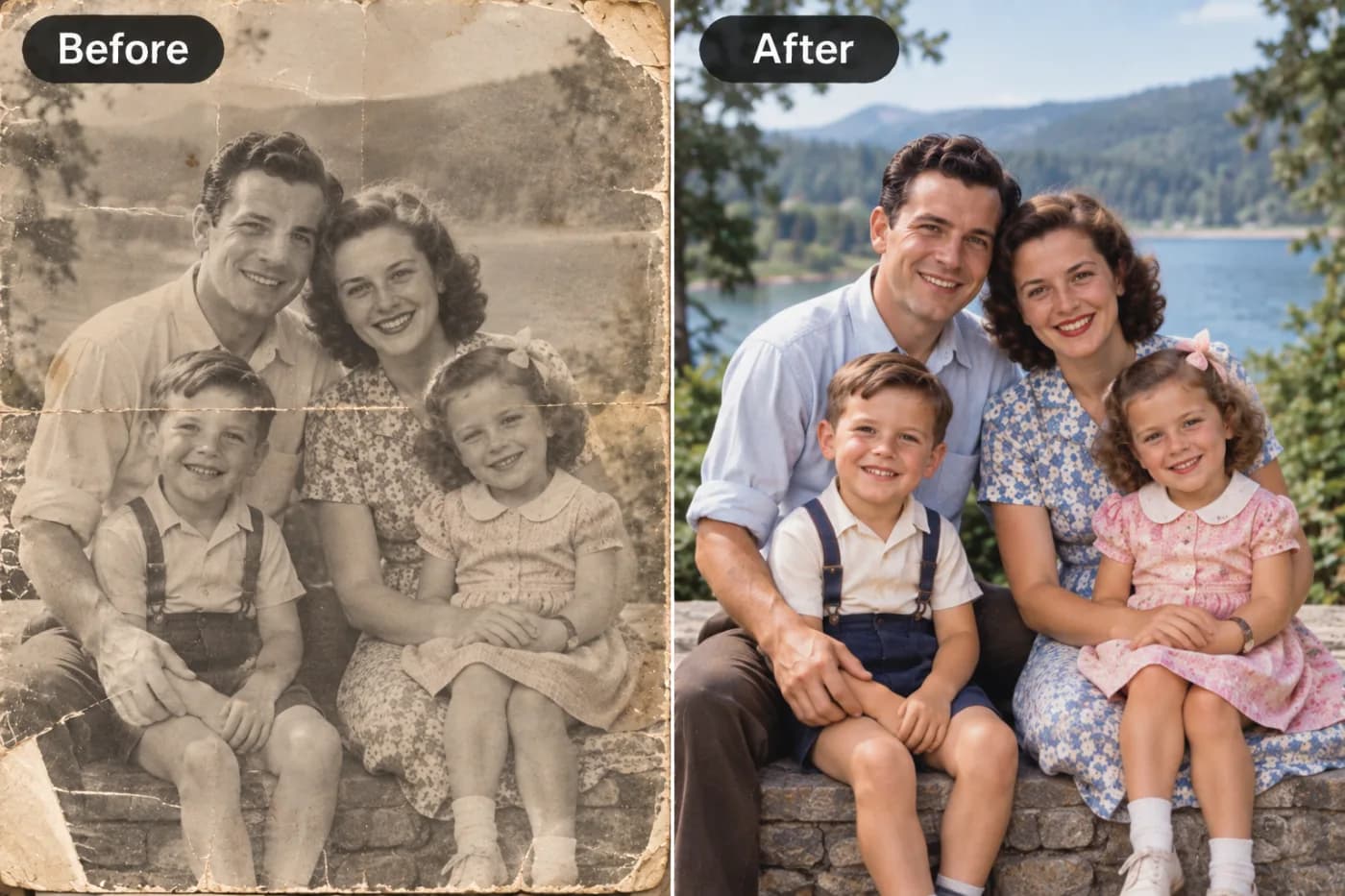
A blurry thumbnail kills your click-through rate before anyone reads the title. Here's how to upscale any image to razor-sharp thumbnail quality in seconds.
YouTube recommends a thumbnail resolution of 1280×720 pixels, but most creators grab a frame from their video or a phone selfie that's far smaller — then stretch it to fit. The result is a soft, pixelated thumbnail that looks amateur next to competitors and quietly drops your click-through rate. Upscaling fixes this: it rebuilds the missing detail so your thumbnail stays crisp whether it's shown as a tiny mobile card or a full-width desktop preview.
Why thumbnail sharpness drives clicks
Your thumbnail is the single biggest factor in whether a viewer clicks. On a crowded homepage or search page, a sharp, high-contrast image signals quality and professionalism, while a blurry one signals low effort — even subconsciously. Because YouTube displays thumbnails at many sizes (from ~120px on mobile suggestions up to 1280px on the watch page), your source image needs enough real resolution to look clean at every scale. Upscaling to a true 1280×720 or larger gives YouTube's compression more detail to work with, so edges stay defined instead of turning to mush.
Upscale your thumbnail in three steps
Step 1 — Pick your best frame or photo. Start with the sharpest source you have. Even a small image works, but avoid ones that are already heavily compressed or motion-blurred.
Step 2 — Upscale 2× or 4×. Open the free upscaler at Pixel Shine, drop in your image, and choose 2× for a modest boost or 4× for maximum resolution. The AI reconstructs edges, textures, and fine detail rather than just stretching pixels.
Step 3 — Crop and add text. Export the upscaled image, crop to 16:9 (1280×720), and add your title text in any editor. Because the base image is now high-resolution, your text and face will stay crisp.
Pro tips for thumbnails that pop
Keep the main subject large and centred — faces with clear expressions consistently outperform busy scenes. After upscaling, boost contrast and saturation slightly so the thumbnail stands out in the feed. Leave breathing room around any text so it survives cropping across devices. And always preview at small size: if it reads clearly as a 120px card, it will dominate at full size.
Free, unlimited, no watermark
You should never pay a subscription just to sharpen a thumbnail. Pixel Shine's basic upscaler is free and unlimited, runs online, and exports clean images with no watermark. Upscale as many thumbnails as you publish — daily uploads, A/B test variants, back-catalogue refreshes — without hitting a paywall.
Ready to lift your click-through rate? Head to Pixel Shine, upload your thumbnail image, and download a razor-sharp result in seconds.