How to Upscale a JPEG Without Losing Quality (Free)
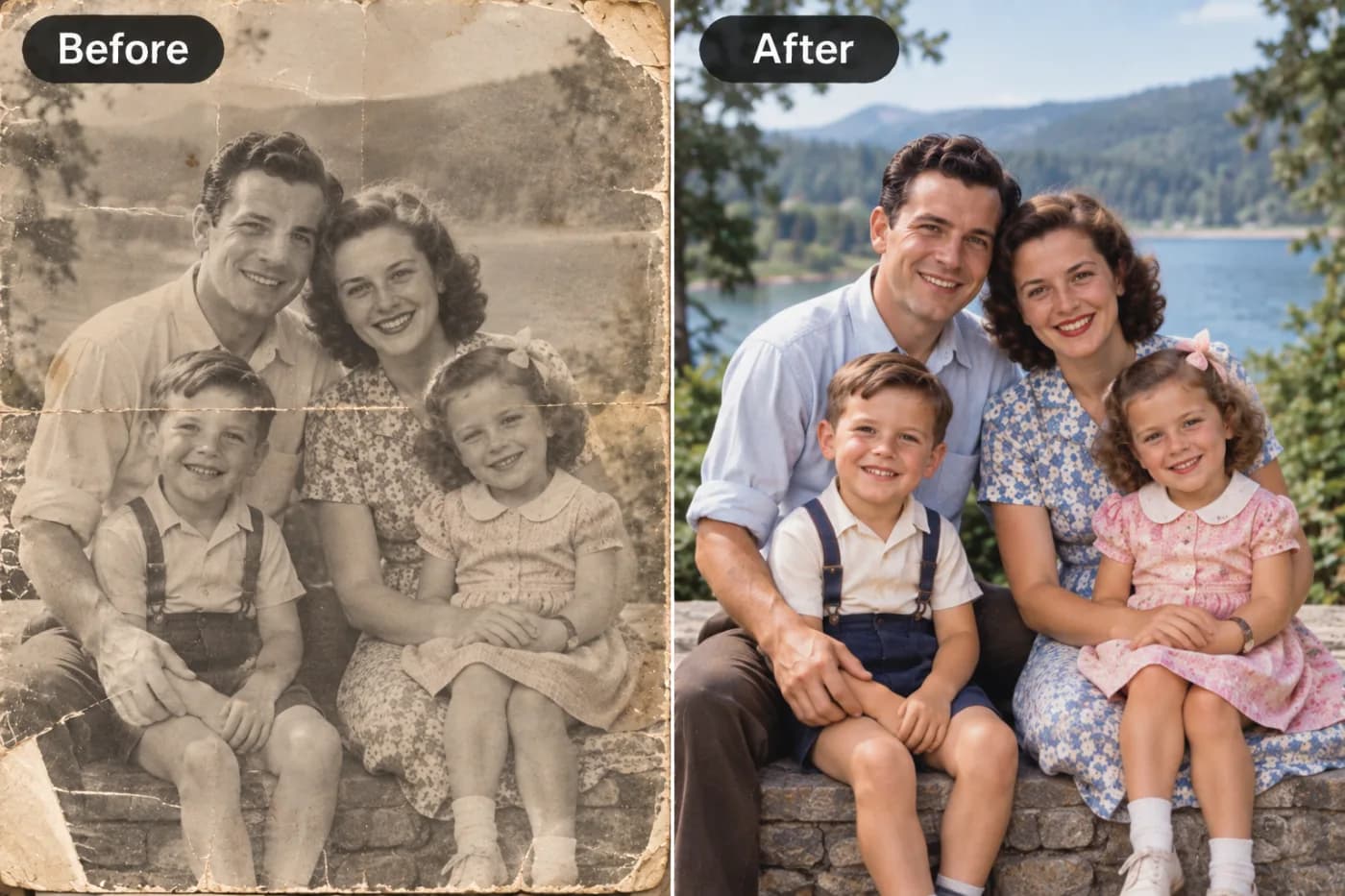
JPEG is everywhere, but it's a lossy format that softens with every save. Here's how to upscale a JPEG for free and get the sharpness back.
JPEG (or JPG) is the world's default photo format — it's on your camera, your phone, and nearly every image you download. The catch is that JPEG is *lossy*: to keep file sizes small, it throws away detail, and it does that again every time the file is re-saved or shared. Forward a JPEG through a few chat apps and it visibly degrades.
So when you go to enlarge a JPEG, you're often fighting both a small size *and* baked-in compression damage. Free AI upscaling handles both.
Why JPEGs get soft and blocky
JPEG compression works by simplifying blocks of the image — great for file size, rough on fine detail and sharp edges. You'll notice it most around text, crisp lines, and smooth gradients (that faint blocky halo). Each re-save compounds it. Enlarge that file the ordinary way and you magnify every artefact.
AI upscaling is well suited to this because it reconstructs clean edges and texture, effectively smoothing over compression blockiness while making the image bigger and sharper at the same time.
Upscale your JPEG free
Open the upscaler, upload your JPG, pick 2× or 4×, and download. No watermark, nothing to install, and you don't need to convert the file first — JPEG in, sharper image out. You can download the result as PNG to avoid adding another round of JPEG compression.
A tip to keep quality high
Always upscale from the least-compressed copy you can find. If you have the original off the camera, use that rather than a version that's been forwarded around. And when you save the final result, PNG keeps it lossless; if you must use JPEG, save at high quality to avoid re-introducing the very artefacts you just cleaned up.
Fix your JPEG now — free
Upload your JPEG to the free upscaler and download a bigger, cleaner version with the compression softness reduced. No watermark, no cost.