How to Change Photo Background Online for Free

Changing a photo background used to require Photoshop. Now you can swap any background online for free in under 30 seconds.
Knowing how to change a photo background online for free opens up a surprising number of possibilities — turning a snapshot taken in a messy room into a clean professional portrait, dropping yourself in front of a landmark you've never visited, or giving a product photo a crisp studio look. What used to require expensive software and real skill now takes about a minute online, and you don't have to pay a cent to get a clean, natural result.
The process has two parts: removing the existing background, then replacing it with something new — a solid color, a gradient, or an entirely different scene. The magic is in the first step. If the cutout around the subject is clean (especially the hair and edges), the new background will look believable. If it's sloppy, no amount of fancy backdrop will hide it. In this guide, we'll cover how to swap a photo background with AI cleanly, which backgrounds work best for which purposes, and how to do it all free on Pixel Shine with no watermark and no mandatory account.
How AI Background Replacement Actually Works
Understanding the two-step process helps you get better results and troubleshoot when something looks off.
Step one is subject isolation. The AI analyzes your image and identifies the foreground subject — a person, product, pet, whatever the main focus is. It then generates a precise mask separating that subject from everything behind it, right down to the soft edges of hair or fur. This is the hard part, and it's where cheaper tools fail, leaving jagged edges or color halos.
Step two is compositing. Once the subject is isolated on a transparent layer, the new background slots in behind it. Because the subject is on its own layer, you can swap backgrounds as many times as you want without re-cutting.
Why this beats old "green screen" methods: Chroma keying required you to actually shoot against a green backdrop under even lighting. AI background replacement works on any photo you already have — no special setup, no studio. The tool infers the subject's outline from the image itself.
The quality of your final image comes down almost entirely to how good that first mask is. This is why Pixel Shine focuses its model on clean edge detection, so when you drop in a new background, the seam between subject and scene is invisible.
Choosing the Right New Background
Not every background suits every purpose, and picking the wrong one is the fastest way to make an edit look fake. Here's how to match the backdrop to the goal.
Solid white or light gray is the safe, professional choice for headshots, LinkedIn photos, ID and passport photos, and e-commerce product shots. It's clean, distraction-free, and works everywhere. When in doubt, go white.
Brand colors or soft gradients work well for team pages, marketing materials, and social media graphics where you want personality without clutter. A subtle gradient adds depth without competing with the subject.
Real scenes (offices, outdoors, studios) can look fantastic — but they demand attention to lighting. The single biggest tell of a fake composite is mismatched light. If your subject is lit from the left with warm indoor light, your new background needs the same. A person lit warmly dropped onto a cold, blue-lit scene looks pasted-in.
Blurred backgrounds are a forgiving middle ground. A softly blurred office or bokeh backdrop mimics a shallow depth of field, hides the fact that it's a composite, and keeps focus on the subject. This is often the most believable choice for portraits.
With Pixel Shine, you can try several backgrounds against the same cutout in one session, so it's easy to compare and pick the one that reads as most natural.
Step-by-Step: Change Your Photo Background for Free
Here's the full workflow to replace a background in a photo using Pixel Shine. From upload to download, it takes about a minute.
Step 1: Pick your best source image. Choose the highest-resolution photo you have where the subject is reasonably clear. Good, even lighting on the subject makes the cutout cleaner.
Step 2: Go to Pixel Shine and open the Remove Background tool. No sign-in is needed for basic background work, so you can start immediately from the homepage.
Step 3: Upload your photo. Drag and drop it onto the upload area or click to browse. JPG, PNG, and WEBP all work.
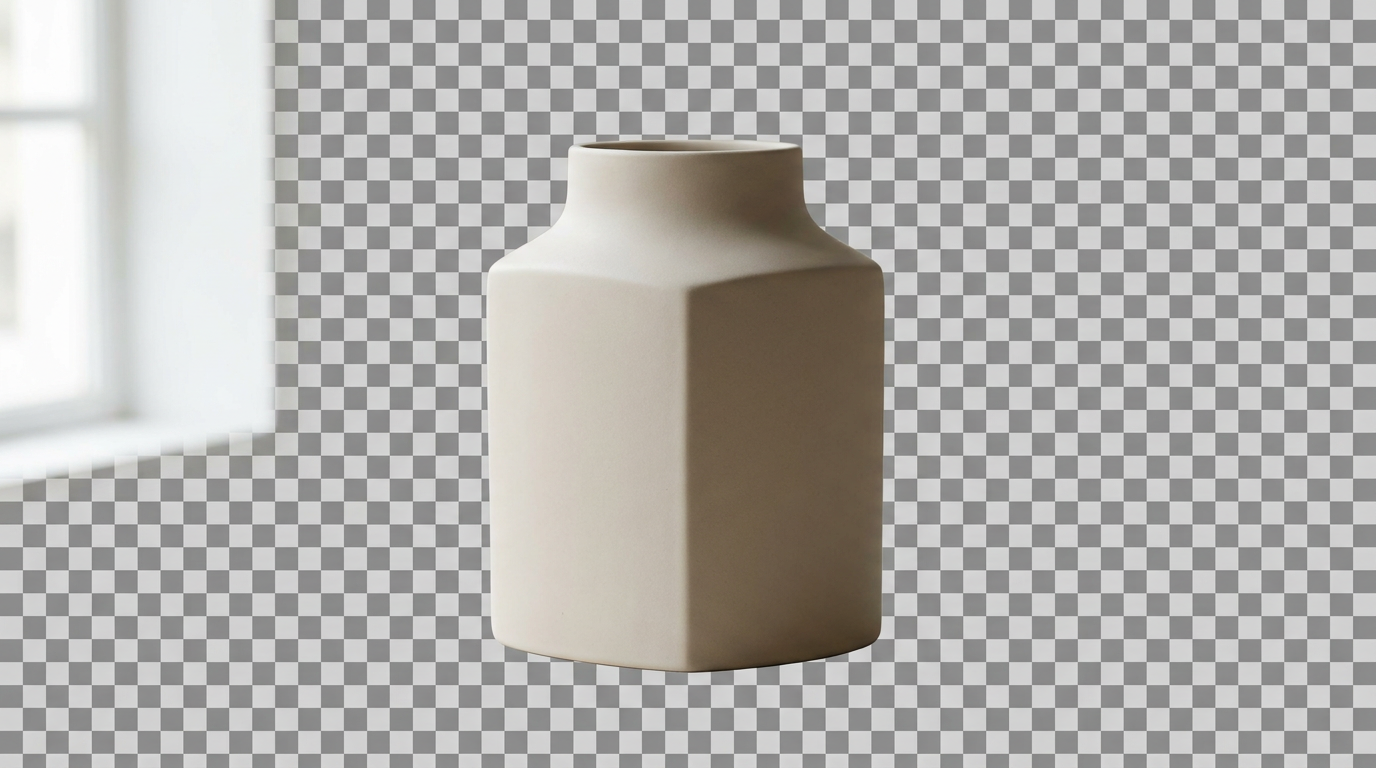
Step 4: Let the AI remove the existing background. In a few seconds, the tool isolates your subject and hands you a clean, transparent cutout.
Step 5: Review the edges. Zoom in on the hairline and any fine details to confirm the cutout is tight. This is your quality checkpoint before adding a new background.
Step 6: Add your new background. Choose a solid color like white, apply a gradient, or place a new scene behind the subject. Position and scale the subject if needed so it sits naturally in the new setting.
Step 7: Match the look. If you used a real scene, glance at the lighting and color temperature. Small adjustments here sell the effect.
Step 8: Download. Export your finished image. There's no watermark, and if you keep the transparent PNG cutout too, you can re-use it for other backgrounds later.
Pro Tips for Believable Background Swaps
The gap between an obvious edit and a seamless one comes down to a handful of details.
Always keep the transparent PNG. Even if you only need a white background today, save the cutout. It's a reusable asset you can drop onto any future backdrop without re-processing.
Match light direction first, color second. Before worrying about anything else, check which way the light falls on your subject and pick a background lit the same way. It's the most powerful cue for realism.
Use blur to your advantage. A slightly blurred background not only looks professional (like a portrait lens) but also forgives tiny imperfections in the cutout edge.
Mind the scale. If you place yourself in front of a landmark, get the proportions right. A person who's too large or too small for the scene breaks the illusion instantly.
Avoid pure, harsh backgrounds behind wispy hair. Fine flyaway strands look best against a softer, mid-tone background. A stark, high-contrast backdrop makes any leftover edge fuzz visible.
Do color grading on the whole composite, not the subject alone. Once everything is combined, a light overall color adjustment ties the subject and background together so they feel like one photo.
Common Mistakes to Avoid
These are the errors that make a background swap look amateurish — and they're all easy to sidestep.
Mismatched lighting. The classic giveaway. A warmly-lit subject on a cool background (or vice versa) never looks right. Match light direction and color temperature.
Ignoring the cutout edges. People rush to the fun part — the new background — without checking the mask. If there's a halo or a jagged hairline, the new backdrop just highlights it. Inspect edges first.
Choosing an over-detailed background. A busy, high-detail scene competes with your subject and exposes edge flaws. Simpler or blurred backgrounds almost always look more professional.
Wrong scale or perspective. Dropping a straight-on portrait into a scene shot from a low angle creates a subtle wrongness. Match the camera angle where possible.
Baking the background in too early. Export a transparent PNG master before you flatten to JPG, so you can revise the background later without starting over.
Use Cases: When to Change a Background
Background swapping solves a lot of everyday problems, and seeing the common scenarios helps you spot when it's the right tool.
Professional headshots from casual photos. You have a nice photo of yourself, but it was taken in your kitchen. Swap in a clean white or blurred-office background and it reads as a studio headshot — perfect for LinkedIn, resumes, and email signatures.
Consistent team and staff pages. Everyone on your team sent in a photo shot in a different room. Put them all on the same white or brand-colored background and suddenly the page looks intentional and cohesive.
E-commerce and marketplace listings. A clean white background is practically required on Amazon, Etsy, and eBay. Swap out the cluttered background from a phone snapshot and your product looks catalog-ready.
Real estate and personal branding. Agents, coaches, and consultants put themselves on flyers and ads. A polished background elevates the whole piece.
Fun and social. Place yourself in front of a beach, a city skyline, or a fantasy scene for social posts, invitations, and greeting cards. Because Pixel Shine is free, you can experiment endlessly without worrying about per-image costs.
Who Uses Free Background Changers
The range of people swapping backgrounds every day is broader than you'd expect. Job hunters turn a phone selfie into a professional profile photo without paying for a headshot session. Online sellers clean up product listings to meet marketplace requirements and stand out. Small business owners build cohesive team pages and marketing materials on a zero budget.
Content creators make thumbnails, stickers, and social graphics where they're isolated on a custom backdrop. Students and job applicants produce clean ID-style photos for applications. Event planners and organizers create speaker lineups and promotional images. And countless everyday users just want to remove a distracting background from a family photo or drop a loved one into a nicer scene for a card or photo book.
What unites them is the need for a quick, clean, free way to replace a background without design skills or software. Pixel Shine's free tier — no watermark, no mandatory sign-up — makes it accessible to all of them.
Frequently Asked Questions
How can I change a photo background online for free?Go to Pixel Shine, open the Remove Background tool, upload your photo, let the AI remove the existing background, then add a new solid color or scene. It's free, requires no account for basic use, and adds no watermark.
Can I replace a background without Photoshop?Yes. AI tools like Pixel Shine handle both the cutout and the replacement automatically online. You don't need Photoshop or any editing skills.
Will the new background look realistic?It can look completely natural if you match the lighting direction and color temperature between subject and background, and choose a backdrop that isn't overly busy. Blurred backgrounds are the most forgiving and believable.
Is there a watermark on the free version?No. Pixel Shine does not add watermarks to your images, even for free background changes.
Can I make the background transparent instead of replacing it?Yes. Export as a PNG for a fully transparent background, which lets you place your subject onto any background later.
Do I need to create an account?Basic background removal and replacement don't require sign-in. You can start editing right away.
What's the best background for a professional photo?Solid white or light gray is the safest professional choice. For a more premium look, a softly blurred office or neutral backdrop works beautifully.
Can I change the background on multiple photos?Yes. You can process photos one after another in the same session, which is handy for team pages or product catalogs where you want a consistent look.
Key Takeaways
Changing a photo background online is now a one-minute, no-cost task. The process is simple: remove the existing background with AI, then drop in a new one. The secret to a believable result is a clean cutout plus matched lighting — get those two right and even a real-scene swap looks convincing. For safe, professional results, white or blurred backgrounds are hard to beat.
You don't need Photoshop, a subscription, or even an account. Pixel Shine lets you change photo backgrounds free, with no watermark and no sign-up for basic use. Head to Pixel Shine, upload your photo, and try a few backgrounds to see how quickly a snapshot becomes something polished.