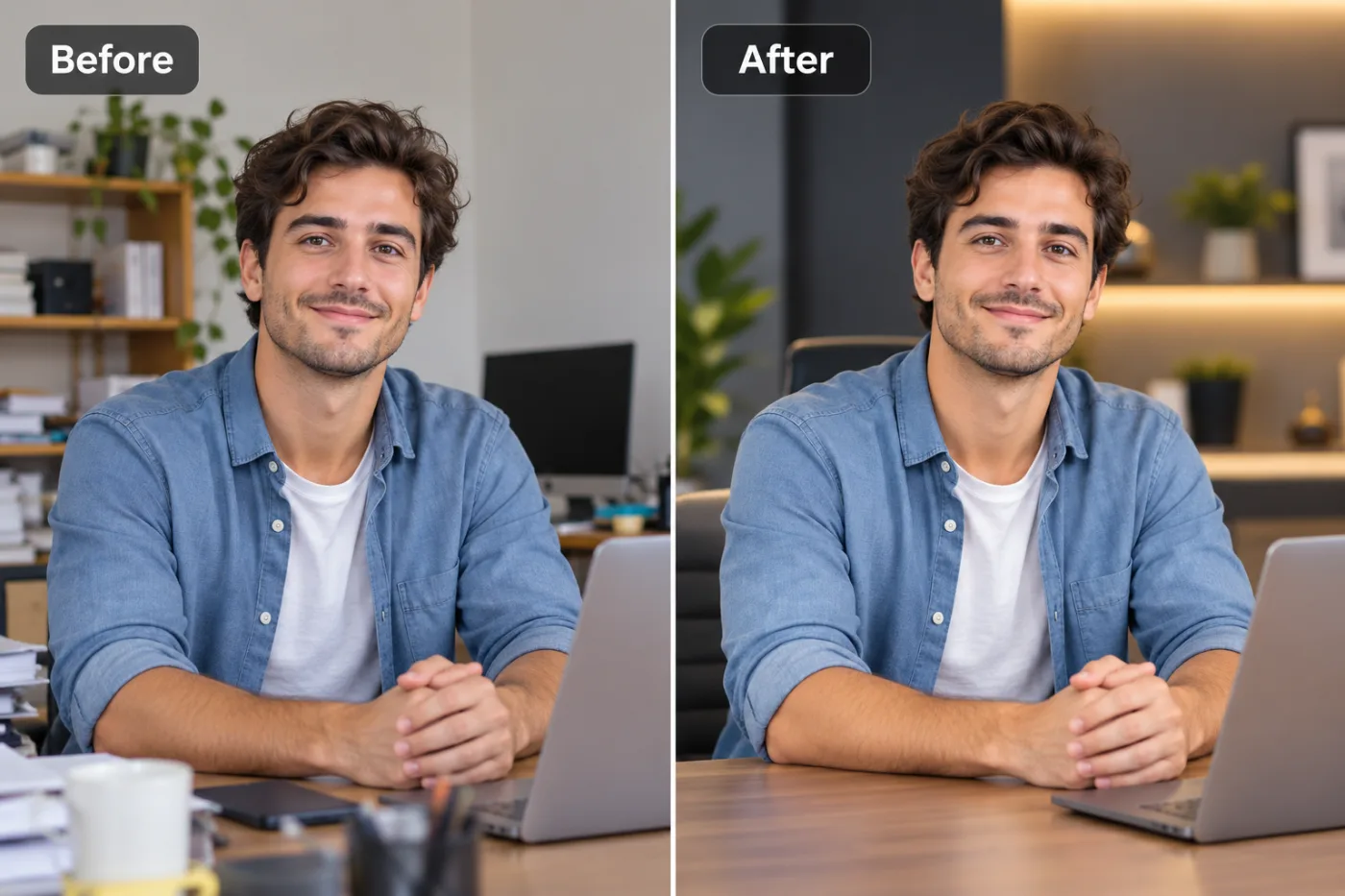
How to Make a Passport Photo White Background with AI
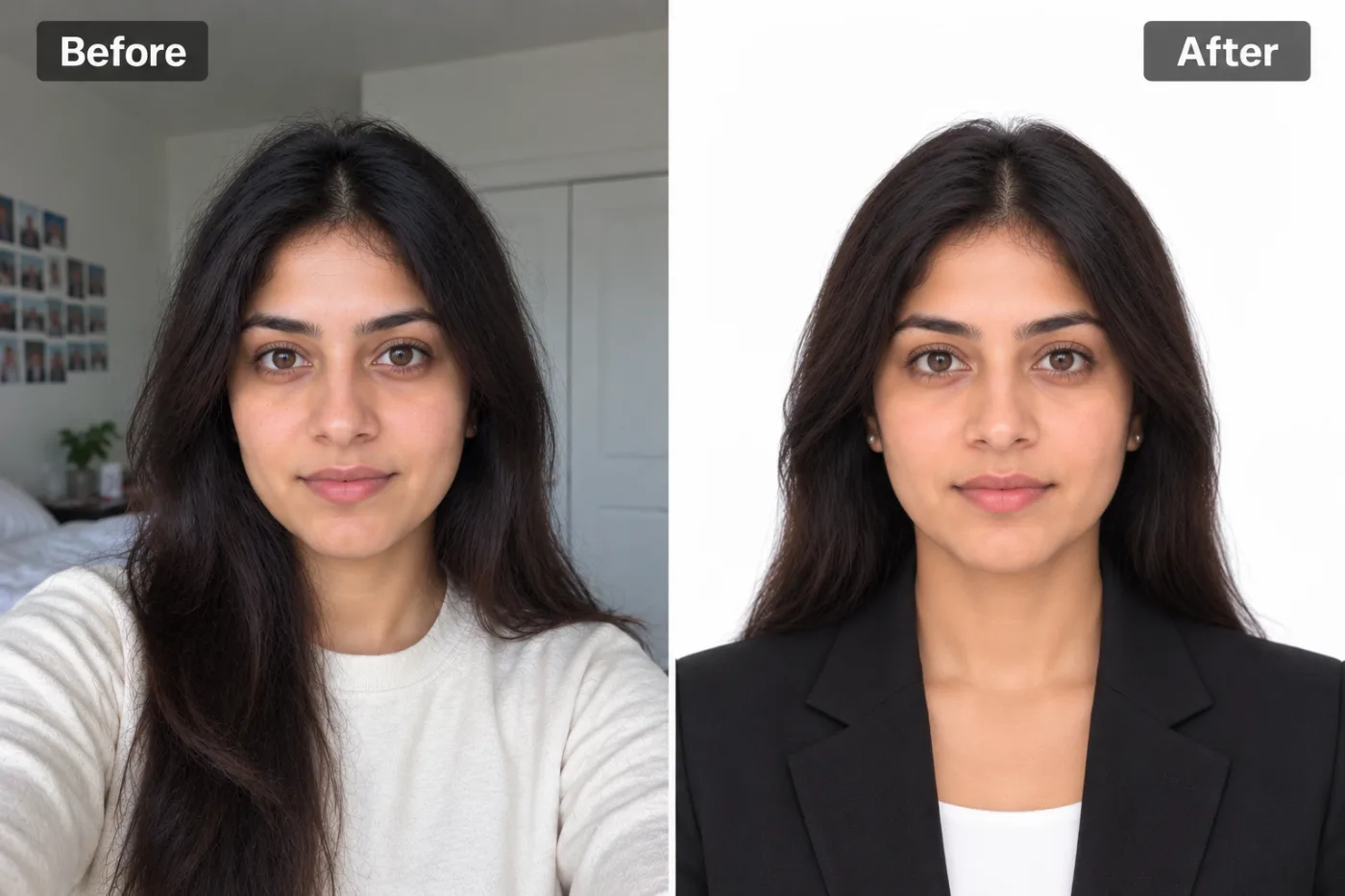
Getting a passport photo with the right white background no longer requires a studio. AI makes it free and instant from any photo.
Making a passport photo with a white background used to mean a trip to a pharmacy or photo booth and a $15 fee for two prints. Now you can create a compliant passport photo white background at home in about a minute, using nothing but a phone photo and an AI background remover. The requirement that trips most people up isn't the framing or expression — it's that clean, plain white (or off-white) background that passport, visa, and ID authorities demand. That's exactly the part AI handles best.
Whether you need it for a passport, a visa application, a national ID, a driver's license, or an employee badge, the core task is the same: isolate your head and shoulders cleanly and place them on a uniform white background with no shadows. In this guide, we'll walk through exactly how to remove the background for a passport photo, the specific rules you need to meet, the mistakes that get photos rejected, and how to do it all free on Pixel Shine without paying a booth or installing software.
What Passport Photo Rules Actually Require
Before you edit anything, it's worth knowing the standards, because a technically perfect cutout on the wrong background still gets rejected. Requirements vary slightly by country, but the common threads are remarkably consistent.
Background must be plain white or off-white. This is the near-universal rule for US, UK, EU, and most passport photos. No patterns, no shadows, no gradient — a single, uniform light background. This is precisely what background removal plus a white fill delivers.
No shadows. Shadows behind your head or under your chin are one of the top rejection reasons. Removing the original background eliminates background shadows entirely, which is a hidden advantage of the AI approach.
Neutral expression, eyes open, facing forward. You handle this at capture time. Mouth closed (or a natural expression, depending on country), both eyes visible, no hair covering the face.
Correct dimensions and head size. US passport photos are 2x2 inches (51x51mm) with the head occupying roughly 50-69% of the height. Other countries use 35x45mm. The head must be centered and correctly proportioned.
No filters, no heavy editing of your face. You can clean the background, but you can't alter your actual appearance — no beauty filters, no reshaping.
The key point: background removal handles the single hardest technical requirement (clean white background, no shadows) automatically, leaving you to just get the framing and expression right.
Why AI Background Removal Is Ideal for ID Photos
Passport and ID photos are actually the perfect use case for AI background removal, more so than almost any other. Here's why.
The target background is the simplest possible. You're not compositing yourself into a complex scene — you just need flat white. That means even the tiniest imperfections have nowhere to hide, but it also means the AI's job is straightforward: cut you out cleanly, drop in white.
It eliminates shadow problems automatically. Getting a shadow-free white wall at home is genuinely hard — you'd need proper lighting and space. By removing the original background entirely and replacing it with pure digital white, you sidestep the shadow issue completely. This alone saves many photos from rejection.
It's consistent and repeatable. If your first attempt doesn't nail the expression, you just retake the photo and re-process. No wasted prints, no second trip to the booth.
It's cheap to retry. A photo booth charges per session. AI removal costs 2 credits a photo, so you can try a few shots until one is right.
The one thing AI doesn't do for you is the capture — you still need a well-lit, front-facing photo with a neutral expression. But once you have that, Pixel Shine turns it into a clean white-background photo in seconds. Get the shot right, and the hardest technical requirement solves itself.
Step-by-Step: Make a White-Background Passport Photo
Here's the complete process, from taking the photo to a compliant white-background result using Pixel Shine.
Step 1: Set up good, even lighting. Face a window or a soft light source so your face is evenly lit with no harsh shadows. Avoid overhead light that shadows your eyes.
Step 2: Take the photo. Stand or sit against any plain-ish background (it doesn't need to be white — the AI removes it). Face the camera straight on, neutral expression, eyes open, hair off your face. Have someone take it, or use a timer at eye level, not from below.
Step 3: Go to Pixel Shine and open the Remove Background tool. Sign in with a free account, and you can start right away.
Step 4: Upload your photo. Drag and drop or browse to select it. The AI processes it in a few seconds.
Step 5: Let the AI cut you out. It isolates your head and shoulders from whatever background you shot against, removing any shadows along with it.
Step 6: Add a white background. Fill the background with plain white (or off-white per your country's rules). Check that there's no gray halo around the hairline — zoom in to confirm the edge is clean against the white.
Step 7: Crop to the correct dimensions. Frame to 2x2 inches (US) or 35x45mm (many other countries), with your head centered and sized to the required proportion — roughly 50-69% of the frame height for the US.
Step 8: Download. Export the finished photo at full resolution with no watermark. You can now print it at home or at a photo kiosk, or upload it for online applications.
Pro Tips for Passport-Compliant Photos
These details separate an accepted photo from a rejected one.
Light your face evenly at capture. The AI fixes the background, but it can't fix uneven facial lighting or shadows on your face. Soft, front-facing window light is your best friend.
Wear a color that contrasts with white. Since your final background is white, avoid a white or very pale shirt that blends into it — your shoulders will disappear. A mid-tone or darker top keeps you clearly defined.
Keep your expression neutral and natural. A slight closed-mouth non-smile is safest for most countries. Both eyes fully open and visible.
Mind your hair. Tuck flyaway strands back so the AI has clean edges to work with, and so hair doesn't cover your eyes or eyebrows (a common rejection reason).
Check the head-size proportion carefully. This is the most-missed rule after background. Use your country's template — the US wants the head between about 1 and 1 3/8 inches (25-35mm) in a 2x2 photo.
Print at the right size. If printing, use photo paper and the exact required dimensions. Many drugstores and kiosks will print a 2x2 or 4x6 sheet you can cut.
Common Mistakes That Get Photos Rejected
Passport photo rejections are common and almost always avoidable. Here are the big ones.
Shadows on the background or face. The number one rejection cause. AI removal fixes background shadows automatically, but you still need shadow-free lighting on your actual face.
Wrong head size or off-center framing. Even a perfect white background fails if your head is too big, too small, or not centered. Follow your country's exact template.
A blending outfit. Wearing white against a white background makes your shoulders vanish, leaving a floating-head look that gets rejected. Choose contrasting clothing.
Smiling, closed eyes, or tilted head. Capture-stage errors. Neutral expression, both eyes open, head straight and level.
Over-editing your face. Beauty filters, skin smoothing, or reshaping are not allowed. Only clean the background — leave your face untouched.
Passport, Visa, and ID Photos: One Tool, Many Uses
The same white-background technique covers a whole family of official photos, each with slightly different specs.
Passport photos are the most common: 2x2 inches in the US, 35x45mm in the UK, EU, and much of the world, always on a plain light background.
Visa photos often mirror passport specs but check the specific consulate's requirements — some countries have unique dimensions or background shades.
National ID and driver's license photos frequently allow a white or light-gray background and similar framing, though many are taken on-site. For applications that let you submit your own, the same process applies.
Employee badges, security passes, and membership cards almost always want a clean, consistent background, and a white cutout looks professional across an entire organization.
School and university IDs, professional licenses, and online application photos round out the list.
At 2 credits a photo with no subscription, you can produce compliant photos for every family member and every document type. Keep the transparent PNG cutout, and you can quickly re-crop and re-fill for different dimension requirements as they come up.
Who Uses AI Passport Photo Makers
This tool quietly saves people time and money across many situations. Families preparing for travel make passport photos for everyone at once, avoiding multiple booth fees. International students and workers produce visa photos that meet specific consulate requirements from home. Remote applicants who can't easily reach a photo booth generate compliant photos on their own schedule.
Parents deal with the notoriously hard task of infant and child passport photos, where a booth trip with a squirming toddler is a nightmare — taking the photo at home and cleaning the background is far easier. HR teams create consistent employee badge photos for new hires. Anyone renewing a document on a deadline can produce a photo in minutes rather than finding an open booth.
The common benefit is control and cost: unlimited retakes until the photo is right, no per-print fee, and no trip out. Pixel Shine's AI background remover makes the hardest part — the clean white background — effortless.
Frequently Asked Questions
How do I make a passport photo with a white background for free?Take a well-lit, front-facing photo, go to Pixel Shine, open the Remove Background tool, upload the photo, let the AI remove the original background, add a white fill, and crop to your country's required dimensions. Each photo costs 2 credits, with no watermark.
Can I use my phone to take a passport photo?Yes. A modern phone camera is more than enough resolution. Just ensure even lighting, a straight-on angle at eye level, and a neutral expression. The AI handles the background.
Will an AI-edited passport photo be accepted?Yes, as long as it meets the requirements — plain white background, correct dimensions, neutral expression, no shadows, and no editing of your actual face. Removing and replacing the background to plain white is fully compliant; altering your appearance is not.
What size should a passport photo be?US passport photos are 2x2 inches (51x51mm). The UK, EU, and many countries use 35x45mm. Always check your specific country's requirements before cropping.
Does the AI remove shadows?Yes, by replacing the entire original background with clean digital white, any background shadows disappear. However, you should still light your face evenly at capture, since the AI won't remove shadows on your face itself.
Can I make visa or ID photos the same way?Yes. The same process works for visa, national ID, driver's license, and badge photos — just adjust the dimensions and background shade to match that document's rules.
Is there a watermark on the download?No. Pixel Shine does not add watermarks, so your passport photo downloads clean at full resolution.
What should I wear for a passport photo?Wear a mid-tone or darker top that contrasts with the white background so your shoulders stay clearly defined. Avoid white or very pale clothing, which blends into the background.
Key Takeaways
Creating a compliant passport photo with a white background at home is genuinely easy now. The hardest technical requirement — a clean, shadow-free white background — is exactly what AI background removal handles best. Your job is simply to capture a well-lit, front-facing photo with a neutral expression, then let the tool cut you out and drop you onto plain white before cropping to the right dimensions.
Do it right and you'll save the booth fee, avoid the trip, and get unlimited retakes until the photo is perfect. Pixel Shine's Remove Background tool is watermark-free and needs no subscription. Head to Pixel Shine, upload your photo, and make a passport-ready image in about a minute.