How to Upscale Anime Images and AI Art for Free
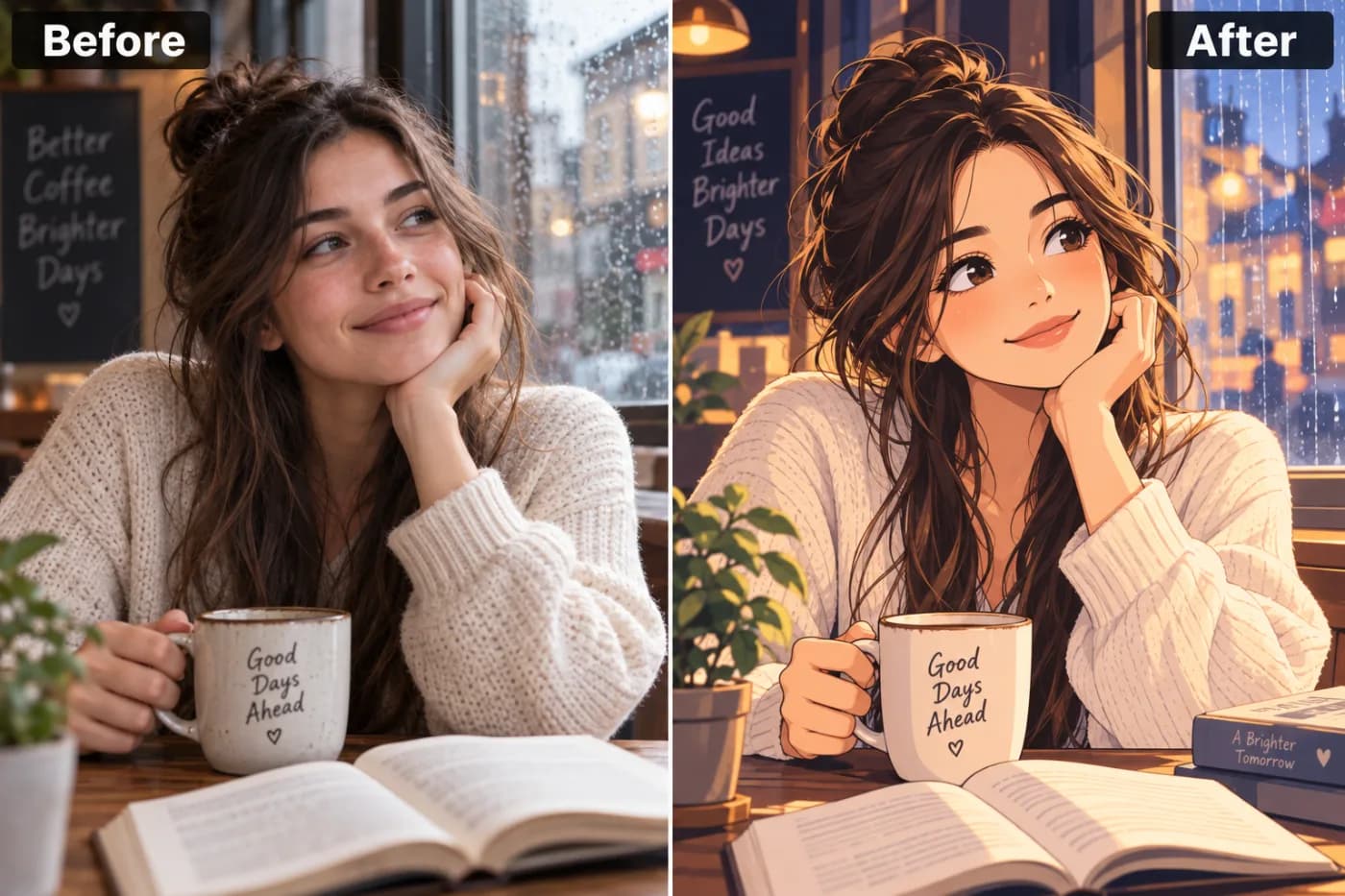
Anime and illustrations have clean lines and flat colour that need careful upscaling. Here's how to enhance them to HD/4K for free.
Figuring out how to upscale anime images and AI art for free opens up a world of crisp wallpapers, sharp prints, and high-resolution creative work. Anime illustrations, manga panels, and AI-generated art have a distinct visual style — clean lines, flat color regions, sharp edges, and stylized detail — that behaves very differently from photographs when enlarged. That's exactly why a general-purpose approach often disappoints, and why knowing the right way to upscale anime art matters.
The core problem is that anime and AI art are frequently created or downloaded at small sizes. A generated image might come out at 512x512 or 1024x1024 pixels, and fan art or screenshots found online are often smaller still. Blow these up with a basic resizer and the crisp lines turn to mush, the flat colors get muddy, and the whole appeal of the style collapses. What you need is AI upscaling that respects and reconstructs those clean edges and stylized details.
In this guide, we'll explain why anime and AI art need special handling, how Pixel Shine works as a free anime image upscaler with unlimited Normal upscaling, no watermarks, and no mandatory sign-up, and exactly how to enhance anime photos and art step by step. Plus expert tips, mistakes to avoid, and the real use cases creators care about.
Why Anime and AI Art Are Tricky to Upscale
Anime illustrations and AI-generated art have characteristics that make enlargement uniquely challenging. Sharp, clean line work. The defining feature of anime art is crisp, deliberate linework — outlines around characters, hair strands, clothing folds. When a basic resizer enlarges these, it averages pixels and smears the once-crisp lines into soft, jagged, or blurry edges, destroying the clean aesthetic that defines the style.
Flat color regions. Anime art uses large areas of flat or gently shaded color. Traditional enlargement can introduce banding and muddiness in these regions, breaking up what should be smooth, solid fills.
Small source sizes. AI art generators frequently output at 512x512 or 1024x1024 pixels, and fan art, screenshots, and downloaded illustrations are often small. These modest sizes look fine on a phone but fall apart when set as a desktop wallpaper or sent to print.
Stylized rather than photographic detail. Anime detail is intentional and graphic — not the organic texture of a photograph. Upscalers tuned only for photos can misinterpret this, softening the deliberate stylization.
The combination means that enlarging anime or AI art with generic tools produces blurry lines, muddy colors, and a loss of the crisp, vibrant look that makes the art appealing. Proper upscaling has to preserve and reconstruct those sharp edges and clean color regions — treating the stylized nature of the art as a feature to protect, not a photograph to smooth over.
How Pixel Shine Upscales Anime Images and AI Art
Pixel Shine's upscaler reconstructs detail rather than stretching pixels, which is exactly what anime and AI art need to keep their crisp lines and clean colors intact through enlargement. Its deep-learning model, trained on vast image data, rebuilds edges and structure as it enlarges — so instead of smearing the sharp linework that defines anime, it works to keep those lines clean and the flat color regions smooth at the larger size.
Free Normal mode is perfect for everyday anime and AI art upscaling — turning 512 or 1024-pixel generations and downloads into crisp, larger images for wallpapers and sharing. It's free, unlimited, and requires no sign-up, so you can process an entire folder of art without hitting a wall.
Pro AI mode steps in for the most demanding work — highly detailed illustrations, art headed to large print, or images where you want maximum reconstruction. Running on credits with a more powerful model, it squeezes out the finest detail.
No watermarks, ever. For creators, this is essential — Pixel Shine returns a clean file with no logo stamped across the artwork, so your upscaled anime images and AI art are ready to post, print, or share as wallpapers immediately. That blend of edge-preserving reconstruction, unlimited free upscaling, and clean output makes it a genuinely practical tool for the anime and AI art community.
Step-by-Step: Upscaling Anime Images and AI Art
Here's how to enlarge your anime or AI art with Pixel Shine from start to finish.
1. Go to Pixel Shine and open the Upscale tool. The free Normal upscaler needs no account, so you can start immediately.
2. Prepare your source art. Use the original, highest-quality export of your AI generation or the cleanest version of the anime image you have — avoid pre-compressed screenshots when a better source exists.
3. Upload your image. Drag and drop or click to browse. JPG, PNG, and WEBP are all supported directly, and PNG is ideal for preserving crisp lines.
4. Choose your upscale factor. For a 512x512 generation, 4x produces a crisp 2048x2048 image great for wallpapers and print. For a 1024-pixel source, 2x gives a clean 2048, or 4x for very large output.
5. Select Normal or Pro AI mode. Use free Normal for everyday anime and AI art enlargement. Switch to Pro AI mode for highly detailed illustrations or art headed to large print.
6. Process the image. Click upscale and let the AI reconstruct the linework and color regions. It typically finishes in seconds.
7. Inspect the lines and colors. Zoom in to confirm the edges stayed crisp and the flat color areas remained clean and smooth rather than muddy or banded.
8. Download your upscaled art. Save the clean, watermark-free file to your device, ready to set as a wallpaper, post online, or send to print.
Pro Tips for Crisp Anime Upscaling
These techniques help preserve the clean, vibrant look of anime and AI art.
Always work from the original PNG export. AI generators and art tools can export lossless PNGs that keep lines razor-sharp. Upscaling from a PNG rather than a compressed JPEG screenshot preserves far more of the crisp aesthetic.
Match the factor to your generation size. A 512-pixel image benefits from 4x to reach a usable 2048; a 1024-pixel piece may only need 2x. Choosing the appropriate factor keeps lines cleanest.
Use Pro AI mode for intricate illustrations. Highly detailed art with fine hair, patterns, or complex backgrounds benefits from the stronger model's reconstruction, especially when headed to print.
Upscale before adding text or effects. If you plan to overlay captions, logos, or effects, enlarge the base art first so everything you add sits at full resolution and stays crisp.
Aim high for wallpapers. For a 4K desktop wallpaper, target a final resolution around 3840 pixels wide or more so the art fills high-DPI screens without softness.
Keep your original generation. Always save your unmodified source export alongside the upscaled version, so you can reprocess at different sizes or with different settings later.
Common Mistakes to Avoid
Avoid these errors to keep your anime and AI art looking its best.
Upscaling a compressed screenshot instead of the source. A JPEG screenshot of an image already carries blocky artifacts around the crisp lines. Whenever possible, upscale the original PNG export rather than a re-saved screenshot.
Over-enlarging tiny thumbnails. Pushing a 256-pixel thumbnail to huge sizes asks the AI to invent too much stylized detail. Start from the largest original generation you have.
Saving the result as low-quality JPEG. Exporting your crisp upscaled art at aggressive JPEG compression reintroduces artifacts around the lines you just cleaned up. Save as PNG to preserve the sharp edges.
Ignoring aspect ratio for wallpapers. Stretching a square 1:1 generation to fill a 16:9 screen distorts the characters. Upscale proportionally, then crop or place the art on a background to fit the screen.
Using the wrong mode for detailed art. Running Normal mode on an extremely intricate illustration bound for large print may leave detail unrecovered that Pro AI mode would capture. Match the mode to the art's complexity and destination.
Real-World Uses for Upscaling Anime and AI Art
Upscaling anime images and AI art serves a passionate, practical community.
High-resolution wallpapers. Fans and creators turn favorite anime art and AI generations into crisp 4K desktop and phone wallpapers that fill high-DPI screens without blur — one of the most popular uses.
Printing art and posters. AI artists and anime fans print their work as posters, canvases, and wall art. Upscaling a 1024-pixel generation to print resolution ensures the lines and colors stay sharp at large sizes.
Merchandise and prints for sale. Creators selling stickers, prints, and merchandise need high-resolution files. Upscaling their art to meet print-shop requirements makes commercial products possible from smaller source generations.
Social media and portfolio posts. Sharing art at higher resolution makes it look crisp and professional on platforms and in online portfolios, standing out on modern high-DPI displays.
Game and content assets. Indie developers and content creators upscale AI-generated and anime-style art for use as backgrounds, character art, and thumbnails that need to look sharp at larger display sizes.
Advanced Techniques for Anime and AI Art
A few advanced approaches help you push anime and AI art upscaling further.
Staged upscaling for very large output. For huge prints or banners, running two sequential passes — such as 2x then 2x again from a clean source — can produce smoother linework than one aggressive 4x jump, since each step is a more manageable reconstruction.
Upscale then downsample for extra crispness. Enlarging slightly beyond your target size and then scaling down to exact dimensions can sharpen linework and clean up color regions even further, a trick that works especially well with the graphic style of anime art.
Combine upscaling with your generation workflow. When creating AI art, generate at a moderate size for speed, then upscale the final chosen piece rather than generating at maximum resolution from the start — this saves time and gives you a clean high-res result.
Preserve transparency where needed. If your AI art or anime asset uses transparency, keep it in PNG throughout so the alpha channel and clean edges survive the upscale, which matters for stickers, overlays, and compositing into other projects.
Who Upscales Anime and AI Art and Why
The community upscaling anime and AI art is creative and enthusiastic. AI artists enlarge their generations to print, sell, and display at high resolution. Anime fans turn favorite art into crisp 4K wallpapers for desktops and phones. Digital creators and illustrators upscale their work for portfolios, prints, and social media where sharpness stands out.
Merch sellers enlarge art to meet print-shop resolution requirements for stickers, posters, and products. Indie game developers and content creators upscale anime-style assets for backgrounds, characters, and thumbnails. Cosplayers and event organizers enlarge reference art and prints for displays and props. What unites them is a shared appreciation for the crisp, vibrant anime and AI art aesthetic — and a need to enlarge that art without losing the clean lines and smooth colors that make it beautiful, all without paying for software or accepting a watermark across their creative work.
Frequently Asked Questions
Can I upscale anime images and AI art for free?Yes. Pixel Shine's Normal upscaler is free, unlimited, and needs no sign-up, making it ideal for enlarging anime art and AI generations.
Will upscaling keep the crisp anime lines sharp?Yes. Pixel Shine reconstructs detail rather than stretching pixels, working to preserve the clean linework and smooth color regions that define anime and AI art, rather than smearing them like basic resizers do.
What source size should I upscale from?Use the largest original export you have. A 512-pixel generation reaches 2048 at 4x; a 1024-pixel piece hits 2048 at 2x. Larger, cleaner PNG sources give the best results.
Should I use PNG or JPEG for anime art?PNG is best. It preserves the crisp lines losslessly, both as your source and your final export, whereas JPEG compression can add artifacts around the sharp edges.
Does Pixel Shine add watermarks to my art?No. Every downloaded file is clean and watermark-free, so your upscaled anime images and AI art are ready to post, print, or use as wallpapers immediately.
When should I use Pro AI mode?Use it for highly detailed illustrations, art headed to large print, or when you want maximum reconstruction. Free Normal mode handles everyday wallpaper and sharing needs perfectly.
Can I upscale AI art to 4K for wallpapers?Yes. Choose a factor that takes your art to around 3840 pixels wide or more so it fills 4K screens crisply without softness.
Does it work on manga panels and screenshots too?Yes, though results are best from clean sources. Manga panels and screenshots can be upscaled, but starting from the highest-quality version available preserves the most detail.
Key Takeaways
Upscaling anime images and AI art for free is entirely possible when you use AI that reconstructs detail and preserves crisp lines rather than a basic resizer that smears them into a blur. Pixel Shine is built for exactly this, with a free, unlimited Normal upscaler, clean watermark-free output, no mandatory sign-up, and a Pro AI mode.
Whether you're making 4K wallpapers, printing posters, preparing merch, or sharpening your portfolio, your anime and AI art can stay crisp and vibrant at any size. Try it now at Pixel Shine and upscale your first anime image or AI artwork free.