AI Photo Editor vs Photoshop: Which Should You Use in 2025?
Photoshop is powerful but expensive and has a steep learning curve. AI photo editors are instant and free. Here is when to use which.
The AI photo editor vs Photoshop debate has never been more relevant than it is in 2025. For three decades, Adobe Photoshop was the undisputed king of image editing — and if you wanted professional results, you paid the subscription and climbed the steep learning curve. But a new generation of AI image editing tools has changed the equation entirely, letting anyone remove backgrounds, upscale photos, and transform images with a single click or a text prompt.
So which should you actually use? The honest answer is: it depends on what you're trying to do. If you're a retoucher compositing a magazine cover, Photoshop still wins. But if you're an e-commerce seller, social media creator, or small business owner who needs great-looking images fast and free, an AI editor will save you hours and hundreds of dollars. In this comparison, we'll break down speed, cost, learning curve, output quality, and real-world use cases — and help you decide whether a free Photoshop alternative like Pixel Shine belongs in your workflow. By the end, you'll know exactly which tool fits your needs in 2025.
The Core Difference: Manual Control vs. AI Automation
The fundamental split between these two philosophies explains almost everything else.
Photoshop is a manual, pixel-level toolkit. It gives you thousands of controls: layers, masks, curves, blend modes, the pen tool, dodge and burn, and endless plugins. This is enormous power — but it puts every decision in your hands. Want to remove a background? You manually select, mask, and refine. The result is that Photoshop can do literally anything, but only if you know how.
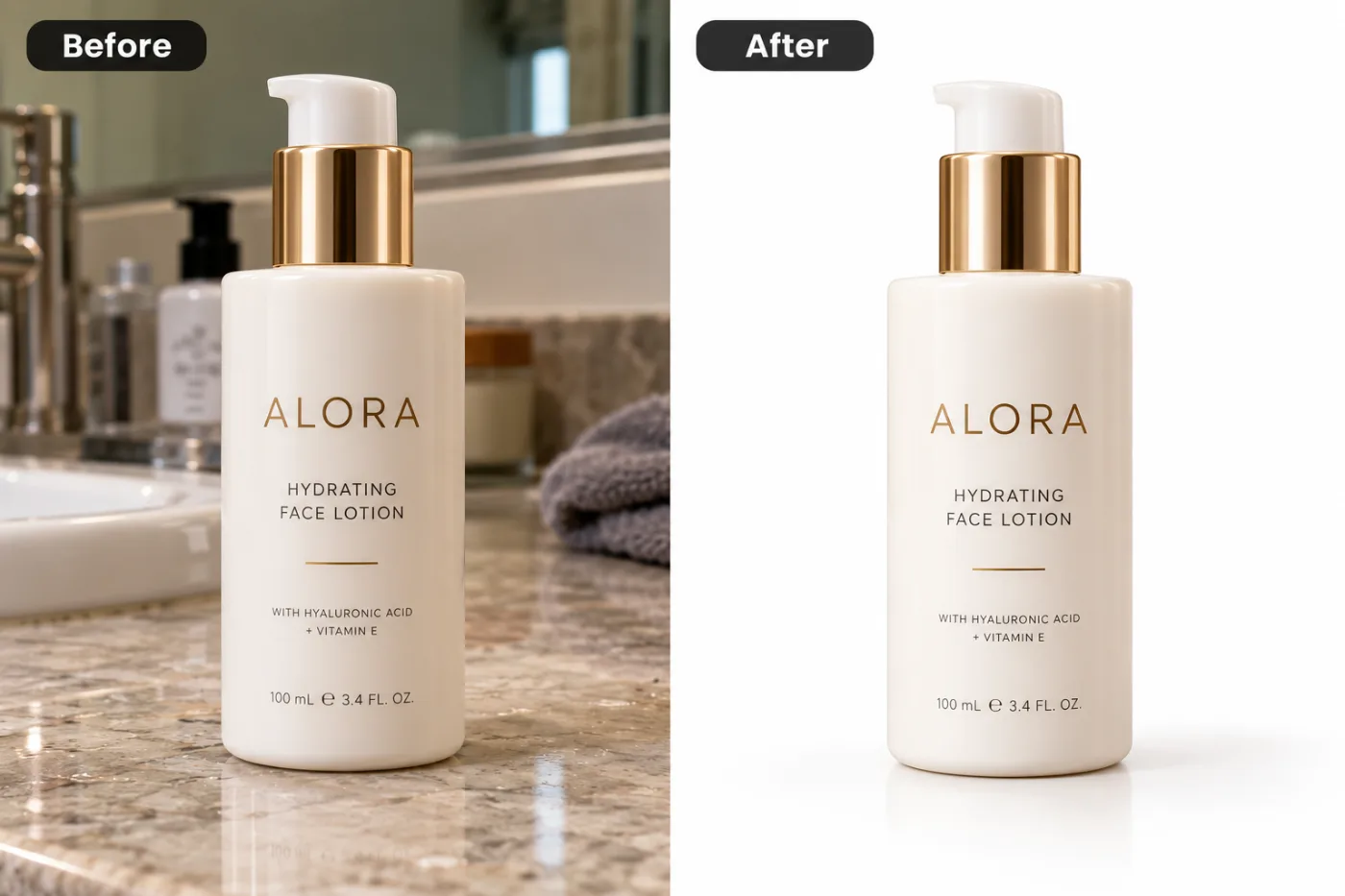
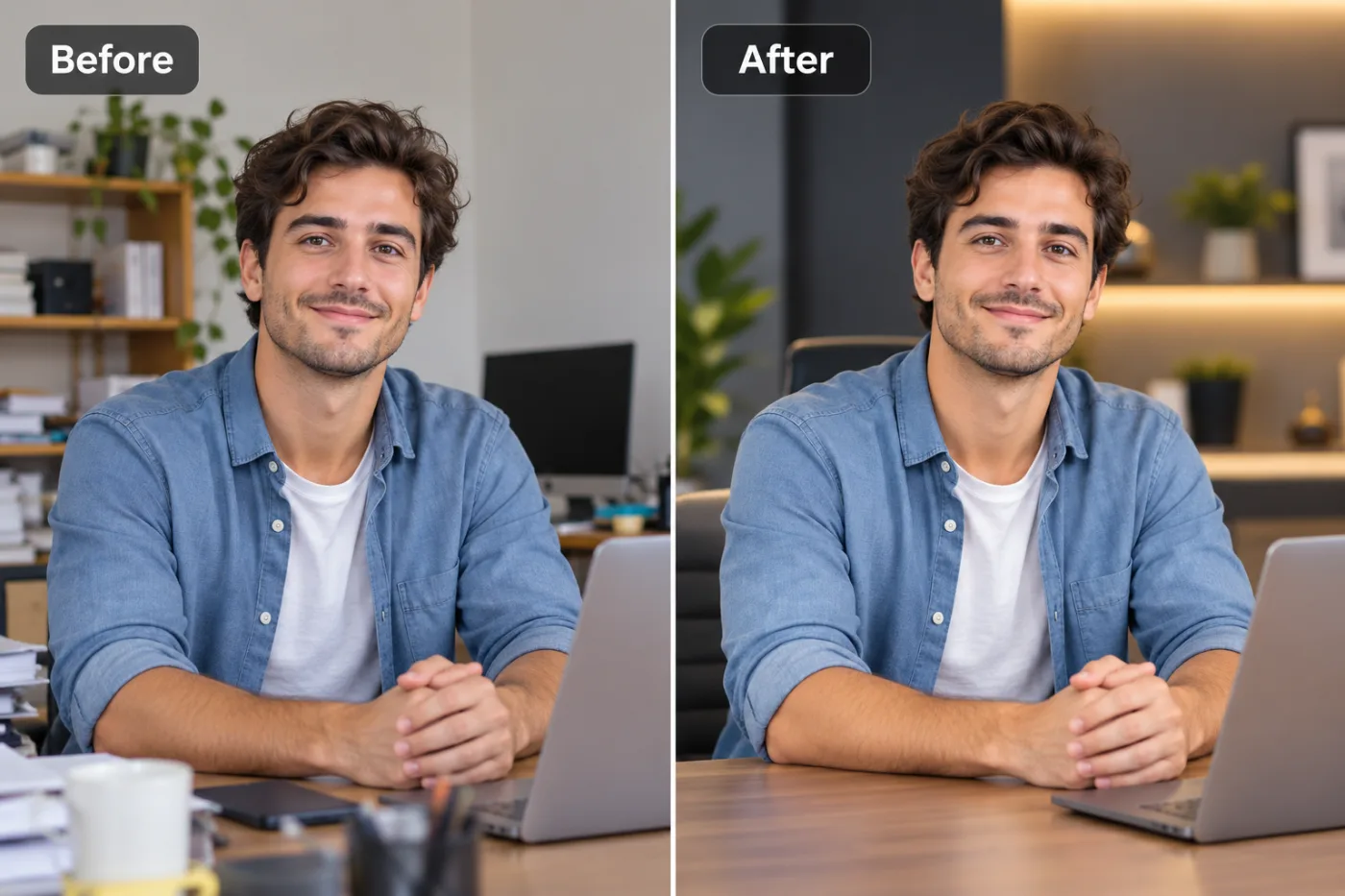
AI editors automate the decisions. Instead of telling the software exactly which pixels to change, you tell it what you want — 'remove the background,' 'make this a professional headshot,' 'turn this into an anime portrait' — and the trained model figures out the how. You trade granular control for staggering speed.
Why this matters in 2025: For most everyday tasks, the AI's automated result is now good enough — or genuinely better — than what a non-expert could achieve manually in Photoshop. Background removal, upscaling, and object cleanup, which used to be the bread and butter of skilled retouchers, are now one-click operations. Photoshop itself has added AI features (Generative Fill), but it locks them behind a paid Creative Cloud subscription. Standalone AI editors like Pixel Shine deliver the same magic with no subscription required.
Cost, Learning Curve, and Speed Compared
Let's put hard numbers on the three factors that matter most to real users.
Cost. Photoshop requires a Creative Cloud subscription — roughly $22.99/month for the Photography plan, or about $263/year, forever. There's no permanent free version. Pixel Shine, by contrast, offers a genuinely free tier: unlimited Normal Upscale with no sign-in and no watermarks. AI features use inexpensive credits, while the Normal upscaler and browser tools cost nothing. Over a year, that's a $260+ difference for the casual user.
Learning curve. Photoshop is notoriously deep. Adobe's own tutorials run for hours, and mastering layers, masks, and selections takes weeks of practice. Surveys of new users routinely cite the interface as overwhelming. AI editors flip this: the learning curve is measured in minutes. If you can upload a photo and click a button, you're productive immediately.
Speed. This is the AI knockout punch. Removing a background manually in Photoshop takes a skilled user 5 to 15 minutes; an AI editor does it in 3 to 5 seconds. Upscaling, headshot generation, and style transfers show similar 50-to-100x speedups. For anyone processing more than a handful of images, that time saving compounds into hours per week.
Step-by-Step: Deciding Which Tool to Use for Your Task
Use this decision framework to pick the right tool every time.
Step 1 — Identify your task type. Is it a standard operation (remove background, upscale, retouch, apply a style) or a bespoke, multi-layer composite (a magazine cover, a complex fantasy scene, precise commercial retouching)? Standard tasks favor AI; bespoke work favors Photoshop.
Step 2 — Assess your skill level honestly. If you're not already comfortable with layers and masks, Photoshop's power is theoretical — you won't extract it without weeks of learning. An AI editor delivers a professional result today.
Step 3 — Consider your volume. Editing 3 photos? Either tool works. Editing 300? AI's batch speed makes it the only sane choice for standard operations.
Step 4 — Check your budget. No subscription budget? Start with a pay-as-you-go AI editor like Pixel Shine. You'll cover 90% of common needs without spending anything.
Step 5 — Match the tool to the job. For background removal, upscaling, headshots, and creative effects, open Pixel Shine at Pixel Shine and get instant results. For pixel-precise compositing, custom brushwork, or print-production color management, use Photoshop.
Step 6 — Consider using both. Many pros now use AI editors for the heavy lifting (fast background removal, upscaling) and Photoshop only for the final 10% of fine detail. This hybrid workflow is faster and cheaper than Photoshop alone.
Step 7 — Test before committing. Since Pixel Shine needs no subscription, run your typical task through it first. If it nails the result, you've just saved a subscription.
Pro Tips for Getting the Most From Either Tool
Tip 1 — Let AI do the destructive work, Photoshop do the polish. Use an AI editor to remove a background or upscale, then import the clean result into Photoshop only if you need surgical adjustments. This hybrid approach is faster than doing everything manually.
Tip 2 — Upscale before you edit, not after. If your source image is small, run it through an AI upscaler first. Editing a higher-resolution image gives you cleaner edges and more detail to work with, in either tool.
Tip 3 — Use text prompts for iteration. AI editors let you describe changes in plain language. Instead of hunting through menus, just type what you want and compare variations in seconds.
Tip 4 — Don't pay for what you can get free. Before renewing a Creative Cloud subscription, ask whether your actual tasks could be done with a pay-as-you-go AI tool. Many users discover they were paying $260/year for features they now get free.
Tip 5 — Keep your originals. Whatever tool you use, always save an untouched copy of your source file. AI edits are fast to redo, but only if you still have the original.
Tip 6 — Match output resolution to your platform. A web thumbnail and a print poster need different resolutions. Export accordingly to avoid blurry or bloated files.
Common Mistakes to Avoid
Mistake 1 — Buying Photoshop for simple tasks. If your needs are background removal, resizing, and basic enhancement, a Creative Cloud subscription is overkill. You're paying for a jumbo jet to cross the street.
Mistake 2 — Expecting AI to handle every creative composite. AI editors excel at defined tasks, but a highly custom, artistic composite with precise layering still benefits from Photoshop's manual control. Don't force the wrong tool.
Mistake 3 — Ignoring watermarks and hidden costs on 'free' tools. Many so-called free editors slap watermarks on downloads or lock exports behind paywalls. Check what 'free' really covers — Pixel Shine's browser tools are free with no account, and its AI tools use credits with no watermark.
Mistake 4 — Not checking output resolution. Some free tools downscale your image on export. Always confirm you're getting full-resolution downloads.
Mistake 5 — Learning Photoshop when you didn't need to. Countless people spend weekends on tutorials for tasks an AI editor does in one click. Match the effort to the goal.
Head-to-Head: When Each Tool Wins
Choose an AI photo editor when:- You need results fast (seconds, not minutes)
- You're on a budget or want free tools
- Your tasks are standard: background removal, upscaling, headshots, retouching, creative effects
- You're editing in volume (product catalogs, social batches)
- You have little to no editing experience
- You want text-prompt editing without menus
Choose Photoshop when:- You need pixel-perfect manual control
- You're building complex multi-layer composites
- You do professional print production with color management
- You require precise commercial retouching (high-end beauty, product ad campaigns)
- You already know the software deeply and it's part of an established pipeline
The 2025 reality: For the vast majority of users — creators, sellers, marketers, and everyday people — an AI editor now covers what they actually do, at a fraction of the cost and time. Photoshop remains the specialist's tool for the demanding 10% of work that genuinely requires manual precision. The smartest users aren't loyal to one; they reach for whichever tool fits the task, and increasingly that means starting with a free AI editor and only escalating to Photoshop when the job truly demands it.
Real-World Results: Who Switched and Why
An Etsy shop owner processing 40 new products a month used to spend an entire weekend in Photoshop cutting out backgrounds. She switched to an AI background remover and now finishes the whole batch in under an hour — reclaiming roughly 20 hours a month and canceling her $23 subscription.
A startup marketing team needed professional headshots for eight new hires but couldn't afford a $1,200 studio shoot. They used an AI headshot generator, got polished, consistent portraits for the whole team, and spent a fraction of the cost.
A YouTuber creating three thumbnails a week found that AI background swaps and upscaling gave him the same visual punch as his old Photoshop workflow, in a tenth of the time — freeing hours for actual content.
Meanwhile, a professional wedding photographer kept Photoshop for her final album retouching but adopted an AI upscaler to rescue low-light shots. The lesson across all of them: AI didn't replace skill; it removed the tedious, repetitive work so people could focus on what actually mattered.
Frequently Asked Questions
Is there a free alternative to Photoshop that's actually good?Pixel Shine comes close: unlimited Normal upscaling and the browser tools are free with no sign-in, while background removal, AI headshots, and creative effects use credits, with no subscription and no watermarks. For standard editing tasks, it rivals or beats manual Photoshop work.
Can AI photo editors fully replace Photoshop?For most everyday tasks — yes. For highly specialized professional compositing and print production, Photoshop still has an edge. Many pros now use both.
Is Photoshop worth the subscription in 2025?Only if you regularly need its advanced manual features. If your tasks are background removal, resizing, and enhancement, an AI editor covers you without the $260/year cost.
Which is easier to learn, AI editors or Photoshop?AI editors, by a wide margin. Most take minutes to learn; Photoshop takes weeks to master.
Do AI photo editors add watermarks?Some do, but Pixel Shine does not. Always check a tool's export policy before relying on it for commercial work.
Can I get professional-quality results from an AI editor?Absolutely, especially for background removal, upscaling, and headshots. The output quality has reached a point where the results are indistinguishable from manual professional work for most use cases.
What about image quality and resolution?Pixel Shine provides full-resolution downloads and includes an AI upscaler to increase resolution when needed, so you're not sacrificing quality for convenience.
Is my data safe when using online AI editors?Reputable tools process your images securely. Always use trusted platforms and avoid uploading sensitive documents to unknown sites.
Key Takeaways
The AI photo editor vs Photoshop question doesn't have a single winner — it has a right answer for each situation. Photoshop remains unmatched for complex, manual, professional work. But for the everyday tasks most people actually do — removing backgrounds, upscaling, creating headshots, and applying effects — a free AI editor is faster, cheaper, and easier.
In 2025, the smartest approach is to start with a free AI tool and only reach for Photoshop when the job genuinely requires manual precision. You'll save time, money, and a lot of frustration.
Want to see how far free AI editing has come? Try Pixel Shine at Pixel Shine — no subscription, no watermark, and the browser tools need no account. Test it on your next photo and see if you ever need Photoshop again.