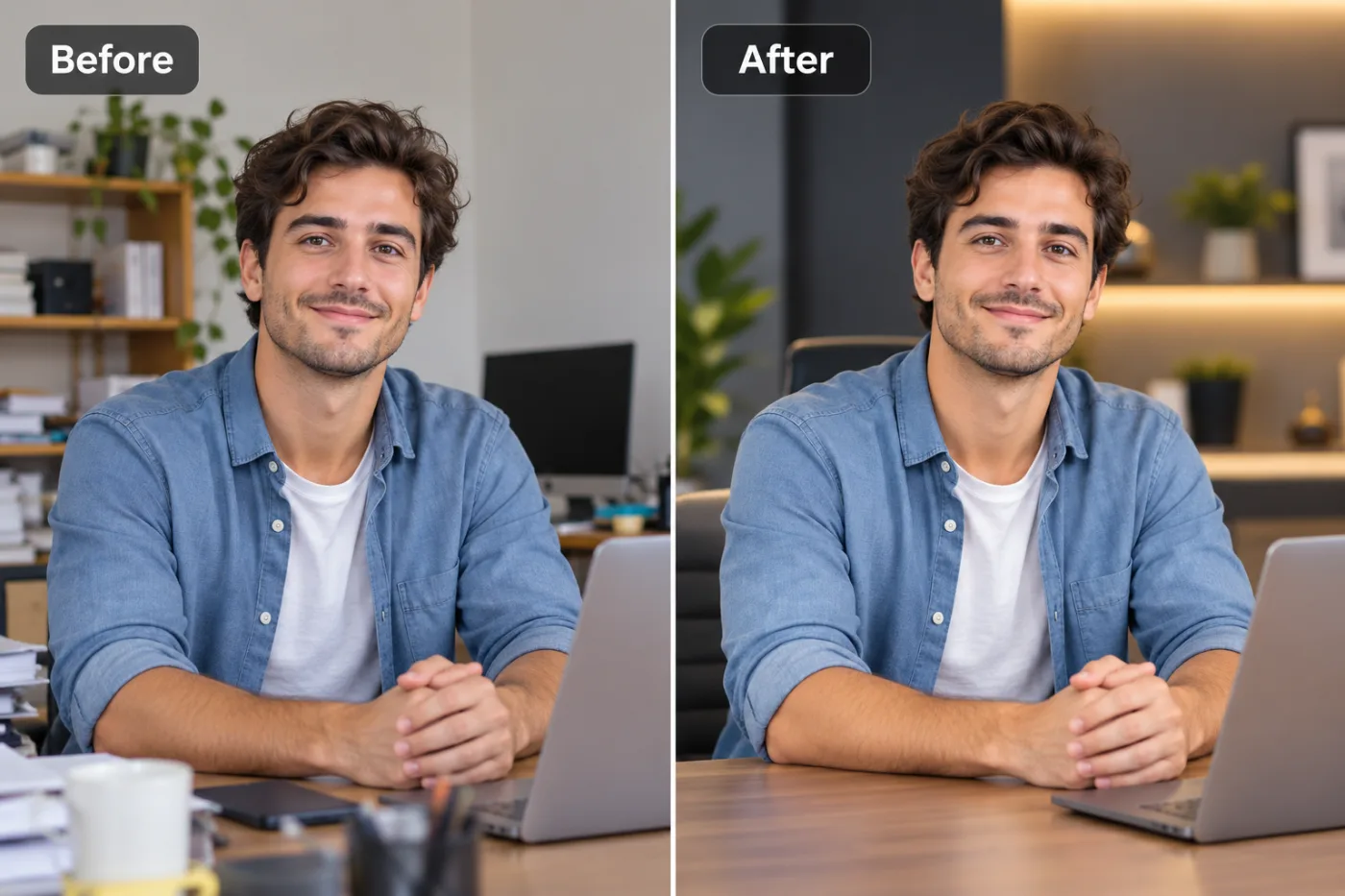
How to Increase Image Resolution for Free Using AI
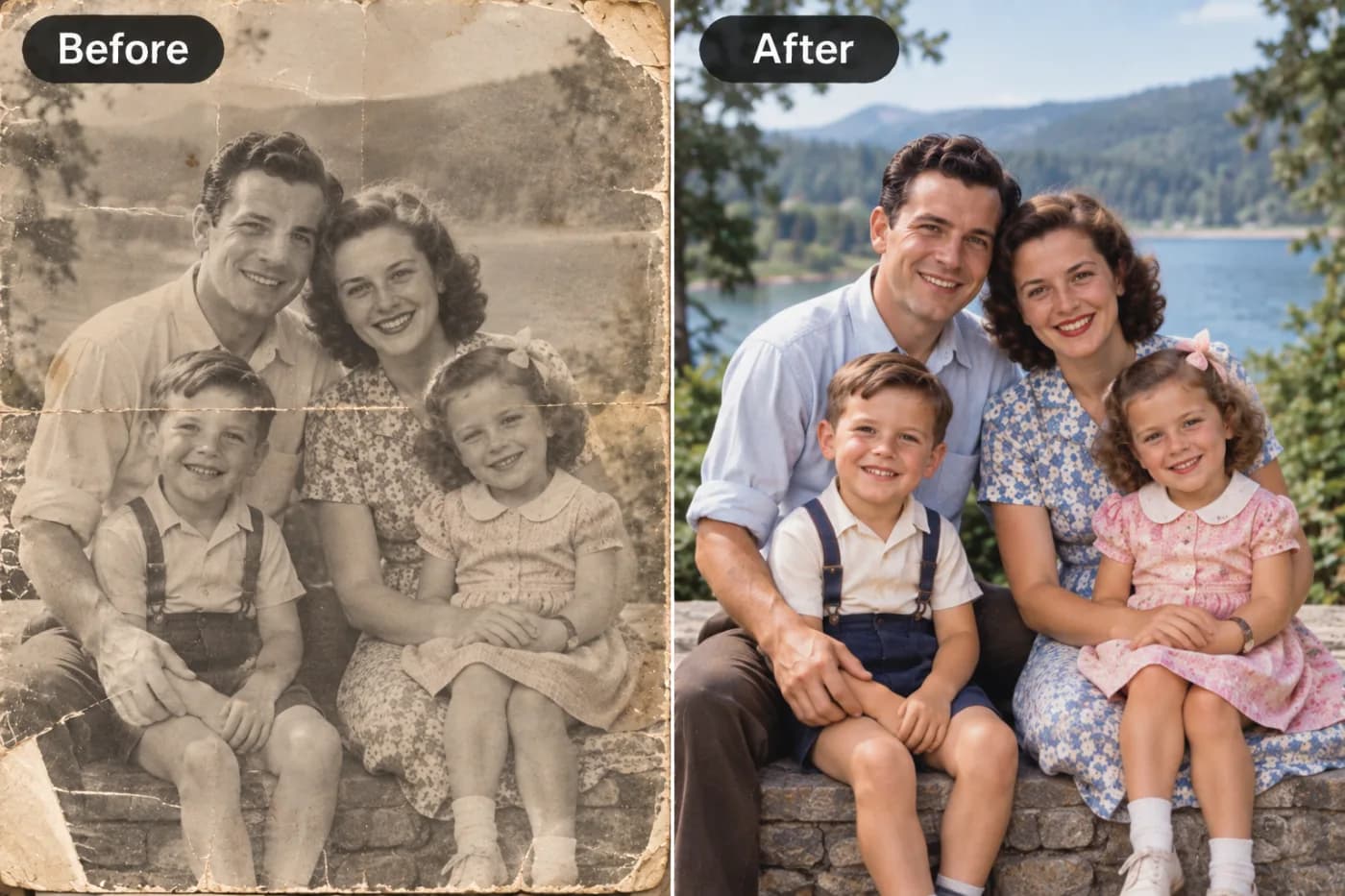
Increasing image resolution used to require expensive software and technical expertise. Pixel Shine makes it free, fast, and foolproof for everyone.
Learning how to increase image resolution for free has become one of the most searched photo-editing skills of the decade, and for good reason. Whether you're rescuing a blurry product photo, prepping a low-res image for print, or trying to salvage a screenshot that looks like it was compressed a hundred times, low resolution is a wall you hit constantly. The frustrating part? For years, the only real fixes were expensive desktop software like Photoshop or paid subscriptions that slapped watermarks on your results.
That's changed dramatically thanks to AI super-resolution. Modern tools can now analyze the actual content of your photo — edges, textures, faces, fabric, hair — and intelligently reconstruct detail that simple stretching could never produce. When you upscale resolution with AI, you're not just enlarging pixels; you're generating new, believable detail.
In this guide, we'll walk through exactly how to increase photo resolution online, why old methods failed, and how Pixel Shine lets you enlarge images free with unlimited Normal upscaling, no watermarks, and no forced sign-up. By the end, you'll be able to take a tiny, soft image and turn it into something crisp, print-ready, and genuinely usable.
Why Low-Resolution Images Are Such a Common Problem
Low resolution isn't a rare edge case — it's baked into how we create and share images every day. Compression is everywhere. When you send a photo through WhatsApp, upload it to Instagram, or download it from a website, the platform aggressively compresses the file to save bandwidth. A 12-megapixel phone photo can arrive on someone else's device at a fraction of its original detail.
Old cameras and old files add up too. Photos taken on a 2010-era phone or point-and-shoot camera might only be 640x480 or 1024x768 pixels. That looked fine on the tiny screens of the time, but on a modern 4K monitor or when printed at 8x10 inches, the softness is obvious.
Cropping destroys resolution. Every time you crop into a photo to reframe a subject, you throw away pixels. Crop aggressively enough and a 4000-pixel-wide image becomes an 800-pixel one.
Then there's the simple reality that the internet is full of small images. You find the perfect reference photo, meme, or product shot — but it's 300 pixels wide. Traditional resizing tools like the ones built into Windows or basic online resizers just stretch those pixels, producing a blurry, blocky mess. That gap between what you have and what you need is exactly what AI resolution enhancement was built to close.
How Pixel Shine Increases Resolution the Smart Way
Pixel Shine approaches resolution enhancement completely differently from old-school resizers. Instead of naively stretching pixels and interpolating averages between them, its AI upscaler uses a deep-learning model trained on millions of image pairs — low-resolution inputs matched with their high-resolution originals. This training teaches the model what real detail looks like, so it can predict and reconstruct texture, edges, and fine structure when enlarging your photo.
Two tiers, one goal. Pixel Shine offers a Normal upscaler that's completely free, unlimited, and requires no sign-up — perfect for everyday enlarging, cleaning up web images, and boosting resolution for social media. For more demanding jobs, the Pro AI mode uses a more powerful model (running on credits) that excels at heavy restoration, faces, and maximum detail recovery.
No watermarks, ever. Unlike many free tools that stamp their logo across your result or force you to pay to remove it, Pixel Shine returns a clean file. That alone makes it usable for real work — client deliverables, print, product listings.
The result is that when you increase image resolution free through Pixel Shine, you get output that looks intentionally photographed at that size, not artificially blown up. Skin stays natural, text stays legible, and edges stay crisp rather than jagged.
Step-by-Step: How to Increase Image Resolution for Free
Here's the complete process to enlarge your image using Pixel Shine, start to finish.
1. Open the upscaler. Go to Pixel Shine and navigate to the Upscale tool. You don't need to create an account or log in to use the Normal upscaler, so you can start immediately.
2. Upload your image. Click the upload area or drag and drop your file directly onto it. Pixel Shine accepts common formats like JPG, PNG, and WEBP. There's no need to convert your file first.
3. Choose your upscale factor. Select how much larger you want the image — typically 2x or 4x. A 2x upscale doubles both width and height (four times the total pixels), while 4x quadruples the dimensions. For a 500x500 image, 4x gives you a crisp 2000x2000 result.
4. Select Normal or Pro AI mode. For free, unlimited upscaling with no sign-up, stick with Normal. If you're working with a heavily degraded photo or need maximum facial detail, switch to Pro AI mode.
5. Process the image. Click the upscale button and let the AI work. Processing usually takes just a few seconds, depending on the image size and your chosen factor.
6. Preview and compare. Pixel Shine shows you the enhanced result. Zoom in to check the detail — look at edges, text, and textures to confirm the improvement.
7. Download your file. Save the high-resolution image directly to your device. No watermark, no sign-up gate, no hidden step. Your enlarged image is ready to use anywhere.
Pro Tips for Getting the Best Resolution Results
A few small habits dramatically improve your upscaling output.
Start with the best source you have. AI can reconstruct a lot, but it can't invent detail that was never captured. If you have access to a slightly larger or less-compressed version of the image, use that as your input rather than a tiny thumbnail.
Match the upscale factor to your real need. Don't automatically jump to 4x. If you only need to double an image's size, a 2x upscale often produces cleaner, more natural results with fewer artifacts than pushing to maximum.
Use Pro AI mode for faces and portraits. Human faces are where quality gaps show most. The Pro model is tuned to handle skin, eyes, and hair far more convincingly than a general-purpose pass.
Upscale before you edit, not after. If you plan to color-correct or retouch, do the resolution boost first so your edits apply to the full-detail version.
Watch for over-sharpening on text. For screenshots or graphics with text, zoom in after upscaling to make sure letters stayed clean rather than developing halos.
Re-run in stages for extreme enlargement. If you need enormous output, upscaling 2x twice can sometimes produce smoother results than a single aggressive jump, giving the model more manageable steps.
Common Mistakes to Avoid When Increasing Resolution
Even with a great AI tool, a few missteps can undermine your results.
Expecting miracles from tiny inputs. A 100x100 pixel image simply doesn't contain enough information for a flawless poster-sized print. AI will improve it, but manage expectations — the smaller the source, the more the model has to guess.
Upscaling an already-compressed screenshot repeatedly. Each round of saving as JPEG adds compression artifacts. If you keep re-uploading a re-saved result, you compound the damage. Always upscale from the cleanest available version.
Ignoring aspect ratio. Some users manually stretch an image to fit a frame before upscaling, distorting the subject. Let the AI enlarge proportionally, then crop, rather than warping first.
Choosing the wrong mode for the job. Using Normal mode on a badly degraded old photo will improve size but leave more noise than the Pro AI model would. Pick the mode that matches your image's condition.
Forgetting to check the full-size result. The preview thumbnail can look great while the full-resolution file has subtle artifacts. Always download and inspect at 100% zoom before using the image for anything important.
Real-World Use Cases for Free Resolution Enhancement
Increasing image resolution solves problems across dozens of everyday situations.
E-commerce and product listings. Marketplaces like Amazon and Etsy require minimum image dimensions — often 1000 pixels or more on the longest side — for zoom features. Sellers regularly need to enlarge supplier photos or older product shots to meet these thresholds without buying new photography.
Printing photos and artwork. A photo that looks fine on-screen at 800 pixels wide becomes pixelated when printed at 8x10 inches. Upscaling to 3000+ pixels first delivers sharp, professional prints.
Restoring memories. Family photos scanned from old prints or pulled from a decade-old phone are often small and soft. Boosting resolution makes them suitable for framing, photo books, or sharing at full quality.
Social media and marketing. Content creators frequently need to repurpose a small found image or logo into a crisp banner, thumbnail, or ad creative that doesn't look blurry on high-DPI screens.
Presentations and documents. Dragging a small web image into a slide deck often results in a fuzzy full-screen display. Upscaling it first keeps your presentation looking polished and professional.
AI Upscaling vs. Traditional Resizing Methods
To appreciate why AI upscaling wins, it helps to see how it compares to the alternatives.
Basic resizers (Windows Photos, Preview, free web resizers). These use interpolation algorithms like bicubic or bilinear, which simply average neighboring pixels to fill in the enlarged space. The result is always softer than the original — you get a bigger image but no new detail, and often visible blur or blockiness.
Photoshop's Preserve Details 2.0. Adobe's built-in enlargement is better than basic bicubic and includes some smart detail handling, but it requires a paid subscription and a learning curve, and it still can't match dedicated AI super-resolution on difficult images.
Standalone AI desktop apps. Tools like Topaz Gigapixel produce excellent results but cost real money upfront and require installing heavy software that needs a capable computer.
Pixel Shine's online upscaler. You get true AI reconstruction — the same category of technology as the paid desktop apps — running online, with the Normal tier free, unlimited, and watermark-free. There's nothing to install and no subscription. For most people, it hits the sweet spot of professional-grade quality with zero cost and zero friction, and the Pro AI tier is there when a job demands the absolute maximum.
Who Uses Free Resolution Increasers and Why
A surprisingly wide range of people rely on AI resolution tools every day. Online sellers enlarge product images to meet marketplace requirements and enable zoom without commissioning new photography. Graphic designers and marketers rescue small client-supplied logos and stock images for use in high-resolution layouts and ads. Content creators and social media managers sharpen thumbnails, banners, and repurposed images so they look crisp on retina displays.
Genealogists and families restore and enlarge old scanned photos for albums and framing. Students and professionals boost the resolution of images pulled into reports, presentations, and posters. Real estate agents enhance listing photos that were shot at low quality or heavily compressed by MLS systems. What unites them all is a shared need: turning an image that's too small or too soft for the task into one that looks sharp and intentional — without spending money or wrestling with complicated software.
Frequently Asked Questions
Can I really increase image resolution for free?Yes. Pixel Shine's Normal upscaler is completely free, unlimited, and requires no sign-up. You can enlarge as many images as you want without paying or hitting a hidden usage cap.
How much can I enlarge an image?Most tasks use 2x or 4x, which doubles or quadruples the dimensions. A 4x upscale turns a 500x500 image into 2000x2000. You can also run multiple passes for even larger output.
Will upscaling make my photo blurry?No — the opposite. Unlike basic resizing, which blurs images as it enlarges them, AI upscaling reconstructs detail, so results look sharper and clearer than a simple stretch.
Do I need to install any software?No. Pixel Shine runs entirely online at Pixel Shine. There's nothing to download or install, and it works on any device with an internet connection.
Are there watermarks on the final image?No. Pixel Shine never adds watermarks. Your downloaded file is clean and ready to use for personal or commercial projects.
What image formats are supported?Common formats including JPG, PNG, and WEBP are supported. You can upload directly without converting your file first.
What's the difference between Normal and Pro AI mode?Normal mode is free, unlimited, and great for everyday enlarging. Pro AI mode uses a more powerful model (running on credits) for maximum detail recovery, heavy restoration, and demanding portrait work.
Is my uploaded image kept private?Pixel Shine processes your image for upscaling and lets you download the result. It's designed for quick, on-demand editing without building a public gallery of your uploads.
Key Takeaways
Increasing image resolution for free is no longer a compromise — thanks to AI super-resolution, you can enlarge photos while actually gaining sharpness and detail rather than losing it. The key is using a tool that reconstructs real detail instead of just stretching pixels, and Pixel Shine delivers exactly that with its free, unlimited Normal upscaler, watermark-free output, and no forced sign-up.
Whether you're prepping product photos, restoring family memories, or sharpening images for print and social media, the workflow takes seconds and costs nothing. Ready to see the difference for yourself? Head to Pixel Shine and upscale your first image free today.