How to Upscale Real Estate Listing Photos (Free)
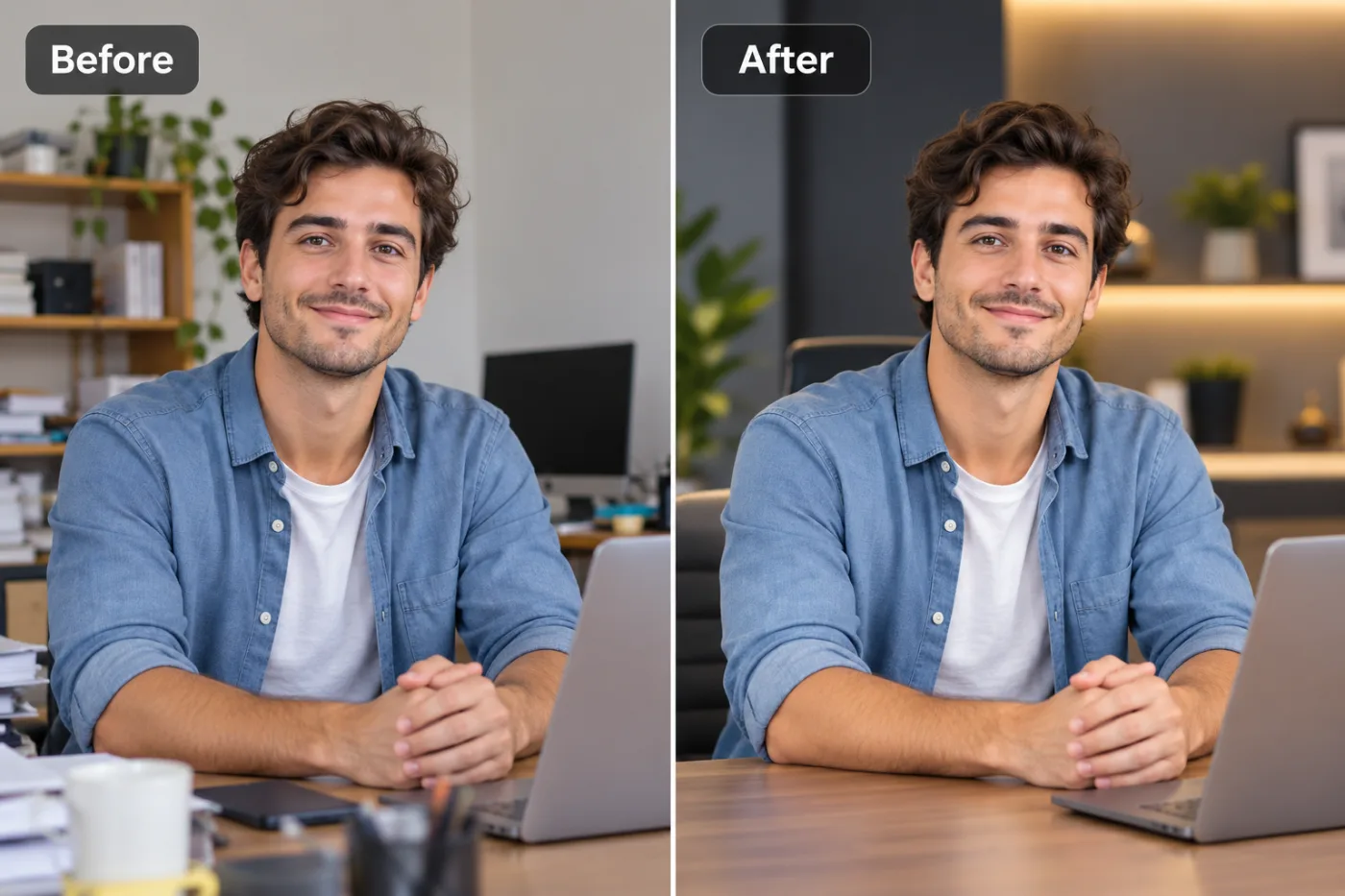
Sharp listing photos sell homes faster. Here's how to upscale property images for portals and brochures, free.
Listings live and die on their photos — and soft, low-resolution property images make even a great home look worse online. If your photos came off a phone or an older camera, AI upscaling sharpens and enlarges them so they look crisp on portals and in print. Here's how, free.
Why listing photo quality sells
Buyers scroll fast, and sharp, bright, high-resolution photos are what make them stop and click. Portals also display large hero images, so a small or blurry photo gets stretched and looks amateur. Upscaling gives every shot the resolution to look professional at full size.
How to upscale property photos free
Step 1 — Open Pixel Shine and choose the Upscaler.
Step 2 — Upload a listing photo.Step 3 — Upscale 2× or 4× for extra sharpness and detail.
Step 4 — Download the enhanced image — no watermark.
Repeat for each photo, or bulk-upscale a whole set.
A quick listing-photo workflow
For a consistent gallery: upscale each photo for clarity, crop to the portal's ratio so nothing important is cut off, and compress the final files so the page still loads fast. Doing all three free means every listing looks polished without hiring an editor.
Where sharp photos help most
Hero/cover shots, wide interior rooms and exterior curb-appeal photos benefit most from upscaling — they're viewed largest. Twilight and detail shots also gain from the extra sharpness when printed in a brochure.
Frequently asked questions
How do I improve the quality of real estate photos?Upscale them with AI to add sharpness and resolution, then crop and compress for the portal. Pixel Shine does all three free.
Is it free for lots of photos?Yes — upscaling is free with no watermark, and you can process a full set.
Will it fix a blurry room photo?AI upscaling recovers detail and sharpens soft photos, though a steady, well-lit source always helps.
Do I need software?No — everything runs in the browser.
Key takeaways
Sharp, high-resolution listing photos get more clicks — AI upscaling makes phone and older-camera shots look professional, free at Pixel Shine. Upscale Listing Photos Free →