How to Upscale Real Estate Photos for Property Listings (Get More Enquiries)
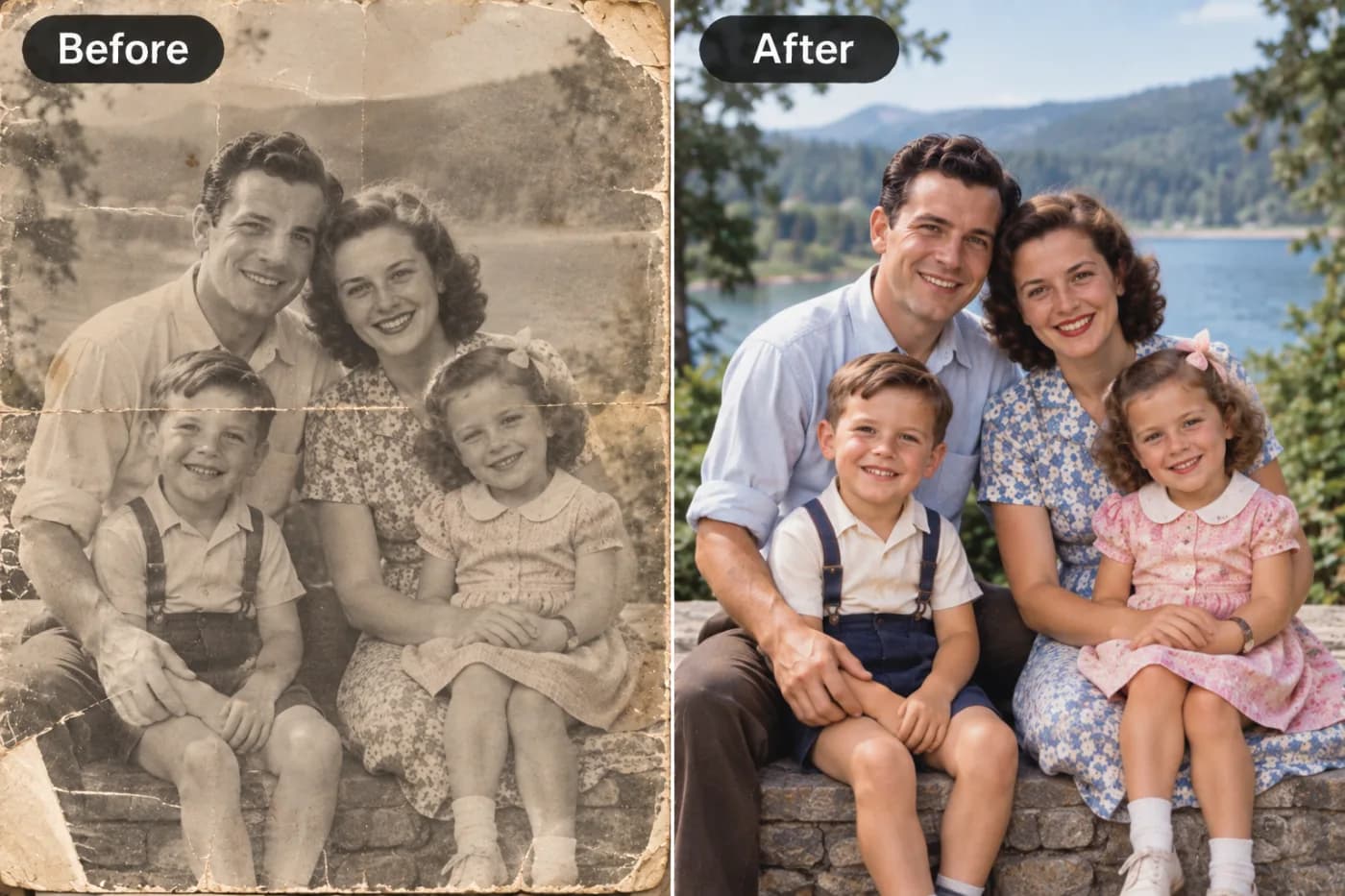
Property listings with high-resolution photos generate 2× more enquiries. If your real estate images are small or blurry, AI upscaling is the fastest fix.
In real estate, photos sell homes — and when you upscale real estate photos to crisp, high-resolution quality, you're directly influencing how many buyers click, tour, and ultimately make an offer. Listings with sharp, professional images consistently attract more views than those with soft, pixelated ones, because a blurry photo makes even a beautiful property look neglected. Whether you're a solo agent shooting listings on your phone or managing a portfolio of properties, learning to boost your property listing image quality is one of the highest-ROI skills in your marketing toolkit.
The challenge is real: not every agent has a professional photographer on call, and phone photos or older listing images often fall short of the resolution that today's listing portals and large monitors demand. That's where a real estate photo enhancer comes in. In this guide, we'll show you exactly how to increase resolution on property photos using free AI tools, the ideal dimensions for major listing platforms, and the techniques that make an upscaled property image look professionally shot — helping your listings stand out in a crowded market without a big photography budget.
Why Photo Quality Drives Real Estate Results
The data on real estate photography is striking. Listings with high-quality photos sell faster and can command higher prices than comparable listings with poor images. Buyers today start their search online, scrolling through dozens of listings on Zillow, Redfin, Realtor.com, and MLS portals — and they decide in seconds whether to click deeper based almost entirely on the lead photo.
Here's the problem with low-resolution images. On the large monitors and high-resolution phones buyers use, a soft or pixelated photo looks amateurish and, worse, subconsciously signals that the property itself might be poorly maintained. A blurry kitchen photo doesn't just look bad — it plants doubt. Buyers may skip the listing entirely, assuming the agent (and by extension the property) isn't worth their time.
There's also a platform dimension. Listing portals display images at increasingly large sizes, and many are viewed on desktop monitors where low resolution is brutally exposed. A photo that looks acceptable on a phone thumbnail can fall apart when a buyer clicks to full screen.
Upscaling addresses this directly by increasing resolution and reconstructing detail, so your photos stay crisp at the large sizes buyers actually view them. It's not about deceiving anyone — a well-lit, accurately-represented room simply *looks its best* when it's sharp. In a market where attention is scarce and competition is fierce, that sharpness is a genuine competitive edge, and it's available for free.
Target Resolutions for Real Estate Platforms
To make your listings look their best, upscale your property photos to meet or exceed the resolution each platform rewards. Here are the targets that matter.
MLS systems: requirements vary, but many now accept and display images at 1024 x 768px or higher, with premium systems supporting 2048px+ on the long edge. Upload the highest resolution your MLS allows. Zillow: displays large; images up to 2048px on the long edge look best. Realtor.com and Redfin: similarly favor high-resolution uploads, often 1024px+ minimum with large display sizes.
Listing brochures and print flyers: print demands 300 DPI, so a full-page photo needs roughly 2550 x 3300px. This is where upscaling earns its keep — phone photos rarely hit print resolution natively.
Social media promotion: 1080px+ for Instagram and Facebook property posts.
Website and virtual tour stills: 1920px+ for full-width hero images on your agent site.
The practical rule: real estate images are viewed large and often printed, so aim high. A 1024px phone photo upscaled 2x reaches ~2048px — ideal for both premium listing portals and social promotion. For print flyers, you'll want to upscale even further. Always target the *largest* size your images will be displayed at, then let the platform scale down as needed, which keeps everything crisp.
Step-by-Step: Upscale a Property Photo
Here's the complete workflow to enhance a listing photo using Pixel Shine's free upscaler.
Step 1: Select your best shots. Choose the photos with the best lighting and composition for each room. Upscaling improves sharpness, so start with well-exposed images.
Step 2: Open the upscaler. Go to the Pixel Shine upscaler. The Normal Upscale is free, unlimited, and requires no sign-in.
Step 3: Upload your property photo. Drag the image in. A 1024px phone photo, for example, can be upscaled 2x to reach ~2048px for premium listing display.
Step 4: Choose your factor. Pick 2x for portal listings or 4x when you need print-flyer resolution. Match the factor to where the photo will be used.
Step 5: Consider Pro AI for hero shots. For your lead photo and key interior shots, Pro AI mode reconstructs fine detail like wood grain, fabric texture, and tile more naturally.
Step 6: Process and inspect. Click Upscale and review at 100% zoom. Check that architectural lines stay clean and textures look natural, not over-smoothed.
Step 7: Batch the rest. For a full listing of 20-30 photos, use the batch editor on Pixel Shine to upscale them all at once with consistent settings.
Step 8: Download and upload. Save the watermark-free results and upload to your MLS and listing portals at the highest resolution they accept.
Pro Tips for Professional-Looking Listings
Upscale your hero shot with extra care. The lead photo drives clicks. Use Pro AI mode and inspect it closely — it's the single most important image in the listing.
Batch process entire listings for consistency. A property's photos should look uniform. Use the batch editor to apply identical settings across all 20-30 shots so the whole gallery feels cohesive and professional.
Upscale before any other editing. Do your resolution boost first, then apply brightness or straightening corrections. Editing a low-res image and upscaling afterward locks in imperfections.
Keep architectural lines straight. Upscaling preserves whatever's in the source, so if walls look tilted, straighten them before or after upscaling. Crisp, straight lines read as professional.
Prepare print versions separately. Flyers and brochures need 300 DPI, so upscale those images to a higher factor (often 4x) than your web versions. Keep web and print copies clearly labeled.
Don't over-process interiors. Rooms should look natural and true to life. Over-aggressive upscaling can make surfaces look artificial, which erodes buyer trust when they tour in person. Aim for accurate, not exaggerated.
Common Mistakes to Avoid
Uploading low-res photos straight to the MLS. Many agents post phone photos at native resolution, which look soft on large displays. Upscale to the platform's max before uploading.
Inconsistent quality across the gallery. Mixing sharp upscaled photos with soft originals makes the listing look sloppy. Process every image in the set to the same standard.
Over-upscaling until it looks fake. Pushing too hard can make textures and surfaces look artificial, which backfires when buyers see the real thing. Keep results natural and accurate.
Forgetting print resolution for flyers. A photo sized for web (1024px) looks terrible printed on a full-page flyer. Upscale print materials to 300 DPI separately.
Misrepresenting the property. Upscaling is for sharpness, not deception. Don't use it alongside edits that hide defects or falsely enhance the space — it damages trust and can create legal issues. Sharpness should reveal the property accurately, not disguise it.
Real Estate Photo Enhancement Use Cases
Beyond standard listing photos, upscaling solves several specific real estate challenges.
Rescuing older listing archives. Agents relisting a property that's been on and off the market can upscale existing photos rather than reshooting, saving time and money while meeting current resolution standards.
Enhancing drone and exterior shots. Aerial photos captured at lower resolution, or exterior shots taken from a distance, gain the sharpness that makes a property's curb appeal pop on the listing.
Preparing print marketing. Just-listed postcards, open-house flyers, and window displays all demand print-resolution images. Upscaling turns web-quality photos into print-ready assets at 300 DPI.
Improving virtual tour stills. Screenshots pulled from video walkthroughs or lower-res tour captures can be upscaled into crisp still images for the listing gallery.
Salvaging tenant or seller-provided photos. When you can't visit in person and must rely on photos from a seller or tenant — often low-quality phone shots — upscaling brings them up to a usable standard.
Refreshing your agent brand. Upscaled photos across your website, social channels, and marketing materials present a consistently polished professional image. Each use case shares the same win: better resolution, better first impressions, more buyer engagement — all achievable for free.
Who Uses Real Estate Photo Upscaling
Solo agents shooting their own listings on a phone, who need portal-ready resolution without hiring a photographer for every property.
Real estate teams and brokerages managing high listing volume, using batch upscaling to keep every property's gallery consistently sharp.
Property managers marketing rental units with quick turnaround, where speed and cost matter more than a full photo shoot.
FSBO (For Sale By Owner) sellers listing their own homes and wanting their photos to compete with agent-marketed properties.
Real estate marketers producing flyers, postcards, and social campaigns that demand both web and print-resolution images.
Investors and flippers documenting and listing multiple properties who need efficient, low-cost image enhancement at scale.
For all of them, professional photography isn't always feasible for every shot, but sharp, high-resolution images are non-negotiable in a competitive market. Free AI upscaling closes that gap.
Frequently Asked Questions
How do I upscale real estate photos for listings?Upload your property photos to Pixel Shine, choose 2x for portals or 4x for print, and use Pro AI mode for hero shots. For full listings, batch process on Pixel Shine. The Normal Upscale is free and unlimited.
What resolution should real estate listing photos be?Aim for at least 1024px on the long edge for most MLS systems, and up to 2048px for premium portals like Zillow. Print flyers need roughly 2550 x 3300px at 300 DPI, which usually requires upscaling.
Will upscaling make my property photos look fake?Not if used correctly. Keep results natural and accurate — upscaling should sharpen the photo, not exaggerate it. Over-processing can look artificial, so aim for realistic detail that matches what buyers will see in person.
Can I upscale phone photos for real estate listings?Yes. Phone photos are a common source, and upscaling brings them up to portal and even print resolution. Start with well-lit, well-composed shots for the best results.
How do I upscale a whole listing's worth of photos at once?Use Pixel Shine's batch editor to upload all 20-30 photos, apply consistent settings, and process them together, ensuring the entire gallery looks uniform.
Is upscaling real estate photos free?Yes. Pixel Shine's Normal Upscale is free and unlimited with no sign-in. Pro AI mode for hero shots uses cheap credits.
Does photo quality really affect how fast a home sells?Yes. Listings with sharp, high-quality photos consistently attract more views and can sell faster and for more than comparable listings with poor images, since buyers judge listings visually in seconds.
Can I upscale drone and exterior shots?Absolutely. Aerial and distant exterior photos, often captured at lower effective resolution, benefit from upscaling to make curb appeal and detail stand out in the listing.
Key Takeaways
In real estate, sharp photos aren't a luxury — they're what gets buyers to click, tour, and offer. Low-resolution images make even great properties look neglected on the large screens buyers use, while crisp, high-resolution photos signal professionalism and drive engagement.
Upscale your property photos to meet each platform's resolution (up to 2048px for premium portals, 300 DPI for print), process full listings in batches for consistency, and keep results natural and accurate. Pixel Shine's free, unlimited upscaler and batch editor make it possible to give every listing a professional polish without a photography budget.
Upscale Real Estate Photos →