How to Upscale Any Image to 4K Wallpaper Quality
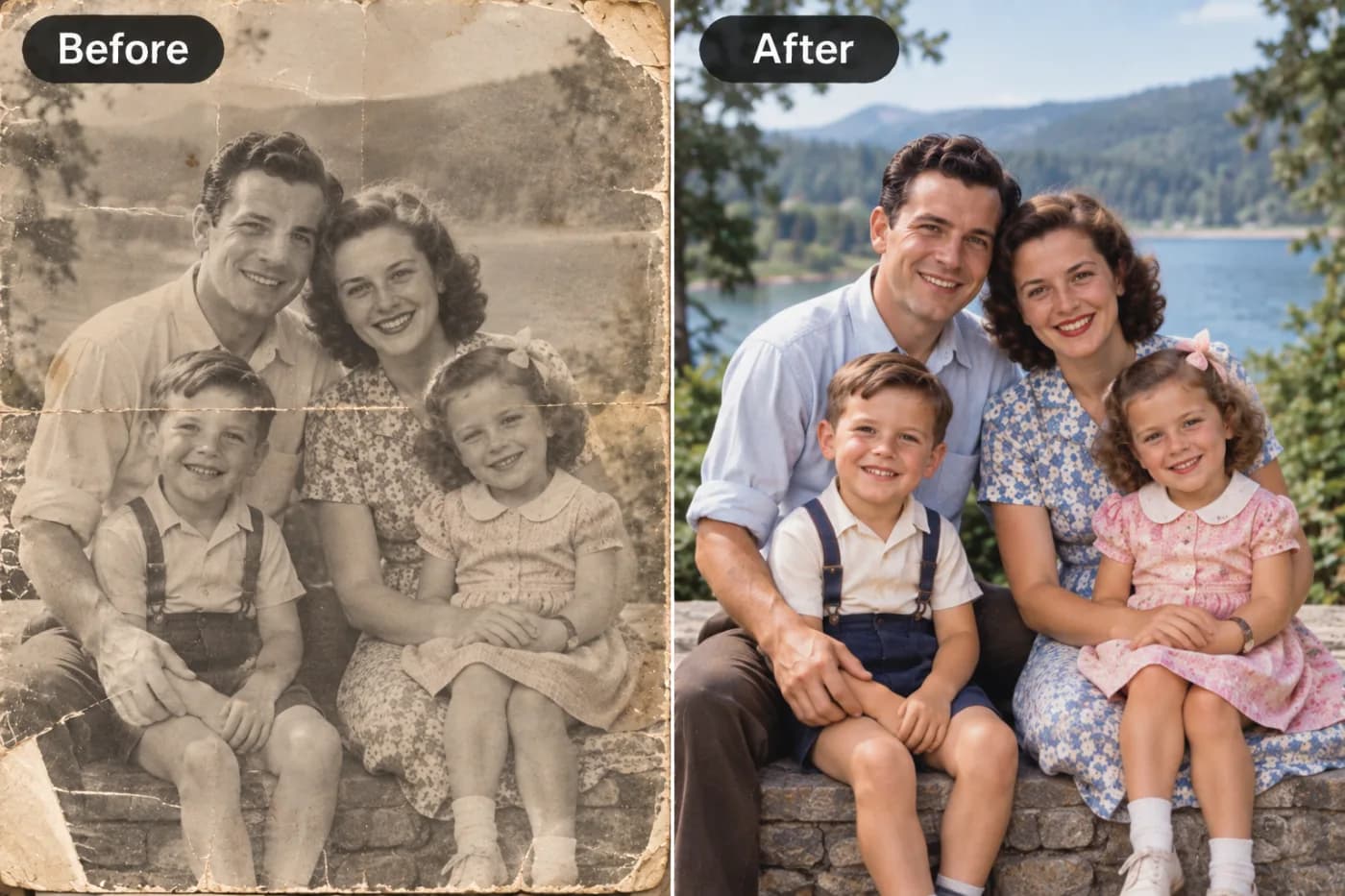
Found the perfect wallpaper but it's too small for your 4K monitor? AI upscaling can take almost any image to 3840×2160 without visible blurring.
That perfect wallpaper you found looks stunning as a thumbnail — until you set it as your desktop background and it stretches into a blurry, pixelated mess across your 4K monitor. Learning to upscale wallpaper to 4K quality solves this instantly, transforming any low-resolution image into a crisp, edge-to-edge background that looks like it was made for your screen. Whether you're working with a favorite photo, a piece of digital art, or an image saved years ago at web resolution, a good 4K image upscaler can rescue it.
Modern displays are hungry for pixels. A standard 4K monitor packs 3840 x 2160 pixels, and anything smaller than that gets stretched to fill the space, destroying sharpness. In this guide, we'll show you exactly how to increase wallpaper resolution using free AI tools, what target dimensions to aim for across different screen types, and the pro techniques that make an upscaled desktop background look genuinely native rather than obviously enlarged. Best of all, you can do it online without spending a cent.
Why Wallpapers Look Blurry on Modern Displays
The problem is a mismatch between your image's resolution and your screen's pixel count. When you set an image as your wallpaper, your operating system scales it to fill the entire display. If the image has fewer pixels than the screen, the OS uses basic interpolation to stretch it — and that stretching is what produces the soft, fuzzy look.
Consider the math. A common web image might be 1920 x 1080px (Full HD). Your 4K monitor is 3840 x 2160px — exactly four times the pixel count. To fill that screen, the OS has to invent three pixels for every original one, and it does so with crude averaging that blurs everything.
Ultrawide and multi-monitor setups make it worse. A 5120 x 1440px ultrawide, or two 4K monitors side by side, demands even more pixels than a single 4K panel. Feed it a standard image and the stretching becomes severe.
The fix is to increase wallpaper resolution *before* you set it — upscaling the image to match or exceed your screen's native resolution so no stretching is needed. When the image already has enough pixels, your OS displays it 1:1 and it stays razor-sharp. AI upscaling does this far better than the OS's built-in stretching, because it reconstructs real detail rather than smearing existing pixels.
Target Resolutions for Every Screen Type
To upscale desktop background images correctly, aim for your screen's exact native resolution — or slightly above. Here are the targets that matter in 2025.
1080p (Full HD): 1920 x 1080px. Most laptops and budget monitors. 1440p (QHD): 2560 x 1440px. The gaming and productivity sweet spot. 4K (UHD): 3840 x 2160px. The standard for premium desktops and TVs. 5K: 5120 x 2880px. High-end creative displays like the iMac and Studio Display.
Ultrawide 1440p: 3440 x 1440px. Ultrawide 4K / Super Ultrawide: 5120 x 1440px. Dual 4K setup: 7680 x 2160px combined.
Here's the practical approach. If you have a 1920 x 1080px image and a 4K monitor, you need roughly a 2x upscale to reach 3840 x 2160px. If your source is smaller — say 1280 x 720px — you'll want a 4x factor to comfortably exceed 4K.
Always aim to *meet or slightly exceed* your target. A wallpaper that's marginally larger than your screen lets the OS scale *down* (which stays sharp) rather than up (which blurs). Undershooting is what causes the fuzziness in the first place. When in doubt, go one step higher on the upscale factor and let your display do the minor final adjustment.
Step-by-Step: Upscale Any Image to 4K
Here's the complete workflow to turn a low-res image into a crisp 4K wallpaper using Pixel Shine's free upscaler.
Step 1: Check your screen resolution. On Windows, right-click desktop → Display settings → Display resolution. On Mac, System Settings → Displays. Note the number, e.g. 3840 x 2160.
Step 2: Find your source image's dimensions. Right-click the file → Properties/Get Info. If it's 1920 x 1080, you need about 2x to hit 4K.
Step 3: Open the free upscaler. Open it on Pixel Shine. Normal Upscale is free, unlimited, and requires no sign-in.
Step 4: Upload your image. Drag the wallpaper file into the upload box. High-quality sources give the best 4K results.
Step 5: Choose your factor. Pick 2x or 4x so the output meets or exceeds your monitor's native resolution. For a detailed photo destined for a large screen, Pro AI mode reconstructs finer texture.
Step 6: Process and preview. Click Upscale and inspect the before/after at full zoom. Check that edges and textures look clean.
Step 7: Crop to your aspect ratio. Your screen is likely 16:9 (or 21:9 ultrawide). Crop the upscaled image to match so it fills the screen without distortion or awkward auto-cropping.
Step 8: Download and set. Save the watermark-free result and set it as your background. It should now display crisp, edge to edge.
Pro Tips for Flawless 4K Wallpapers
Match aspect ratio, not just resolution. A perfectly 4K image at the wrong ratio still gets cropped or letterboxed. Standard monitors are 16:9; ultrawides are 21:9. Crop before setting.
Upscale slightly beyond your screen. Going a touch above native resolution lets the OS scale down (sharp) instead of up (blurry). For a 4K screen, upscaling to ~4200px wide gives a safe margin.
Prefer PNG for graphics and art. Digital illustrations, gradients, and minimalist designs stay cleaner as PNG. Save photographic wallpapers as high-quality JPG.
Use Pro AI mode for photographic wallpapers. Landscapes, portraits, and nature shots benefit from diffusion-based upscaling that preserves organic texture like foliage, clouds, and skin.
Mind the focal point when cropping. Wallpaper edges often hide behind taskbars and icons. Keep the subject centered or offset so desktop clutter doesn't cover it.
For multi-monitor setups, upscale to the combined resolution. A dual-4K span needs a ~7680px-wide image. Upscale to the full span, then let your OS distribute it across both screens.
Common Mistakes to Avoid
Undershooting the resolution. Upscaling a 1080p image to only 2560px and setting it on a 4K screen still leaves the OS to stretch it. Always hit or exceed your monitor's native pixel count.
Ignoring aspect ratio. A correctly-sized image at the wrong ratio gets awkwardly cropped or shows black bars. Match 16:9 or 21:9 to your screen before setting.
Starting from a tiny source. A 400px thumbnail upscaled to 4K will look soft no matter how good the AI is — there simply isn't enough detail to reconstruct. Start with the largest source you can find.
Over-upscaling and losing the file. Wallpapers can be large files at 4K+. Keep them organized so you're not re-upscaling the same image repeatedly.
Applying heavy filters after upscaling. Cranking sharpness or contrast on an already-upscaled image can introduce halos and banding that ruin the clean look on a big screen.
Creative Wallpaper Ideas Worth Upscaling
Once you can upscale any image to 4K, a whole world of personalized backgrounds opens up.
Personal photos — a favorite travel shot, a pet portrait, or a family photo — can finally live on your desktop at proper resolution instead of as a blurry compromise. Upscale that phone photo from three years ago and it looks native on your 4K panel.
Vintage and retro art found online often exists only at small web sizes. AI upscaling brings classic posters, album covers, and pixel-era illustrations up to modern screen resolution.
AI-generated art from tools like image generators frequently outputs at 1024px or smaller. Upscaling turns those creations into wallpaper-ready pieces.
Screenshots from games and films captured at lower resolutions can become polished backgrounds after upscaling.
Minimalist and abstract designs scale beautifully, and AI keeps their clean edges crisp rather than jagged.
The beauty of a free, unlimited upscaler is that you can experiment endlessly — try a dozen images, keep the ones that look great, and refresh your desktop whenever the mood strikes, all without cost.
Who Upscales Wallpapers (And Why)
Multi-monitor power users with 4K or ultrawide setups who can't find high-res versions of the exact images they want and need to enlarge what they have.
Gamers capturing in-game screenshots or fan art that they want as crisp desktop backgrounds on high-refresh 1440p and 4K displays.
Digital artists whose AI-generated or hand-drawn pieces output at small sizes but deserve full-resolution wallpaper treatment.
Aesthetic enthusiasts who curate themed desktop setups and need every wallpaper to look sharp and cohesive across their screen.
Everyday users who simply want a beloved personal photo — a vacation sunset, a childhood picture — to look beautiful on their monitor instead of pixelated.
What unites them is a mismatch between the images they love and the resolution their screens demand. A free AI upscaler bridges that gap in seconds, no subscription required.
Frequently Asked Questions
How do I upscale a wallpaper to 4K?Upload your image to a free AI upscaler like Pixel Shine, choose a 2x or 4x factor so the output reaches at least 3840 x 2160px, then crop to 16:9 and set it as your background. The Normal Upscale is free and unlimited.
What resolution should a 4K wallpaper be?Exactly 3840 x 2160px for a standard 4K (16:9) monitor. For ultrawide 4K, aim for 5120 x 1440px, and for 5K displays, 5120 x 2880px. Meeting or slightly exceeding native resolution keeps it sharp.
Why does my wallpaper look blurry even though it's a nice image?Because the image has fewer pixels than your screen, so the OS stretches it. Upscaling to your monitor's native resolution before setting it eliminates the stretching and the blur.
Can I upscale a phone photo to use as a 4K wallpaper?Yes. Most modern phone photos are already 3000px+ wide, so they may just need cropping. Older or compressed phone photos can be AI-upscaled to reach full 4K sharpness.
Will upscaling work for ultrawide monitors?Absolutely. Upscale to your ultrawide's native width (e.g. 3440px or 5120px) and crop to the 21:9 aspect ratio so it fills the screen without distortion.
Is upscaling wallpapers to 4K free?Yes. Pixel Shine's Normal Upscale is completely free, unlimited, and requires no sign-in — ideal for experimenting with multiple wallpapers.
What's the best format for a 4K wallpaper?Use PNG for digital art, gradients, and graphics to keep edges clean, and high-quality JPG for photographic wallpapers to balance quality and file size.
Can I upscale AI-generated art into wallpapers?Yes, and it's a popular use case. AI art often outputs at 1024px; upscaling to 4x brings it up to wallpaper resolution beautifully.
Key Takeaways
A blurry wallpaper isn't a lost cause — it's just a resolution mismatch. By upscaling any image to your screen's native resolution (3840 x 2160px for 4K) before setting it, you eliminate the stretching that causes fuzziness and get a crisp, edge-to-edge background that looks native to your display.
Match the aspect ratio, aim to meet or slightly exceed your monitor's pixel count, and use AI upscaling to reconstruct real detail rather than relying on your OS's crude stretching. Pixel Shine's free, unlimited Normal Upscale makes it effortless and cost-free to experiment with as many wallpapers as you like.
Upscale to 4K →