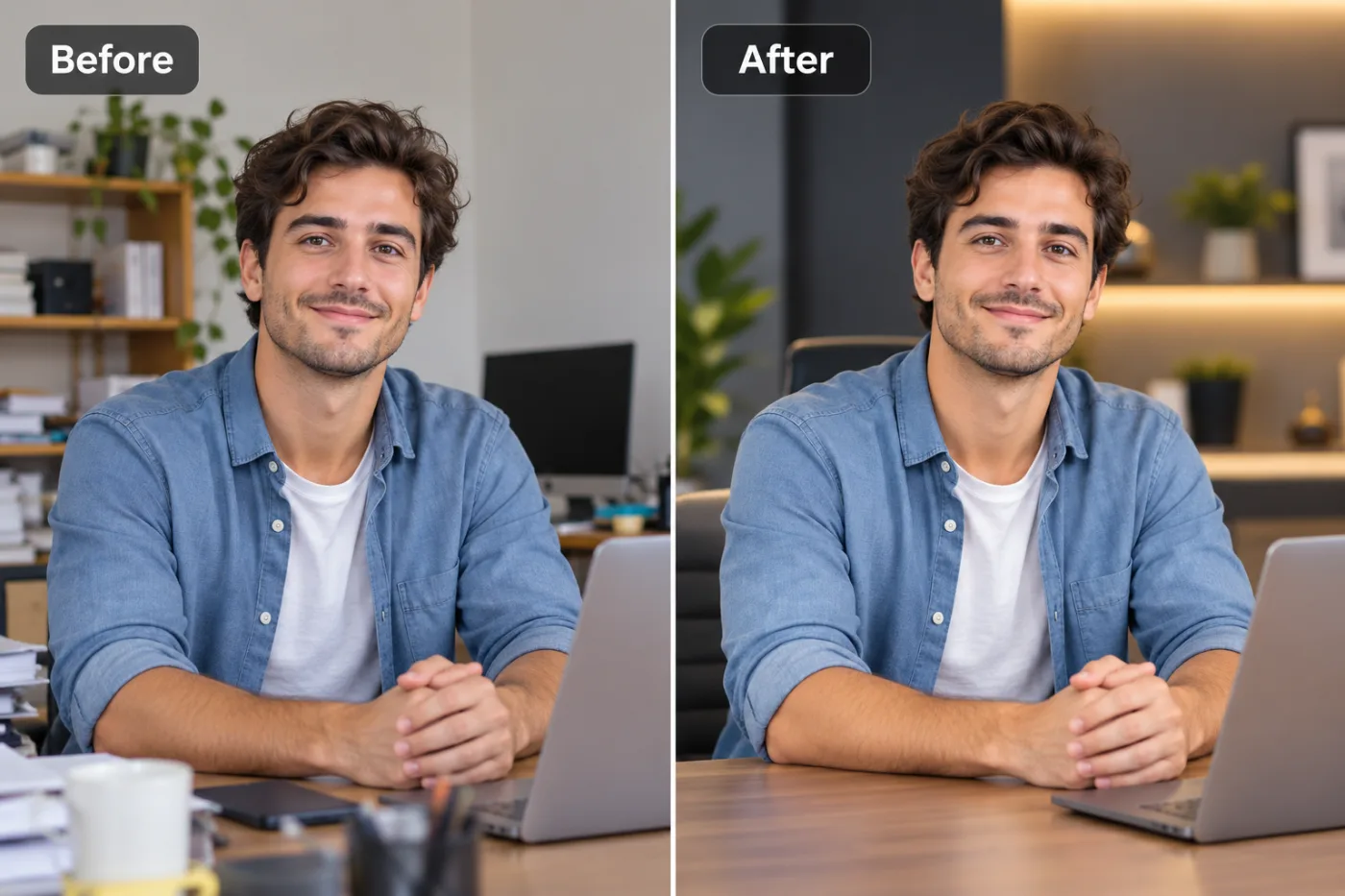
Enhance Any Photo Free Online — No Download, No Account Needed
You shouldn't have to install software or create an account just to make a photo look better. Here's how to enhance any image free online — no download, no sign-in, no watermark.
You want to enhance a photo free online with no download and no account needed — and that specific combination is surprisingly hard to find. Pixel Shine at Pixel Shine delivers all three: it runs entirely online, so there's nothing to install; the core enhancing and upscaling works without signing in; and there's no watermark on your results. Upload, enhance, download the clean image, done.
Why does 'no download, no account' matter so much? Because most people looking to sharpen a photo or improve its quality are doing it on a whim — a picture for a listing, a slightly blurry memory they want to clean up, a low-res image for a post. They don't want to install a 500MB desktop app, create yet another login, or hand over an email just to fix one image. Those hurdles kill the whole point of 'quick.'
Pixel Shine removes every one of them. It's a free photo enhancer online that works instantly on any device on your phone or computer. The Normal Upscale and enhancement tools are free and unlimited with no sign-in. And for the rare image that needs heavier AI reconstruction, the Pro model is a click away. No software, no signup, no watermark — just a better photo in seconds.
Why Browser-Based Enhancing Beats Downloadable Software
For decades, 'enhance a photo' meant opening heavyweight desktop software — installing it, learning its interface, and dealing with updates and system requirements. For a quick fix, that's wildly overkill. Browser-based enhancing flips the model entirely, and the advantages are real.
Nothing to install. No download, no setup wizard, no gigabytes of disk space, no worrying whether it runs on your OS. It's ready the moment you open the page. That's it.
Works on any device. The same tool runs on your laptop, your phone, a library computer, or a borrowed tablet. Desktop software locks you to one machine; a web tool goes wherever you do.
Always up to date. There's no version to update because you're always using the current one. The AI models improve on the server side, and you get the benefit automatically.
No system strain. Heavy AI processing happens on Pixel Shine's servers, not your device. That means even an old phone or a modest laptop can enhance photos that would choke a local application.
Instant start. The gap between 'I want to fix this photo' and 'the photo is fixed' shrinks to under a minute. No installation delay, no learning curve. For the quick, one-off enhancement that most people actually need, online is simply the right tool.
What 'Enhancing' a Photo Actually Involves
'Enhance' is a broad word, so let's be concrete about what happens when you improve a photo's quality with AI. The goal is to make an image look clearer, sharper, and higher quality than the original — and there are a few distinct improvements working together.
Sharpening brings soft or slightly out-of-focus details into crisp focus. Edges that were fuzzy become defined, and fine detail that was smeared becomes readable. This is often the single most noticeable improvement.
Upscaling increases the resolution, adding new plausible detail so the image can be larger without turning blurry. A small, low-res photo becomes usable at bigger sizes.
Cleaning up compression removes the blocky artifacts and color banding that plague images saved off social media or messaging apps. The result looks smoother and more natural.
Recovering texture restores surface detail — fabric, skin, hair, foliage — that low quality had flattened into mushy color blobs.
On Pixel Shine, the free Normal Upscale handles this core enhancement beautifully for the vast majority of photos. When an image is badly degraded and needs deeper reconstruction, the Pro AI model does heavier lifting. Either way, 'enhancing' isn't a single vague filter — it's a set of real improvements that add up to a visibly better photo, delivered without you needing to understand any of the technical machinery.
Step-by-Step: Enhance a Photo Free with No Account
Step 1 — Open Pixel Shine online. Any phone or computer works. There's nothing to download and no login wall.
Step 2 — Go to the enhance/upscale tool. Click into the Upscale tool, which handles sharpening and quality improvement.
Step 3 — Upload your photo. Drag and drop the image onto the page, or tap/click to browse from your device. JPG, PNG, and other common formats work. No account prompt.
Step 4 — Choose the free Normal option. This is the free, unlimited, no-sign-in tier that handles everyday enhancing.
Step 5 — Set your enhancement level. Pick a scale (like 2x or 4x) depending on how much you want to enlarge and sharpen. For pure quality improvement without much enlargement, a modest setting keeps things natural.
Step 6 — Process the image. Hit enhance and let the AI work on the server side. It typically finishes in just a few seconds.
Step 7 — Preview the result. Compare the enhanced image to your original. Check that faces, text, and textures look sharper and cleaner.
Step 8 — Download the clean image. Save the watermark-free result directly to your device. No account, no logo, no catch.
Step 9 — Enhance more if you want. Because the Normal tier is unlimited, upload the next photo and repeat as many times as you need. For a badly degraded image, try a Pro AI trial for deeper reconstruction.
Pro Tips for Better Photo Enhancement
Tip 1 — Use the highest-quality version you have. Enhancement improves an image, but a cleaner starting point always produces a cleaner result. Track down the original rather than a re-saved, re-compressed copy.
Tip 2 — Don't over-enlarge. If you mainly want a sharper photo, not a much bigger one, use a modest scale. Pushing a small image to 4x when you don't need the size can look less natural.
Tip 3 — Check faces and text after enhancing. These are the areas your eye judges most harshly. If they came out crisp, the enhancement worked.
Tip 4 — Save Pro AI for the hard cases. The free Normal tier handles most photos well. Reserve your Pro AI trials for genuinely degraded images that need deeper reconstruction.
Tip 5 — Do it on your phone. Since it's online with no download, enhancing on mobile is just as easy as on desktop — perfect for fixing a photo right before you post it.
Tip 6 — Keep the original. Save the enhanced version as a new file so you can always go back and try a different setting if you're not thrilled with the result.
Common Mistakes to Avoid
Mistake 1 — Enhancing an already-ruined image. If your photo is a screenshot of a compressed screenshot, you're stacking damage. Find the best available version before enhancing.
Mistake 2 — Expecting enhancement to fix everything. AI can sharpen, upscale, and clean up compression, but it can't recover detail that was never captured or fix a fundamentally out-of-focus subject. Set realistic expectations.
Mistake 3 — Cranking the scale higher than needed. More enlargement isn't automatically better. Match the setting to your actual goal — often a modest boost looks the most natural.
Mistake 4 — Assuming you must install software. Many people go hunting for a desktop app when an online tool does the job instantly with no download. Don't over-complicate a quick fix.
Mistake 5 — Overwriting the original file. Always save the enhanced image as a copy. If you overwrite the source and don't like the result, you've lost your ability to try again.
Enhance Online vs. Apps and Desktop Software
How does a free online enhancer stack up against the alternatives people usually reach for?
Vs. mobile apps: Photo-enhancer apps clutter your phone with storage-hungry installs, often bury the good features behind subscriptions, and frequently stamp watermarks on free exports. Pixel Shine needs no install, works right on your phone, and the free tier is watermark-free.
Vs. desktop software: Professional desktop editors are powerful but expensive, complex, and locked to one computer. For a quick enhancement, they're massive overkill. Pixel Shine gives you the core improvement instantly with zero learning curve.
Vs. other online enhancers: Many web-based competitors gate results behind an account, cap your free uses at a handful, or watermark the download. Pixel Shine's Normal enhancement is free, unlimited, and no-sign-in, with clean output.
The standout advantage is that Pixel Shine isn't a one-trick tool. In the same place, you also get a background remover, AI headshot generator, AI photo editor with text prompts, and creative effects. So the same no-download, no-account convenience extends across an entire toolkit — not just enhancement. For anyone who wants to fix, edit, and create without installing anything or juggling logins, that all-in-one, online approach is genuinely hard to beat.
Who Uses Free Online Photo Enhancement
Online sellers quickly sharpen product photos right before listing them, improving clarity without installing software.
Social media users enhance a slightly soft or compressed image on their phone seconds before posting, so their feed always looks crisp.
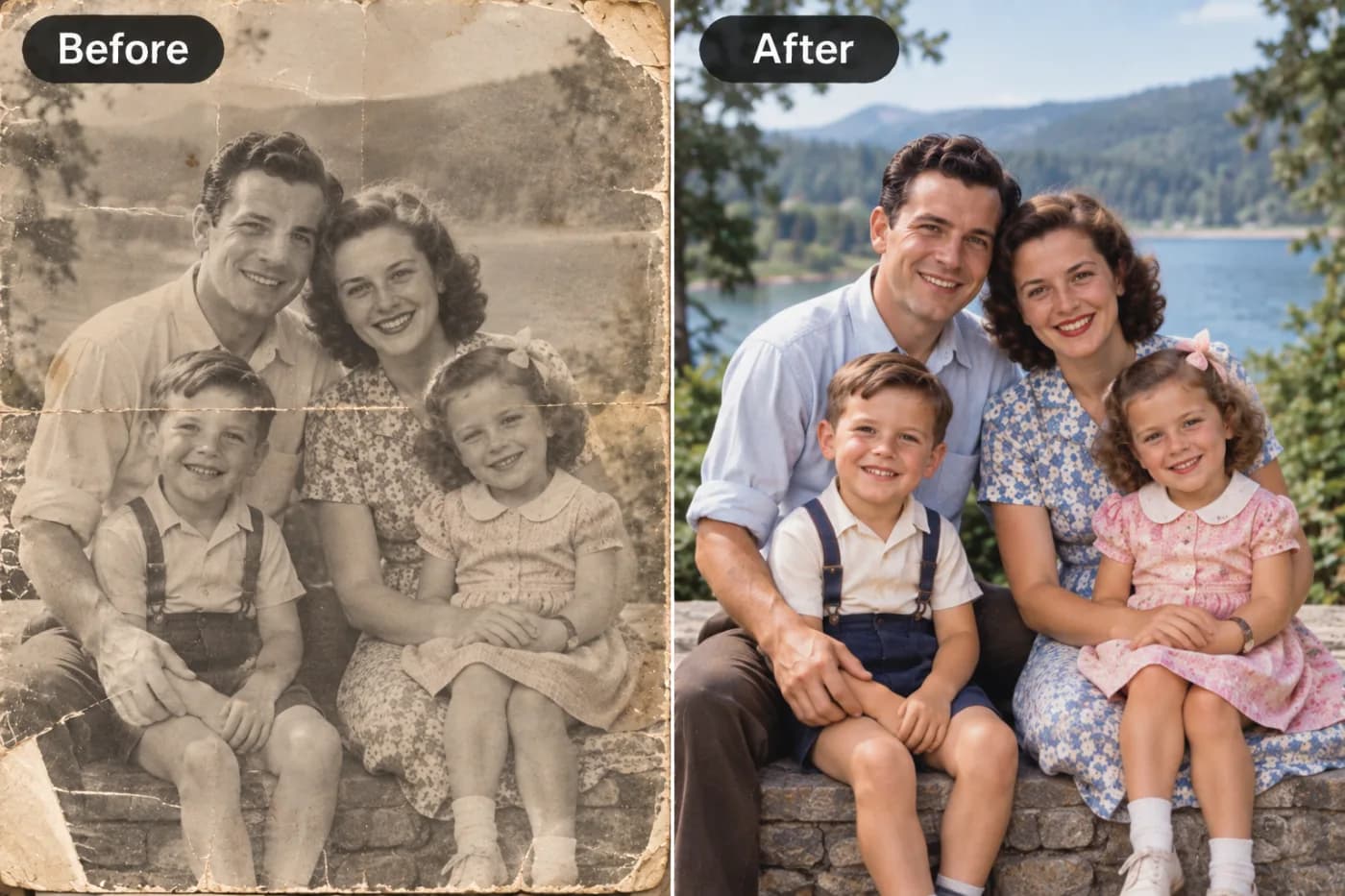
People preserving memories clean up old or low-quality family photos to share or print, without needing technical skills or an account.
Students and professionals improve the clarity of images, screenshots, and diagrams for reports, slides, and documents — fast and free.
Freelancers and small business owners who don't want a paid software subscription get exactly the enhancement they need at no cost.
The unifying theme is convenience under time pressure. These are people who need a better photo *now*, on whatever device is in hand, without the friction of downloads, installs, logins, or paywalls. For them, a free, no-account, online enhancer isn't a compromise — it's precisely the right tool, available exactly when they need it.
Frequently Asked Questions
Can I enhance a photo online without downloading any software?Yes. Pixel Shine runs entirely online at Pixel Shine. There's nothing to install — just upload, enhance, and download.
Do I need to create an account?No. The core enhancing and Normal Upscale work without signing in. An account only matters if you choose to use Pro AI credits.
Is there a watermark on the enhanced photo?No. Your downloads from the free tier are clean and watermark-free.
Does it work on my phone?Yes. Because it's online, it works on phones, tablets, and computers equally well — no app install required.
How many photos can I enhance for free?The Normal tier is free and unlimited, so you can enhance as many photos as you want.
Will it fix a blurry photo?It sharpens soft images and improves clarity significantly. However, a photo that's fundamentally and heavily out of focus can only be improved so much — AI can't fully recover detail that was never captured.
What's the difference between free enhancement and Pro AI?The free Normal tier handles everyday sharpening and quality improvement. Pro AI does deeper reconstruction for badly degraded images and uses credits.
What file formats can I upload?Common formats like JPG and PNG work directly.
Key Takeaways
Enhancing a photo shouldn't require installing software, creating an account, or accepting a watermark. Pixel Shine delivers all three freedoms at once: it runs online with no download, the core enhancement works with no sign-in, and your results come out clean.
For the everyday task of sharpening a soft image, cleaning up compression, and improving overall quality, the free and unlimited Normal tier is all you need — on your phone or your computer, as many times as you like. And when a photo is badly degraded, the Pro AI model is one click away.
No installs, no logins, no logos across your image. Just a clearer, sharper, higher-quality photo in seconds.
Try it now — Enhance Photo Free → at Pixel Shine.