Make Your Image Clearer Online for Free — AI Clarity Tool
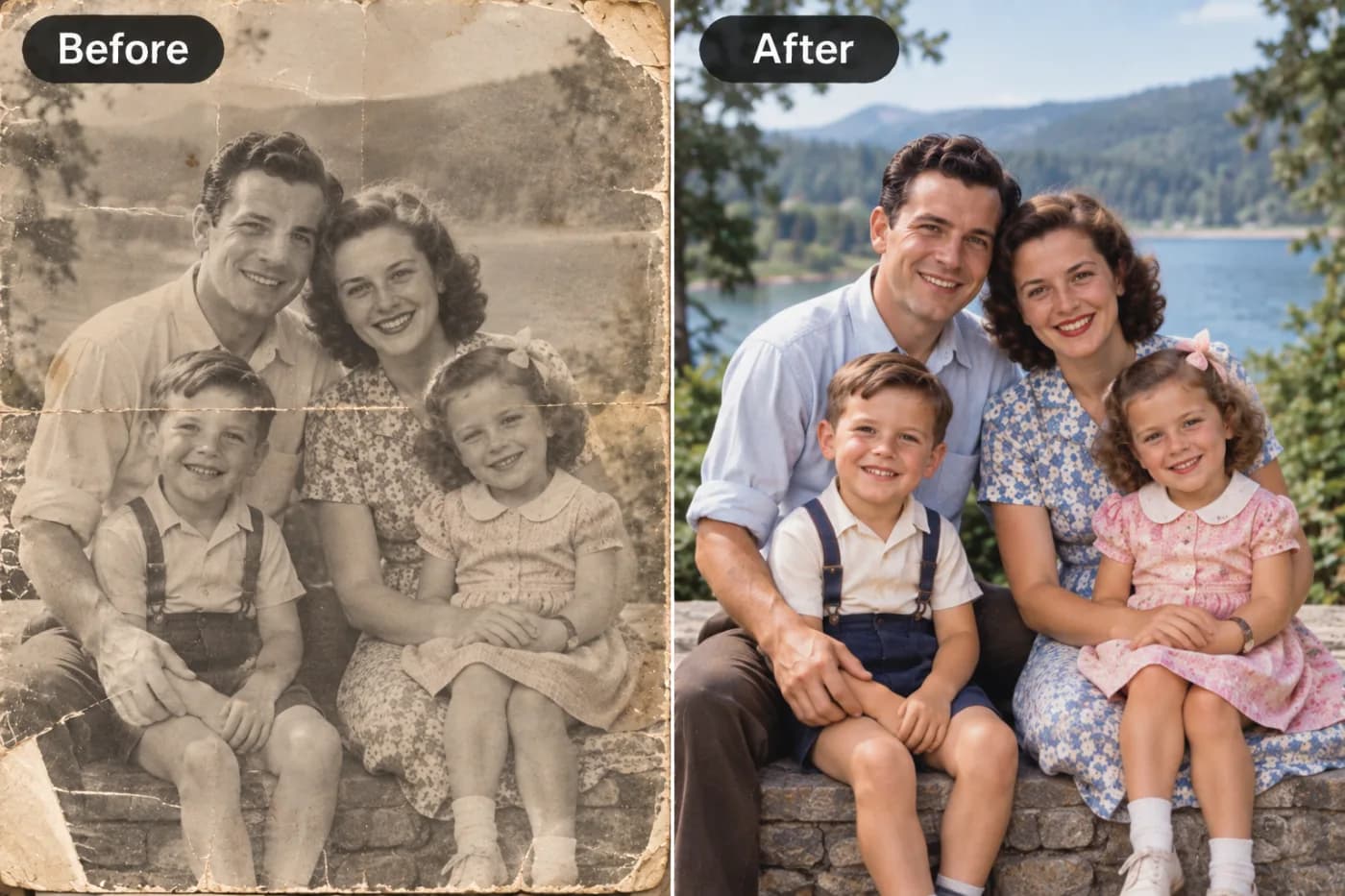
Making an image clearer is about more than just sharpening edges. Pixel Shine's AI clarity tool reconstructs detail, reduces noise, and enhances overall image quality for free.
If you need to make an image clearer online for free, AI has made it easier than at any point in history. A blurry, soft, or low-resolution image used to mean either living with it or paying for professional editing. Now, an AI clarity tool can analyze your photo, reconstruct fine detail, and deliver a crisp, high-resolution result in seconds — online, with no cost and no complicated software.
This guide covers everything you need to know to increase image clarity with AI. You'll learn why images look unclear, how AI clarity enhancement works differently from old sharpening filters, and exactly how to use Pixel Shine's free image clarity tool step by step. Crucially, Pixel Shine adds no watermark and doesn't require a sign-up for its free Normal mode — so you can sharpen an image online, boost its resolution, and download a clean result without any friction. Whether you're prepping product photos, cleaning up screenshots, or reviving old pictures, you'll come away knowing how to make any image noticeably clearer for free.
Why Images Look Unclear
Making an image clearer starts with understanding why it looks murky, since different causes respond differently to enhancement. Clarity — the crispness and definition your eye perceives — degrades for several reasons.
Low resolution is a leading cause. When an image has too few pixels for the size it's displayed at, edges look soft and blocky. Screenshots, thumbnails, and heavily cropped photos all suffer here.
Compression strips away fine detail every time an image is uploaded, texted, or re-saved. Social media platforms in particular re-compress uploads, so a crisp original can look muddy after posting.
Focus and motion issues leave images physically soft when the camera missed focus or something moved during the shot.
Low light and noise produce grainy, indistinct images as cameras raise ISO to compensate for darkness, muddying detail.
Most unclear images actually combine several of these — a low-resolution, compressed screenshot taken in poor light, for instance. That's why a smart AI tool that addresses resolution, detail, and noise together outperforms any single slider. And because AI reconstructs detail rather than merely amplifying what's there, it's especially effective at the low-resolution and compression problems that make everyday images look unclear.
How Pixel Shine Increases Image Clarity
Pixel Shine makes images clearer through AI reconstruction, which is a genuine leap beyond the clarity sliders in traditional editors. Those old controls simply boost local contrast, making an image look punchier but adding no real detail — and pushing them creates halos and amplifies noise.
Pixel Shine instead uses a neural network trained on millions of high-quality images. When you upload an unclear image, the AI recognizes objects, textures, and edges, then reconstructs the fine detail that low resolution and compression stripped away — rebuilding crisp text, hair strands, and surface texture based on what those elements should look like when sharp. It simultaneously upscales the image, adding real resolution rather than just stretching pixels. This dual action of adding detail *and* resolution is why AI clarity enhancement looks natural instead of over-processed.
The Normal mode is completely free, unlimited, and requires no sign-up, covering the clarity needs of most everyday images. For heavily degraded images or professional print work, Pro AI mode applies a more powerful reconstruction model using credits. And Pixel Shine never adds a watermark, so your clearer, sharper image is clean and ready to use the moment you download it.
Step-by-Step: Make Your Image Clearer for Free
Here's exactly how to increase image clarity online in about a minute:
1. Open the clarity tool. Go to Pixel Shine and launch the AI Upscaler. The free Normal mode needs no sign-up, so you can start right away.
2. Upload your unclear image. Drag it into the upload area or click to browse. Pixel Shine supports JPG, PNG, WebP, and more. Use the highest-quality source you have — the original, not a re-shared or screenshotted copy.
3. Select your mode. Choose Normal for free, unlimited clarity enhancement that handles most images well. For severely degraded images or professional output, pick Pro AI mode, which uses credits.
4. Choose an output scale. Select 2x for a natural clarity boost or 4x when you also want a substantially larger, higher-resolution image. Upscaling gives the AI more room to rebuild detail.
5. Process the image. Click to enhance and let the AI reconstruct clarity. Most images finish in seconds.
6. Review and download. Use the before/after slider to confirm the improvement, then download your clearer image. There's no watermark, so it's ready to use anywhere. If it looks over-processed, re-run at a lower scale for a more natural finish.
Pro Tips for Maximum Clarity
These expert habits help you squeeze the most clarity out of any image:
Start from the original file. Every share and screenshot compounds compression, erasing detail the AI needs. Retrieve the source image from your camera roll or original download.
Match scale to your goal. Use 2x for a natural clarity boost on decent images, and 4x for small images you need to enlarge substantially. Over-scaling a good image can look artificial.
Enhance clarity before editing. Run the AI pass first so it works with clean data, then adjust brightness, contrast, and color afterward.
Zoom in to check detail. Inspect the enhanced result at full size, especially on faces and text, to confirm the clarity looks natural rather than crunchy.
Use Pro trials on tough images. For a badly degraded photo, run Pro AI and compare the heavier reconstruction against the free result.
Upscale text generously. For screenshots of documents, receipts, or slides, a larger scale helps the AI rebuild legible characters and boost clarity where it matters most.
Common Mistakes to Avoid
Sidestep these errors to keep your clearer images looking natural:
Over-enhancing. Cranking clarity to the maximum on an already-decent image can introduce halos and an artificial, over-processed look. Aim for a clean, natural improvement.
Starting with a thumbnail. A tiny, heavily compressed image gives the AI almost nothing to reconstruct. Begin with the largest, cleanest source you can find.
Enhancing a screenshot of a screenshot. Stacking compression by working from a re-captured image degrades the result. Go back to the original.
Skipping the preview. The before/after view catches over-processing before you download. A quick look saves you from an unnatural result.
Expecting clarity to fix severe blur. AI clarity enhancement excels at low resolution and compression damage. Extreme motion blur is the hardest case — you'll see improvement, but not a full fix.
Real-World Uses for an Image Clarity Tool
Making images clearer solves problems across many everyday situations:
E-commerce product photos. Sellers boost the clarity of product images so listings look crisp and professional, building buyer trust and improving conversions.
Screenshots for work. A soft screenshot of a chart, slide, or document becomes clear and legible again, which is invaluable for presentations and reports.
Social media content. Creators enhance the clarity of images before posting so their feed looks polished and consistent, even after platform compression.
Restoring old photos. Faded, soft scans of vintage prints regain clarity, perfect for reprints and family albums.
Real estate listings. Agents clarify dim, soft interior shots so rooms look crisp and inviting to prospective buyers. In every case, Pixel Shine's free Normal mode delivers watermark-free, sign-up-free clarity enhancement on the spot.
AI Clarity Enhancement vs. Other Methods
When you want to make an image clearer, you have a few options, and understanding the trade-offs helps you choose well. Desktop software like Photoshop offers powerful clarity and sharpening controls with manual precision, but it costs a subscription, requires real skill, and is slow for casual tasks. It's more than most people need for everyday images.
Basic app filters provide a quick clarity slider, but they use local-contrast boosting that can't add genuine detail — push them and you get halos and amplified noise. They're fine for a subtle touch-up, not for genuinely rebuilding clarity.
AI clarity enhancement reconstructs real detail and adds resolution, which is why it produces crisper, more natural results than either alternative. Pixel Shine delivers this free online, with no watermark and no account for the Normal mode, plus optional Pro power through credits. For the vast majority of images, that blend of quality, cost, and convenience is the clear winner. You'd only reach for professional software when you need surgical, region-by-region manual control over a specific part of the image.
Who Uses AI Clarity Tools
AI clarity enhancement serves a wide range of users with specific goals. E-commerce sellers clarify product photos to look professional and boost conversions. Content creators and social media managers keep their feeds crisp despite platform compression. Students and remote workers clarify screenshots and photos of notes, slides, and documents so they're legible. Real estate agents sharpen dim interior shots to make listings shine. Families restore soft, aged photos so precious memories look clear again. Marketers and designers enhance low-resolution stock or client images for cleaner presentations. The common thread is a shared need: turning an unclear, soft image into a crisp, professional one — quickly, for free, and without watermarks or accounts getting in the way.
Frequently Asked Questions
Can I make an image clearer online for free?Yes. Pixel Shine's Normal mode makes images clearer completely free, with no limits and no sign-up. Credits are only needed for the heavier Pro AI mode.
Will my clearer image have a watermark?No. Pixel Shine never watermarks output. Your enhanced image downloads clean and ready to use.
Do I need to create an account?Not for the free Normal mode. You can upload and clarify an image without signing up, which is perfect for quick jobs.
How does AI clarity differ from a normal clarity slider?A slider just boosts local contrast, which can create halos and noise. AI reconstructs genuine detail and adds resolution, producing a far more natural, higher-quality result.
What image formats are supported?Pixel Shine supports common formats like JPG, PNG, and WebP. For the best result, upload the highest-quality source file you have.
Can I make an image clearer and larger at the same time?Yes. The tool enhances clarity while upscaling, so you can produce a crisper image that's also 2x or 4x larger — great for prints.
Does it work on screenshots and documents?It does. Enhancing a soft screenshot of a chart, slide, or document can make it clear and legible again, especially if you upscale generously.
What if the result looks over-processed?Re-run at a lower scale, like 2x instead of 4x. A gentler pass gives the most natural, clear result.
Key Takeaways
Making an image clearer online is now fast, free, and genuinely effective thanks to AI. Instead of faking clarity by boosting local contrast, modern tools reconstruct real detail and add resolution — recovering crispness and legibility that old sliders never could. Pixel Shine delivers this through its free Normal mode: no watermark, no forced sign-up, and no usage caps.
The process is effortless — upload, choose your mode and scale, and download a clearer result in about a minute. Whether it's a product photo, a screenshot, or a cherished old picture, your unclear image can look crisp and professional again. Try the free AI clarity tool at Pixel Shine today.