Turn Any Photo into Anime Art with AI — Free Online
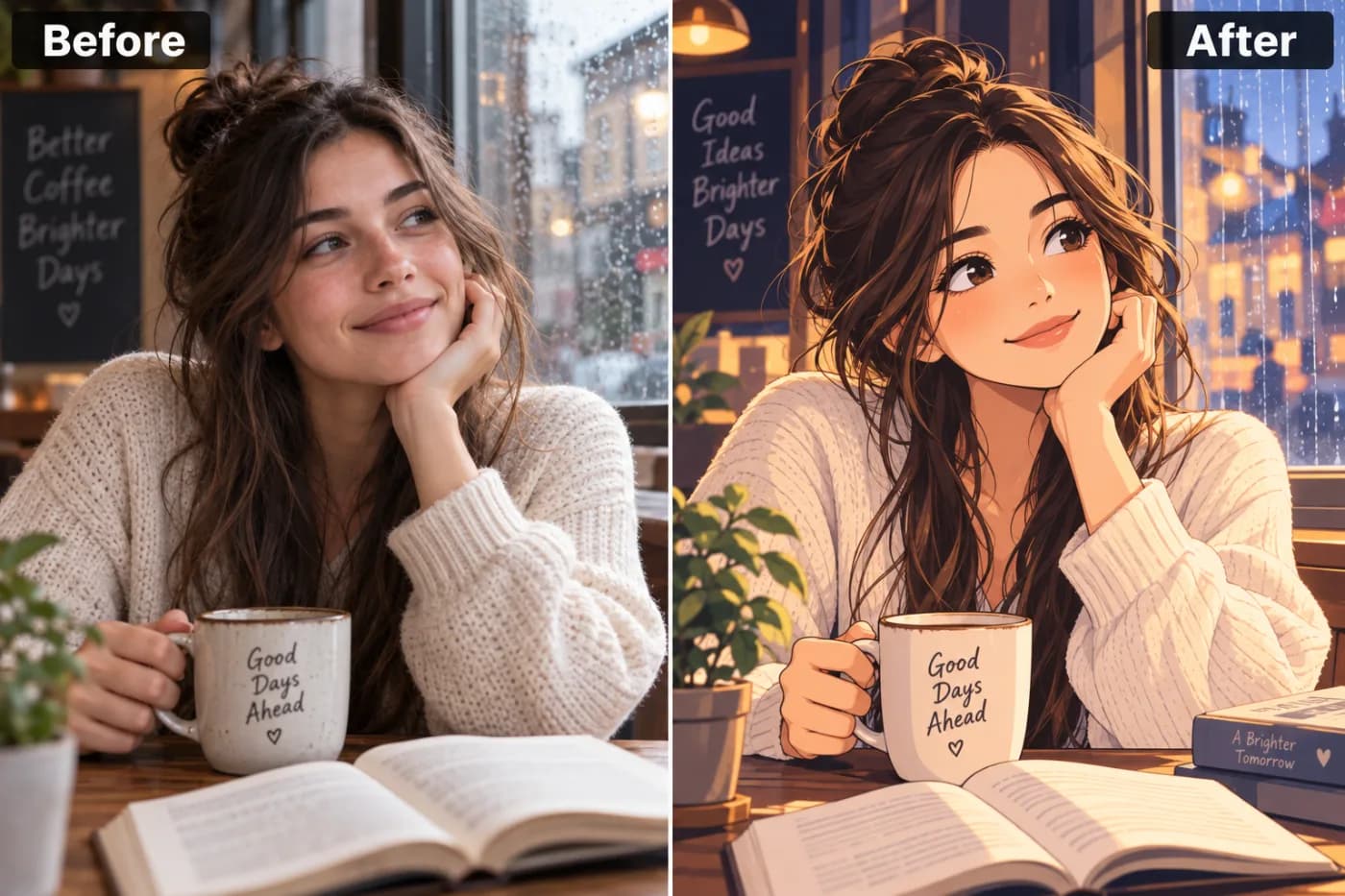
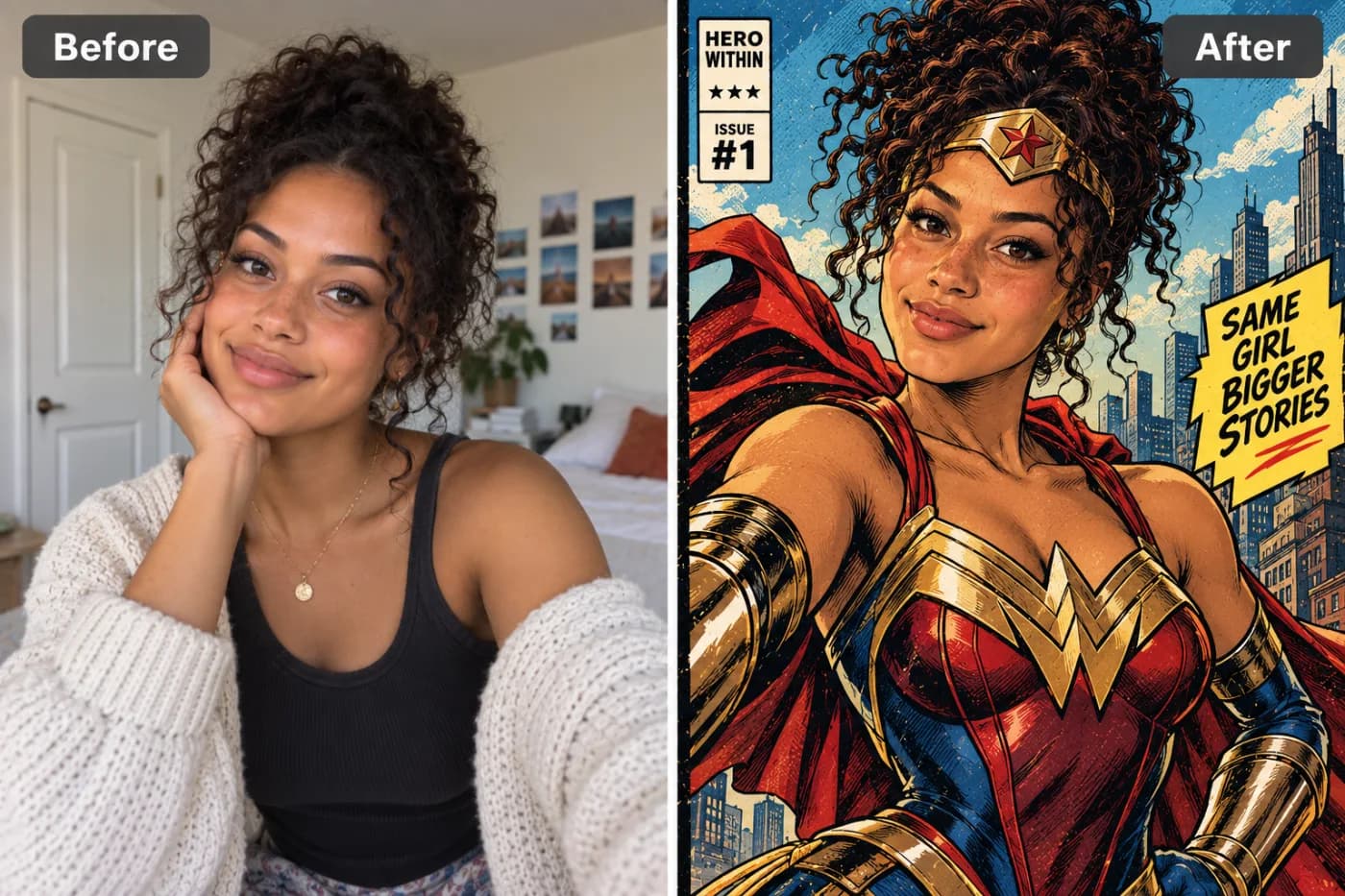
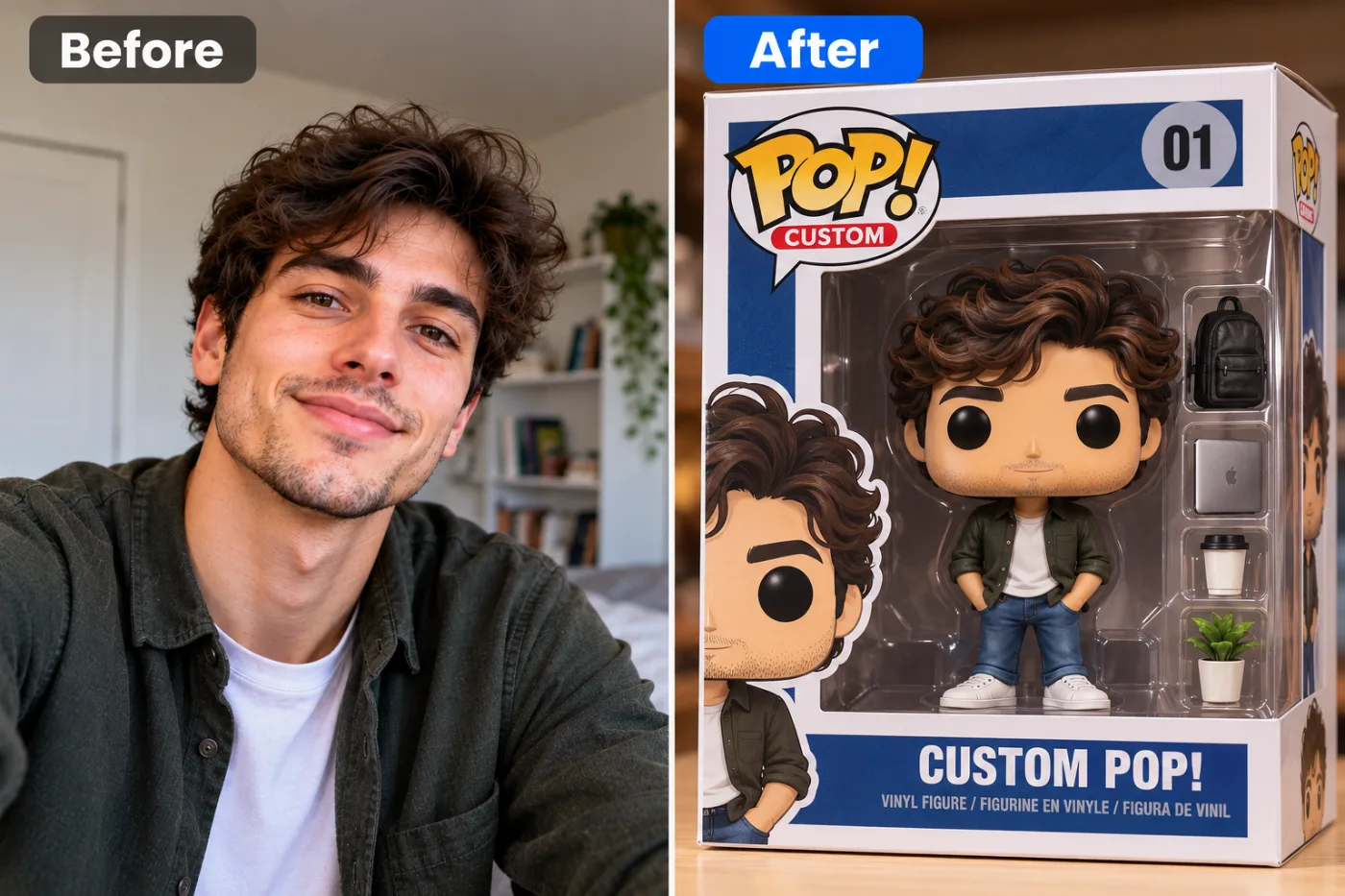
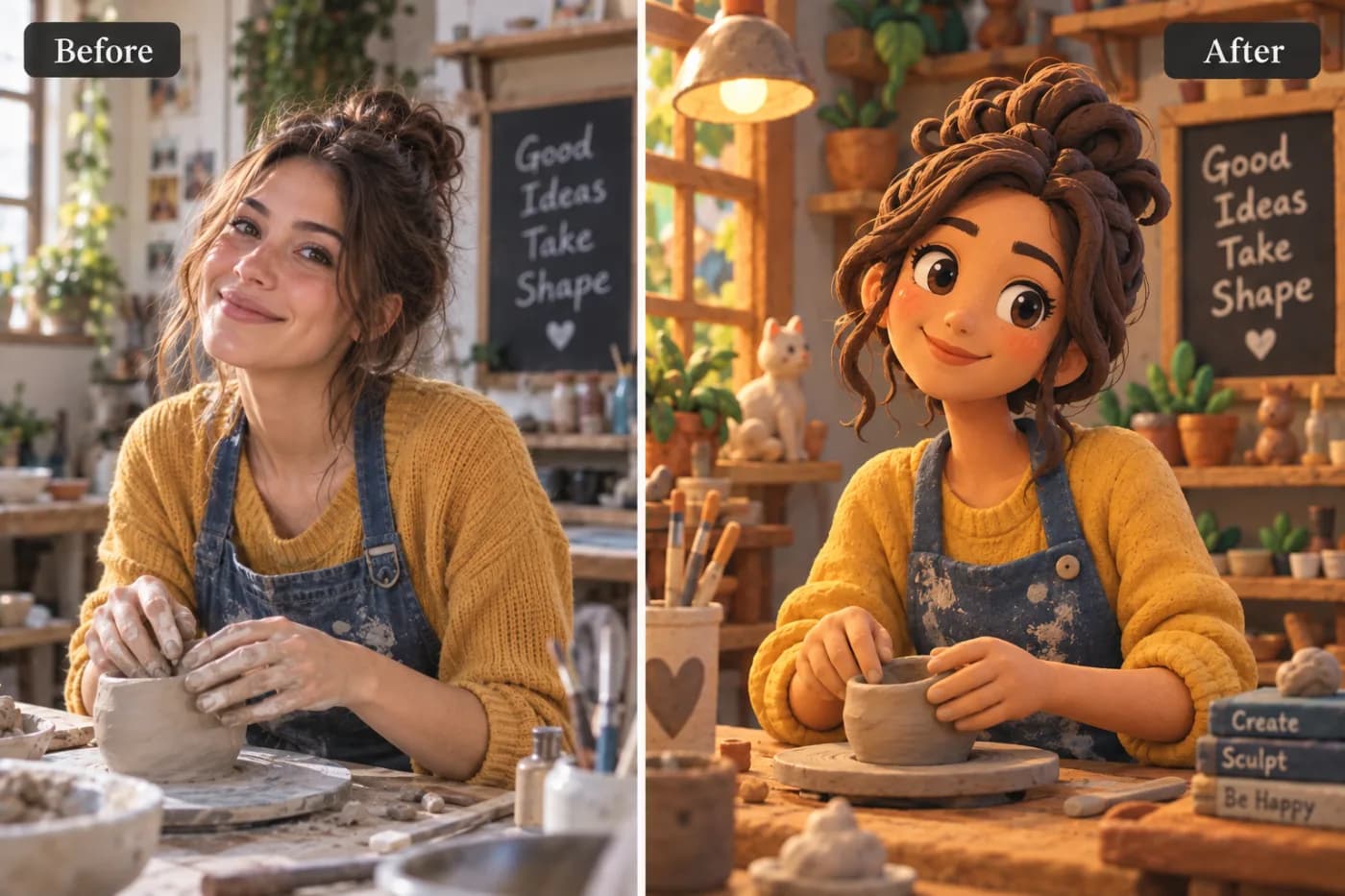
Anime art style is one of the most requested AI photo transformations in the world. Turn any portrait into beautiful anime-style art — from a quick social media post to a genuinely stunning piece of personalised artwork.
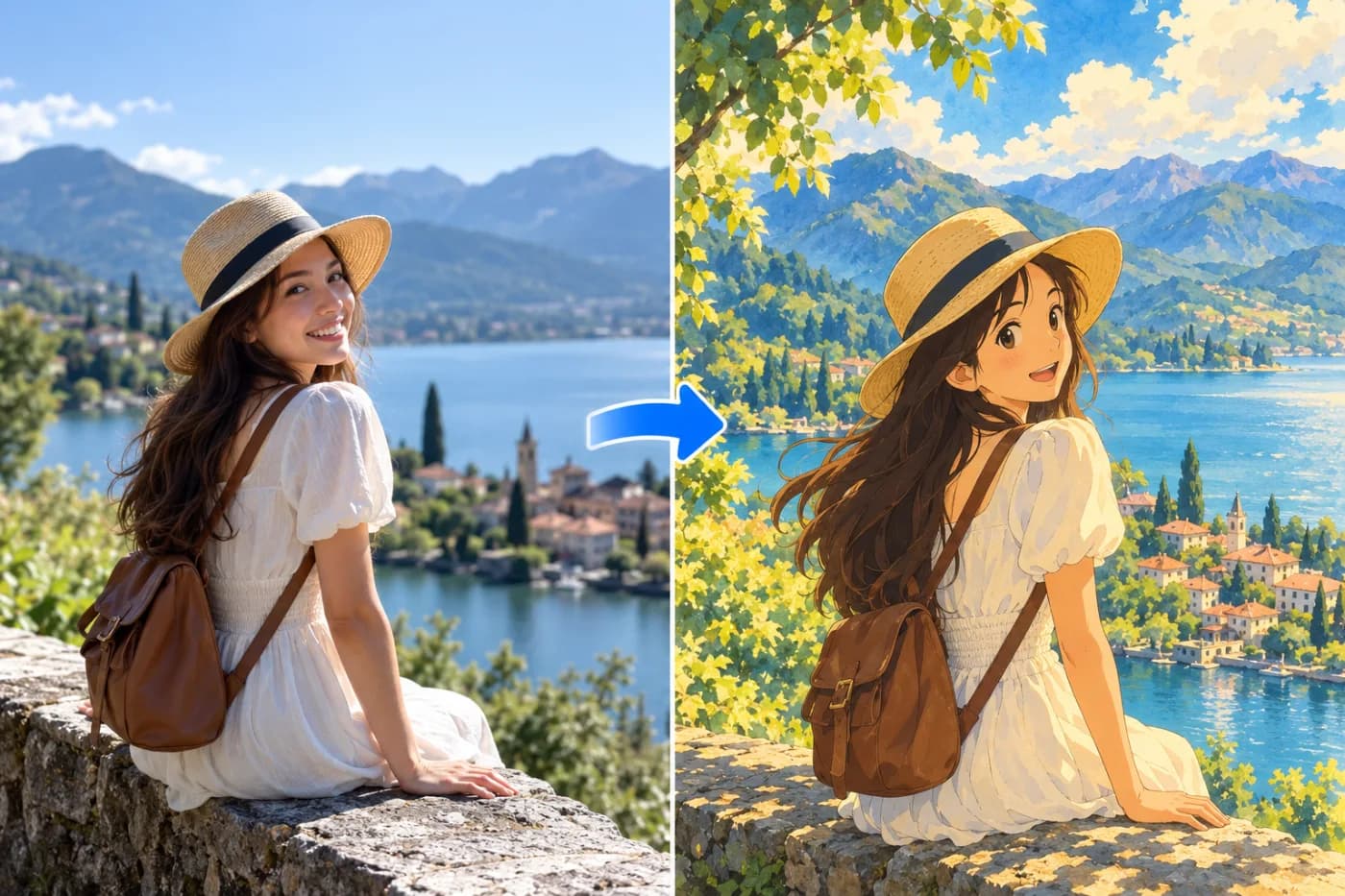
Ever looked at your favorite anime and wished you could step into that world? With an anime style photo filter AI, you actually can — and you don't need a single drawing skill or a pricey subscription. In seconds, you can turn any photo into anime art that looks like it was hand-drawn by a studio animator, complete with those big expressive eyes, soft cel-shading, and dreamy backgrounds.
This isn't the clunky cartoon filter you remember from 2015 apps. Modern AI anime filter online free tools use deep-learning models trained on hundreds of thousands of anime frames, so they understand hair strands, lighting, and facial structure the way a real artist does. On Pixel Shine, the whole thing runs online — upload a selfie, pick a style, and watch your photo become a character worthy of its own opening credits.
In this guide, you'll learn exactly how photo to anime AI free conversion works, how to get results that actually look good, the mistakes that ruin most attempts, and why Pixel Shine's pay-as-you-go credits make it one of the easiest places to start.
What Makes an AI Anime Filter Actually Good?
Not all anime filters are created equal. The difference between a result that makes you say "wow" and one you delete immediately comes down to how well the model preserves your identity while stylizing everything else.
Face preservation is the big one. A cheap filter smears your features into a generic anime face — everyone ends up looking like the same character. A good AI keeps your unique bone structure, expression, and proportions, so friends can still recognize you. Pixel Shine's model maps your facial landmarks first, then applies the anime style on top, which is why results stay true to the original.
Style consistency matters too. Real anime has a coherent look: line weight, shading, and color palette all work together. Weak filters slap flat colors on and call it a day. Strong ones add proper cel-shading, rim lighting, and those signature glossy highlights in the eyes and hair.
Finally, there's background handling. Great anime art doesn't just stylize the person — it reimagines the whole scene into a painterly, Ghibli-esque environment. When all three of these come together, you get artwork that genuinely looks like a frame pulled from a series, not a novelty gimmick.
The Different Anime Styles You Can Create
One reason people love turning a photo into anime art is variety. The anime umbrella covers dozens of distinct visual languages, and the right style completely changes the mood of your portrait.
Classic shonen is the bold, high-energy look you see in action series — sharp lines, dramatic shading, and intense eyes. It's perfect for profile pictures that need attitude.
Shojo leans soft and romantic: pastel tones, sparkly eyes, flowing hair, and a gentle glow. This style flatters portraits and couple photos beautifully.
Ghibli-inspired art is more painterly and wholesome, with watercolor backgrounds and warm, natural lighting. It's the go-to for nostalgic, storybook vibes.
Modern digital anime — the clean, high-gloss style of recent streaming hits — gives you crisp lines and vibrant, saturated color that pops on social feeds.
There's also chibi, the adorable super-deformed style with oversized heads and tiny bodies, great for stickers and avatars. On Pixel Shine, you can experiment across these looks without paying for each attempt, so you can find the aesthetic that fits your face and your vibe before committing.
Step-by-Step: Turn Your Photo into Anime Art
Here's exactly how to create your anime portrait on Pixel Shine, start to finish:
Step 1 — Go to Pixel Shine and open the Anime Style tool under Creative AI Photo Effects. No download, no software install — it runs online on desktop or phone.
Step 2 — Upload your photo. Choose a clear, well-lit image where your face is visible and not blocked by sunglasses, hands, or heavy shadows. A front-facing or slight-angle shot works best. Pixel Shine accepts JPG, PNG, and most common formats.
Step 3 — Pick your anime style. Browse the available looks (shonen, shojo, Ghibli-inspired, modern digital, and more) and select the one that matches the mood you want. Tap to preview.
Step 4 — Generate. Hit the convert button and let the AI work. Processing usually takes 10 to 30 seconds depending on image size and server load. You'll see the anime version appear.
Step 5 — Review and regenerate if needed. If the first result isn't quite right, try a different style or re-upload a sharper photo.
Step 6 — Download. Save your anime art in full resolution with no watermark stamped across it. From there, set it as a profile picture, print it, or share it anywhere.
The whole process, from upload to download, typically takes under two minutes.
Pro Tips for Stunning Anime Results
Use high-resolution source photos. The AI has more detail to work with, which means cleaner lines and sharper eyes. A blurry or low-res upload gives the model less to interpret and the output suffers.
Prioritize good lighting. Soft, even lighting on your face produces the best stylization. Harsh shadows or backlighting confuse the shading engine and can leave dark, muddy patches.
Keep the face unobstructed. Push hair off your forehead, remove glasses if you can, and avoid extreme angles. The clearer your facial landmarks, the more accurately the AI captures your likeness.
Match the style to the emotion. A serious portrait looks powerful in shonen style but odd in cute chibi. Think about the feeling you want before choosing.
Try multiple styles on the same photo. The same selfie can look wildly different in Ghibli versus modern digital. Comparing outputs helps you discover your best angle.
Crop tight for avatars. If you're making a profile picture, a headshot-style crop before uploading focuses the AI on your face and produces a more polished, avatar-ready result.
Common Mistakes to Avoid
Uploading a group photo when you want one person. The AI may split its attention or blend faces. For a single-character result, crop to just yourself first.
Using heavily filtered originals. If your source photo already has a strong Instagram filter, beauty smoothing, or an existing cartoon effect, the anime AI stacks on top of that and the result looks off. Start from a natural, unedited photo.
Expecting a low-quality phone screenshot to look great. Screenshots and compressed images lose detail. Feed the AI the original file whenever possible.
Picking the wrong style for the subject. A wedding portrait in aggressive shonen style clashes with the moment. Match the aesthetic to the context.
Skipping regeneration. The first output isn't always the best. Many people quit after one try. Generate a few versions before deciding.
Pixel Shine vs. Other Anime Filter Apps
The anime filter space is crowded, so how does Pixel Shine stack up? The biggest differences come down to cost, watermarks, and convenience.
Many popular anime apps lock every good result behind a subscription — you'll generate a preview, love it, and then hit a paywall to download without a giant watermark slapped across your face. Others force you to create an account and hand over your email before you can even try the tool. Some mobile apps bury the feature under so many ads that the experience feels like navigating a minefield.
Pixel Shine takes a different approach. It's an AI anime filter online that runs on credits, with packs starting at ₹166 and no subscription. When you download, there's no watermark defacing your art. Because Pixel Shine is an all-in-one platform, you can convert to anime, then upscale the result to print quality, remove the background, or apply another effect — all in the same place. No juggling five different apps, no surprise charges, no email harvesting just to test a filter.
Who Uses AI Anime Filters (And Why)
Content creators and streamers use anime versions of themselves as branded avatars for Twitch, YouTube, and Discord — a stylized face that's recognizable without exposing their real photo everywhere.
Cosplayers turn reference shots into anime art to visualize characters or share concept pieces with their community before a shoot.
Couples and friends convert group photos into matching anime portraits for shared profile pictures, anniversary gifts, or printed wall art that feels personal and fun.
Small businesses and gamers create anime mascots and avatars from staff photos for a playful brand identity that stands out on social media.
Anime fans, of course, just love seeing themselves in the world they adore — as a birthday gift, a custom sticker pack, or a phone wallpaper. One user turned a family reunion photo into a full anime poster and had it framed. The appeal is universal: it's a low-effort way to see a familiar face in an extraordinary new light.
Frequently Asked Questions
Is the anime photo filter really free?Pixel Shine's creative tools run on credits, with packs starting at ₹166 and no subscription. You pay only for what you create.
Do I need to create an account to use it?For the anime filter, yes: a free account. The free Normal Upscale and the browser tools need no sign-in at all.
Will my face still be recognizable in the anime version?Yes. Pixel Shine's model maps your facial landmarks before stylizing, so your unique features are preserved. Friends will still recognize you while the art gets a full anime treatment.
What photo works best for anime conversion?A clear, well-lit, front-facing photo with an unobstructed face gives the best results. Higher resolution means sharper lines and cleaner detail.
Is there a watermark on downloaded images?No. Pixel Shine lets you download your anime art without a watermark stamped across it, unlike many competing apps.
Can I make anime art on my phone?Absolutely. Pixel Shine runs on your phone, so you can convert, review, and download directly from your phone — no app install needed.
How long does it take to generate?Most conversions finish in 10 to 30 seconds depending on image size and current demand.
Can I use the anime art commercially?For personal use, avatars, and social posts you're set. For commercial projects, check Pixel Shine's current terms to confirm usage rights for generated images.
Key Takeaways
Turning a photo into anime art used to require drawing talent or expensive commissions. Today, an AI anime filter online free does it in under two minutes — no skills, no watermark, no subscription. The keys to great results are simple: use a clear, high-res, well-lit photo, match the anime style to your mood, and don't be afraid to regenerate a few times.
Pixel Shine stands out because it's genuinely free to start, adds no watermarks, and packs anime conversion alongside upscaling, background removal, and more in one platform. Head to Pixel Shine, upload your favorite selfie, and see yourself reimagined as an anime character. Your next profile picture — or framed poster — is just a couple of clicks away.