AI Object Remover
Remove unwanted objects, people and text from any photo. Brush over what you don't want, press Remove, and AI fills the space so it looks like it was never there.
Before and after: objects removed with AI
Red shows what was brushed. Everything else in the photo stays as it was.
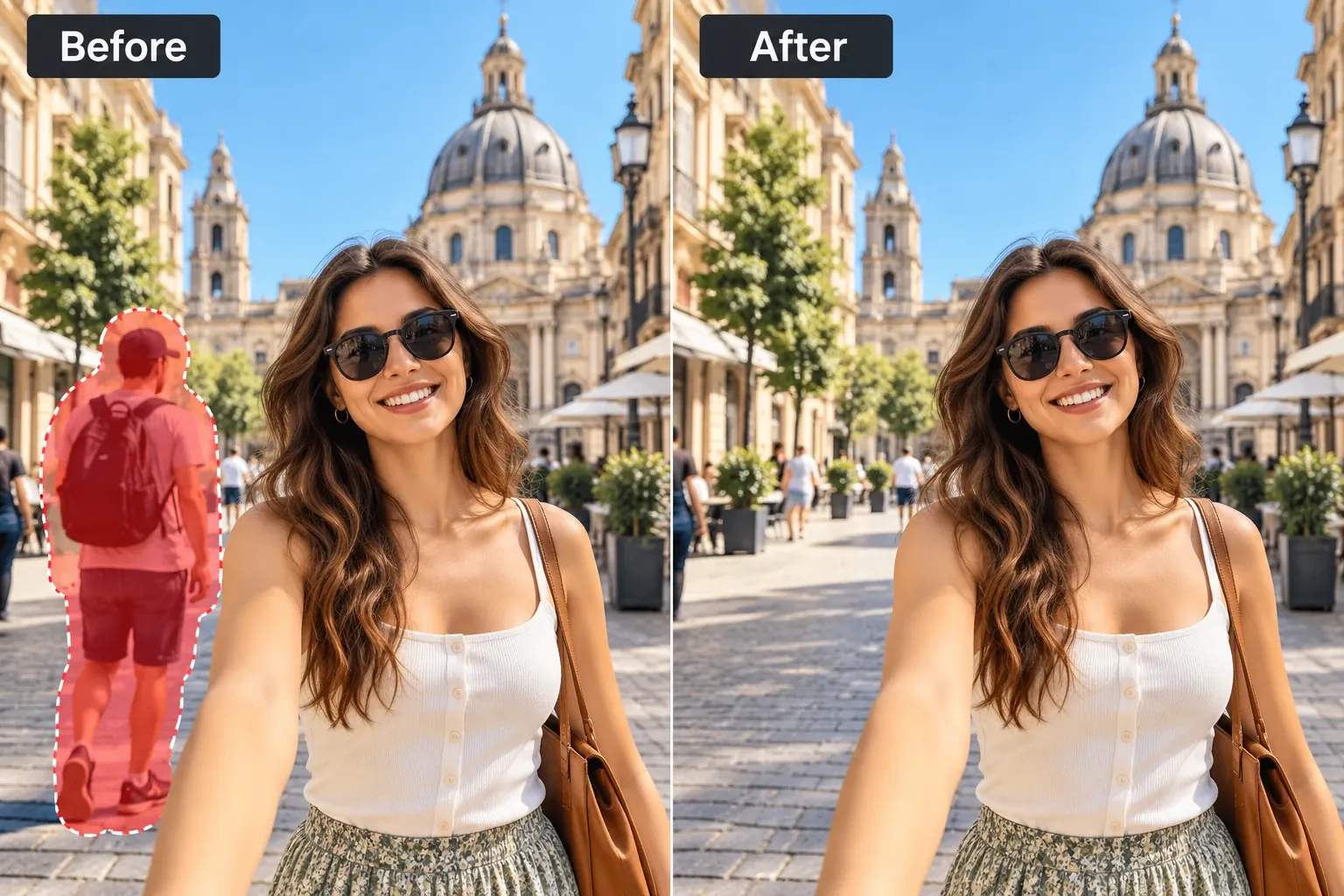
Remove a person from a photo
A stranger walked into your shot. Brush over them — cap, backpack, legs and the shadow at their feet — and press Remove.
The AI rebuilds what was behind them from the rest of the picture: the paving stones, the shop fronts, the trees. You stay exactly as you were.
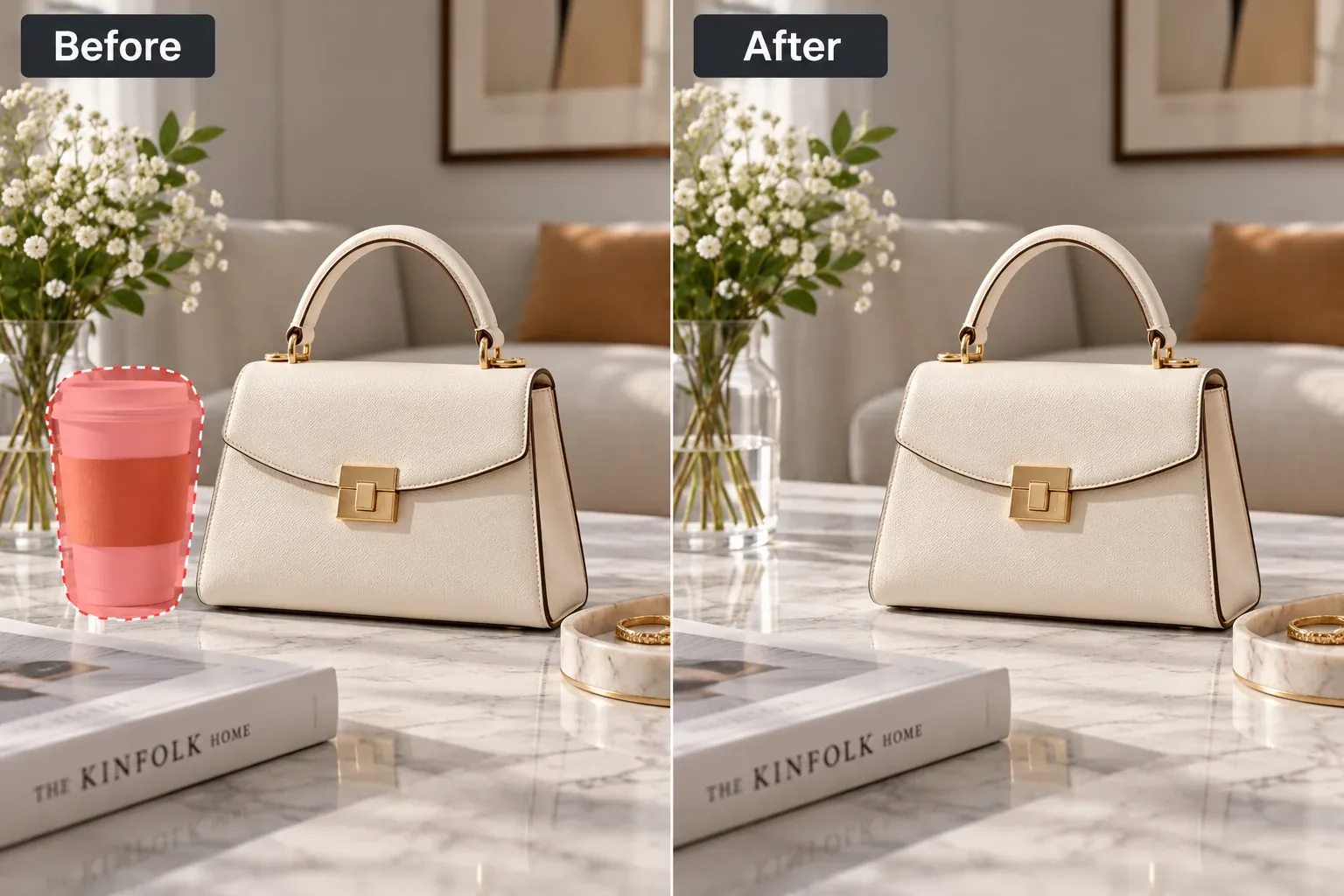
Clean up a product photo
A coffee cup, a price tag, a cable — the one thing that makes a product photo look like a snapshot. Brush over it and it's gone.
The marble, the vase and the light behind it carry on as if it was never there, so the bag is the only thing you look at.
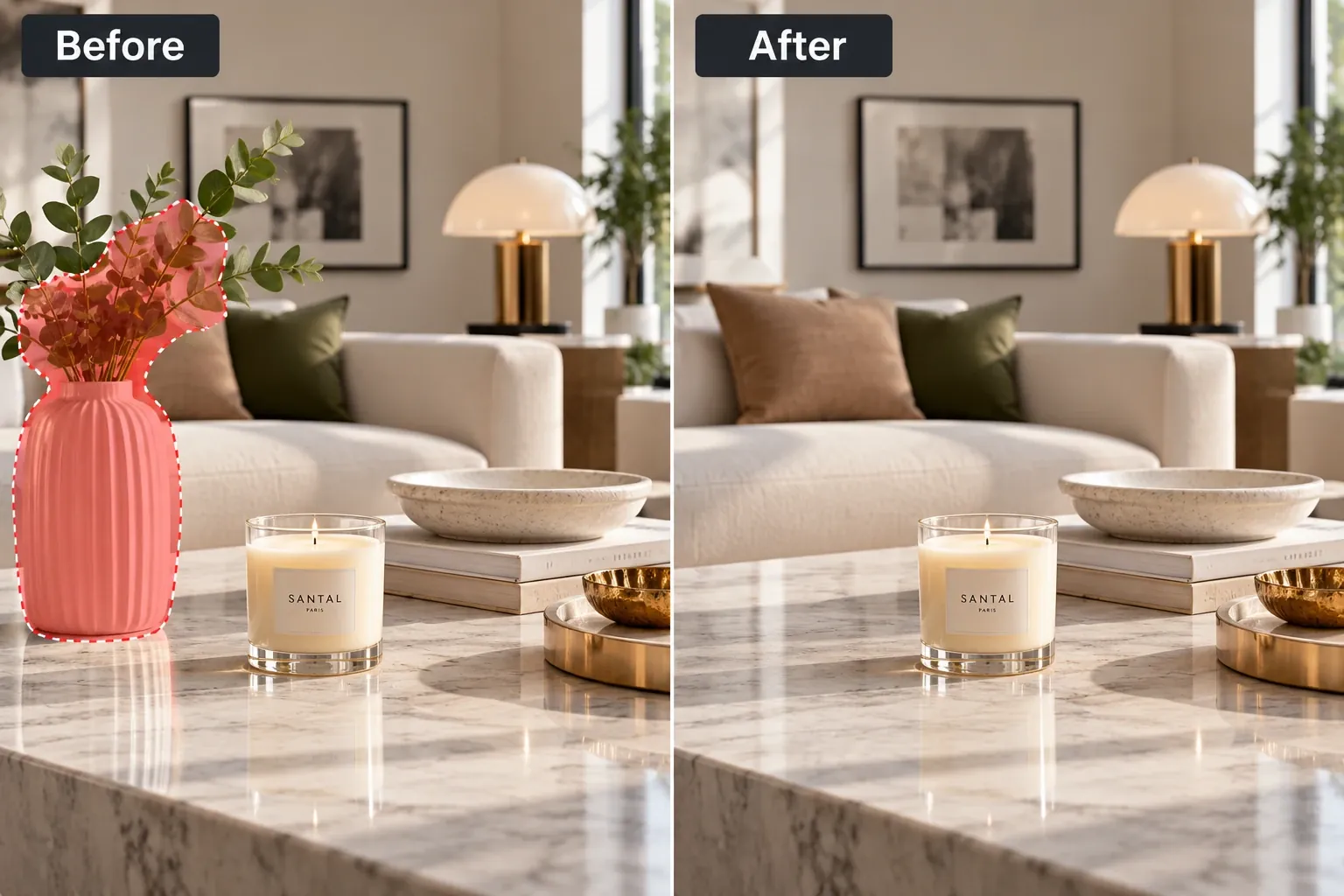
Remove an object from a room photo
Big objects work too. Here a vase and its branches are removed from the front of the picture.
The sofa, the cushion and the reflection on the table are drawn back in behind it — handy for interior shots, rental listings and moodboards.
How to remove an object from a photo
Three steps, and you can see the result before you download it.
Upload a photo
A JPG, PNG or WebP. Big photos are kept at up to 3,072 pixels on the long side.
Brush over what to remove
Paint over the person, object or text, a little past its edges. Brushed too much? Switch to Erase and take it back off.
Press Remove
AI removes it and fills the space from what's around it. Drag the slider to compare before and after, then download.
What can you remove from a photo?
Almost anything you can brush over. The AI looks at everything around it — the sky, the water, the wall, the pattern on the floor — and continues it into the space.
Remove people from the background
Travel photos are the classic case: a landmark, your best smile, and a stranger walking through the frame. Brush over them and their shadow, and they're gone.
Several people? Remove one or two at a time. Smaller areas give the AI more of the real scene to work from.
Remove unwanted objects from product photos
Shop and marketplace photos sell better when the product is the only thing in them. Take out cups, cables, tags and dust without reshooting.
Want a plain background instead? Use the background remover, then the image upscaler for a sharper, larger file.
How do you get a clean result?
Most traces left behind come down to one of these.
- 1Brush a little past the edges.A thin outline of the object left behind is the most common reason for a trace. Go a few pixels wider than you think.
- 2Include the shadow and reflection.A person's shadow on the ground or a vase's reflection on a glossy table belongs to the object. Brush it too, or it stays behind.
- 3Remove big things in two passes.For a large object, remove most of it first, then press “Brush & remove more” and clean up what's left. Each pass works on the last result.
- 4Use a big brush for big areas.Turn the Brush Size up for a person or a car, and down for a wire or a few letters of text.
- 5Start from the full-size photo.The result keeps the size you upload (up to 3,072 pixels), so a screenshot or a compressed copy gives you less to work with.
What can't it do?
The AI fills the space with what is most likely behind the object, not what was really there. If something important was hidden — a face behind a person, words on a sign behind a pole — it can't bring that back.
Very large areas, like most of the photo, give it little to work from and can look painted. Busy patterns such as crowds, text or fine fences sometimes need a second pass.
How much does it cost?
Each removal uses 2 credits. Brushing, undoing and comparing cost nothing, and a removal that fails isn't charged. Credits come with a monthly plan or a one-time pack; pack credits never expire. The result has no watermark and is saved in My Creations.