Bangs Filter
Try a fringe risk-free. Set the options to suit you, and download the result at full resolution with no watermark.
Click anywhere in this box or drag a photo in. Set the options on the left, then hit Generate — your original stays untouched, you always see both.
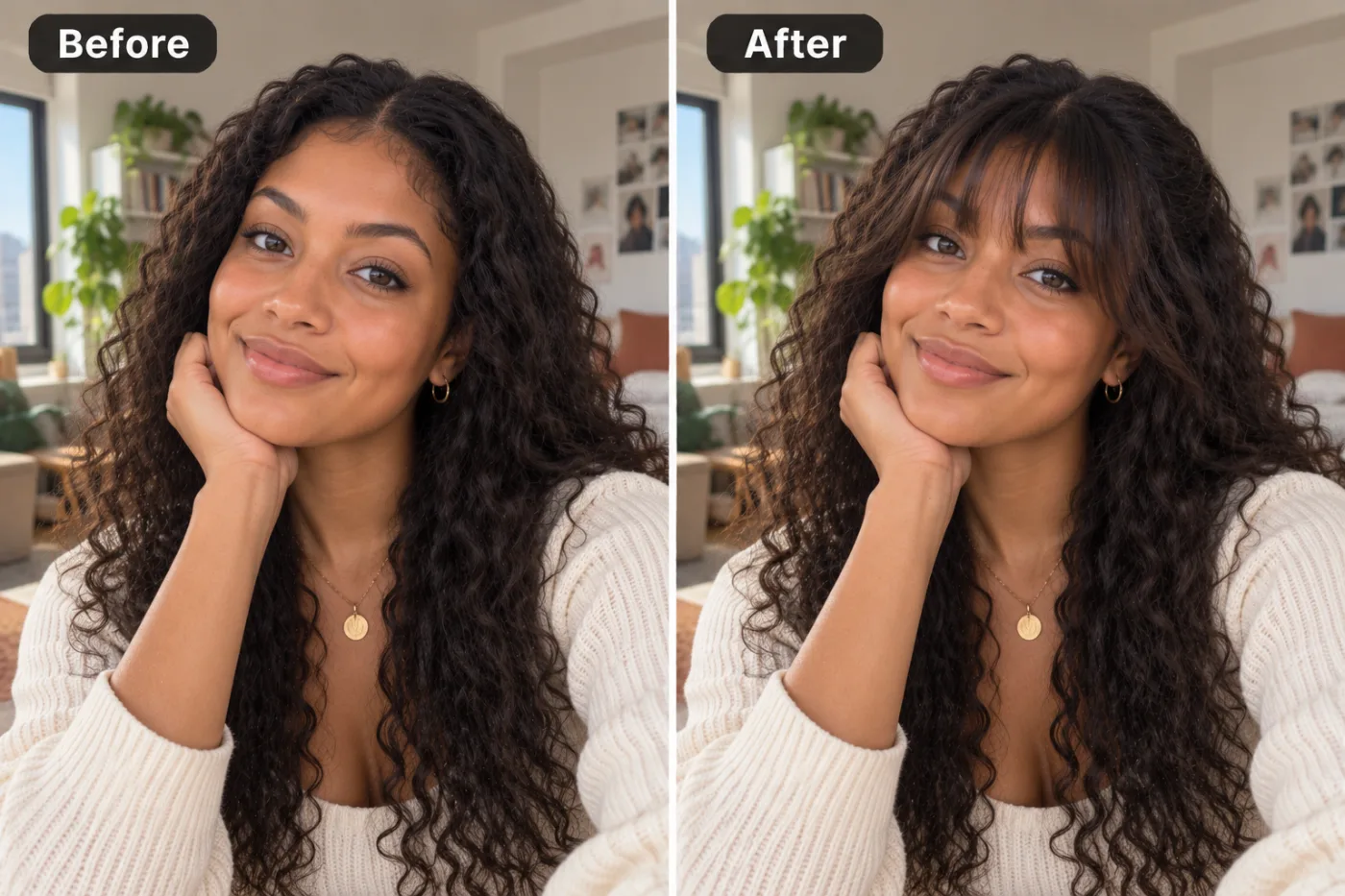
+ Choose a photoSee it in action — real before & after
How to use Bangs Filter
Upload the photo
Any JPG, PNG or WEBP. The more resolution the original has, the more the retouch has to work with — detail cannot be invented from a heavily compressed file.
Choose the fix
Pick the correction you need, or describe it in a sentence. Being specific about what to change, and what to leave alone, is most of the skill.
Compare, then download
Check the original against the result at full size before you commit. Download is full resolution, no watermark.
Why use Bangs Filter
What Bangs Filter does
Try a fringe risk-free.
No editor to learn
No frequency separation, no dodge and burn, no masks. The pass that takes an experienced retoucher ten minutes takes a sentence.
Full resolution out
The download is not a downscaled preview. It goes straight into a print, a listing or a profile.
Reversible, because you keep the original
Nothing is overwritten. If a correction goes too far, the original is still on your device.
Skin texture survives
Pores, fine lines and natural variation are kept. The plastic look comes from tools that treat skin as a surface to blur; this one treats it as skin.
Identity untouched
Nothing about bone structure, eye shape, nose or jawline is reshaped. The photo is corrected, not the person in it.
What Bangs Filter changes
Add a fringe in the specified shape, sitting correctly on the forehead with natural density, a believable parting and shadow where it falls. Preserve the same person's recognizable identity from the uploaded reference: face shape, forehead, cheekbones, jawline, eye shape and spacing, eyebrows, nose, lips, natural asymmetry, age appearance, skin tone and distinctive features. Do not replace them with a generic AI face or beautify/idealize their features. Keep natural skin texture and pores; avoid waxy smoothing, exaggerated eyes, reshaped facial features and artificial symmetry. Change only what the app's requested transformation requires. For photographic results, use realistic camera detail: natural skin texture and pores, believable eyes and hair strands, coherent lighting and shadows, correct anatomy and perspective, and matching sharpness across face, neck and body. Avoid waxy skin, over-retouching, distorted features, face-morphing and pasted-on faces. If the app intentionally creates artwork, render the requested medium consistently across the whole image instead of forcing photorealism.
Your face, bone structure and skin tone are held fixed on every generation — only what is described above is changed.
Bangs Filter for the fixes that actually come up
Most retouching is a handful of recurring problems. Each one has a specific fix rather than a general "enhance" slider.
Before-and-after documentation
Fitness, dental, cosmetic and renovation photos, where matching the lighting between two frames is the whole job.
Portraits and profile photos
Temporary blemishes, shine, stray hair and flash red-eye — the four things that stop an otherwise good photo of a person being usable.
Colour and exposure correction
Fluorescent green, tungsten orange, a flat grey day. Getting the white balance right fixes photos people assume are unfixable.
Event and group photos
One consistent pass across a whole set, so the album reads as a single shoot.
Key highlights of Bangs Filter
Benefits
Cheap enough to iterate
Packs start at $2. Generating the same image three ways and keeping the best is the intended workflow, not an expensive mistake.
Seconds instead of a session in an editor
The routine pass that makes a photo presentable, without the software or the hour.
No plastic-skin look
The most common complaint about automatic retouching, and the specific thing the defaults are tuned against.
Cheap enough for a whole set
A pack starts at $2, so fixing every photo from an event is realistic rather than something you do to one and give up on.
Nothing to install
Works on a phone as readily as a laptop.
What people use it for
What it is mainly used for
Try a fringe risk-free. Set the options to suit you, and download the result at full resolution with no watermark.
Dating profiles
Corrected colour and exposure, without the smoothing that reads instantly as filtered.
Documentation and comparison photos
Two photos matched for light and colour so the difference between them is the actual subject.
Older phone photos
Noise and compression from an earlier phone, cleaned up enough to print.
A profile photo with one distracting spot
The single most common reason a good photo of someone goes unused.
Prompt ideas
Name the specific problem and, just as importantly, say what to leave alone. Retouching prompts fail by being too broad — "make it better" invites the model to change things you were happy with.
Describe the light
Direction, softness and colour temperature. Light does more to how a photograph feels than any other single thing you can specify.
Re-run before rewriting
Generation is not deterministic. The same prompt twice gives two different results, and the second is sometimes simply better.
Name the flaw, not the mood
"Remove the spot on the left cheek" beats "clean up the face", which is an invitation to smooth everything.
Say what to preserve
"Keep skin texture and pores" is the single most useful phrase in a retouching prompt.
Fix light and colour separately
"Correct the green fluorescent cast" and "lift the shadow on the right side" are two different jobs; asking for both at once gives you a compromise.
Be explicit about limits
"Do not change face shape, do not slim anything, do not whiten teeth" prevents the drift towards a generic beauty look.
More about Bangs Filter
The line a good retouch walks is restraint. Removing a temporary spot is invisible; smoothing skin until it has no pores is obvious to everyone and flattering to nobody. This tool is tuned to keep skin texture, real pores and the asymmetry that makes a face look like a face, and to fix only what was genuinely wrong in the frame.
Upload the photo, pick what needs fixing, and download. Each pass costs 2 credits from a one-time pack, which means fixing a set of photos one at a time is affordable rather than a project.
Retouching has a reputation problem, and it is deserved — most automatic tools smooth skin into plastic and call it enhancement. Bangs Filter is built on the opposite assumption: the best retouch is the one nobody can point at.
Getting the best result from Bangs Filter
- Always add "keep skin texture" for anything involving a face.
- Correct colour before anything else. A cast makes every other judgement unreliable.
- Resist stacking: two conservative passes look better than one aggressive one.
- For a set of photos, use the same instruction on every frame so the album stays consistent.
- Zoom in on eyes, teeth, hair edges and hands — the first places over-processing shows.
- If the result looks smoothed, say so explicitly in the next run and ask for less.
- Keep the original. Retouching from an already-retouched file compounds the artefacts.
- Do not expect detail to appear that the camera never recorded; a blurred photo can be sharpened, not reconstructed.
It runs online — nothing to install. Explore the rest of our AI Creative Apps, or open the full AI photo editor for more control.
Frequently Asked Questions
How does the bangs filter work?
What photo should I upload?
Is the bangs filter free?
Will it still look like me?
Do you watermark the download?
Will my skin end up looking artificial?
Does it change my face shape or body?
Can it rescue a blurred or very dark photo?
Can I use it on a whole set of photos?
Find another way to use Pixel Shine
Explore tools grouped by the outcome you want, including social media, LinkedIn, ecommerce, real estate, photography, creators and weddings.


