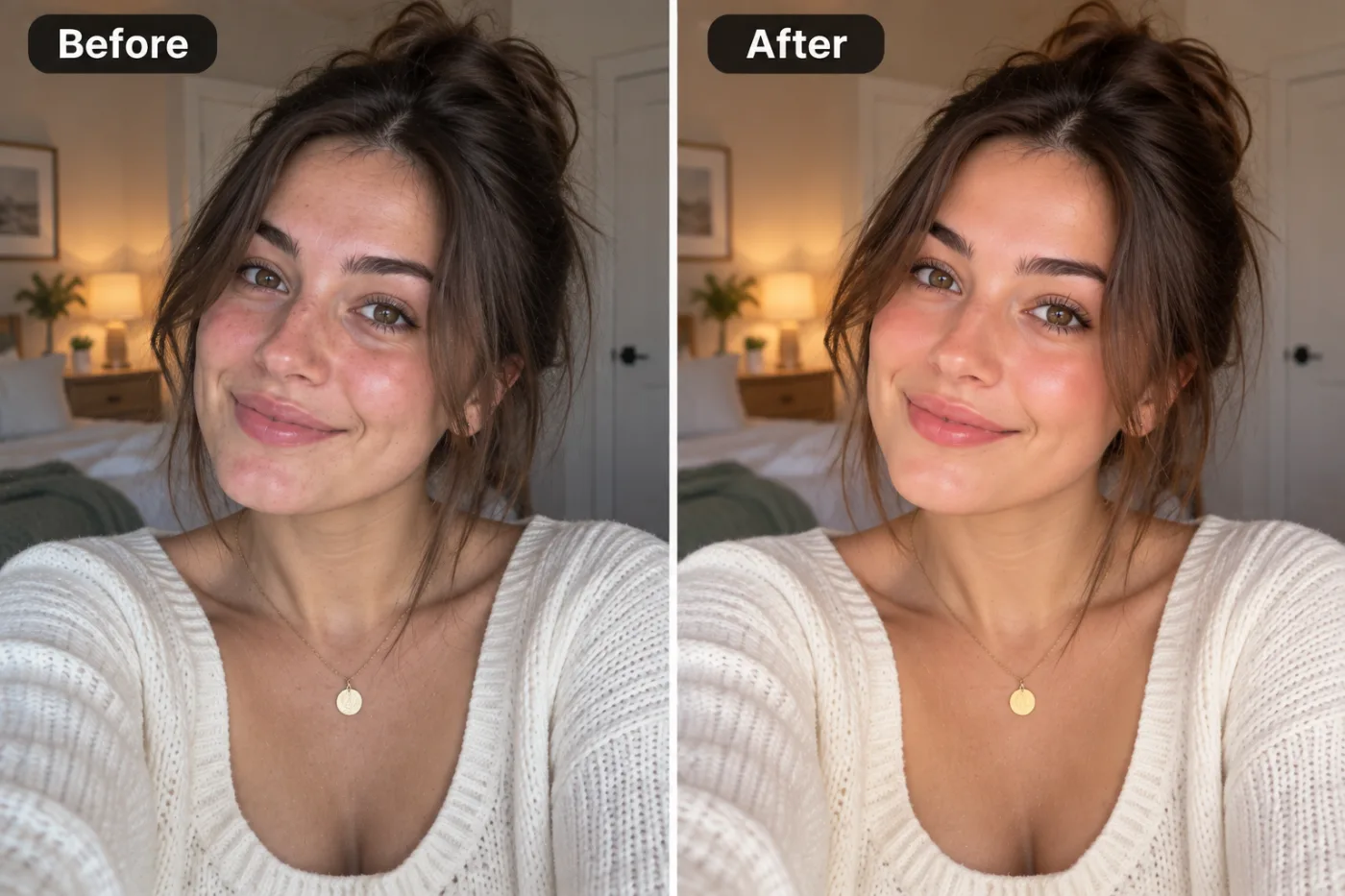
What is an AI glow-up?
"Glow-up" started as a word for a real-life change: someone who looks healthier, happier and more put-together than they did a year ago. On TikTok and Instagram it became a trend of before-and-after photos, and then a filter.
Most glow-up filters do it badly. They blur skin until it looks like plastic, enlarge eyes and slim faces, so the result looks like a different person. This app is built to do the opposite: it improves what a good photographer and a good night's sleep would improve, and leaves your face alone.
In practice that means even skin tone without losing texture, brighter and more flattering light, hair that looks freshly styled, and a rested, polished overall look. Your bone structure, features, freckles and expression are kept exactly as they are.
What does it change, and what does it leave alone?
Changes: skin tone and texture
Redness, blotchiness and shine are evened out. Pores and texture stay, so skin still looks like skin. Spots are softened rather than airbrushed away.
Changes: the light
Flat ceiling light or a dim room becomes soft, flattering light with a gentle catchlight in your eyes. This alone makes most of the difference.
Changes: hair
Flyaways are tidied and hair gets a little more shape and shine, as if you'd just styled it.
Leaves alone: your face
No slimming, no bigger eyes, no new nose or jawline. That's on purpose: the point is to look like yourself on a good day.
Leaves alone: your clothes and background
The scene stays the same. Only you, and the light on you, are improved.
How is it different from a beauty filter?
Beauty filters on phone cameras and social apps work in real time, so they take shortcuts. They blur skin evenly, which removes texture along with blemishes. Many also reshape the face: thinner jaw, smaller nose, bigger eyes. Each change is small, but together they produce the familiar filtered look that people spot instantly.
This app works on a still photo with a full image model, so it can be more careful. It evens out colour rather than blurring, keeps pores and fine lines that make skin look real, and fixes the light falling on your face instead of painting over it. And it doesn't reshape anything.
The practical difference shows up when someone meets you. A filtered photo sets up an expectation you can't match; a natural glow-up looks like a good photo of you. That's why the Subtle and Noticeable strengths exist, and why most people end up posting one of those rather than Full.
Which strength should you choose?
Strength is the only setting. Auto picks a natural middle; the others let you choose.
Subtle
It should be hard to tell anything was done. Best for work profile pictures and for anyone who hates filters. (Never use it for passport or ID photos, which must be unedited.)
Noticeable
A clear improvement that still looks believable. The usual glow-up: what most people choose for Instagram and dating apps.
Full
A full, professional-retouch finish, like a magazine portrait, but without crossing into plastic skin. Use it for a special photo you want to print or frame.
How to get the most natural glow-up
- Start with a sharp photo. The app improves light and skin, but it can't add detail to a blurry face.
- Avoid photos that already have a beauty filter. Smoothing on top of smoothing is what makes skin look fake.
- Natural light in the original helps most. A window to the side or in front is ideal.
- Try Subtle first. Many people find the gentlest version is the one they actually post.
- If your hair or skin tone changes more than you'd like, run it again on Subtle. Each run is a little different.
Is it okay to post a glowed-up photo?
Yes, as long as it looks like you. Photographers have retouched light and skin for as long as there have been portraits, and a natural glow-up is no different. That's why this app doesn't reshape faces.
On dating apps and professional profiles, the honest rule is simple: someone meeting you in person should recognise you instantly. Subtle and Noticeable stay well inside that. If you need a business photo, the professional headshot app also changes clothes and background; for a full makeover look, try the old money aesthetic.
What can't it do?
- Change your features. It won't slim your face, change your nose or make you look younger. For a younger or older version, the age progression app does that openly.
- Fix a very dark or blurry photo. Retake it in better light, or run it through the image upscaler first to sharpen it.
- Add makeup. It evens skin; it doesn't apply a makeup look. Describe makeup in the AI photo editor if you want it.
- Retouch groups evenly. It's built for one face. In a group, people further away get less attention.
What happens to your selfie?
It's sent to our image-model partner, fal.ai, to make the retouched version, and nowhere else. It isn't used to train AI models, is never sold, and both the original and the result belong to you.
Your results are saved in My Creations, where you can download or delete them whenever you like. You can also ask us to delete your account and everything in it.


