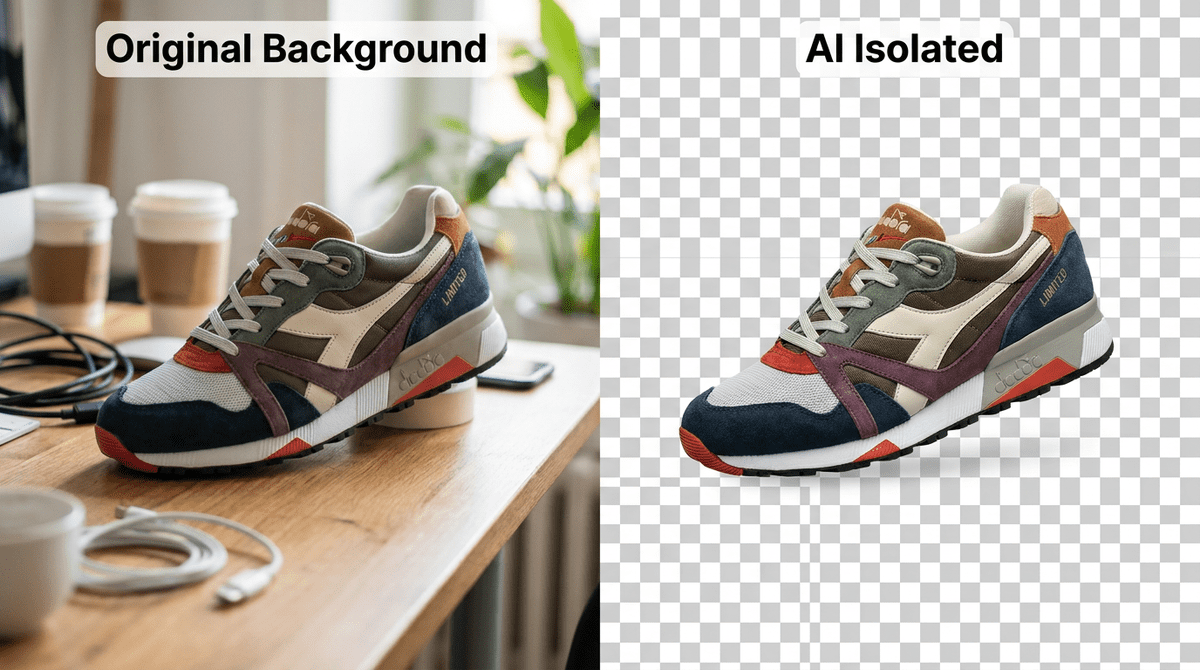
How do you get a white background on a product photo?
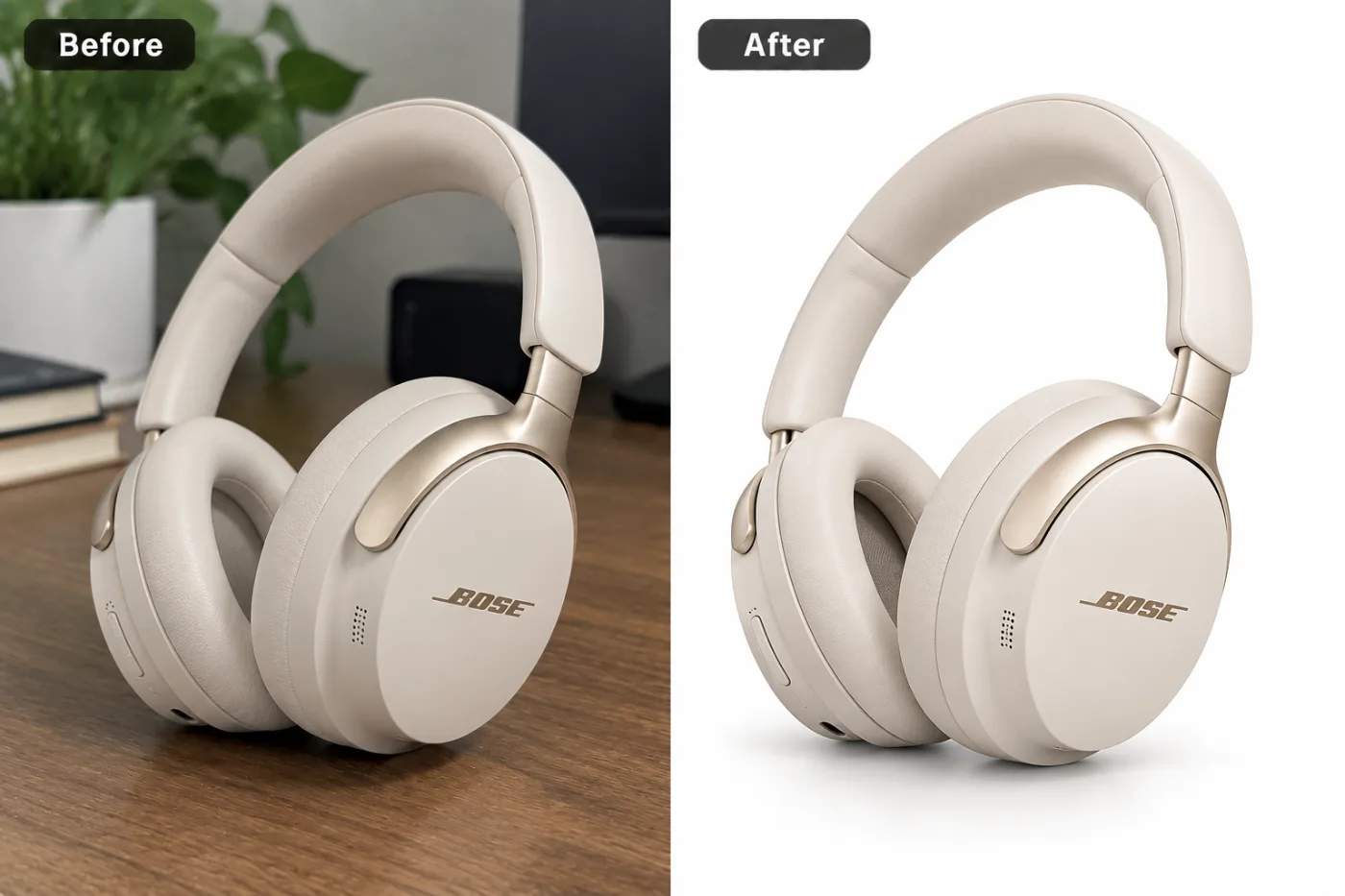
1. Photograph the product in good light
Any plain surface near a window works. Fill most of the frame with the product and keep it sharp.
2. Remove the background
Drop the photo on this page, sign in, and press Remove background (2 credits). You get the product on a transparent background, with its own pixels kept exactly as you shot them.
3. Make it white
In the same editor, open Convert and choose JPG. A JPG can't be transparent, so the empty area is filled with pure white (#FFFFFF). That step is free. Download it and upload it to your listing.
Prefer to keep it transparent? Download the PNG instead and place it on any colour or scene in your store's design. For a styled scene rather than plain white (marble, wood, outdoors), the AI product photography app builds one around your product.
What do marketplaces ask for?
Rules differ by marketplace and change from time to time, so check the seller help pages before a big upload. The common ground is consistent:
| Requirement | What it usually means | How to meet it here |
|---|---|---|
| White background | Amazon asks for pure white (RGB 255, 255, 255) on the main image; many stores follow the same look | Remove background, then convert to JPG |
| Product fills the frame | The item takes up most of the picture, not a small object in a big white square | Crop to square with little margin |
| Large enough to zoom | Amazon recommends at least 1,000 pixels on the longest side for zoom | Shoot at full camera resolution; upscale small supplier photos |
| Nothing extra | No props, text or watermarks on the main image | Keep extras for the secondary images |
Who is a product background remover for?
Small sellers shooting at home
You don't need a lightbox. A window, a sheet of white card and your phone, followed by a cutout, gets you listing photos that sit alongside big brands.
Dropshippers and resellers
Supplier photos often come with busy, inconsistent or branded backgrounds. Cut every product out and put them all on white so your catalogue looks like one store.
Handmade and craft shops
Jewellery, candles, ceramics and prints look cleaner on white for the main image, while lifestyle shots can show them in use.
Social sellers on Instagram and WhatsApp
A white-background catalogue image is easier to read in a small square; use the cutout for sale posts and stories too.
How do you shoot products so the cutout is clean?
- Use soft, even light. A window on a cloudy day, or the product turned so the light falls across it, avoids hard shadows that can be read as part of the product.
- Contrast with the surface. A white mug on a white table is harder to separate than on a darker one.
- Keep everything sharp. Hold the phone steady or rest it on something; blurred edges make soft cutouts.
- Shoot straight on and at eye level for the main image, then add angles and details as extra photos.
- Clean the product first. Dust and fingerprints survive the cutout perfectly.
What about shadows, glass and jewellery?
The cutout removes everything that isn't the product, including the shadow under it, so a product on pure white can look as if it's floating. Many stores are happy with that; if you want a soft shadow, use Generate BG in the editor and ask for "a pure white background with a soft natural shadow under the product" (also 2 credits).
Clear glass, liquids and very fine chains are the hardest items for any background remover, because the background shows through them. They'll look good, and occasionally need a second try or a photo with more contrast behind the glass.
How much does it cost?
Removing the background costs 2 credits per photo, charged only when it works; converting to JPG for the white background is free. Credits come from a one-time pack (from $2; they never expire) or a monthly plan. There's no watermark on anything you download.