How do you make a transparent signature?
1. Sign on plain white paper
Use a black or dark blue pen with a firm line; a felt-tip or gel pen photographs better than a light ballpoint. Sign a little larger than usual.
2. Photograph it flat, in daylight
Hold the phone straight above the page so the signature isn't skewed, with no shadow from your hand or phone across it. Crop close to the signature.
3. Remove the background and download
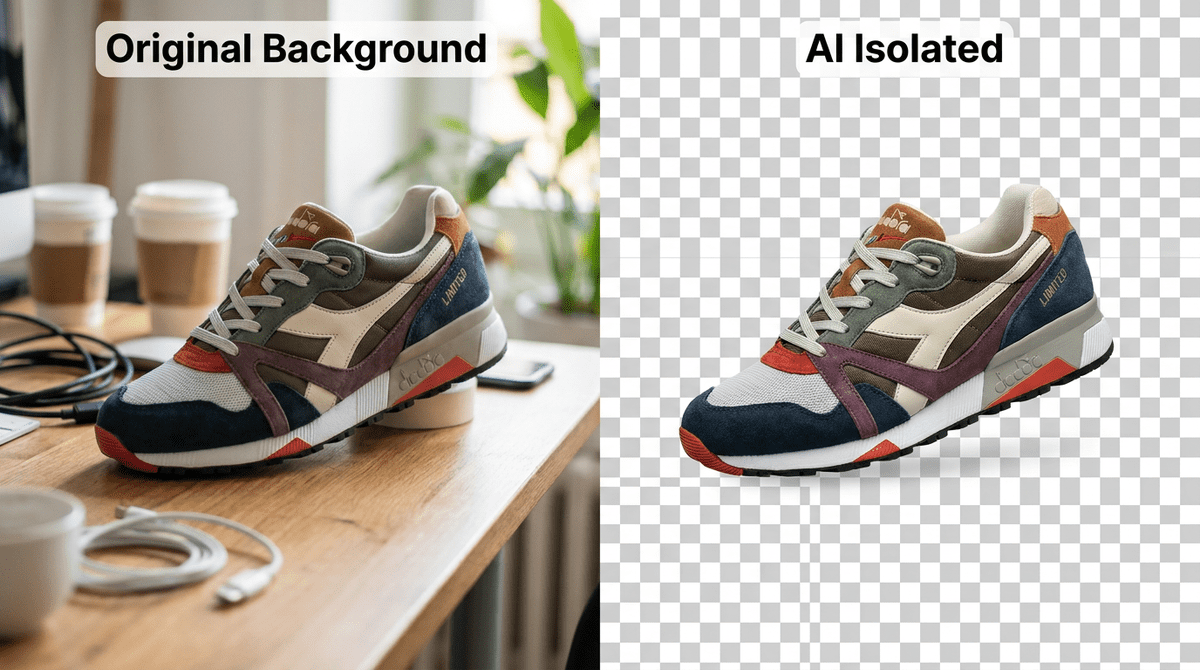
Drop the photo here and press Remove background (2 credits). The paper disappears and you get just the ink as a transparent PNG, which you can place on any document.
Why not just use a photo of your signature?
Because a photo brings the paper with it. In a Word document or PDF, a signature photo shows up as a grey or off-white rectangle with uneven light, often covering the line it's meant to sit on. A transparent PNG has no rectangle: only the strokes of ink, sitting cleanly over the signature line, the text or a coloured letterhead.
Where can you use a transparent signature?
Letters and documents
Insert the PNG into Word, Google Docs or Pages above your typed name. Resize it to look like a real pen signature, about the height of two lines of text.
PDF forms
Most PDF readers (Adobe Acrobat Reader, Preview on Mac) let you add an image or a saved signature to a PDF. A transparent PNG drops in without covering the form.
Email signatures
A small signature image under your name gives emails a personal touch. Keep it small so it loads quickly.
Certificates, invoices and branding
Teachers, trainers and small businesses add a signature to certificates, quotes and invoices; designers place one on prints and artwork.
Is a signature image legally valid?
It depends on where you are and what you're signing. Many everyday documents accept a pasted signature, and many countries recognise electronic signatures in general. But for contracts, legal, banking and government forms, the other party may need a proper e-signature service that records who signed, when, and from where, or a wet-ink signature. If it matters, ask the organisation what they accept.
How do you keep your signature safe?
- Share the PDF, not the PNG. Send signed documents as flattened PDFs rather than emailing the signature image itself.
- Store the file privately, not in a shared folder or a public cloud link.
- Use it only where you'd sign by hand. An image of your signature is easy to copy, so treat it like your pen.
- Delete copies you no longer need, including the original photo on your phone. The result in My Creations can be deleted there too.
Tips for a crisp result
- Thicker lines cut out better than faint, scratchy ones.
- Avoid lined or squared paper; the lines can be read as part of the signature.
- Light the page evenly. A shadow across the paper can leave a grey patch.
- Make it dark. If the ink looks pale, use Adjust in the editor to raise the contrast before removing the background.
- Make several versions: a full signature and initials for forms that ask for both.
What does it cost?
Background removal uses an AI model, so it's 2 credits per image, charged only when it works. Packs start at $2 and never expire. Cropping, rotating and adjusting the signature in the same editor are free. There's no watermark on the PNG.
For other transparency jobs, see make a logo transparent and the main background remover.