AI Background Remover
Clean cutouts, hair and all. Set the options to suit you, and download the result at full resolution with no watermark.
Click anywhere in this box or drag a photo in. Set the options on the left, then hit Generate — your original stays untouched, you always see both.
+ Choose a photoSee it in action — real before & after
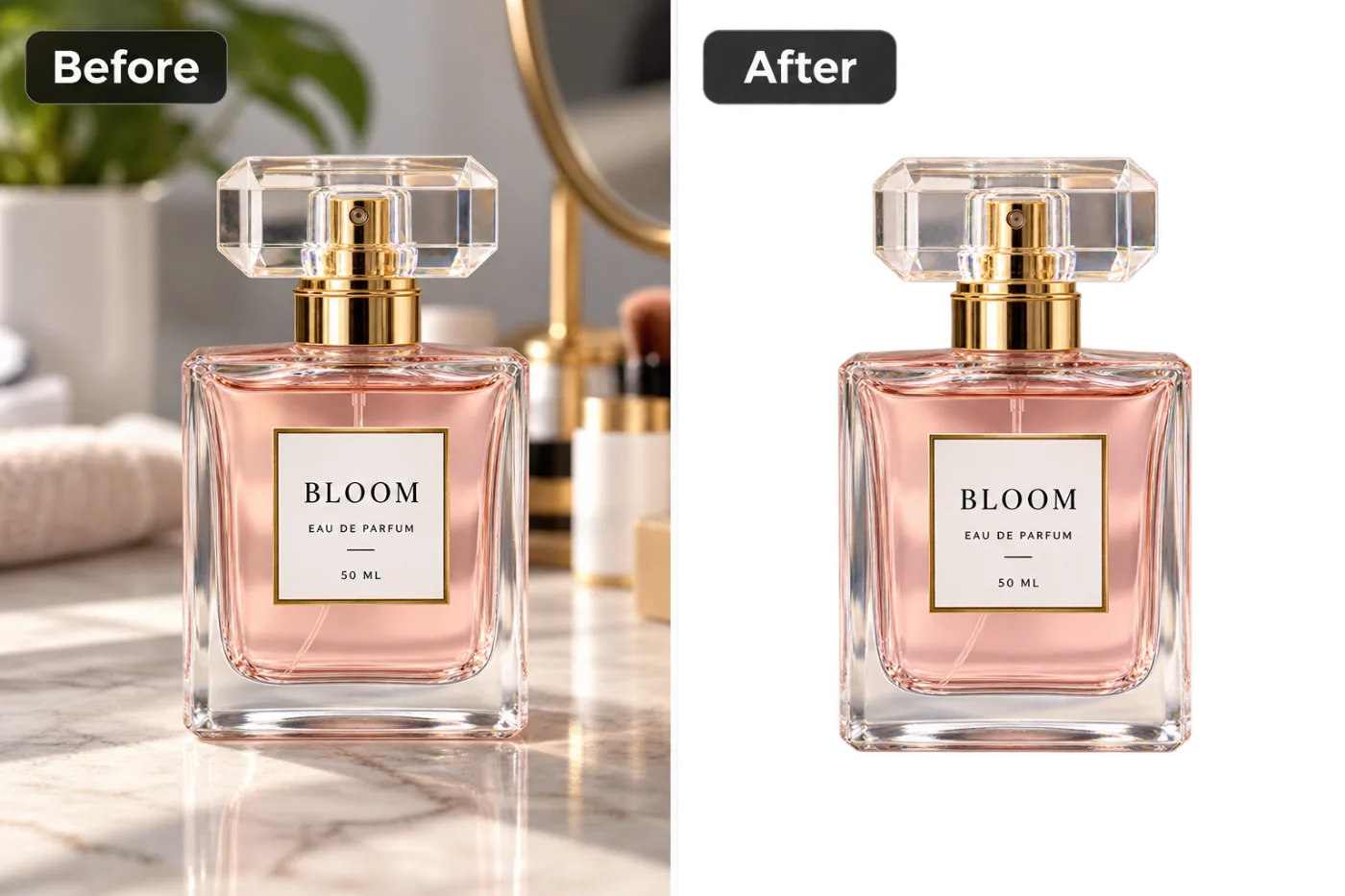
How to use AI Background Remover
Upload the image
JPG, PNG or WEBP. A subject that is reasonably separated from what is behind it gives the cleanest edge — a dark jacket against a dark wall is the hardest case.
Pick a background
Transparent, plain white, studio, office, outdoor, gradient or a described scene. Transparent is the right answer whenever the image is going into another layout.
Download
PNG with real alpha for transparent results, or a flattened image for a replaced scene. Full resolution, no watermark.
Why use AI Background Remover
What AI Background Remover does
Clean cutouts, hair and all.
Any subject
People, products, pets, vehicles, furniture, documents. The approach is the same; only the edge difficulty changes.
Full resolution
The download is not a downscaled preview, so it works in print as well as on a listing.
Edges that hold up
Hair, fur, fabric weave and glass are the test of a cutout. Fine detail is kept instead of being simplified into a smooth outline.
Real transparency
A genuine alpha channel, not white pixels pretending to be transparent — which is what breaks a logo placed on a coloured page.
Lighting matched to the new scene
Light direction and colour temperature on the subject are adapted to the replacement background, which is what stops a composite looking pasted.
What AI Background Remover changes
Remove the background completely and make it transparent, keeping a precise subject edge through hair, fur and thin detail, with no colour fringing left behind. For photographic results, use realistic camera detail: natural skin texture and pores, believable eyes and hair strands, coherent lighting and shadows, correct anatomy and perspective, and matching sharpness across face, neck and body. Avoid waxy skin, over-retouching, distorted features, face-morphing and pasted-on faces. If the app intentionally creates artwork, render the requested medium consistently across the whole image instead of forcing photorealism.
Your face, bone structure and skin tone are held fixed on every generation — only what is described above is changed.
AI Background Remover for every background problem
Removing a background and replacing one are different jobs with different failure modes. Both are here, along with the awkward cases in between.
Transparent PNGs
For logos, signatures, product cutouts and anything being placed into a design where the page colour has to show through.
Plain white for listings
Marketplace compliance, with even margins and a soft contact shadow so the product does not look cut out.
Studio backdrops
Seamless grey, dark gradient or a coloured sweep, with lighting to match — a studio look without the studio.
Office and professional settings
A softly defocused workplace behind a portrait, for headshots and team pages.
Key highlights of AI Background Remover
Benefits
Consistent across a catalogue
The same background applied to every product so a listing page looks like one shoot.
Real alpha, so it composites properly
The output drops into a design tool or a web page without a white box around it.
Works on hard edges
Hair, fur, foliage and transparency are the cases most tools quietly fail at.
Credits never expire
Buy a pack once and use it whenever the next batch of photos needs it.
Nothing to install
It works on a phone or a laptop. No desktop app, no plugin, no account needed to look around.
What people use it for
What it is mainly used for
Clean cutouts, hair and all. Set the options to suit you, and download the result at full resolution with no watermark.
Product photos for a marketplace
Amazon, Shopify, Etsy and Flipkart all specify a plain white main image, and rejections for background are common.
Headshots taken in the wrong room
A good portrait ruined by a kitchen behind it, fixed in one pass.
Logos and signatures
A scanned signature or a logo on white, converted into a transparent PNG that works on any page colour.
Team and About pages
Photos taken in a dozen different rooms unified onto one background.
Prompt ideas
For a described background, specify the scene, the light and the perspective. The light is the part people forget, and it is the part that makes a composite convincing.
Say where the light comes from
"Soft light from the upper left" — and match it to the subject, or the composite will read as wrong.
Ask for the contact shadow
"Soft contact shadow under the product" is the difference between sitting on a surface and floating above one.
Set the depth
"Background blurred, shallow depth of field" separates the subject; "everything in focus" suits catalogue work.
Specify pure white when it is required
"Pure white #FFFFFF, no gradient" for marketplace images — "white" alone often comes back very slightly grey.
Protect the edges
"Preserve fine hair detail and any transparency" helps on the genuinely hard subjects.
Keep the subject untouched
"Do not change the subject, only the background" prevents drift in the thing you were happy with.
More about AI Background Remover
The background is usually the reason a photo cannot be used. The subject is fine; behind it is a cluttered room, a car park, or a wall in the wrong colour. AI Background Remover replaces what is behind the subject without touching the subject itself.
The part that decides whether this looks real is the edge. Hair, fur, fabric, glass and anything semi-transparent are where cheap cutouts fail — a halo of the old background, or a jaw line that has been shaved flat. Matching the light is the second half: a subject lit from the left, dropped onto a background lit from the right, reads as wrong even to someone who cannot say why.
Upload, choose a background or describe one, and download. Transparent PNG is available for anything that needs to be composited later. Each generation costs 2 credits from a one-time pack.
Getting the best result from AI Background Remover
- Ask for the contact shadow on any product shot — without it the product looks stuck on.
- Match the light direction between subject and background, or the result will look wrong for reasons viewers cannot articulate.
- Check hair, fur and glass edges at full size before using the result.
- For a catalogue, use one background description across every product.
- Start from the highest-resolution original you have; edge quality depends directly on it.
- If an edge is halo-ing, say "remove any fringe of the original background from the edges" and run again.
- Keep the transparent PNG as your master — you can place it on any background later without redoing the cutout.
- Start from the largest, least compressed original you have — a screenshot of a photo has already lost detail that cannot be recovered.
It runs online — nothing to install. Explore the rest of our AI Creative Apps, or open the full AI photo editor for more control.
Frequently Asked Questions
How does the ai background remover work?
What photo should I upload?
Is the ai background remover free?
Do you watermark the download?
Do I get a real transparent PNG?
How well does it handle hair and fur?
Will the result meet Amazon's white-background requirement?
Can it replace the background instead of just removing it?
Find another way to use Pixel Shine
Explore tools grouped by the outcome you want, including social media, LinkedIn, ecommerce, real estate, photography, creators and weddings.


