Image to Emoji Maker
Custom emoji for Slack and Discord. Set the options to suit you, and download the result at full resolution with no watermark.
Click anywhere in this box or drag a photo in. Set the options on the left, then hit Generate — your original stays untouched, you always see both.
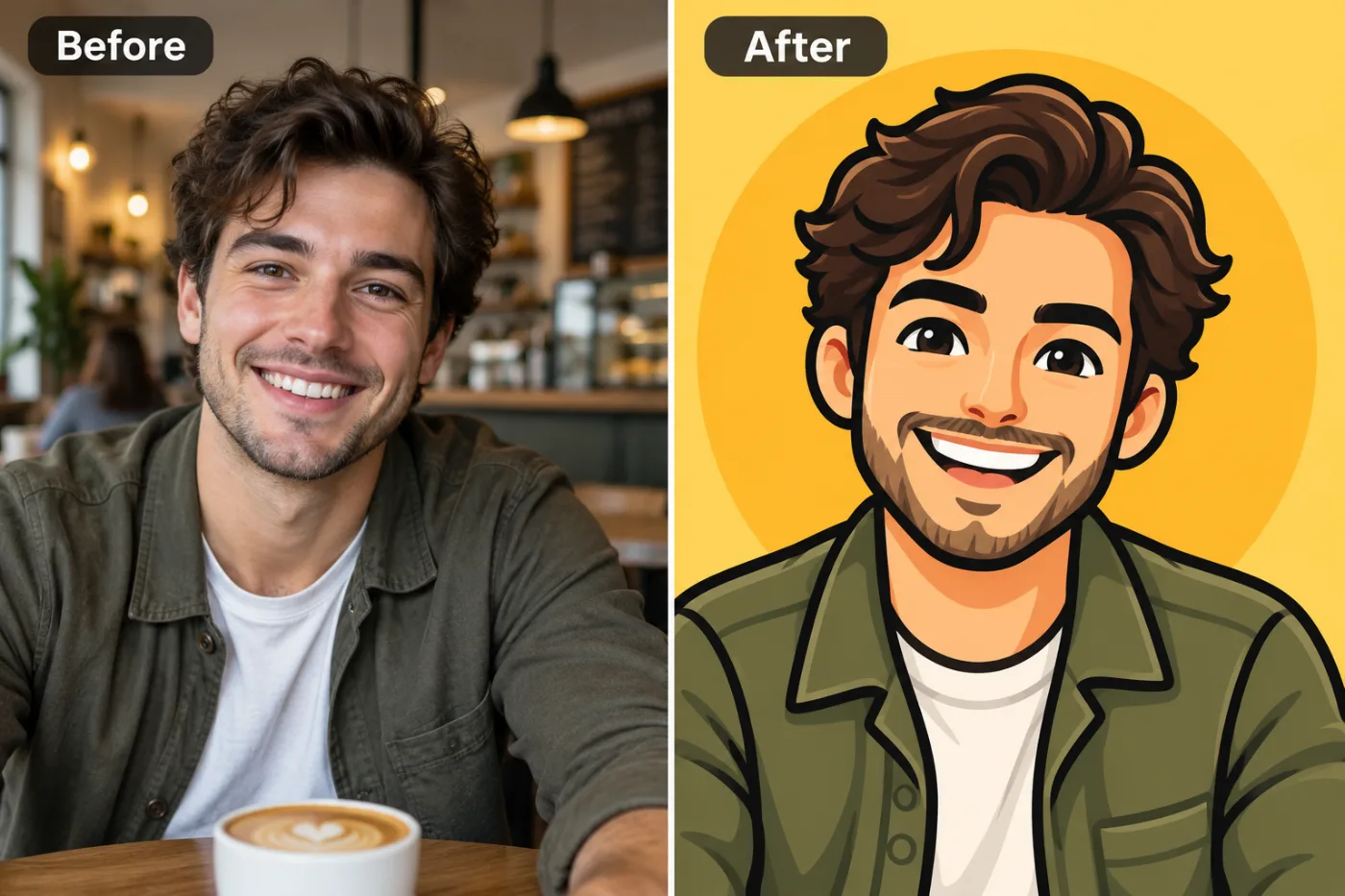
+ Choose a photoSee it in action — real before & after
How to use Image to Emoji Maker
Upload the photo
A clear JPG, PNG or WEBP. Portraits work best when the face fills a reasonable part of the frame — a distant full-body shot gives the model very little face to work from.
Pick the style or write your own
Choose a preset, or describe the medium you want: line weight, palette, texture, era. Naming the medium precisely is what separates a good result from a vague one.
Generate and download
Full resolution, no watermark. Good enough to print, use as an avatar, or send to someone as a gift.
Why use Image to Emoji Maker
What Image to Emoji Maker does
Custom emoji for Slack and Discord.
Backgrounds restyled to match
A stylised subject on a photographic background looks pasted in. The whole frame is converted together.
Print-quality output
Resolution holds up as a framed print or a card, which is what most people end up doing with a portrait they like.
No drawing skill needed
No tablet, no brushes, no layers. The skill required is choosing a good source photo.
Any ratio you need
Square for an avatar, portrait for a print, wide for a banner or a cover. Set before generating.
Cheaper than a commission by orders of magnitude
An illustrated portrait typically runs from $40 to several hundred. A pack of credits starts at $2.
What Image to Emoji Maker changes
Turn this person into an emoji-style cartoon portrait, head and shoulders: bold simplified shapes that read at small sizes, flat saturated colour with simple shading, a thick clean outline and a big, friendly expression. Keep their own hair and clothes, simplified, and place them in front of a warm yellow circle on a lighter yellow background. For photographic results, use realistic camera detail: natural skin texture and pores, believable eyes and hair strands, coherent lighting and shadows, correct anatomy and perspective, and matching sharpness across face, neck and body. Avoid waxy skin, over-retouching, distorted features, face-morphing and pasted-on faces. If the app intentionally creates artwork, render the requested medium consistently across the whole image instead of forcing photorealism.
Your face, bone structure and skin tone are held fixed on every generation — only what is described above is changed.
Image to Emoji Maker for prints, avatars and gifts
The same conversion serves very different ends — a profile picture, a framed print, a card, a set of matching avatars for a group.
Matching sets for a group
A team, a family or a friend group converted in one style, which looks deliberate in a way individual photos never do.
Covers and thumbnails
A stylised image survives text overlaid on it far better than a photograph does — the flat areas give the type somewhere to sit.
Creative reference
A quick look at a concept in a given medium before committing to commissioning it properly.
Profile pictures and avatars
A stylised portrait stands out in a feed of photographs, and it stays readable when a platform shrinks it to 40 pixels.
Key highlights of Image to Emoji Maker
Benefits
Nothing to install
It works on a phone or a laptop. No desktop app, no plugin, no account needed to look around.
Three models to choose from
Nano Banana Pro, GPT Image and Seedream 4.5 handle the same job differently. If one result is not right, another model often is.
Every aspect ratio
Square, 4:5, 9:16, 16:9 and more, chosen before generating so nothing important gets cropped away afterwards.
Full resolution, no watermark
The download is the full generated image with nothing overlaid — usable in print, in a listing or commercially.
The free tools stay free
Compress, convert, crop, resize, rotate and the rest are unlimited, with no account and no credit cost.
What people use it for
What it is mainly used for
Custom emoji for Slack and Discord. Set the options to suit you, and download the result at full resolution with no watermark.
Pet portraits
The single most requested illustrated portrait, and the one people are most reliably delighted by.
Merch and sticker art
Flat, high-contrast styles are what actually survive being printed small on a sticker or a shirt.
Book, album and playlist covers
A stylised portrait as cover art, with room for a title to sit over it.
Party and event invitations
The host, illustrated, on the invitation. Faster than finding clip art that is not terrible.
Prompt ideas
Presets cover the common styles. If you write your own, describe the medium as a maker would: line, colour, texture, era. Vague adjectives like "beautiful" or "high quality" do nothing; "thick ink outlines, flat colour, halftone shading" does a great deal.
Describe the light
Direction, softness and colour temperature. Light does more to how a photograph feels than any other single thing you can specify.
Re-run before rewriting
Generation is not deterministic. The same prompt twice gives two different results, and the second is sometimes simply better.
Name the medium explicitly
"Oil on canvas with visible brush texture" or "cel-shaded animation still". The medium does more work than any other part of the prompt.
Describe the line
"Thick uniform ink outline" reads completely differently from "soft pencil with no outline", even in the same palette.
Constrain the palette
"Muted earth tones, four colours only" produces a coherent image. Left open, most models reach for saturated everything.
Give an era or school
"1970s screen print", "Renaissance oil", "90s anime cel". Era carries a whole set of conventions in two words.
More about Image to Emoji Maker
The failure mode worth knowing about is the generic character. Plenty of tools will produce a competent illustration that is recognisably nobody. Keeping the proportions of a specific face inside a new medium is the harder problem, and the only one worth solving.
Turning a photograph into another medium used to be a commission. You found an illustrator, described what you wanted, waited a week and paid for it. Image to Emoji Maker does the same conversion from a photo you already have, in about a minute.
The difficult part is not applying a filter — it is keeping the person recognisable while genuinely changing the medium. A good stylised portrait still reads as you: the proportions of the face, the set of the eyes, the hairline. A bad one is a generic character with your colour palette. This tool is tuned for the first outcome, which is why a clear source photo matters more than the style you pick.
Getting the best result from Image to Emoji Maker
- Keep the original photo. A generated image is a poor starting point for a different style.
- Start from the largest, least compressed original you have — a screenshot of a photo has already lost detail that cannot be recovered.
- Soft, even light in the source photo gives the best result almost regardless of what you are generating.
- Judge every result at full size, not zoomed out. Problems hide at small sizes.
- Generate two or three times before deciding. Results vary between runs, and the first is not reliably the best.
- Check hands, text, jewellery and glasses in any result before sharing it — those are still where image models most often slip.
- Choose the aspect ratio before generating rather than cropping afterwards.
- If one model ignores part of your instruction, switch to the other and run it again.
It runs online — nothing to install. Explore the rest of our AI Creative Apps, or open the full AI photo editor for more control.
Frequently Asked Questions
How does the image to emoji maker work?
What photo should I upload?
Is the image to emoji maker free?
Will it still look like me?
Do you watermark the download?
Will the portrait still look like the person?
Can I use the result commercially or print it?
Does it work on pets and objects, or only people?
Why does the same photo give different results each time?
Find another way to use Pixel Shine
Explore tools grouped by the outcome you want, including social media, LinkedIn, ecommerce, real estate, photography, creators and weddings.


