AI Image Upscaler
Enlarge photos without the mush. Set the options to suit you, and download the result at full resolution with no watermark.
Click anywhere in this box or drag a photo in. Set the options on the left, then hit Generate — your original stays untouched, you always see both.
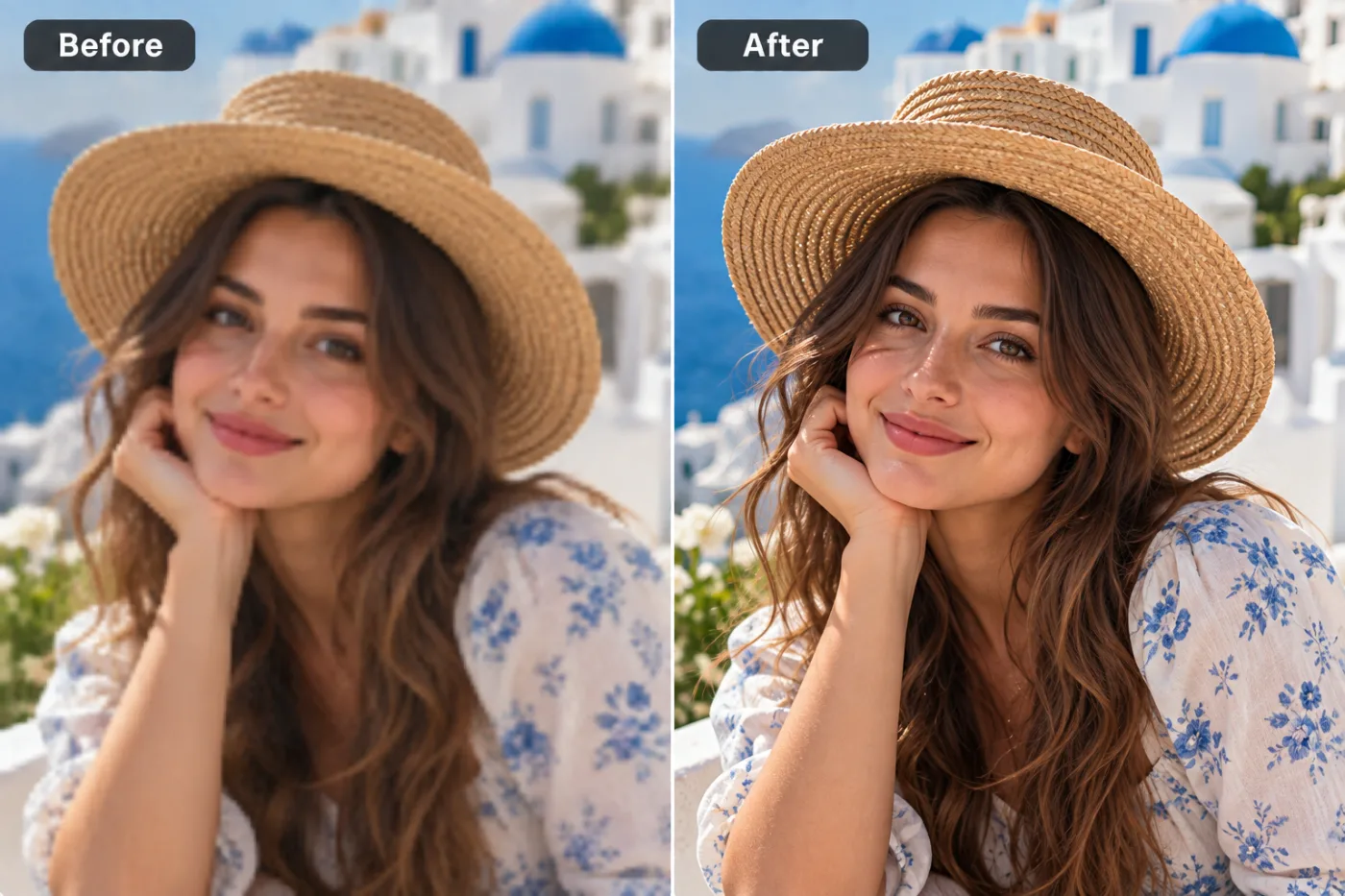
+ Choose a photoSee it in action — real before & after
How to use AI Image Upscaler
Upload the image
JPG, PNG or WEBP. Start from the largest, least compressed copy you have — a screenshot of a photo has already thrown away detail that cannot be brought back.
Choose the enhancement
Upscale, sharpen, denoise or unblur. They are different operations with different failure modes, so pick the one that matches the actual problem.
Compare at full size, then download
Judge the result at 100%, not zoomed out. Full resolution, no watermark.
Why use AI Image Upscaler
What AI Image Upscaler does
Enlarge photos without the mush.
Detail reconstructed, not interpolated
Ordinary enlargement averages between existing pixels and gets softer. This generates plausible detail at the larger size.
Faces handled with a strong prior
Skin texture, hair strands, eyelashes and iris detail are the areas where reconstruction is most convincing.
Noise reduced without smearing
Grain and sensor noise sit at the same scale as fine detail, which is why aggressive denoising destroys texture. This separates the two.
Compression artefacts cleaned
The blocky edges and colour banding of a heavily saved-and-resaved JPG are recognised as artefacts and removed.
Sharpening without halos
Naive sharpening produces bright fringes along every edge. Reconstruction avoids the halo because it is not just raising local contrast.
What AI Image Upscaler changes
Upscale this image substantially: reconstruct genuine fine detail in hair, fabric weave, skin texture and edges, suppress artefacts from the source compression, and keep the subject identical. For photographic results, use realistic camera detail: natural skin texture and pores, believable eyes and hair strands, coherent lighting and shadows, correct anatomy and perspective, and matching sharpness across face, neck and body. Avoid waxy skin, over-retouching, distorted features, face-morphing and pasted-on faces. If the app intentionally creates artwork, render the requested medium consistently across the whole image instead of forcing photorealism.
Your face, bone structure and skin tone are held fixed on every generation — only what is described above is changed.
AI Image Upscaler for the images you actually need bigger
Softness, noise, compression and small size are four different problems. Treating them as one is why generic "enhance" buttons disappoint.
Over-compressed files
Images that have been sent through messaging apps repeatedly and carry the artefacts of every round trip.
Product images for print
Listing photos taken at web resolution that a catalogue or a banner now needs.
Small web images
Photos that only exist at the size a website served them, now needed larger.
Old phone photos
A 2010 phone camera at 3 megapixels, enlarged for a print.
Key highlights of AI Image Upscaler
Benefits
No software
No desktop upscaler, no plugin, no queue.
Free option for the simple case
If all you need is a clean 2× enlargement, the on-device tool does it at no cost.
No watermark
Full resolution out, nothing overlaid.
Credits never expire
Buy once; use them the next time an image is too small.
Nothing to install
It works on a phone or a laptop. No desktop app, no plugin, no account needed to look around.
What people use it for
What it is mainly used for
Enlarge photos without the mush. Set the options to suit you, and download the result at full resolution with no watermark.
Product photos for print collateral
Web-resolution listing images needed for a catalogue, a banner or packaging.
Restoring compressed images
Photos degraded by repeated sharing, cleaned of the accumulated artefacts.
Low-light and event photos
Grainy indoor shots denoised enough to be usable.
Profile photos that look soft
A slightly blurred avatar sharpened without the halo edge that gives cheap sharpening away.
Prompt ideas
Most of the work is choosing the right operation rather than writing a prompt. Where you can describe the intent, say what kind of image it is and what to protect.
Avoid asking for text in the image
Generated lettering is still unreliable. Ask for empty space where the text should go and add real type afterwards.
Pick the ratio first
Generating square and cropping to vertical throws away part of the frame. Choose the shape before you generate.
Try another model
If a prompt is being ignored, switching between Nano Banana Pro, GPT Image and Seedream 4.5 often resolves it faster than rewording.
Describe the light
Direction, softness and colour temperature. Light does more to how a photograph feels than any other single thing you can specify.
Re-run before rewriting
Generation is not deterministic. The same prompt twice gives two different results, and the second is sometimes simply better.
Say what kind of image it is
"Portrait photograph" and "product photograph on white" pull very different reconstruction priors.
More about AI Image Upscaler
Resolution is not a setting you can turn up. An image contains whatever detail the sensor recorded, and no more. What AI Image Upscaler does is different and more interesting: it reconstructs plausible detail at a larger size, informed by what images of that kind normally look like.
That distinction matters because it sets expectations correctly. A slightly soft photo of a face at 800 pixels can become a convincing 3200-pixel photo, because the model has a strong prior for what skin, hair and eyes look like. A photo of text or a number plate cannot be recovered the same way — the model will produce confident, plausible, wrong characters. Enlarge photographs; do not enlarge evidence.
Each enhancement costs 2 credits from a one-time pack. For simple, honest enlargement with no reconstruction, the free upscaler is still available and costs nothing.
Getting the best result from AI Image Upscaler
- Always start from the largest, least compressed original available. Nothing else matters as much.
- Judge the result at 100% zoom. Everything looks better zoomed out.
- Pick the operation that matches the problem: upscaling will not fix noise, and denoising will not fix softness.
- Do not enhance an enhanced file. Go back to the original each time.
- Do not trust reconstructed text, numbers or licence plates — they are plausible, not accurate.
- For faces, ask explicitly for skin texture to be kept or the result can look waxy.
- A genuinely out-of-focus photo can be improved but not made sharp; motion blur is even harder.
- If the result looks over-processed, ask for a more conservative pass rather than accepting it.
It runs online — nothing to install. Explore the rest of our AI Creative Apps, or open the full AI photo editor for more control.
Frequently Asked Questions
How does the ai image upscaler work?
What photo should I upload?
Is the ai image upscaler free?
Do you watermark the download?
Does it really add detail, or just make the file bigger?
Can it recover text, a number plate or a small sign?
How much larger can I go?
Is there a free option?
Find another way to use Pixel Shine
Explore tools grouped by the outcome you want, including social media, LinkedIn, ecommerce, real estate, photography, creators and weddings.


