AI Logo Maker
Simple marks that work small. Set the options to suit you, and download the result at full resolution with no watermark.
Type what you want in name to use on the left, then hit Generate.
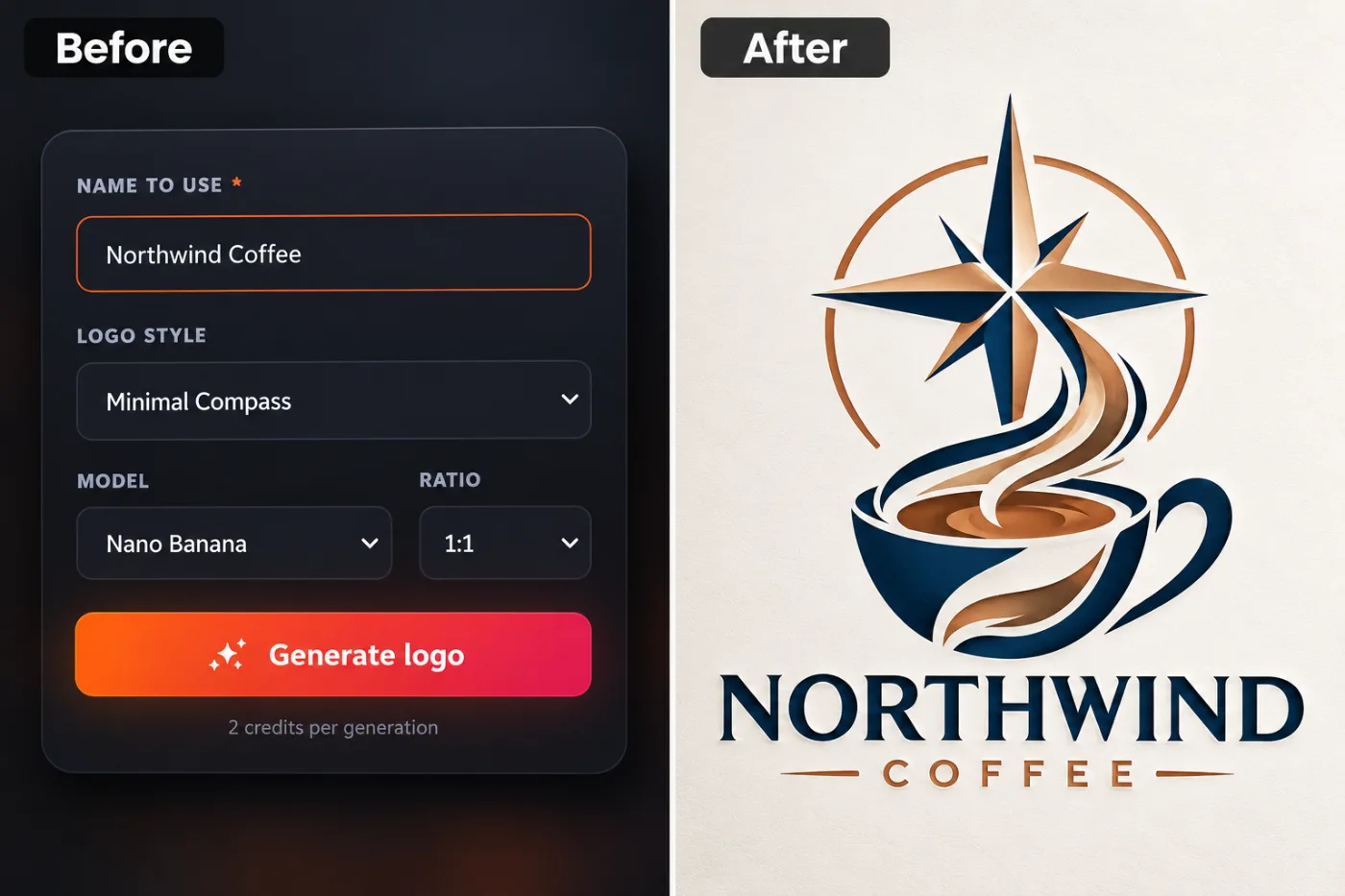
See it in action — real before & after
How to use AI Logo Maker
Upload your image
JPG, PNG or WEBP. If the asset is going to be cropped several ways, start from the widest, highest-resolution version you have.
Choose the platform and shape
Square, portrait, wide, circle-safe, bold or minimal. The choice sets the ratio and where the subject sits inside it.
Download and post
Correct dimensions, full resolution, no watermark. It uploads without the platform re-cropping it for you.
Why use AI Logo Maker
What AI Logo Maker does
Simple marks that work small.
Legible at thumbnail size
Most feed images are first seen very small. High contrast and a simple focal point are what survive that.
Room left for text
Deliberate empty space where a headline or caption goes, rather than a full-bleed image with nowhere to put type.
Consistent across a profile
Avatar, banner and post images that read as one identity instead of three unrelated pictures.
One source, every shape
Generate square, portrait, wide and circular versions from a single upload.
Full resolution
Enough resolution that the platform's own compression does not visibly degrade it.
What AI Logo Maker changes
Create a clean logo mark: simple geometry that stays legible at small size, a restrained two or three colour palette, balanced negative space, on a plain background. For photographic results, use realistic camera detail: natural skin texture and pores, believable eyes and hair strands, coherent lighting and shadows, correct anatomy and perspective, and matching sharpness across face, neck and body. Avoid waxy skin, over-retouching, distorted features, face-morphing and pasted-on faces. If the app intentionally creates artwork, render the requested medium consistently across the whole image instead of forcing photorealism.
Your face, bone structure and skin tone are held fixed on every generation — only what is described above is changed.
AI Logo Maker for every slot a profile has
A profile is a set of images with different jobs. Each one is cropped, masked and overlaid differently.
Stories and reels covers
9:16 with the top and bottom left clear of interface chrome.
Thumbnails
High contrast, one clear focal point, and space for a short piece of large text.
Link previews and OG cards
The 1200×630 card that appears whenever a link is shared anywhere.
Profile pictures and avatars
Circle-safe, legible at 40 pixels, recognisable as the same person or brand across platforms.
Key highlights of AI Logo Maker
Benefits
Three models to choose from
Nano Banana Pro, GPT Image and Seedream 4.5 handle the same job differently. If one result is not right, another model often is.
Every aspect ratio
Square, 4:5, 9:16, 16:9 and more, chosen before generating so nothing important gets cropped away afterwards.
Full resolution, no watermark
The download is the full generated image with nothing overlaid — usable in print, in a listing or commercially.
The free tools stay free
Compress, convert, crop, resize, rotate and the rest are unlimited, with no account and no credit cost.
Your original is never modified
Every result is a new image. The file you uploaded stays exactly as it was on your device.
What people use it for
What it is mainly used for
Simple marks that work small. Set the options to suit you, and download the result at full resolution with no watermark.
Event and launch announcements
The same announcement in every ratio each platform needs.
Link preview cards
The image that shows up when a page is shared, which is often the first thing anyone sees of a site.
Ad creative variants
Several ratios and crops of one concept, for testing across placements.
Team and community profiles
Consistent avatars across a group, which makes a community look organised.
Prompt ideas
Say where the subject should sit and where the text is going. Social composition is mostly about reserving space, and a prompt that does not mention the text is the reason the headline ends up over someone's face.
Name the platform and slot
"YouTube thumbnail" or "LinkedIn banner" carries a whole set of conventions in two words.
Say where the subject goes
"Subject on the left third, empty space on the right" is the single most useful instruction for anything with text on it.
Mention the circular crop
"Composed for a circular avatar, head centred, nothing important in the corners".
Reserve the text area
"Leave the upper third clear for a headline" — otherwise there is nowhere for the type to go.
Ask for thumbnail legibility
"High contrast, readable at 100 pixels wide", because that is the size most people will first see it.
Set the ratio explicitly
"9:16 vertical" or "1200x630". Pick it before generating; cropping afterwards loses part of the frame.
More about AI Logo Maker
Every platform crops differently, and each one crops in a way that is easy to forget until it has already happened. A rectangular avatar masked into a circle loses the top of someone's head. A cover photo has a profile picture sitting over one corner. AI Logo Maker composes for the shape the image will actually appear in.
The size that matters is the smallest one. Most feed images are seen first at a couple of hundred pixels, and many at forty. Anything depending on fine detail or low contrast simply disappears at that scale, which is why the strongest social images are almost always the simplest.
The most common mistake is generating a beautiful full-bleed image and then discovering there is nowhere to put the headline. Reserving the empty space before generating, rather than hunting for it afterwards, is the whole trick.
Getting the best result from AI Logo Maker
- Export at the platform's stated dimensions so its own compression has less to do.
- For stories, keep everything important out of the top and bottom sixth of the frame.
- Generate a few variants and look at them in the actual feed before choosing.
- Keep the source image; the next platform will want a different shape.
- Start from the largest, least compressed original you have — a screenshot of a photo has already lost detail that cannot be recovered.
- Soft, even light in the source photo gives the best result almost regardless of what you are generating.
- Judge every result at full size, not zoomed out. Problems hide at small sizes.
- Generate two or three times before deciding. Results vary between runs, and the first is not reliably the best.
It runs online — nothing to install. Explore the rest of our AI Creative Apps, or open the full AI photo editor for more control.
Frequently Asked Questions
How does the ai logo maker work?
What photo should I upload?
Is the ai logo maker free?
Will it still look like me?
Do you watermark the download?
Will the image be the right size for the platform?
Will my profile picture work as a circle?
Can it put text on the image?
Can I make one image work everywhere?
Find another way to use Pixel Shine
Explore tools grouped by the outcome you want, including social media, LinkedIn, ecommerce, real estate, photography, creators and weddings.


