Mirror & Flip Image
Flip an image horizontally. Set the options to suit you, and download the result at full resolution with no watermark.
Click anywhere in this box or drag a photo in. Set the options on the left, then hit Generate — your original stays untouched, you always see both.
+ Choose a photoSee it in action — real before & after
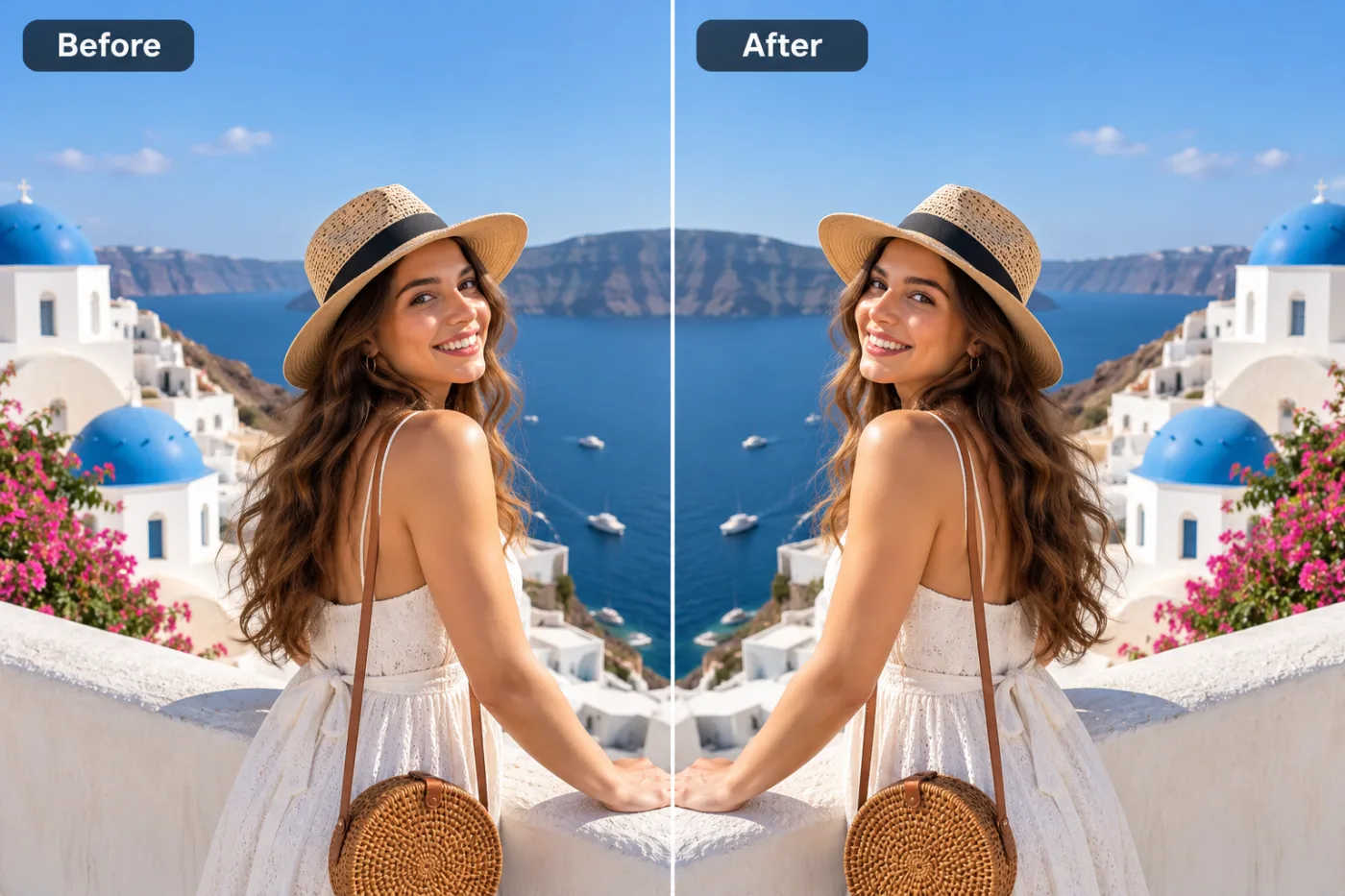
How to use Mirror & Flip Image
Upload the photo
JPG, PNG or WEBP at the highest resolution you have. The fill is built from surrounding detail, so there needs to be surrounding detail to build from.
Say what to remove
Name the object and where it is: "the person on the right", "the watermark across the centre", "the bin in the bottom left". Location does most of the work.
Check the fill, then download
Look at the filled area at full size before using it. Full resolution out, no watermark added.
Why use Mirror & Flip Image
What Mirror & Flip Image does
Flip an image horizontally.
Text and watermarks handled properly
Overlaid text sits on top of real detail, so removing it means rebuilding what was underneath rather than painting over it.
Edges and shadows go too
An object's shadow is part of the object. Leaving the shadow behind is the most common giveaway of a bad removal.
No manual selection
No lasso, no clone stamp, no patch tool. Name the thing and where it is.
Precise targeting
Because the instruction names a location, you can remove one person from a group of four without touching the other three.
Full resolution output
The removal is applied at the original size, not to a downscaled preview that then gets enlarged.
What Mirror & Flip Image changes
Mirror this image horizontally, keeping all detail, sharpness and colour identical to the original. For photographic results, use realistic camera detail: natural skin texture and pores, believable eyes and hair strands, coherent lighting and shadows, correct anatomy and perspective, and matching sharpness across face, neck and body. Avoid waxy skin, over-retouching, distorted features, face-morphing and pasted-on faces. If the app intentionally creates artwork, render the requested medium consistently across the whole image instead of forcing photorealism.
Your face, bone structure and skin tone are held fixed on every generation — only what is described above is changed.
Mirror & Flip Image for the things that ruin otherwise good photos
Most unwanted objects fall into a few recurring categories, and each has its own difficulty.
People in the background
Tourists, passers-by and anyone who walked into the shot at the wrong moment — the single most common request.
Watermarks and stamps
Logos, signatures and semi-transparent overlays that sit across real image detail.
Date and time stamps
Burned-in camera text, usually orange, usually in a corner, usually on the photos you most want to keep.
Street clutter
Bins, cones, signs, poles, cables and parked cars, which is what property and travel photos are mostly cluttered by.
Key highlights of Mirror & Flip Image
Benefits
Every aspect ratio
Square, 4:5, 9:16, 16:9 and more, chosen before generating so nothing important gets cropped away afterwards.
Full resolution, no watermark
The download is the full generated image with nothing overlaid — usable in print, in a listing or commercially.
The free tools stay free
Compress, convert, crop, resize, rotate and the rest are unlimited, with no account and no credit cost.
Your original is never modified
Every result is a new image. The file you uploaded stays exactly as it was on your device.
Faster than any manual method
A clone-stamp repair on a complex background is slow and skilled work. This is a sentence.
What people use it for
What it is mainly used for
Flip an image horizontally. Set the options to suit you, and download the result at full resolution with no watermark.
Group photos with one person to remove
Common after a change in circumstances, and usually the only copy of that photo.
Documents and screenshots
Removing a stamp, a label or an overlay from an image of a document you have the rights to.
Event photos with signage
Sponsor boards, exit signs and temporary notices taken out of the background.
Vehicle listings
Licence plates and street clutter removed before a car or bike is listed publicly.
Prompt ideas
Name the object and its position, and remove one thing per run. A list of five removals in one instruction produces one mediocre result instead of five good ones.
Re-run before rewriting
Generation is not deterministic. The same prompt twice gives two different results, and the second is sometimes simply better.
Name the object and where it is
"Remove the person standing on the right edge" gives the model an unambiguous target.
Say what should be there instead
"Fill with the brick wall that continues behind" is far more reliable than leaving the fill open to interpretation.
Remember the shadow
"Remove the object and its shadow on the floor" — a leftover shadow is what makes a removal obvious.
One object per run
Remove, look, repeat. Batched removals degrade every fill in the instruction.
Protect the subject
"Do not change the person in the foreground" keeps the edit confined to the background.
More about Mirror & Flip Image
Every photo has something in it that should not be there. A stranger walking through the frame, a bin at the edge, a watermark across the middle, a date stamp burned in by a camera in 2004. Mirror & Flip Image takes it out and fills what was behind it.
Filling is the hard part. Erasing an object is trivial; reconstructing the wall, the pavement or the sky that was behind it so that nobody can tell is not. The reconstruction has to continue the lines, textures and lighting of the surroundings, which is why a repeating background like a wall is easy and a busy foreground is not.
Each removal costs 2 credits from a one-time pack, and the original is never modified. Removing three separate objects one at a time is usually better than asking for all three at once.
Getting the best result from Mirror & Flip Image
- Start from the largest version of the photo you have; the fill is built from surrounding pixels.
- For watermarks over faces or fine detail, expect reconstruction rather than exact recovery, and inspect it closely.
- If a fill comes back smeared, name the texture explicitly and run it again.
- Only remove watermarks from images you have the rights to use — removing one does not grant a licence.
- For repeated clutter, work outside in: largest object first, then the smaller ones.
- Keep the original. Each removal should start from the cleanest available file.
- Start from the largest, least compressed original you have — a screenshot of a photo has already lost detail that cannot be recovered.
- Soft, even light in the source photo gives the best result almost regardless of what you are generating.
It runs online — nothing to install. Explore the rest of our AI Creative Apps, or open the full AI photo editor for more control.
Frequently Asked Questions
How does the mirror & flip image work?
What photo should I upload?
Is the mirror & flip image free?
Do you watermark the download?
How does it know what was behind the object?
Can it remove a watermark, and is that allowed?
Can I remove one person from a group without affecting the others?
Why is my fill blurry or smeared?
Find another way to use Pixel Shine
Explore tools grouped by the outcome you want, including social media, LinkedIn, ecommerce, real estate, photography, creators and weddings.


