Beard Remover
See the clean-shaven version. Set the options to suit you, and download the result at full resolution with no watermark.
Click anywhere in this box or drag a photo in. Set the options on the left, then hit Generate — your original stays untouched, you always see both.
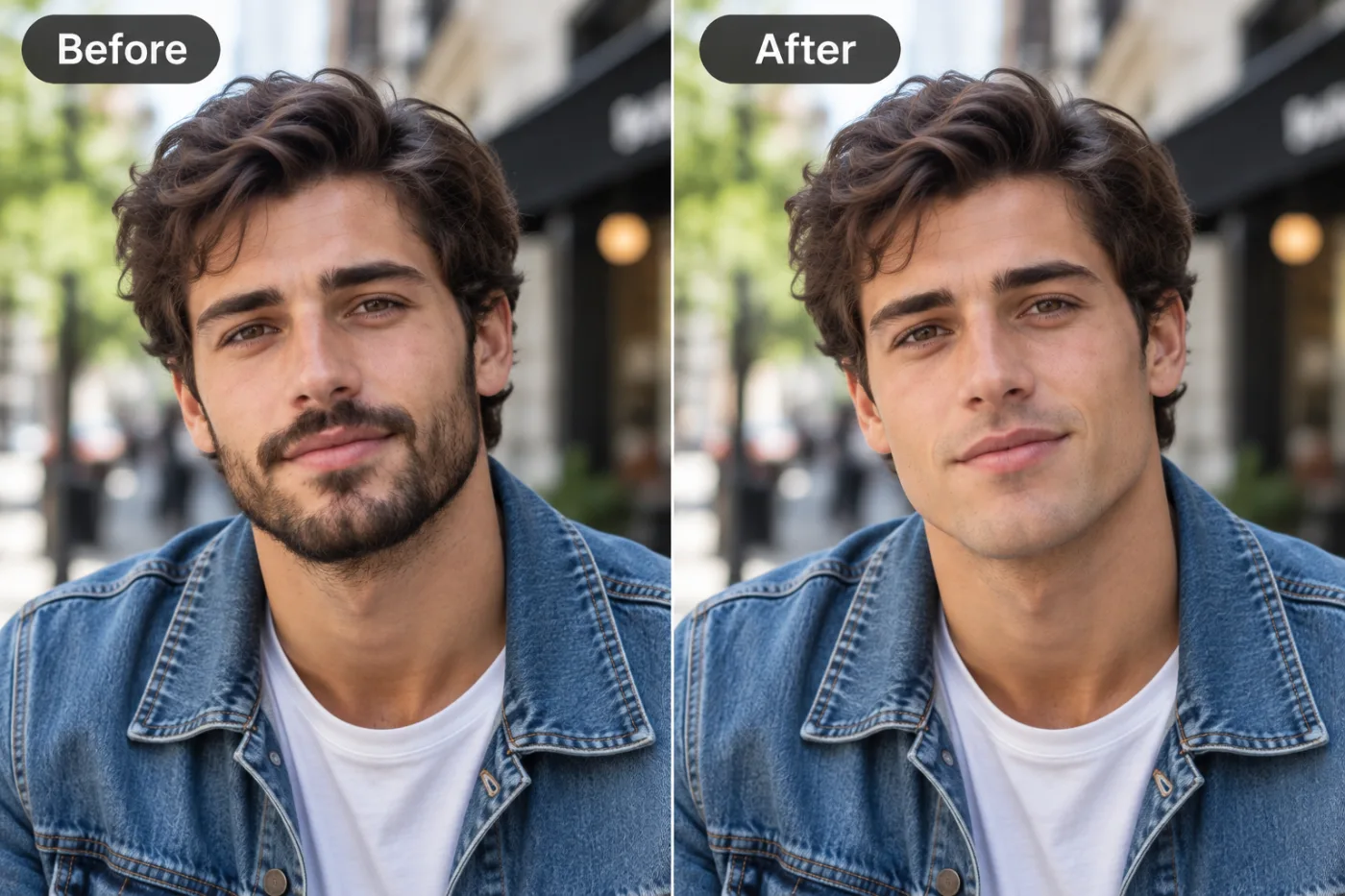
+ Choose a photoSee it in action — real before & after
How to use Beard Remover
Upload the photo
Any JPG, PNG or WEBP. The more resolution the original has, the more the retouch has to work with — detail cannot be invented from a heavily compressed file.
Choose the fix
Pick the correction you need, or describe it in a sentence. Being specific about what to change, and what to leave alone, is most of the skill.
Compare, then download
Check the original against the result at full size before you commit. Download is full resolution, no watermark.
Why use Beard Remover
What Beard Remover does
See the clean-shaven version.
Fixes what the camera got wrong
Colour casts, uneven exposure, flash shine, red eye, harsh shadow — the failures of the room and the lens rather than of the subject.
Restrained by default
Over-retouching is the most common mistake in the category. The defaults are deliberately conservative.
Consistent across a set
Apply the same correction to every photo from one event so the whole set matches rather than each frame looking individually processed.
No editor to learn
No frequency separation, no dodge and burn, no masks. The pass that takes an experienced retoucher ten minutes takes a sentence.
Full resolution out
The download is not a downscaled preview. It goes straight into a print, a listing or a profile.
What Beard Remover changes
Remove all facial hair to reveal a clean-shaven face: reconstruct the jaw, chin and upper-lip skin with tone and texture matching the surrounding face. Preserve the same person's recognizable identity from the uploaded reference: face shape, forehead, cheekbones, jawline, eye shape and spacing, eyebrows, nose, lips, natural asymmetry, age appearance, skin tone and distinctive features. Do not replace them with a generic AI face or beautify/idealize their features. Keep natural skin texture and pores; avoid waxy smoothing, exaggerated eyes, reshaped facial features and artificial symmetry. Change only what the app's requested transformation requires. For photographic results, use realistic camera detail: natural skin texture and pores, believable eyes and hair strands, coherent lighting and shadows, correct anatomy and perspective, and matching sharpness across face, neck and body. Avoid waxy skin, over-retouching, distorted features, face-morphing and pasted-on faces. If the app intentionally creates artwork, render the requested medium consistently across the whole image instead of forcing photorealism.
Your face, bone structure and skin tone are held fixed on every generation — only what is described above is changed.
Beard Remover for the fixes that actually come up
Most retouching is a handful of recurring problems. Each one has a specific fix rather than a general "enhance" slider.
Portraits and profile photos
Temporary blemishes, shine, stray hair and flash red-eye — the four things that stop an otherwise good photo of a person being usable.
Colour and exposure correction
Fluorescent green, tungsten orange, a flat grey day. Getting the white balance right fixes photos people assume are unfixable.
Event and group photos
One consistent pass across a whole set, so the album reads as a single shoot.
Product and listing photos
Dust, fingerprints, glare and colour accuracy, which is what marketplace returns are usually argued over.
Key highlights of Beard Remover
Benefits
Credits never expire
Buy once, use them whenever the next batch of photos turns up.
No subscription needed
Buy a one-time pack whose credits never expire, or go monthly for the lowest price per credit and cancel any time.
Three models to choose from
Nano Banana Pro, GPT Image and Seedream 4.5 handle the same job differently. If one result is not right, another model often is.
Every aspect ratio
Square, 4:5, 9:16, 16:9 and more, chosen before generating so nothing important gets cropped away afterwards.
Full resolution, no watermark
The download is the full generated image with nothing overlaid — usable in print, in a listing or commercially.
What people use it for
What it is mainly used for
See the clean-shaven version. Set the options to suit you, and download the result at full resolution with no watermark.
Event albums
Hundreds of frames from one room, all needing the same correction rather than individual attention.
Dating profiles
Corrected colour and exposure, without the smoothing that reads instantly as filtered.
Documentation and comparison photos
Two photos matched for light and colour so the difference between them is the actual subject.
Older phone photos
Noise and compression from an earlier phone, cleaned up enough to print.
Prompt ideas
Name the specific problem and, just as importantly, say what to leave alone. Retouching prompts fail by being too broad — "make it better" invites the model to change things you were happy with.
Be explicit about limits
"Do not change face shape, do not slim anything, do not whiten teeth" prevents the drift towards a generic beauty look.
Point at the area
Left, right, background, foreground, upper third. A location narrows the edit enormously.
Ask for realism
"Keep it looking like an unretouched photograph" pulls the result back when a style is creeping in.
Handle noise carefully
"Reduce noise but keep fine detail in the hair and fabric" avoids the smeared look of aggressive denoising.
One change per run
Fix one thing, look at it, then fix the next. Stacked instructions are where retouching goes wrong.
Be concrete, not complimentary
"Soft light from the left, plain grey background" gives the model something to act on. "Beautiful, high quality, 8k" gives it nothing at all.
More about Beard Remover
Almost every photo that gets deleted is technically fixable. A colour cast from office lighting, a shine across the forehead from a flash, one temporary blemish the eye goes straight to. None of those are problems with the subject; they are problems with the room, and rooms are fixable.
The professional version of this work is called a beauty pass, it takes a skilled retoucher ten to thirty minutes an image, and it consists almost entirely of restraint. Knowing what to leave alone is the craft, and it is what the conservative defaults here are trying to encode.
Retouching is the part of photography nobody outside it can see and everybody notices. A distracting blemish, a shine across the forehead, a colour cast from a fluorescent tube — individually small, collectively the difference between a photo you post and a photo you delete. Beard Remover handles that pass without opening an editor.
Getting the best result from Beard Remover
- Keep the original file. It is a better base for the next attempt than a generated image is.
- For a matching set, keep the same source photo and style and change only one variable.
- Nothing you upload is published, shared or added to a gallery — but do not upload anything you would not want to leave your device at all.
- The free on-device tools — compress, convert, crop, resize, rotate — cost no credits, so use them for mechanical work.
- If a result is nearly right, say what is wrong with it in the next run rather than starting over.
- Start from the largest, least compressed version of the photo you have — a screenshot of a photo has already lost what the retouch needs.
- Fix one thing per run and check it at full size before moving on.
- Always add "keep skin texture" for anything involving a face.
It runs online — nothing to install. Explore the rest of our AI Creative Apps, or open the full AI photo editor for more control.
Frequently Asked Questions
How does the beard remover work?
What photo should I upload?
Is the beard remover free?
Will it still look like me?
Do you watermark the download?
Will my skin end up looking artificial?
Does it change my face shape or body?
Can it rescue a blurred or very dark photo?
Can I use it on a whole set of photos?
Find another way to use Pixel Shine
Explore tools grouped by the outcome you want, including social media, LinkedIn, ecommerce, real estate, photography, creators and weddings.


