Silhouette Maker
Clean two-tone cutout silhouettes. Set the options to suit you, and download the result at full resolution with no watermark.
Click anywhere in this box or drag a photo in. Set the options on the left, then hit Generate — your original stays untouched, you always see both.
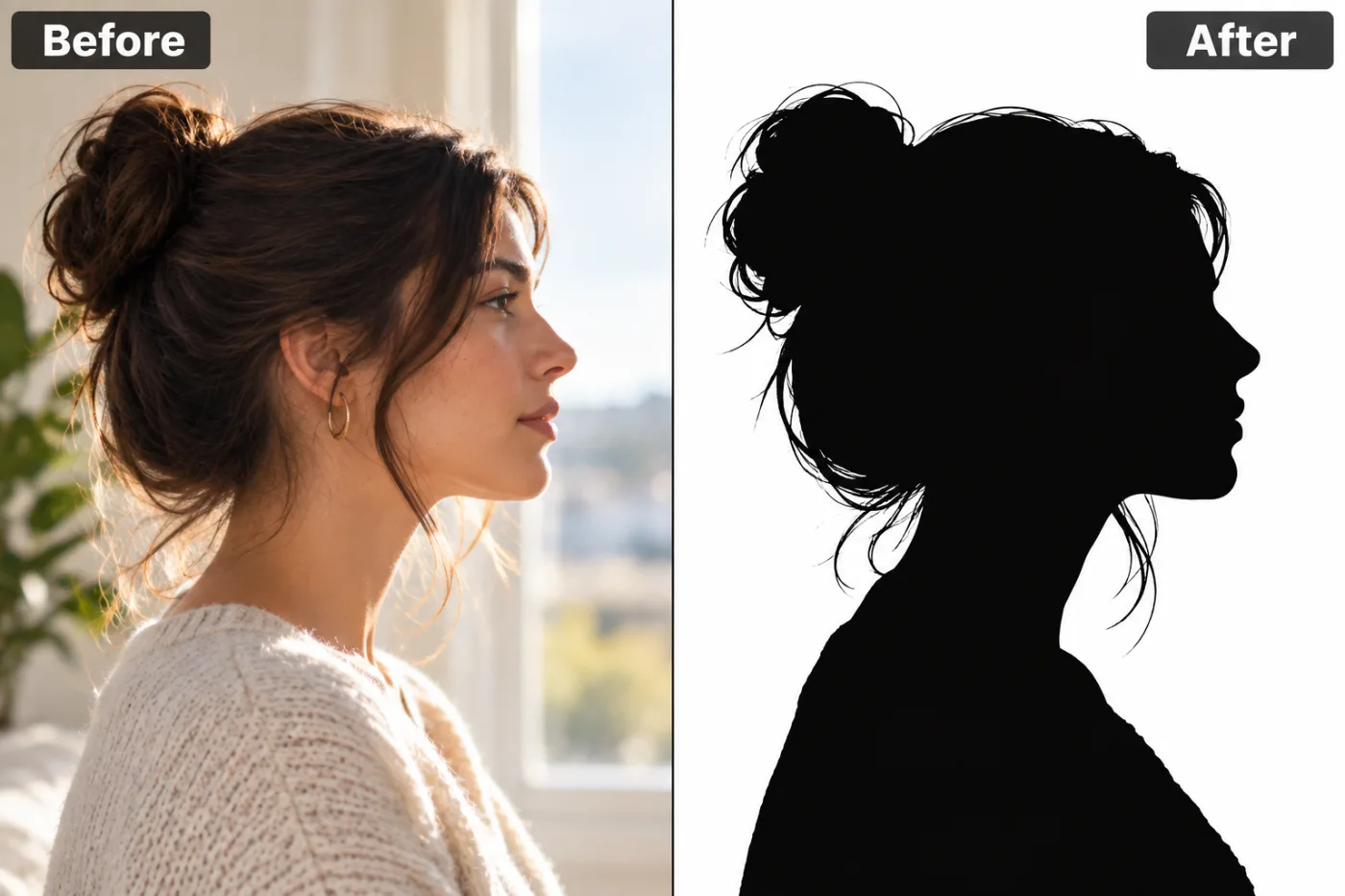
+ Choose a photoSee it in action — real before & after
How to use Silhouette Maker
Upload the photo
A clear JPG, PNG or WEBP. Portraits work best when the face fills a reasonable part of the frame — a distant full-body shot gives the model very little face to work from.
Pick the style or write your own
Choose a preset, or describe the medium you want: line weight, palette, texture, era. Naming the medium precisely is what separates a good result from a vague one.
Generate and download
Full resolution, no watermark. Good enough to print, use as an avatar, or send to someone as a gift.
Why use Silhouette Maker
What Silhouette Maker does
Clean two-tone cutout silhouettes.
Any ratio you need
Square for an avatar, portrait for a print, wide for a banner or a cover. Set before generating.
Cheaper than a commission by orders of magnitude
An illustrated portrait typically runs from $40 to several hundred. A pack of credits starts at $2.
Recognisable after the conversion
Facial proportions and the details that identify a person are carried into the new medium rather than replaced by a generic character face.
A real change of medium
Brush texture, ink weight, cel shading, moulded plastic, woven canvas. The material of the image changes, not just its colours.
Consistent across a set
Run several photos through the same style and they look like one commission rather than a pile of unrelated experiments.
What Silhouette Maker changes
Reduce this to a clean silhouette: the subject rendered as a solid single-colour shape with a crisp readable contour, against a plain contrasting background. No interior detail. For photographic results, use realistic camera detail: natural skin texture and pores, believable eyes and hair strands, coherent lighting and shadows, correct anatomy and perspective, and matching sharpness across face, neck and body. Avoid waxy skin, over-retouching, distorted features, face-morphing and pasted-on faces. If the app intentionally creates artwork, render the requested medium consistently across the whole image instead of forcing photorealism.
Your face, bone structure and skin tone are held fixed on every generation — only what is described above is changed.
Silhouette Maker for prints, avatars and gifts
The same conversion serves very different ends — a profile picture, a framed print, a card, a set of matching avatars for a group.
Profile pictures and avatars
A stylised portrait stands out in a feed of photographs, and it stays readable when a platform shrinks it to 40 pixels.
Prints and framed gifts
A converted portrait of a person, a couple or a pet is the kind of gift people keep, and it costs the price of the frame.
Cards and invitations
An illustrated portrait sits on a card in a way a photograph usually does not, without needing a designer.
Matching sets for a group
A team, a family or a friend group converted in one style, which looks deliberate in a way individual photos never do.
Key highlights of Silhouette Maker
Benefits
Nothing to learn
No illustration software, no tablet, no understanding of layers or masks.
Keeps the likeness
The point of a portrait is that it is of someone. Identity preservation is applied to every person-editing prompt.
Full resolution and no watermark
Print it, frame it, use it commercially. Nothing is stamped on the result.
No subscription needed
One-time packs never expire. Monthly plans are optional and cancel any time.
Works on a phone
The whole flow runs in a mobile browser, which is where the source photo already is.
What people use it for
What it is mainly used for
Clean two-tone cutout silhouettes. Set the options to suit you, and download the result at full resolution with no watermark.
An avatar that is not another selfie
Stylised portraits read as a deliberate choice in a grid of photographs, and they stay legible at tiny sizes.
A gift that took no planning
A parent, a partner or a pet converted into a print, ordered the same evening.
Group and team sets
Everyone in one style — for an About page, a group chat, a wedding party or a D&D table.
Pet portraits
The single most requested illustrated portrait, and the one people are most reliably delighted by.
Prompt ideas
Presets cover the common styles. If you write your own, describe the medium as a maker would: line, colour, texture, era. Vague adjectives like "beautiful" or "high quality" do nothing; "thick ink outlines, flat colour, halftone shading" does a great deal.
Ask for clean space if text is going on it
"Leave the upper third uncluttered" gives a title somewhere to go, which is the usual reason a good cover fails.
Be concrete, not complimentary
"Soft light from the left, plain grey background" gives the model something to act on. "Beautiful, high quality, 8k" gives it nothing at all.
Change one thing at a time
If a result is close, edit a single detail and run it again. Rewriting the whole prompt gives you an unrelated image and no information about what the change did.
Say what must not change
A short exclusion — "do not change the face", "keep the label text" — is often more effective than any amount of positive description.
Keep it short
Three or four specific clauses beat a paragraph. Long prompts dilute every instruction in them, including the one you cared about.
Name the framing
Close-up, head and shoulders, full body, centred, offset. Framing decides what the image is actually of.
More about Silhouette Maker
Turning a photograph into another medium used to be a commission. You found an illustrator, described what you wanted, waited a week and paid for it. Silhouette Maker does the same conversion from a photo you already have, in about a minute.
The difficult part is not applying a filter — it is keeping the person recognisable while genuinely changing the medium. A good stylised portrait still reads as you: the proportions of the face, the set of the eyes, the hairline. A bad one is a generic character with your colour palette. This tool is tuned for the first outcome, which is why a clear source photo matters more than the style you pick.
Each generation costs 2 credits from a one-time pack. That is cheap enough to try the same photo in three styles and keep whichever one your friends actually recognise you in.
Getting the best result from Silhouette Maker
- Use a source photo where the face is large in the frame — stylisation loses detail, so start with more of it.
- Even, soft lighting converts best. Harsh shadow becomes a solid black shape in most stylised mediums.
- One subject converts more reliably than a crowd. For groups, keep everyone facing forward and close together.
- Avoid photos that are already filtered — stacking a style on a style gives muddy results.
- Simple backgrounds convert better. A cluttered room becomes visual noise in the styled version.
- For avatars, generate square and ask for a plain background, or the crop will cut into the head.
- Regenerate a few times: stylised output varies more between runs than photographic output does.
- Check hands, glasses and any lettering — these are where stylised results most often break down.
It runs online — nothing to install. Explore the rest of our AI Creative Apps, or open the full AI photo editor for more control.
Frequently Asked Questions
How does the silhouette maker work?
What photo should I upload?
Is the silhouette maker free?
Will it still look like me?
Do you watermark the download?
Will the portrait still look like the person?
Can I use the result commercially or print it?
Does it work on pets and objects, or only people?
Why does the same photo give different results each time?
Find another way to use Pixel Shine
Explore tools grouped by the outcome you want, including social media, LinkedIn, ecommerce, real estate, photography, creators and weddings.


