AI Dress Photo Editor
Swap or upgrade the dress in a photo. Set the options to suit you, and download the result at full resolution with no watermark.
Click anywhere in this box or drag a photo in. Set the options on the left, then hit Generate — your original stays untouched, you always see both.
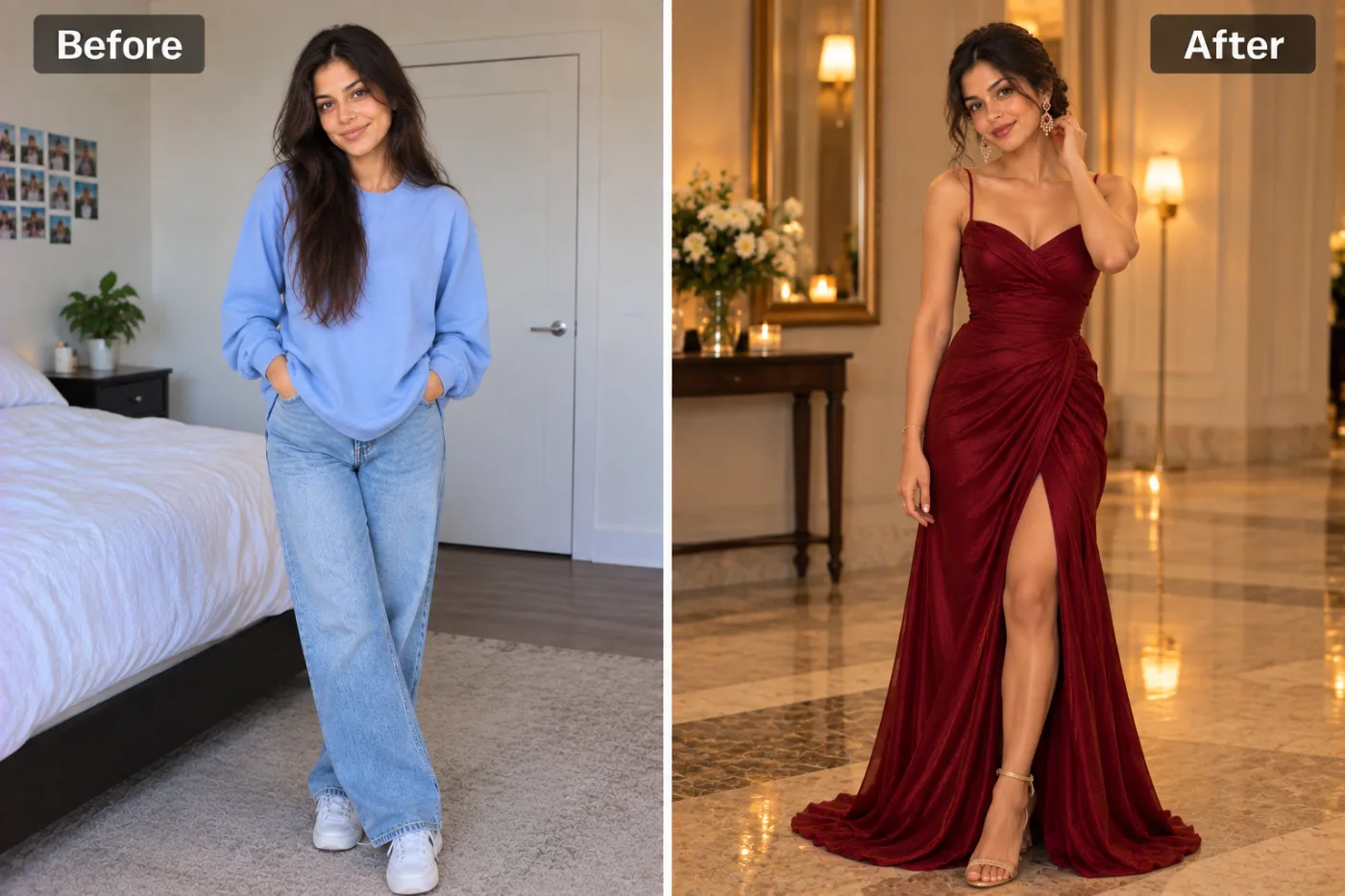
+ Choose a photoSee it in action — real before & after
How to use AI Dress Photo Editor
Upload your photo
A clear selfie or portrait in JPG, PNG or WEBP. Face visible, reasonable light. Group photos work too — say how many people are in the frame.
Choose a look or describe one
Pick a ready-made style, or write a short brief naming the outfit, the setting and the mood you want. Both routes go to the same engine.
Generate, then download
Look at the before and after side by side, regenerate if the styling is not right, then download at full resolution with no watermark.
Why use AI Dress Photo Editor
What AI Dress Photo Editor does
Swap or upgrade the dress in a photo.
Complete wardrobe changes
Fabric that drapes, jewellery that catches light, clothing that fits the body in the photo rather than being pasted on top of it.
Real backgrounds with depth
The existing background is replaced with a setting that has genuine distance in it, so the subject is separated rather than cut out and stuck down.
Lighting matched to the mood
Warm low sun, soft window light, hard studio key or moody low-key — the light is what makes a photo feel expensive, far more than the clothes.
Group photos supported
Couples, families and friends are handled together, with each face preserved individually instead of averaged into one generic look.
Any aspect ratio
Square for a grid, 4:5 for a feed, 9:16 for a story, wide for a banner. Chosen before generating so nothing important gets cropped away.
What AI Dress Photo Editor changes
Restage this as an elegant evening photograph, full length from head to toe so the whole outfit is visible, in a poised, relaxed pose. Unless an outfit is described below, dress them in a wine-red draped satin gown with thin straps and a thigh-high slit, strappy heels and drop earrings — for a man, a dark velvet dinner jacket with black trousers. Style their own hair into a low, elegant updo, or neatly groomed. Unless a setting is given below, place them in a luxury hotel lobby with a marble floor, a gilded mirror, table lamps and fresh flowers. Warm, glowing evening light with soft shadows and a polished editorial finish. Preserve the same person's recognizable identity from the uploaded reference: face shape, forehead, cheekbones, jawline, eye shape and spacing, eyebrows, nose, lips, natural asymmetry, age appearance, skin tone and distinctive features. Do not replace them with a generic AI face or beautify/idealize their features. Keep natural skin texture and pores; avoid waxy smoothing, exaggerated eyes, reshaped facial features and artificial symmetry. Change only what the app's requested transformation requires. For photographic results, use realistic camera detail: natural skin texture and pores, believable eyes and hair strands, coherent lighting and shadows, correct anatomy and perspective, and matching sharpness across face, neck and body. Avoid waxy skin, over-retouching, distorted features, face-morphing and pasted-on faces. If the app intentionally creates artwork, render the requested medium consistently across the whole image instead of forcing photorealism.
Your face, bone structure and skin tone are held fixed on every generation — only what is described above is changed.
AI Dress Photo Editor built for every kind of occasion
Change the clothes, the setting, the colours and the mood. The same photo can become a festival portrait, a studio sitting or a candid outdoor shot.
Couples and family portraits
Two or more people styled together, with everyone's face kept, which is the part most tools quietly get wrong.
Studio-style sittings
Controlled light, a clean backdrop and deliberate posing, without hiring the studio or the photographer.
Outdoor and candid looks
Golden hour, real streets, natural stances. Less formal, and usually the version people actually use as a profile photo.
Themed and seasonal sets
Christmas, graduation, prom, Diwali, Thanksgiving. Generated the week they are relevant rather than planned a month out.
Key highlights of AI Dress Photo Editor
Benefits
No subscription needed
Buy a one-time pack whose credits never expire, or go monthly for the lowest price per credit and cancel any time.
Three models to choose from
Nano Banana Pro, GPT Image and Seedream 4.5 handle the same job differently. If one result is not right, another model often is.
Every aspect ratio
Square, 4:5, 9:16, 16:9 and more, chosen before generating so nothing important gets cropped away afterwards.
Full resolution, no watermark
The download is the full generated image with nothing overlaid — usable in print, in a listing or commercially.
The free tools stay free
Compress, convert, crop, resize, rotate and the rest are unlimited, with no account and no credit cost.
What people use it for
What it is mainly used for
Swap or upgrade the dress in a photo. Set the options to suit you, and download the result at full resolution with no watermark.
Festival and wedding season posts
The traditional portrait everyone wants and almost nobody finds time to shoot properly during the actual event.
Save-the-dates and invitations
A styled couple portrait that suits the card, generated before the real shoot happens — or instead of it.
Milestone photos
Graduations, new jobs, birthdays, anniversaries. The moment passes faster than a photoshoot can be arranged.
Gifts for family
A parent or grandparent styled into a portrait they would never sit for, printed and framed.
Prompt ideas
The presets handle most of it. When you do write a prompt, name four things — the outfit, the setting, the light and the mood — and stop there. Longer prompts usually get you further from what you wanted, not closer.
Be concrete, not complimentary
"Soft light from the left, plain grey background" gives the model something to act on. "Beautiful, high quality, 8k" gives it nothing at all.
Say what must not change
A short exclusion — "do not change the face", "keep the label text" — is often more effective than any amount of positive description.
Keep it short
Three or four specific clauses beat a paragraph. Long prompts dilute every instruction in them, including the one you cared about.
Name the framing
Close-up, head and shoulders, full body, centred, offset. Framing decides what the image is actually of.
Avoid asking for text in the image
Generated lettering is still unreliable. Ask for empty space where the text should go and add real type afterwards.
Pick the ratio first
Generating square and cropping to vertical throws away part of the frame. Choose the shape before you generate.
More about AI Dress Photo Editor
The interesting part is what actually changes. The wardrobe, the setting, the lighting and the mood are generated; your face is not. That is the difference between a portrait of you in a different setting and a picture of a stranger who vaguely resembles you. A clear, well-lit source photo is what makes it hold.
It is most used before the moments that make people want a good photo of themselves — festivals, weddings, birthdays, a new job, a profile that has gone stale. Each generation costs 2 credits from a one-time pack that never expires, so running a look three different ways and keeping the best is normal.
The gap between a snapshot and a portrait is not the camera. It is the light, the clothing, the background, and the fact that somebody thought about all three before the shutter opened. AI Dress Photo Editor applies that thinking to a photo where nobody did.
Getting the best result from AI Dress Photo Editor
- Check hands, jewellery and any text in the background before sharing — these are still the weak spots of image models.
- For a set that looks like one shoot, keep the same source photo and the same style and vary only the pose or framing.
- Very small or heavily compressed source images limit the final resolution. Use the largest original you have.
- Keep the original file. It is a better base for the next look than a generated image is.
- Start from the largest, least compressed original you have — a screenshot of a photo has already lost detail that cannot be recovered.
- Soft, even light in the source photo gives the best result almost regardless of what you are generating.
- Judge every result at full size, not zoomed out. Problems hide at small sizes.
- Generate two or three times before deciding. Results vary between runs, and the first is not reliably the best.
It runs online — nothing to install. Explore the rest of our AI Creative Apps, or open the full AI photo editor for more control.
Frequently Asked Questions
How does the ai dress photo editor work?
What photo should I upload?
Is the ai dress photo editor free?
Will it still look like me?
Do you watermark the download?
Will my face still look like me?
Does it work with group photos?
Can I print the result?
How many credits does one photo cost?
Find another way to use Pixel Shine
Explore tools grouped by the outcome you want, including social media, LinkedIn, ecommerce, real estate, photography, creators and weddings.


