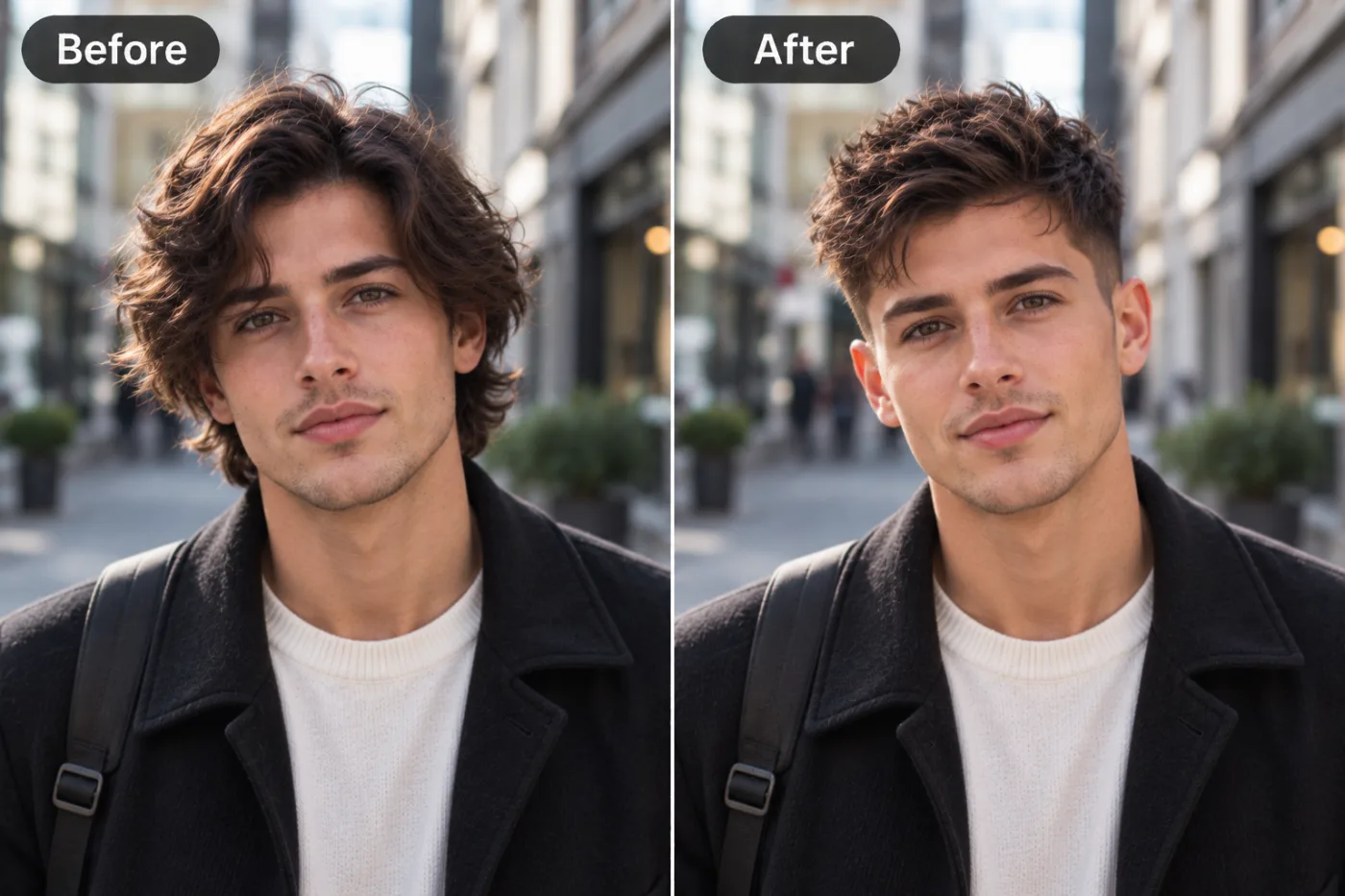
What does the AI hairstyle changer do?
It changes your hair and nothing else. You pick a style, and the AI redraws your hair in that cut, matching it to your own hairline so it looks like it grows from your head, keeping the texture and thickness believable for your hair, and relighting it to fit the photo.
Your face is untouched: same features, same skin, same expression, same background. That's what makes it useful. You're not looking at a model with your hairstyle; you're looking at yourself with a new one.
It's the quickest answer to "would this suit me?", the question everyone asks before a big cut. Ten minutes of trying styles here can save months of growing out a cut you didn't like.
Which hairstyles can you try?
Ten styles are in the Hairstyle menu. Here's what each one gives you, and who tends to suit it.
Fresh cut
The default: a modern, flattering cut that suits your face and hair type. Short textured top with tapered sides for short hair, soft face-framing layers for long hair. A safe first try.
Long & straight
Sleek hair falling past the shoulders. Good for seeing how you'd look growing your hair out.
Long & wavy
Loose waves past the shoulders: relaxed and full. Flattering on most face shapes.
Shoulder bob
A blunt bob that sits around the jaw. Strong and polished; suits oval and heart-shaped faces especially.
Pixie crop
A short, textured pixie. The boldest change, and the one most worth previewing before you cut.
Natural curls
Defined curls with real volume at the roots. Try it if you're thinking about a curl-friendly cut or a perm.
Ponytail
A high ponytail with a clean hairline and a few loose strands. Useful for event and gym looks.
Bun
Hair gathered into a neat bun. A quick preview of a wedding or formal updo.
Side part & quiff
A side parting with volume at the front and tapered sides. A classic, smart men's cut that works for any length.
Braids
Neat braids with a believable parting pattern. Preview braided styles before a long salon appointment.
Which haircut suits your face shape?
Hairdressers often start with face shape, because a cut can balance it. These are the usual rules of thumb, and the app is a good way to check them on your own face.
Oval face
Suits almost anything. A Shoulder bob, Long & wavy, or a Pixie crop all work; it's mostly about what you like.
Round face
Length and height help. Long & straight, Long & wavy and a Side part & quiff lengthen the face; a jaw-length bob can make it look rounder.
Square face
Soft shapes balance a strong jaw. Long & wavy and Natural curls soften it; very blunt cuts at the jaw emphasise it.
Heart-shaped face
Volume near the jaw balances a wider forehead. A Shoulder bob and Long & wavy are good choices.
Long face
Width helps more than length. Natural curls, a bob and styles with volume at the sides suit it; very long, straight hair can make it look longer.
Rules are a starting point, not a verdict. Try the styles they suggest and a couple they don't. Your own eyes on your own photo are the best test.
How do you get a realistic result?
- Use a straight-on photo. Your hairline and the shape of your head are clearest from the front.
- Push hair back from your face if you can. A fringe hides your forehead, and the AI has to guess the hairline underneath.
- Avoid hats, headbands and hoods. Anything on your head gets in the way of the new style.
- Keep the light even. Strong light from one side makes the new hair harder to match.
- Try the same style twice. Each run is slightly different, and the second is sometimes a better match.
- Take a screenshot of the result to your hairdresser. A picture of the cut on your own face explains it better than any description.
How accurate is it?
It shows the shape and length of a style on your head convincingly, which is what you need to decide if you like it. What it can't know is exactly how your hair behaves: whether it holds a curl, how a fringe sits with your cowlick, or how much volume your hair has on a humid day.
So treat the result as a preview of the look, not a promise from the salon. Your hairdresser can tell you whether your hair type will actually do it. Bring the picture along and ask.
What can't it do?
- Change your hair colour. It keeps your colour. To try a new colour, use the hair colour changer, then run the result through this app.
- Make a style from a reference photo. You choose from the ten styles; you can't upload a celebrity's haircut. Describe a specific cut in the AI photo editor instead.
- Add a beard. Facial hair isn't changed. The beard filter does that.
- Show the back of your head. It changes the photo you upload, so you see the front view only.
When is it most useful?
Before a big cut
Going from long to a pixie or a bob? Preview it first. It's the biggest decision people use this app for.
Wedding and event hair
Compare a bun, a ponytail and loose waves with your outfit before the day, and show your stylist your favourite.
Braids and protective styles
See braids on yourself before booking a long appointment.
Growing it out
Long & straight and Long & wavy show where you're heading, which helps on the in-between days.
A fresh profile picture
A new cut in your profile picture before the real one? Fun for a reveal post.
What happens to your photo?
It's sent to our image-model partner, fal.ai, to make the new picture, and to no one else. It isn't used to train AI models and is never sold, and both your photo and the results are yours.
Your results are saved in My Creations so you can compare styles later or show your hairdresser. Delete any of them whenever you like, or ask us to delete your account and everything in it.


